Flutter Checker




A VS Code extension that helps you identify outdated packages in your Flutter/Dart pubspec.yaml files with intelligent color-coded highlighting and detailed update information.
Preview
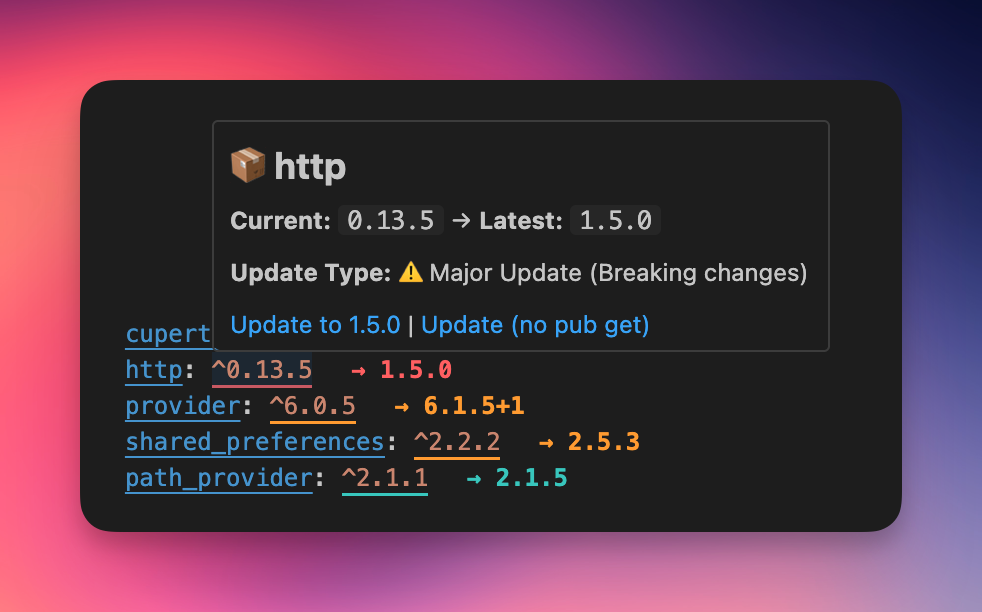
The extension highlights outdated packages with color-coded update types, version comparisons, and rich hover tooltips
Features
- 🚀 Bulk Package Updates (NEW in v1.3.0): Update multiple packages at once with smart presets and safety controls
- 🔍 Smart Detection: Automatically checks for outdated packages when you open or modify
pubspec.yaml files
- 🎨 Color-Coded Updates: Visual highlighting with different colors for patch (🔧), minor (✨), and major (⚠️) updates
- 📊 Rich Hover Information: Detailed hover tooltips showing current → latest version with update type descriptions
- 🚀 One-Click Updates: Quick Fix actions and hover links to update packages with or without running
flutter pub get
- 📈 Status Bar Tracking: Real-time status bar display showing package update counts and checking status
- ⚡ Fast Performance: Intelligent caching system minimizes API calls to pub.dev (5-minute cache)
- 🎛️ Highly Configurable: Customize colors for each update type, theme-aware color schemes, and status bar settings
How it Works
- Package Detection: The extension parses your
pubspec.yaml file to extract package dependencies
- Version Checking: It queries the pub.dev API to get the latest versions of your packages (with intelligent caching)
- Update Classification: Uses semantic versioning to categorize updates as:
- 🔧 Patch Updates: Bug fixes and small improvements
- ✨ Minor Updates: New features (backward compatible)
- ⚠️ Major Updates: Breaking changes
- Visual Highlighting: Outdated packages are highlighted with color-coded underlines, version comparisons, and rich hover tooltips
Bulk Package Updates

Update multiple packages at once with intelligent safety controls and multiple entry points.
Multiple Entry Points
- CodeLens: Inline actions appear at the top of your dependencies section
- Status Bar: Click the status bar for a quick menu with bulk update options
- Command Palette: Access via
Ctrl+Shift+P / Cmd+Shift+P
Smart Update Modes
- 🚀 Update All Safe - Updates all patch and minor versions (no breaking changes)
- ✅ Update Patches Only - Safest option, only bug fixes
- 📋 Select Packages - Interactive multi-select with custom presets:
- Safe Updates (Patch + Minor)
- Patches Only
- Custom Selection
- Update Everything
- Color-Coded Selection - 🟢 Patch, 🟡 Minor, 🔴 Major updates
Safety Features
- Confirmation dialogs with package count breakdowns
- Preview of all changes before applying
- Safe updates pre-selected in custom mode
- Atomic updates (all or nothing)
- Error handling with detailed reports
- Automatic
flutter pub get execution
Usage
Automatic Mode (Default)
The extension automatically checks for outdated packages when:
- You open a
pubspec.yaml file
- You modify a
pubspec.yaml file
- The file is saved
Manual Mode
You can also manually trigger the check:
- Open Command Palette (
Ctrl+Shift+P / Cmd+Shift+P)
- Run
Flutter Checker: Check for Outdated Packages
Clear Highlights
To remove all highlights:
- Open Command Palette (
Ctrl+Shift+P / Cmd+Shift+P)
- Run
Flutter Checker: Clear Package Highlights
Updating Packages
You can update outdated packages directly from the editor:
Quick Fix Actions
- Place your cursor on an outdated package version
- Click the lightbulb icon or press
Ctrl+. / Cmd+.
- Choose from:
- "Update [package] to [version]" - Updates the version and runs
flutter pub get
- "Update [package] to [version] (no pub get)" - Updates the version only
Hover Links
- Hover over any highlighted outdated package version
- Click the update links in the tooltip:
- "Update to [version]" - Updates and runs
flutter pub get
- "Update (no pub get)" - Updates without running
flutter pub get
Status Bar
Real-time status tracking shows package update counts and checking status with configurable visibility and priority position.
Commands
Flutter Checker: Check for Outdated Packages - Manual checkFlutter Checker: Clear Package Highlights - Remove all highlightsFlutter Checker: Update All Safe Packages (Patch + Minor) - Bulk update safe packagesFlutter Checker: Update All Patch Versions - Bulk update patches onlyFlutter Checker: Bulk Update Packages... - Interactive bulk update with presets
Configuration
You can customize the extension behavior in VS Code settings:
{
  "flutterChecker.enabled": true,
  "flutterChecker.autoCheck": true,
  "flutterChecker.showAutoCheckNotifications": false,
  "flutterChecker.highlightColor": "#ff6b6b",
  "flutterChecker.backgroundColor": "#ff6b6b20",
  "flutterChecker.borderColor": "#ff6b6b",
  "flutterChecker.textColor": "#ff6b6b",
  "flutterChecker.versionTextColor": "#ff6b6b",
  "flutterChecker.patchUpdateColor": "#4ecdc4",
  "flutterChecker.minorUpdateColor": "#ffa726",
  "flutterChecker.majorUpdateColor": "#ff6b6b",
  "flutterChecker.showStatusBar": true,
  "flutterChecker.statusBarPriority": 100
}
Key Settings
enabled: Enable/disable the extensionautoCheck: Automatically check for outdated packagesshowStatusBar: Show status bar item with update countsstatusBarPriority: Status bar item positionpatchUpdateColor, minorUpdateColor, majorUpdateColor: Colors for different update types
Note: Update type colors automatically adapt to your VS Code theme.
Installation
From VS Code Marketplace
- Open VS Code
- Go to Extensions (
Ctrl+Shift+X / Cmd+Shift+X)
- Search for "Flutter Checker"
- Click Install
Compatibility
- VS Code: 1.74.0 or higher
- Platforms: Windows, macOS, Linux
License
MIT License - see LICENSE file for details.
Support
If you encounter any issues or have feature requests, please file an issue on the GitHub repository.

