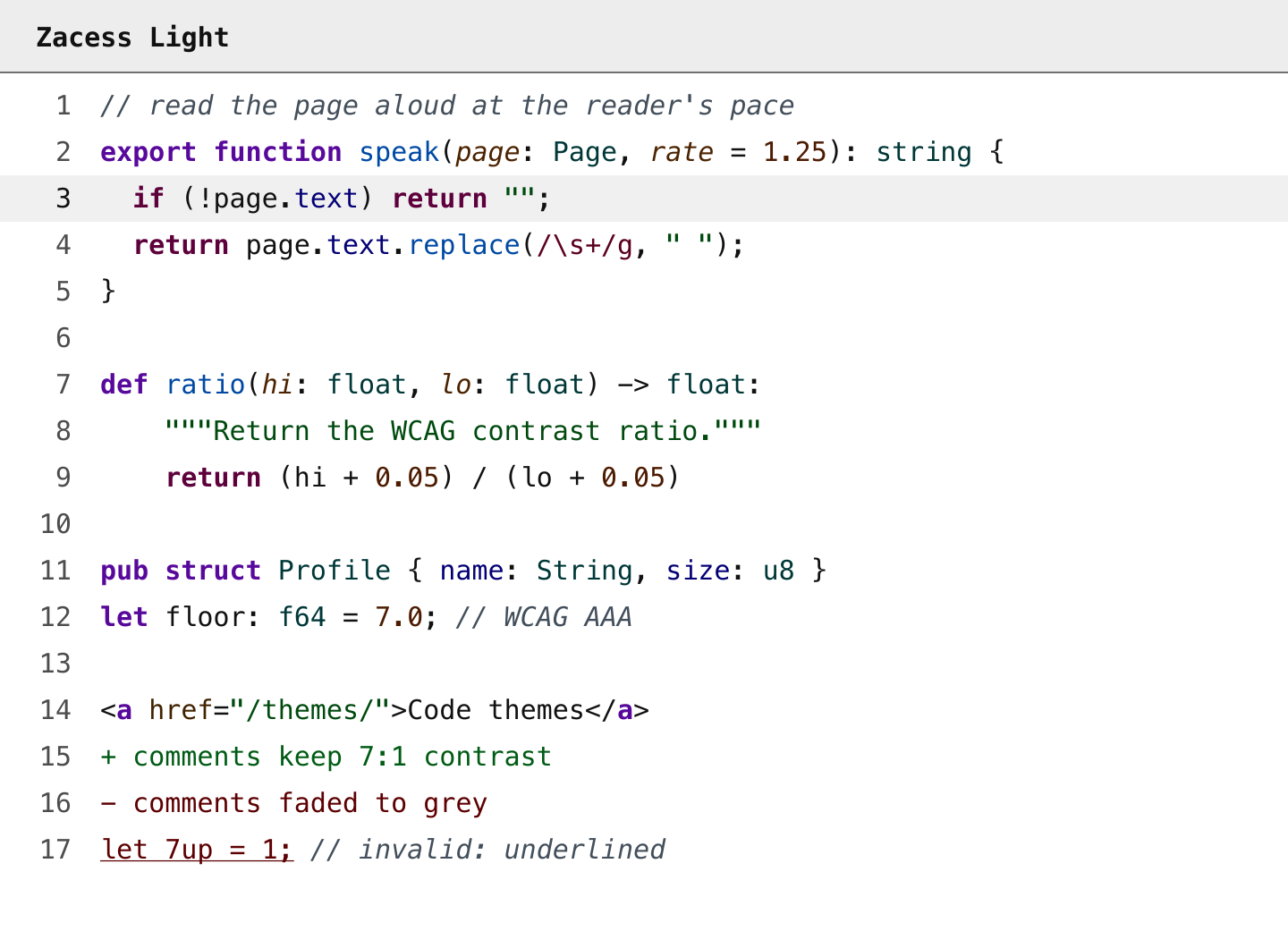
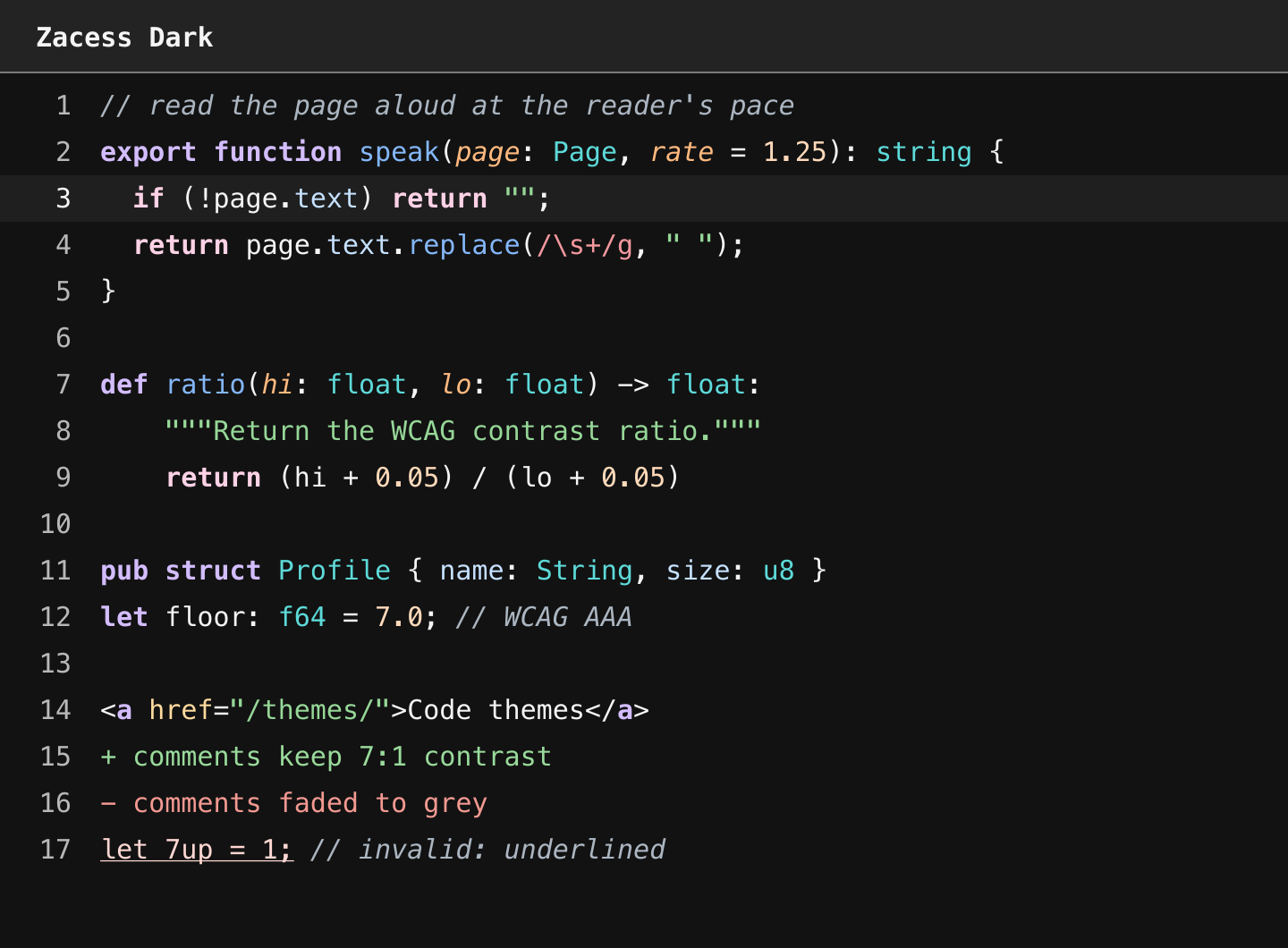
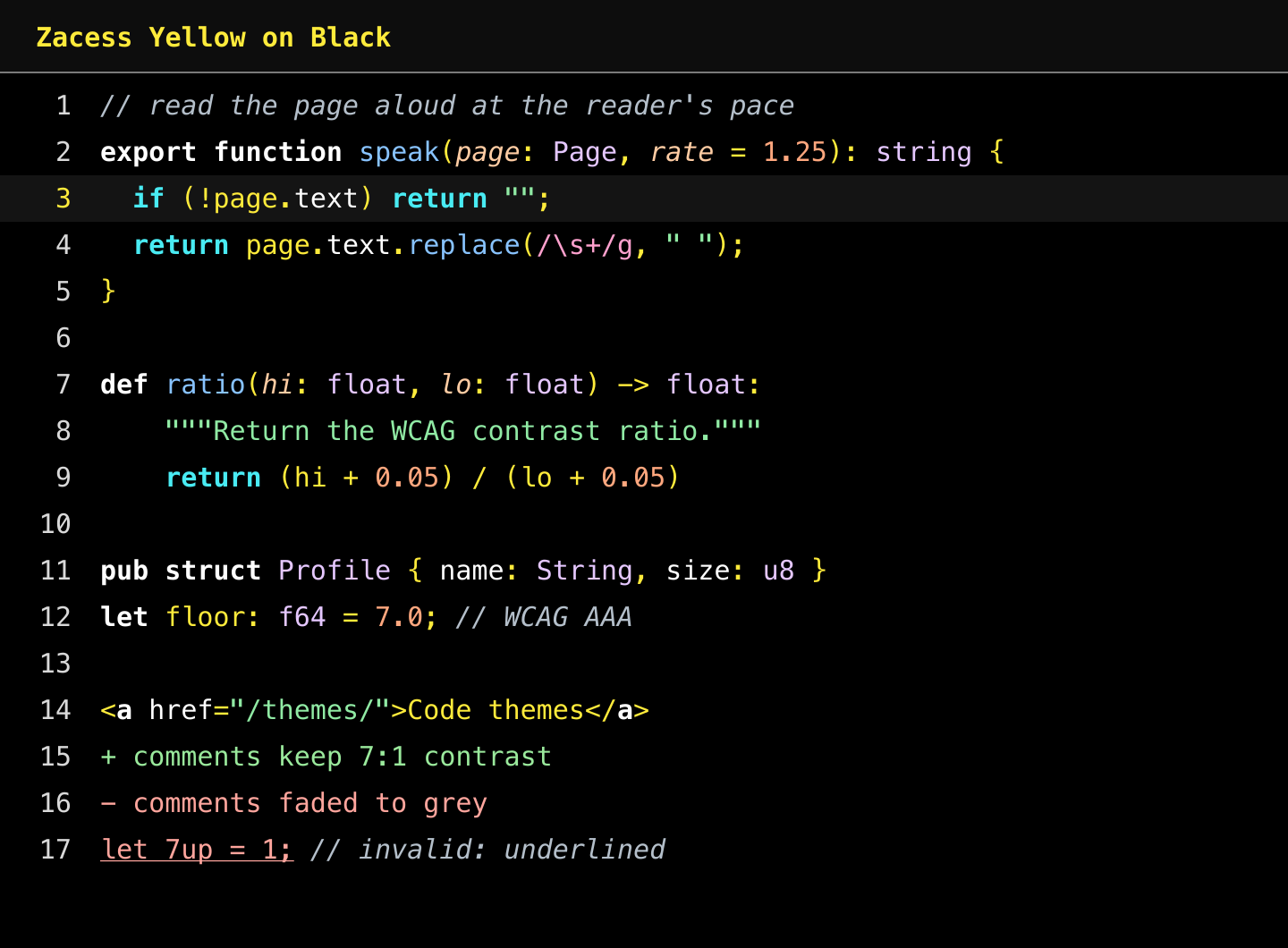
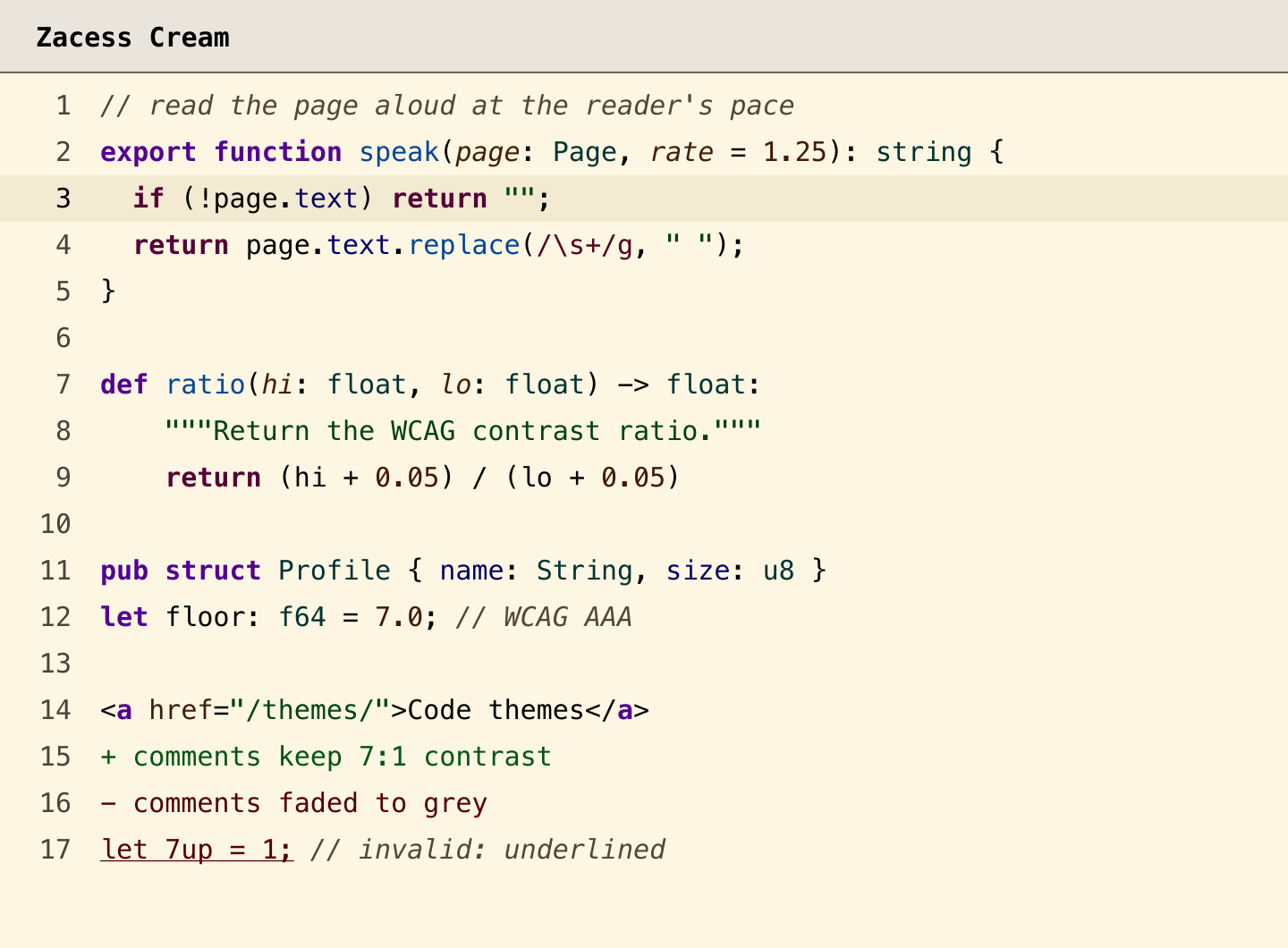
Four high contrast code themes matching the Zacess reader: Light, Dark, Yellow on Black for low vision and Cream for dyslexia. Every text and syntax colour keeps 7:1 contrast.
Installation
Launch VS Code Quick Open (Ctrl+P), paste the following command, and press enter.
Four high contrast code themes that match the Zacess reader, so a student sees
the same page in the reader and in the editor. Every text and syntax colour keeps at least 7:1
contrast (WCAG AAA) on the background, the selection and the current line, comments included.
Theme
For
Text on background
Zacess Light
Everyday use in a bright room
#111111 on #ffffff
Zacess Dark
Everyday use in a dim room
#f5f5f5 on #121212
Zacess Yellow on Black
Low vision
#ffeb3b on #000000
Zacess Cream
Dyslexia friendly reading
#000000 on #fdf6e3
Colour is never the only signal
Keywords, control flow and markup tags are bold.
Comments and parameters are italic.
Invalid code is underlined.
Tokens that often sit side by side differ in lightness or font style, not only in hue. Strings and
numbers, added and removed lines and other red and green pairs are checked under simulated
protanopia, deuteranopia and tritanopia.
Install
Search for Zacess Themes in the Extensions view (Cmd+Shift+X on macOS, Ctrl+Shift+X
elsewhere) and select Install. It is on the VS Code Marketplace
and, for Cursor, Windsurf, VSCodium, Antigravity, Kiro and other editors built on VS Code, on
Open VSX.
Run Preferences: Color Theme (Cmd+K Cmd+T on macOS, Ctrl+K Ctrl+T elsewhere) and pick a
Zacess theme.
From a terminal the first step is:
code --install-extension zacess.zacess-themes
To install offline, download zacess-themes-<version>.vsix from the
latest release and run
Extensions: Install from VSIX....
More
The contrast tables, the palette and the same themes for JetBrains IDEs, Obsidian, Neovim, Zed and
terminals are in the zacesshq/themes repository.