Workspace Folder Focus
Toggle between showing all workspace folders and only the ones you're actively working on, in a multi-root VS Code workspace — and save those selections as named presets you can switch between instantly.
How it works
VS Code has no API to visually hide a workspace root, so the extension does the next best thing: it keeps a registry of every folder in the workspace, then removes inactive folders when focus mode is on and re-adds them when you turn it off. Nothing on disk is touched.
All state lives in VS Code's per-workspace storage (workspaceState) — the extension never writes into your project's .vscode/settings.json or .code-workspace file, so it leaves no trace in your repo.
Presets
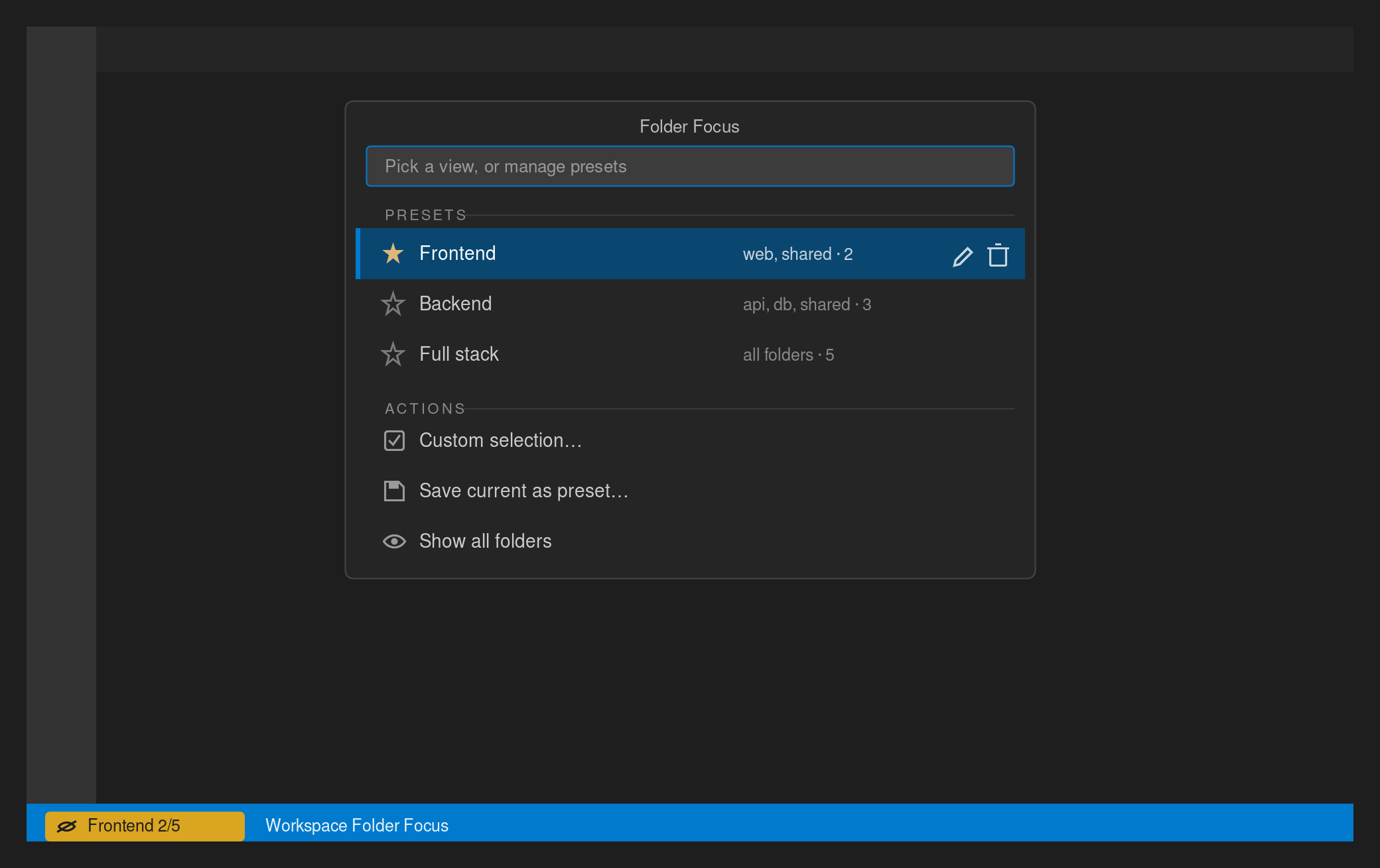
A preset is a named set of folders — e.g. Frontend = web + shared, Backend = api + db + shared. Click the status bar item to open the presets hub, where you can:
- Apply a preset to focus the workspace on those folders.
- Save the current selection as a new preset.
- Rename or delete presets with the inline buttons.
The status bar shows the active preset's name (e.g. Frontend 2/5) when your selection matches a saved preset, or Focus 2/5 for an ad-hoc selection.
Commands
| Command |
What it does |
Folder Focus: Toggle Focus Mode (Ctrl/Cmd+Alt+F) |
Hide inactive folders / restore all |
Folder Focus: Presets… |
Open the presets hub (also the status bar click) |
Folder Focus: Save Current Folders as Preset |
Save the active selection as a named preset |
Folder Focus: Apply Preset |
Pick a saved preset to focus |
Folder Focus: Select Active Folders |
Multi-select picker for your active set |
Folder Focus: Show All Folders |
Force-restore everything |
Folder Focus: Mark Folder as Active / Inactive |
Also available by right-clicking a root folder in the Explorer |
Usage
- Open your multi-root workspace.
- Click the status bar item and choose Custom selection…, then tick the projects you're working on.
- Save that selection as a preset, or just toggle focus with
Ctrl/Cmd+Alt+F.
- Switch views anytime from the status bar hub.
Folders you add while focus mode is on are automatically treated as active.
Install
From the VS Code Marketplace, or build from source:
npm install
npm run compile
npx @vscode/vsce package        # produces workspace-folder-focus-<version>.vsix
code --install-extension workspace-folder-focus-<version>.vsix
For development: open this folder in VS Code and press F5 to launch an Extension Development Host.
Notes and caveats
- State is stored per workspace by VS Code. For the most reliable persistence, use a saved workspace (
File > Save Workspace As...).
- If the first folder in the workspace is hidden or restored, VS Code restarts the extension host (a brief flicker). State is persisted, so everything comes back correctly.
- Hidden folders are genuinely out of the workspace while focused: search, tasks, and other extensions won't see them. That's usually the point, but worth knowing.
- At least one folder must always remain visible.
License
MIT


