Text Marker Plus
This is an independently maintained distribution derived from
ryu1kn/vscode-text-marker.
It is a community-maintained continuation branch: it preserves the original
Text Marker behavior while adding configurable save targets, optional automatic
saving after Toggle Highlight, support for the VS Code Web platform, and
ongoing compatibility and performance fixes.
And the extension can be installed from the market.
Differences from Upstream
This distribution is maintained independently from the upstream project. It
currently differs from the original plugin in these areas:
- Full-document matching runs in a dedicated worker instead of blocking the
VS Code Extension Host.
- Completed full-document matches are cached by document version, highlight
rule, and match range, reducing repeated scanning during refreshes while
stale asynchronous results are discarded safely.
- Highlights refresh in every currently visible editor pane, including split
panes that do not have focus. Tabs that are open but not visible refresh when
they become visible.
- Runs on the VS Code Web platform, so it activates in vscode.dev and github.dev
as well as on the desktop. This raises the minimum supported VS Code version
to 1.74.0. See VS Code Web.
- Added
textmarker.defaultSaveTarget with Workspace and Global save modes.
- Added optional
textmarker.autoSaveOnToggle persistence.
- Clear All Highlights persists the cleared rules instead of only emptying
the in-memory list, and a failed settings write is reported instead of failing
silently.
- Added optional user-defined highlight colors through
textmarker.userColor
and textmarker.useUserColor.
- Uses the One Half Dark accent palette by default.
- Removed the upstream plugin's telemetry functionality. This extension does not collect any information.
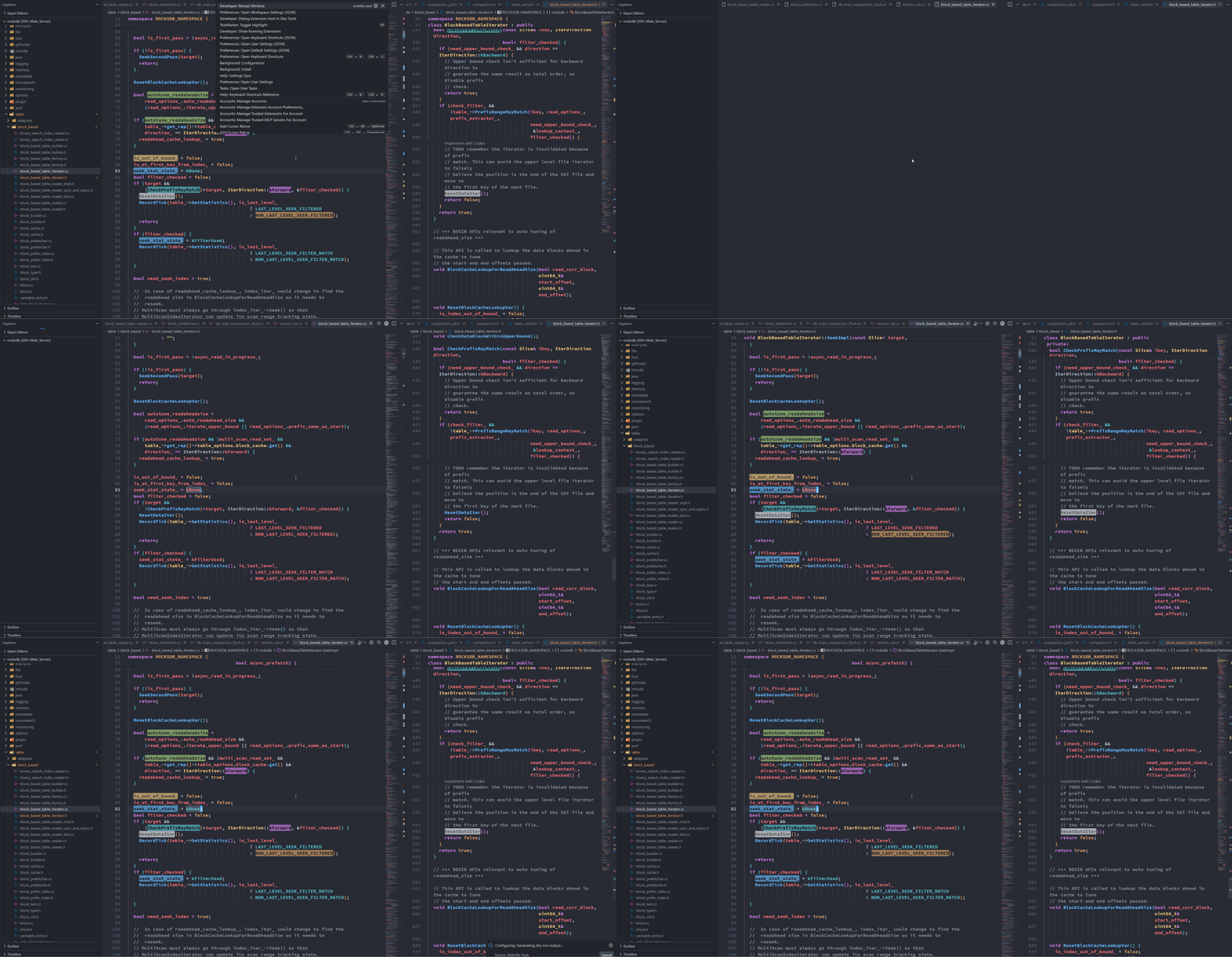
Normal runtime behavior: The visible editor region is highlighted first,
while matches elsewhere are completed asynchronously in the background.
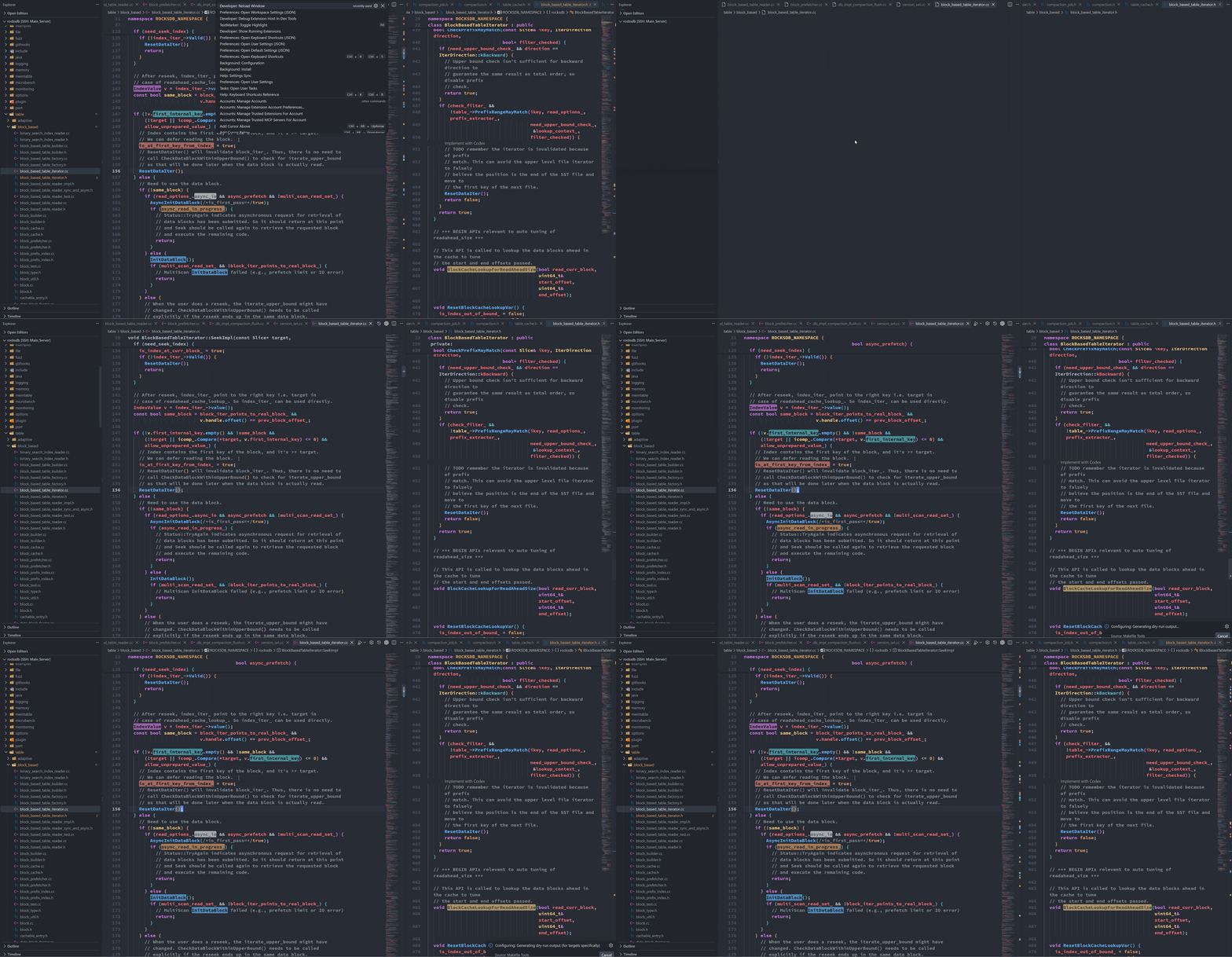
[!NOTE]
Staged rendering demonstration
This GIF was recorded with an intentional 5-second delay inserted before
background full-document matching. The delay exists only to make the staged
rendering behavior clearly visible.
Please compare:
- highlights inside the currently visible editor area;
- highlights shown elsewhere in the sidebar or overview ruler.
The visible editor area is highlighted first. Highlights outside the current
area appear after asynchronous background matching completes.
The 5-second delay is not part of normal runtime behavior. This GIF
demonstrates progressive rendering order, not production matching latency.
Features
- Highlight or unhighlight selected text, or the word under the cursor.
- Highlight every matching occurrence in the current editor.
- Highlight text using regular expressions.
- Toggle case-sensitive or case-insensitive matching.
- Toggle whole-word or partial matching.
- Update existing highlight rules.
- Jump to the next or previous occurrence of the same highlight rule.
- Configure highlight colors, opacity, ruler colors, and status-bar buttons.
- Save highlights and restore them when an editor opens, in the Workspace or
Global settings selected by
textmarker.defaultSaveTarget.
- Optionally save all highlights whenever Toggle Highlight adds or removes
a rule.
Commands
| Command |
Command ID |
| Highlight Text Using Regex |
textmarker.highlightUsingRegex |
| Toggle Highlight |
textmarker.toggleHighlight |
| Unhighlight Text |
textmarker.unhighlight |
| Update Highlight |
textmarker.updateHighlight |
| Go to Next Same Highlight |
textmarker.goToNextHighlight |
| Go to Previous Same Highlight |
textmarker.goToPreviousHighlight |
| Clear All Highlights |
textmarker.clearAllHighlight |
| Save All Highlights |
textmarker.saveAllHighlights |
| Toggle Case Sensitivity |
textmarker.toggleCaseSensitivity |
| Toggle Mode for Case Sensitivity |
textmarker.toggleModeForCaseSensitivity |
| Toggle Whole/Partial Match |
textmarker.toggleWholeMatch |
| Toggle Mode for Whole/Partial Match |
textmarker.toggleModeForWholeMatch |
Toggle Highlight, Update Highlight, and next/previous navigation are also
available from the editor context menu where configured.
Save Behavior
Saved rules are stored in textmarker.savedHighlights.
textmarker.defaultSaveTarget controls where Save All Highlights writes.
The two names are relative to different things:
workspace (default): relative to the project you have open. A single
folder writes <folder>/.vscode/settings.json; a multi-root workspace writes
the "settings" section of its .code-workspace file. Rules saved here
apply to that project only. In a Remote-SSH or WSL window that file lives on
the remote machine.global: relative to the environment you work in, not to the repository,
and not shared between different environments. Which file that is depends on
the kind of window; see
Which File global Writes.
textmarker.defaultSaveTarget accepts only workspace and global. A value
it does not recognise, for example prompt left over from an older version, is
treated as workspace. When the workspace target is set and no folder is
open, the extension writes Global settings rather than prompting. Multi-root
Workspaces write the "settings" section of the .code-workspace file.
Which File global Writes
- Local desktop window: your user settings file, which is
%APPDATA%\Code\User\settings.json on Windows,
~/.config/Code/User/settings.json on Linux, or
~/Library/Application Support/Code/User/settings.json on macOS. An active
profile uses .../User/profiles/<profile>/settings.json instead. Rules then
apply to every folder you open in that VS Code install.
- Remote-SSH or WSL window:
~/.vscode-server/data/Machine/settings.json on the
remote server, as soon as textmarker.savedHighlights has a value there.
Rules then apply to every folder you open through that server. That remote
value also wins over the local user settings file, which is why a saved
highlight can look when you only check the local file. Open it with
Preferences: Open Remote Settings (JSON).
- vscode.dev or github.dev:
vscode-userdata:/User/settings.json in the browser
profile, so rules apply to every repository you open in that browser. See
VS Code Web.
A narrower scope always wins over a wider one, in this order: the folder's
.vscode/settings.json, the workspace or .code-workspace settings, the remote
machine settings, your local user settings, then the extension defaults.
textmarker.autoSaveOnToggle is enabled by default, so textmarker.toggleHighlight
saves all current rules right after it changes the highlight:
{
  "textmarker.defaultSaveTarget": "workspace",
  "textmarker.autoSaveOnToggle": true
}
Set it to false to keep saving manual, then run TextMarker: Save All
Highlights from the Command Palette. Set defaultSaveTarget to global for
different save behavior.
VS Code Web
The extension also runs in web VS Code, such as vscode.dev and github.dev. There
the full-document matching runs inside the extension host, because the web host
provides no Node.js worker threads.
Save targets are adjusted for the web host:
- On a virtual workspace such as github.dev, the
workspace target writes
.vscode/settings.json through the virtual file system. That write is an
uncommitted browser-session change and its content is lost on
Developer: Reload Window, so the extension stores highlights in Global
settings instead. Global settings live in the browser profile and survive
reloads.
- When the web host has a folder from your own machine, the
workspace target
keeps using Workspace settings, because that file system is durable.
global behaves as on the desktop.
Global settings belong to the browser profile, so rules saved in one repository
also appear in the other repositories you open in that same browser. Two ways to
keep the rules of one repository on their own:
- Create a profile for that repository. Web VS Code associates a profile with
the current folder or workspace, so its
textmarker.savedHighlights entry
lives in that profile's settings file. Profile syncing is not available on
the web.
- Add the
textmarker.savedHighlights entry to .vscode/settings.json yourself
and commit it. The commit is what makes the write durable, because an
uncommitted change in a virtual workspace is not restored after a reload.
On the web that profile file is vscode-userdata:/User/settings.json, backed by
IndexedDB for the vscode.dev or github.dev origin. Nothing is written to
GitHub servers, so a saved rule costs no repository change and no API call. Open
it with Preferences: Open User Settings (JSON), or clear rules with Clear
All Highlights, which saves the cleared list for you. It removes the saved
rules from the scope that currently provides them, the folder's
.vscode/settings.json or the User settings on the web, so rules kept in a
different scope remain until you clear them there.
Saved rules are never pruned automatically: a rule whose text no longer exists
stays until you remove it.
The extension reads editor text and settings only. It declares support for both
virtual workspaces and untrusted workspaces.
Other Settings
textmarker.highlightColors: colors assigned to new highlights.textmarker.userColor: user-defined colors that extend the default highlight
palette when textmarker.useUserColor is enabled. Despite its singular name,
this setting accepts an array.textmarker.useUserColor: when true, adds textmarker.userColor values to
the highlight color cycle. When false, configured user colors are ignored.textmarker.defaultHighlightOpacity: opacity from 0 to 1.
The default highlight palette follows the One Half Dark accent colors, with several additional colors:
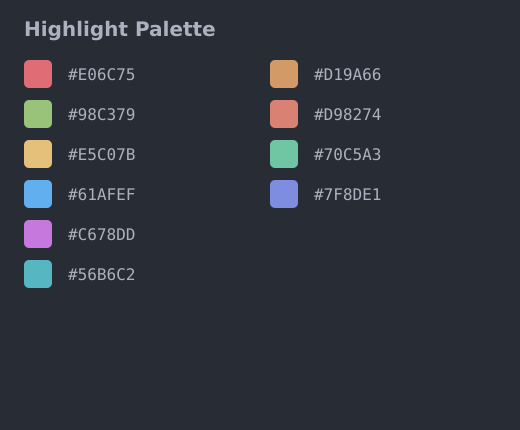
When textmarker.useUserColor is enabled, colors from textmarker.userColor
are assigned after these colors. When the combined color set is exhausted,
assignment starts again from its first color. The default user-color array is
empty.
textmarker.enableIgnoreCase: initial case-insensitive mode.textmarker.enableWholeMatch: initial whole-match mode.textmarker.useHighlightColorOnRuler: use highlight colors on the ruler.textmarker.autoSelectDistinctiveTextColor: choose contrasting text color.textmarker.hideStatusBarItems: hide matching-mode status-bar controls.textmarker.commandsOnContextMenu: control commands shown in the context
menu.
Development
Use Node.js 22.23.0 and Yarn:
yarn install --frozen-lockfile
yarn run check
Focused commands:
yarn run unit-test -- --grep "pattern"
yarn run acceptance-test
yarn run compile
License
MIT License. The original copyright and license notice are retained in
LICENSE.txt.

