Relative Diagrams
Render Reladraw diagrams in the VS Code Markdown preview.


Reladraw is a text language for diagrams where you say where things go relative to each other: below app.ui, right of app, level with app. You never pick coordinates. This extension draws every reladraw code fence in a Markdown file as a diagram in the preview, colors it to match your editor theme, and marks mistakes in the editor as you type.
Quick start
Install the extension. Open the Extensions view, search for "Relative Diagrams", and select Install. Or, from a terminal, run:
code --install-extension VolkanUnsal.relative-diagrams
Create a file named diagram.md and paste in this fence:
```reladraw
node app "Web app"
node app.ui  "Interface"
node app.api "API"  below app.ui

node store "Database"  right of app  level with app

edge app.api -> store  "queries"  from: right  to: left
```
Open the preview with Markdown: Open Preview to the Side (Ctrl+K V, or Cmd+K V on macOS).
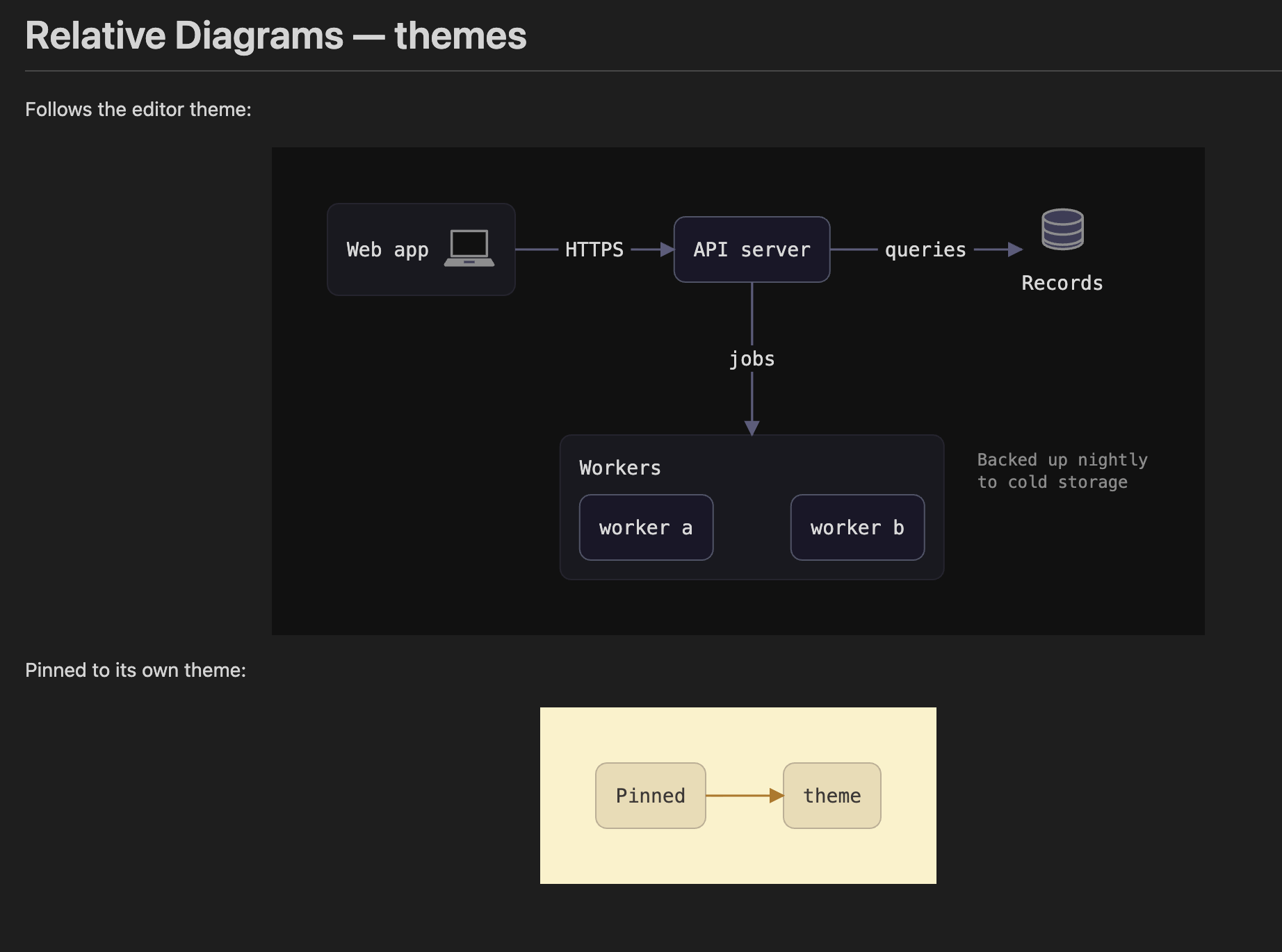
The preview shows a "Web app" box holding "Interface" above "API", with a "Database" box to its right and a "queries" arrow running from the API to the database. The fence text in the editor is syntax-highlighted.
With a dark editor theme it looks like this:
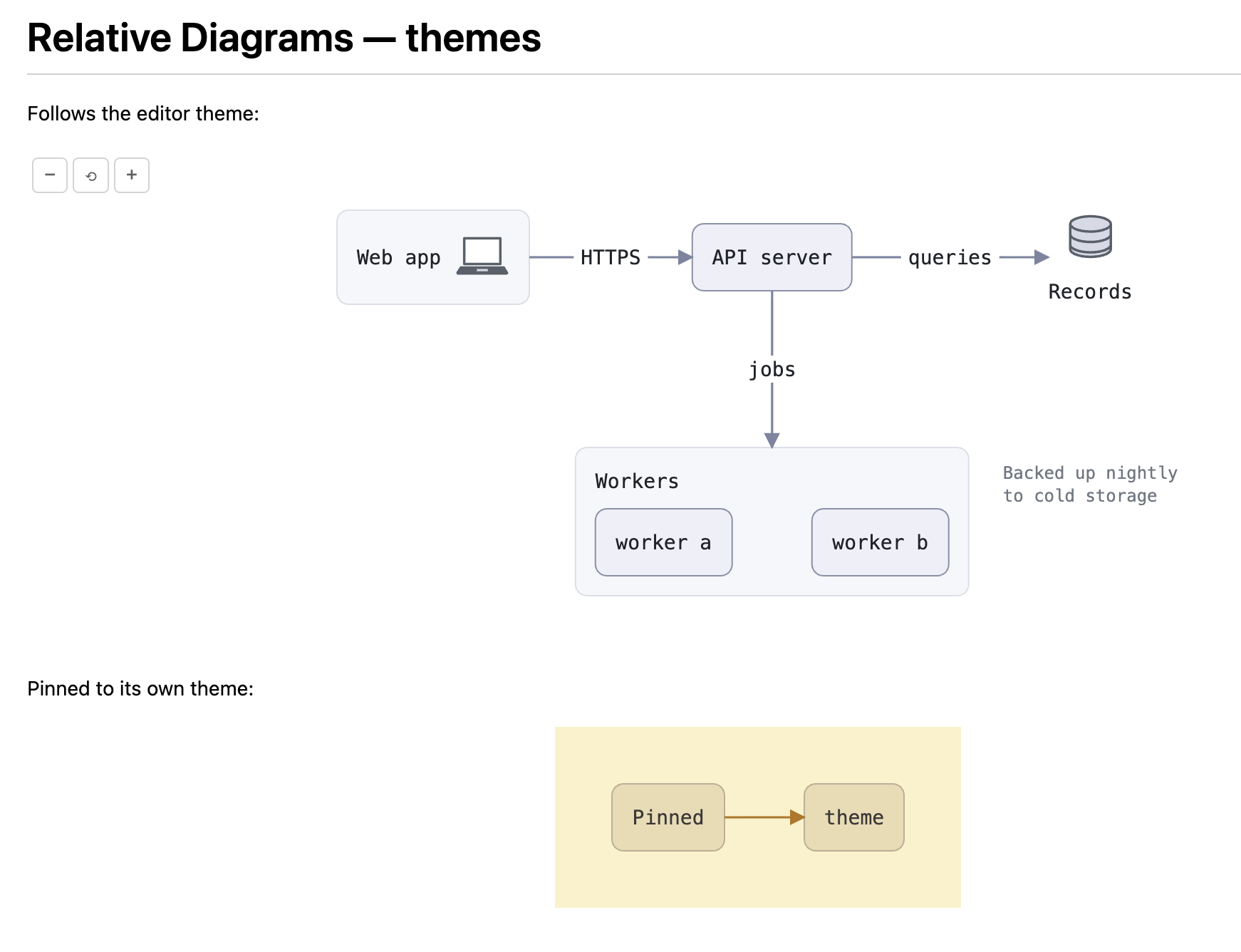
Switch to a light theme and the same diagram redraws in light colors:
How-to guides
Keep a diagram's own theme
By default a diagram follows the editor theme. To give one diagram a fixed palette, add a diagram theme: line to its fence:
```reladraw
diagram theme: nord
node web "Web app"
node api "API server"  right of web  gap: wide
edge web -> api "HTTPS"
```
The diagram now stays in the Nord palette whatever the editor theme is. Replace nord with any of Reladraw's 13 themes:
darklightsolarized-darksolarized-lightgruvbox-darkgruvbox-lightcatppuccin-mochacatppuccin-lattenorddraculahigh-contrast-darkhigh-contrast-lightprint
To make the diagram follow the editor again, delete the diagram theme: line.
Read and fix an error
When a fence has a mistake, the extension reports it in two places.
- In the editor, find the red squiggle under the failing line of the fence. Hover it, or open the Problems panel (
Ctrl+Shift+M, or Cmd+Shift+M on macOS), to read the message. Its source is reladraw.
- In the preview, find the error card where the diagram would be. It shows the message, prefixed with its line number, above the fence source, with the failing line highlighted.
For example, this fence places neither node:
```reladraw
node a "A"
node b "B"
edge a -> b
```
The preview card reports:
line 2: exactly one node may say nothing about where it goes, but 2 do: "a", "b"
The Problems panel reports the same message without the line 2: prefix, because the squiggle already marks the line.
Fix the line the message names. Here that means placing b relative to a:
node b "B" right of a
The squiggle clears about 300 ms after you stop typing, and the preview draws the diagram in place of the card. Other fences on the page keep rendering while one is broken.
If the card's message starts with "reladraw internal error", the renderer itself failed. Open an issue with the fence that triggered it.
Zoom and pan a diagram
- Hover over the diagram. The −, ⟲, and + buttons appear in its top-left corner.
- Select + or − to zoom around the center, or hold
Ctrl (Cmd on macOS) and scroll the wheel to zoom around the pointer.
- Once zoomed in, drag the diagram to pan. At normal size or smaller, hold
Ctrl or Cmd while dragging.
- Select ⟲ to return to normal size and position.
Reference
Fence info string
A fence renders as a diagram when its info string is reladraw, in any letter case, with nothing else on the line. Backtick and tilde fences both work:
```reladraw
node a "A"
```

~~~reladraw
node a "A"
~~~
Fences inside lists and blockquotes render and report errors on the correct document line. Fences with any other info string render as ordinary code blocks.
Theme mapping
When a fence has no diagram theme: line, the diagram uses the Reladraw theme that matches the VS Code theme kind:
| VS Code theme kind |
Preview body class |
Reladraw theme |
| Light |
vscode-light |
light |
| Dark |
vscode-dark |
dark |
| High Contrast |
vscode-high-contrast |
high-contrast-dark |
| High Contrast Light |
vscode-high-contrast-light |
high-contrast-light |
| None of the above |
none |
dark |
When a fence has a diagram theme: line, that theme is used under every VS Code theme.
Zoom controls
| Control |
Effect |
| + button |
Zoom in 1.2x around the diagram's center |
| − button |
Zoom out 1.2x around the diagram's center |
| ⟲ button |
Reset to scale 1 and no offset |
Ctrl/Cmd + wheel |
Zoom in or out 1.2x around the pointer |
| Drag |
Pan, when zoomed above scale 1 |
Ctrl/Cmd + drag |
Pan, at any scale |
Scale is limited to the range 0.2 to 5.
Diagnostics
- One error per fence with a Reladraw source error, on the document line the Reladraw error points to, spanning the full line.
- Source:
reladraw.
- Published when a Markdown file opens, again 300 ms after the last edit, and cleared when the file closes.
Supported in v1
| Feature |
Status |
reladraw fences in the Markdown preview |
Supported |
Syntax highlighting inside reladraw fences |
Supported |
| Error squiggles and error cards |
Supported |
| Zoom and pan |
Supported |
Absolute url: links such as url: "https://..." |
Supported; opens in the browser |
Relative url: links such as url: "./other.md" |
Not supported; clicking does nothing |
Standalone .reladraw files |
Not supported |
| Export to SVG or PNG |
Not supported |
| A setting that forces one theme for every diagram |
Not supported |
Relative url: links do nothing because the preview only handles clicks on HTML <a> elements. Diagram links are SVG <a> elements, whose tag name is lowercase a, so the preview's click handler never matches them. The click falls through to the link's target="_blank" handling, which opens absolute URLs but does nothing useful with a relative one.
Reladraw syntax
The full language (nodes, edges, placement, styles, icons, themes) is documented at reladraw.dev. This extension bundles reladraw 0.8.0.
Why each diagram is drawn four times
A diagram without a diagram theme: line appears in the page four times, once per Reladraw theme in the mapping table. The stylesheet shows the one that matches the preview's body class and hides the other three. When you switch editor themes, VS Code changes the body class and the right diagram appears at once, with no re-render and no flicker.
The alternative is to render only the current theme and refresh the preview when the theme changes. That draws each fence once, but it relies on VS Code delivering a refresh to every open preview, and each switch would flash the old colors first. Drawing the extra three copies takes a few milliseconds per fence, so the saving is small.
The cost is page size. The preview's HTML carries four SVGs per fence, about four times what one would take. A page with twenty large diagrams carries over a megabyte of SVG. A diagram that names its own theme needs only one copy, since it looks the same under every editor theme.
Rendering happens while the Markdown is converted to HTML, not inside the preview. The diagrams are plain SVG in the page, so text in them is selectable and they appear in any HTML that VS Code's Markdown engine produces.
License
Apache-2.0. See LICENSE and NOTICE.
This extension is not affiliated with the Reladraw project. "Reladraw" names the diagram language it renders.

