Tracybot VS Code Extension
A VS Code extension that traces AI generated code back to prompts by displaying original prompts. What It DoesThe extension queries the Git repository to reconstruct the history of AI interactions by:
It also handles setup automatically: initializing Tracybot in a newly opened repository, and installing the plugin for whichever supported agent (OpenCode, Claude Code, Codex) is detected on your machine. No setup steps are required beyond installing the extension itself. InstallationInstalling the extension is the recommended way to get started with Tracybot. VS Code Marketplace (recommended)You can install the extension directly within VS Code:
Alternatively, visit the Tracybot VS Code Marketplace page and follow the instructions on the marketplace page. CLI InstallAlternatively, install scripts for Windows, Linux, and macOS are provided.
The install scripts use the Linux and macOSWindows (Powershell)Usage
Requirements
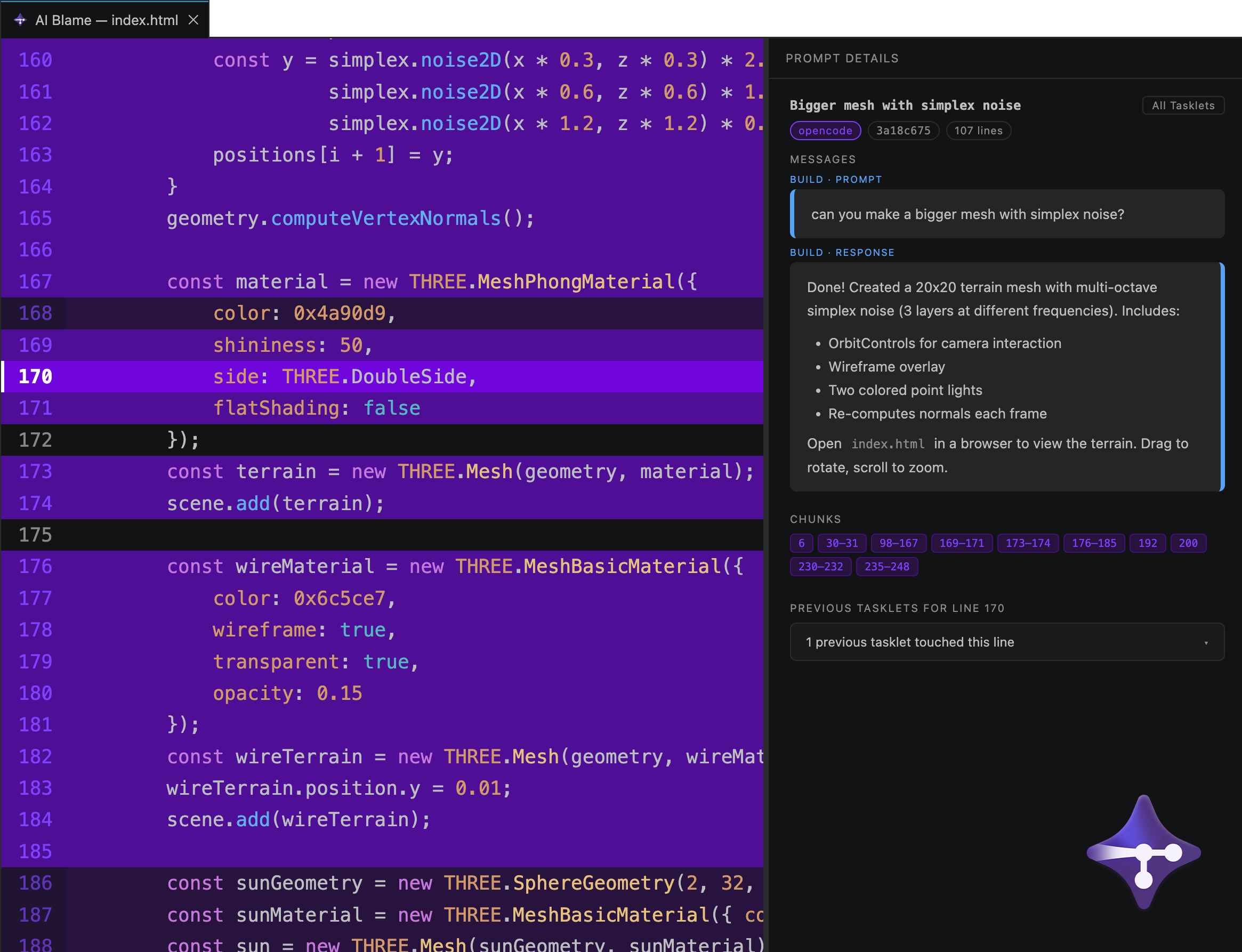
Node.js and npm are only required for developing the extension from source. AI Blame TabDisplays the history of AI-generated code changes in a dedicated editor tab. The
Research ModeAn optional, opt-in feature to share your Tasklet history for a research study on AI-assisted coding behavior. Off by default, decided per-repository, and can be disabled at any time from the Research Mode status bar item. See docs/research-mode.md in the main repository for what's collected and how consent works. Keybindings
ContributingBuilding or debugging the extension from source? See DEVELOPMENT.md. |