Bitstream Studio
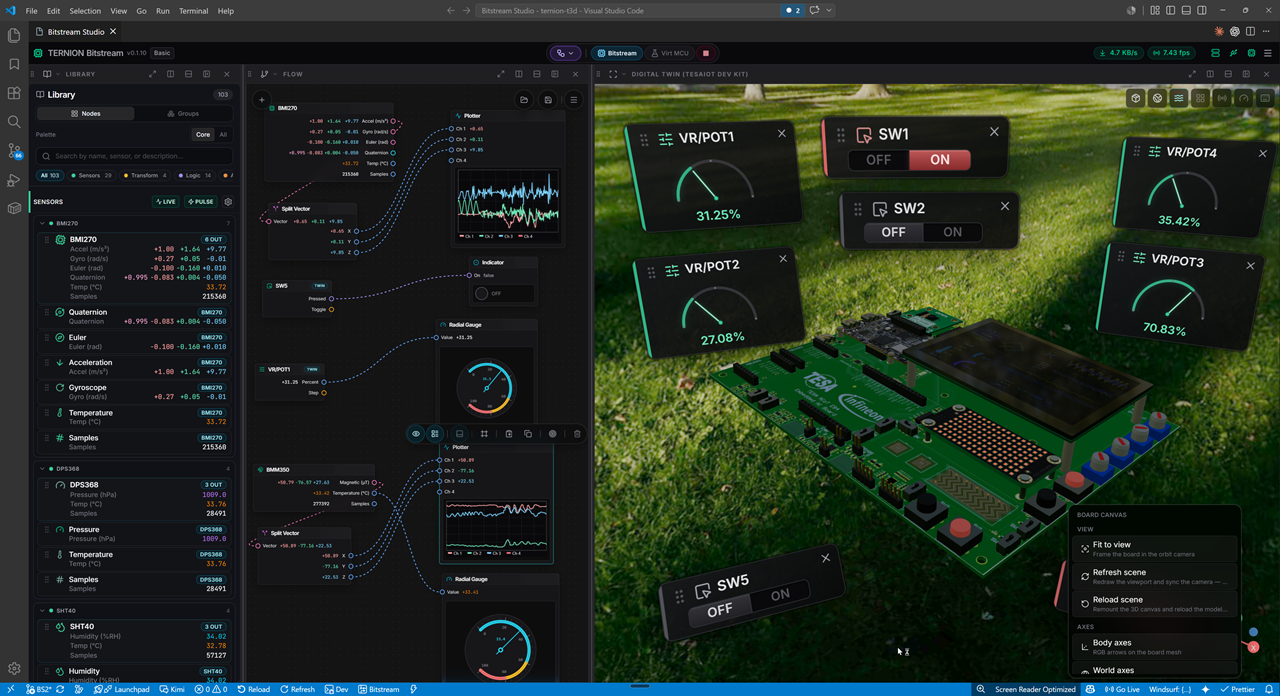
Work with live sensor data from TESAIoT / PSoC Edge boards inside VS Code — configure sensors, watch real-time charts, preview 3D orientation, and build visual flows without leaving the editor.
Ideal for teaching, prototyping, and debugging BS2 (Bitstream) firmware on hardware or with a virtual device.
What you get
| Workspace |
What you can do |
| Sensor Telemetry |
Configure which sensors publish, view a live telemetry deck, 3D orientation preview, and an activity log |
| Sensor Studio |
Drag-and-drop flow editor — connect sensor nodes, logic, and outputs; open a DevKit Twin 3D view of the board |
Install
VS Code 1.75+ on Windows or macOS.
- Open Extensions in VS Code (or Cursor).
- Search for Bitstream Studio and click Install.
Or from a terminal:
code --install-extension TERNIONDEV.bitstream-studio
On Cursor, use cursor instead of code.
Get started in 5 steps
- Open the Command Palette (
Ctrl+Shift+P / Cmd+Shift+P).
- Run Bitstream Studio: Open Bitstream Studio (or Open Sensor Telemetry / Open Sensor Studio).
- Run Bitstream Studio: Start Serial Bridge (or Start All Backend Services).
- In the toolbar, pick your data source:
- Bitstream — your board on USB serial (921600 baud)
- Simulator — see Simulator mode below
- Click Link (or Connect) when the source is ready. Live samples should appear on the telemetry deck.
Only one source is active at a time. Switching source clears the current live data.
Connect your board (hardware)
- Flash TESAIoT firmware that speaks the BS2 framed protocol on UART.
- Plug the board in via USB and note the serial port (e.g.
COM3 on Windows, /dev/tty.usbmodem… on macOS).
- Start the serial bridge (step 3 above).
- Set toolbar source to Bitstream, choose the port if prompted, then Link.
Use the menu (☰) for Serial ports, Wi‑Fi settings, or MQTT settings when your workflow needs network or cloud telemetry.
Simulator mode (no hardware)
Try Bitstream Studio without a physical board:
- Install the separate Bitstream Simulator extension (search Marketplace for Bitstream Simulator, or install from your team’s
.vsix).
- In the simulator extension, start Streaming.
- In Bitstream Studio, set toolbar source to Simulator and click Link.
You should see sine-wave style sample data on enabled sensor channels.
First run — 3D models
3D preview models are not bundled inside the extension package. On first install:
- Bitstream Studio opens a workspace landing page.
- It downloads required models from GitHub (Dev Kit, PSoC E84 AI, Tesa Drone, and environment assets).
- When setup shows ready, pick Sensor Telemetry or Sensor Studio.
Later opens skip the landing and restore your last workspace. The full catalog may keep downloading in the background.
If previews stay blank: Command Palette → Bitstream Studio: Sync Free Pack to Disk.
An internet connection is required for the first download. No GitHub account is required.
Requirements
| Item |
Notes |
| VS Code |
1.75 or newer (or Cursor with VS Code extension support) |
| OS |
Windows or macOS (serial USB support) |
| Hardware |
Optional — use Simulator mode without a board |
| Bitstream Simulator |
Separate extension; only needed for Simulator mode |
| Node.js |
Not required for normal use — only if you build from source |
Troubleshooting
No live samples after Link
- Confirm Bitstream Studio: Start Serial Bridge ran successfully.
- Hardware: correct COM port, 921600 baud, firmware running BS2 protocol.
- Simulator: simulator extension is in Streaming and toolbar source is Simulator.
- Try Developer: Reload Window after changing source or port.
Bridge or extension errors on startup
- Run Developer: Reload Window once after install.
- If activation fails with a serialport / native module error, uninstall and reinstall the extension from Marketplace.
- Check Output → channel related to Bitstream / Serial Bridge for error text.
3D preview is empty
- Wait for first-run downloads on the landing page, or run Sync Free Pack to Disk.
- Ensure you have network access to GitHub on first setup.
Switching Bitstream ↔ Simulator
Switching clears live charts by design. Set the new source, then Link again.
Known limitations (v0.1)
- Sensor configuration Apply in the UI updates a local draft; full wire restore to firmware via the panel is still evolving — use firmware tools or CLI for advanced SENSOR_CFG workflows.
- Course Studio, HMI Studio, and Asset Manager are not included in this minimal release — only Sensor Telemetry and Sensor Studio.
Support and source
License
MIT — see LICENSE.