

TAcroMan
Smart acronym support for LaTeX in Visual Studio Code. The Tex Acronym Manager (TAcroMan) helps you use acronyms consistently while writing LaTeX documents. Instead of repeatedly looking up acronym keys or manually replacing plain text, TAcroMan connects your acronym database directly to Visual Studio Code and provides:
Use Ctrl+Space ( It is especially useful for theses, dissertations, papers, reports, and other large LaTeX projects with many acronyms.
✨ Features1. Complete
|

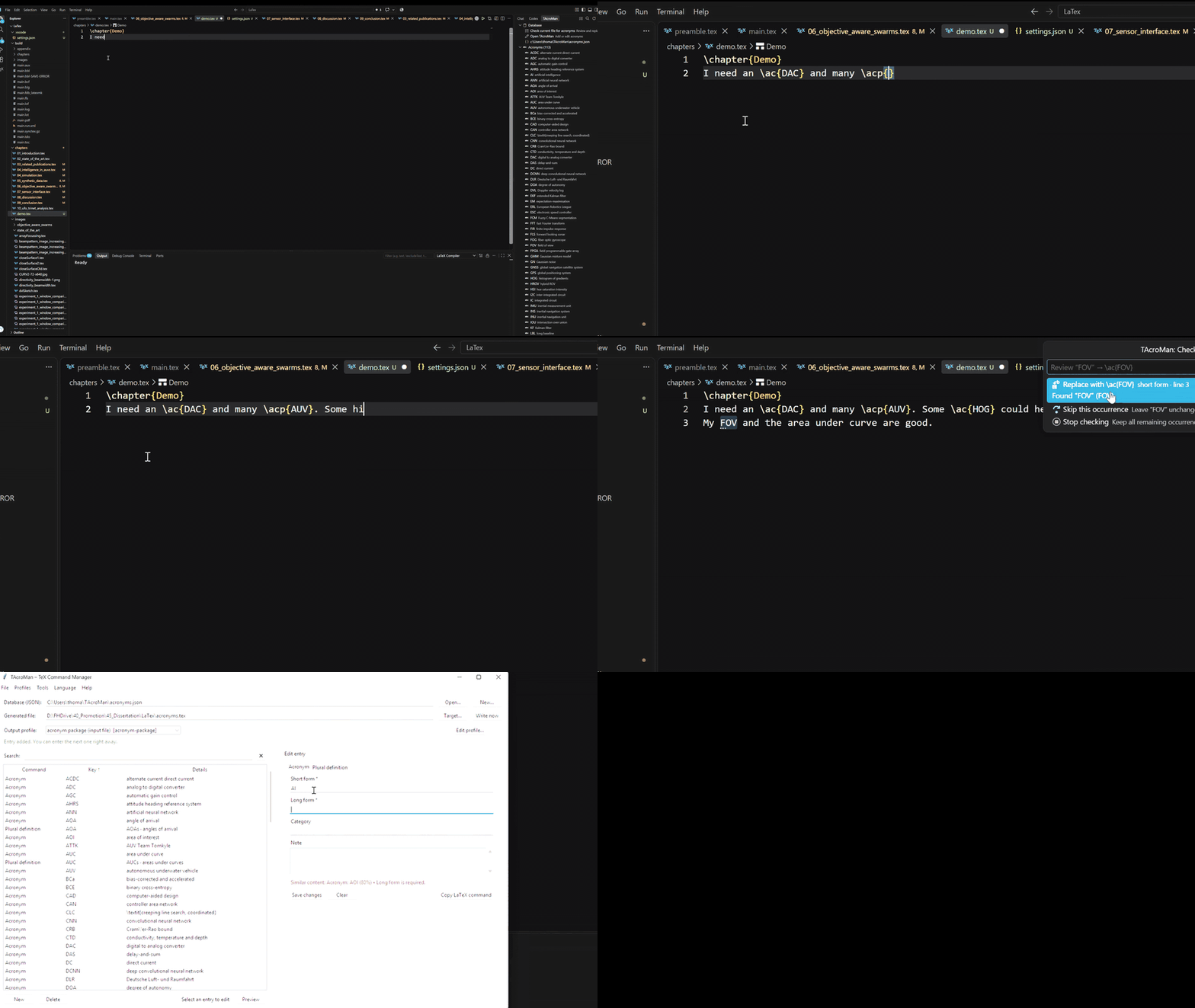
| Command | Description |
|---|---|
| TAcroMan: Check Current File for Acronyms | Scan the active .tex file and review replacements interactively |
| TAcroMan: Open TAcroMan | Open the integrated acronym manager |
| TAcroMan: Open Desktop Application | Open the optional Python desktop application |
| TAcroMan: Select Database | Select an acronyms.json database |
| TAcroMan: Reload Database | Force the current database to reload |
TAcroMan: Insert \ac{...} |
Insert the selected acronym in singular form |
TAcroMan: Insert \acp{...} |
Insert the selected acronym in plural form |
⚙️ Configuration
For most users, the default settings should work without modification.
Show advanced settings
tacroman.latexCommands
Defines the LaTeX commands for which acronym completion is enabled.
For example:
[
  "ac",
  "acp"
]
tacroman.plainTextCompletion
Enable suggestions while typing acronym short forms or long forms directly in normal LaTeX text.
tacroman.plainTextDiagnostics
Detect known acronyms written as plain text and offer Quick Fixes.
tacroman.quickFixSingularCommand
LaTeX command used for singular replacements.
Default:
ac
tacroman.quickFixPluralCommand
LaTeX command used for plural replacements.
Default:
acp
tacroman.inferPlainTextPlurals
Allows TAcroMan to recognize simple plural forms even when no explicit plural is stored in the database.
tacroman.ignoredArgumentCommands
Defines LaTeX commands whose braced arguments should not be interpreted as normal prose during acronym detection.
tacroman.launchArguments
Additional arguments passed when launching the desktop application.
🖥️ TAcroMan desktop application
The VS Code extension is part of the larger TAcroMan project.
The integrated editor and desktop application render the same shared web interface and manage the same JSON database, profiles, and generated output:
Integrated editor ─┐
                   ├─ acronyms.json ─ entries.tex
Desktop app ───────┘
The desktop host is installed with the Python tacroman package and uses
pywebview for its native window. Its desktop-only menu includes the former
file, profile, tool, language, and help actions. Profile editing, citation
migration, and reference auditing run entirely in the shared Web interface.
The database remains a normal JSON file, so the extension does not lock you into a proprietary document format.
🧭 Roadmap
- Develop a safer cloud-based synchronization method for shared acronym databases.
- Suggest converting a word or phrase to an acronym command when it occurs a configurable number of times in the document.
- Add an online acronym check to determine whether the spelling is correct, whether an acronym is commonly used, and whether alternative acronyms exist.
🤝 Works alongside LaTeX Workshop
TAcroMan is designed to complement LaTeX Workshop.
It does not modify LaTeX Workshop and does not replace its LaTeX editing, building, citation, or navigation features.
TAcroMan simply adds acronym-specific tooling on top of your normal VS Code LaTeX workflow.
🐛 Feedback and feature requests
Found a bug or have an idea for another acronym workflow?
Please open an issue:
https://github.com/TAWilts/TexAcronymManager/issues
If possible, include:
- your VS Code version;
- your TAcroMan extension version;
- your operating system;
- a small LaTeX example that reproduces the issue.
👨💻 Development
The VS Code extension lives in the same repository as the desktop application.
To build it locally on Windows:
.\build-vscode-extension.cmd
The script automatically:
- installs/updates the Node dependencies;
- runs the extension tests;
- selects an unused extension version and builds the
.vsixpackage.
Package version
VERSION is the source of truth for the next extension package. Put the
desired release version in vscode-extension/VERSION, for example 0.6.9,
then run either build command above (or npm run package from
vscode-extension/). The package build updates package.json to use that
version.
If tacroman-vscode-0.6.9.vsix already exists in vscode-extension/, the
build automatically increases the patch number until it finds a free version:
0.6.9 becomes 0.6.10, for example. It writes the selected version back to
VERSION, so the file always records the last packaged version.
Alternatively, from vscode-extension/:
npm install
npm test
npm run package
📄 License
TAcroMan is released under the MIT License.
Linux development
The VS Code extension itself is platform-independent. Build it on Linux with:
bash build-vscode-extension.sh
For desktop integration, install and start TAcroMan with bash install-linux.sh
and bash run-tacroman.sh. Both frontends use ~/TAcroMan/state.json.