ACP PatchbayOne VS Code client for every ACP agent — Claude Code, Codex, Gemini CLI, GitHub Copilot, Hermes, Qwen Code, OpenCode, Grok, Auggie and more. Every integration it can accept, shown exactly as it is. Installation Launch VS Code Quick Open ( Ctrl+P), paste the following command, and press enter.Copied to clipboard |

ACP PatchbayOne VS Code experience for every AI agent.
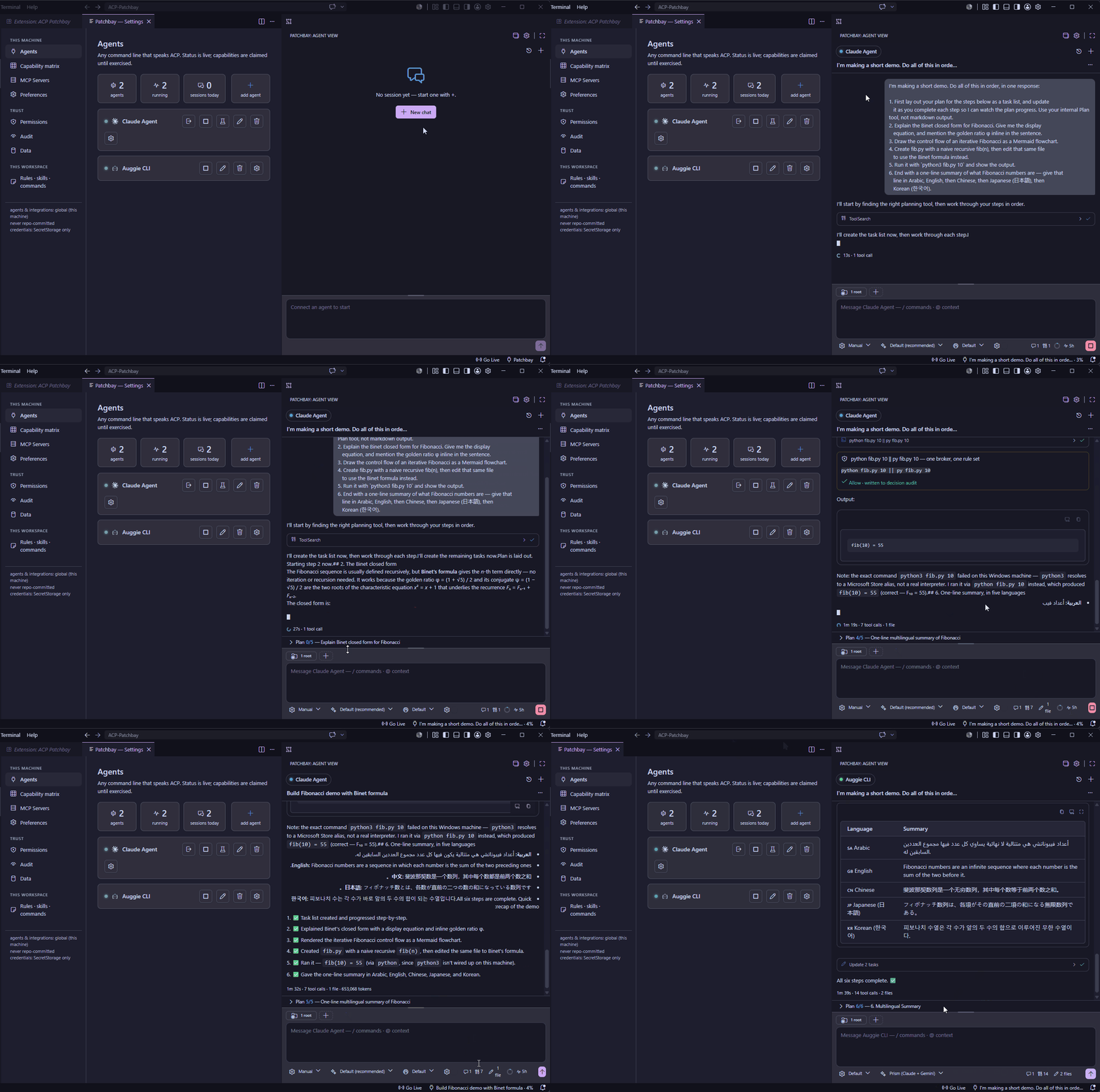
ACP Patchbay is a unified VS Code client for any ACP-compatible coding agent — Claude Code, Gemini CLI, Codex, OpenCode, Auggie, Kimi, Kilo, and every other agent in the live ACP registry. Consistent chat, capabilities you can trust, and deep editor context. Every agent connects; how deep each one goes is shown in the capability matrix, never guessed. Stop learning a new extension every time you switch agents. Install from the Marketplace → · Install from Open VSX → VS Code from the Marketplace; Cursor, Windsurf, VSCodium and other VS Code–compatible editors from Open VSX.
WhyThe agent should be the variable, your experience the constant. The Agent Client Protocol makes any compatible agent a plug-in — a CLI-only agent is first-class, and a vendor's extension improving or being retired never moves your workflow. Patchbay is the one client that speaks it for all of them: one chat, one permission model, one session store. The full story → What Patchbay addsA faithful ACP client already proves the connection works. Patchbay adds the orchestrator layer on top:
Everything you'd expect from a great client
Getting started
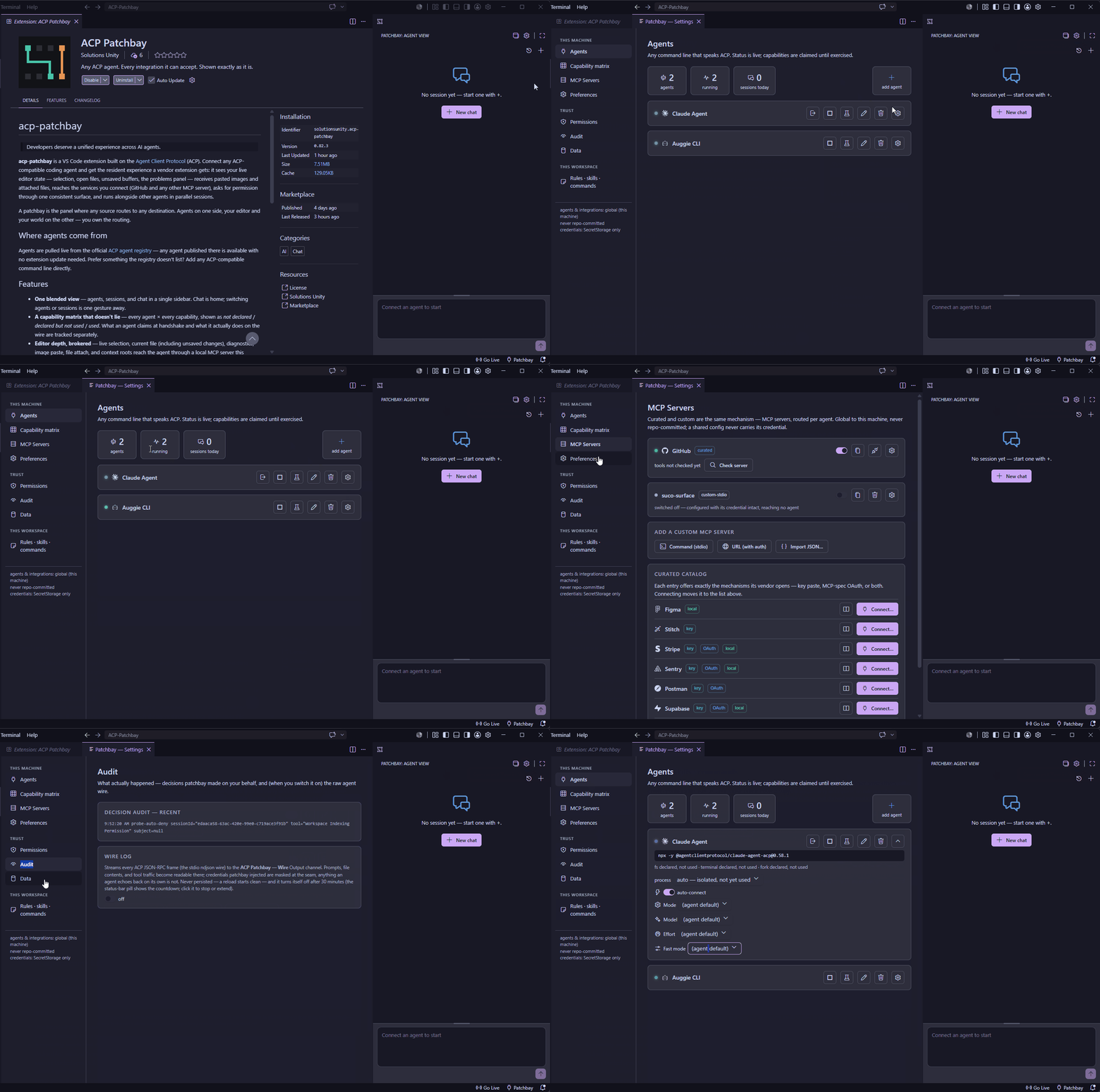
Settings (gear icon) is where the capability matrix, MCP servers, permission rules, and agent / session management live. Uninstalling cleanlyVS Code has no uninstall hook, and secrets can survive uninstall — so a clean slate is an explicit act: Settings → Data → "Disconnect & erase all data" stops every agent and deletes everything patchbay stored on this machine (configs, credentials, caches, rules, saved roots, the audit). Run it before uninstalling. It covers the current window's workspace records and deletes by the current config lists — so run it while those configs still exist. LicenseLicensed under the Apache License 2.0. Copyright © 2026 Solutions Unity. See NOTICE for attribution. |