Codex RouteSync
Switch between saved Codex accounts and Responses-compatible API providers with one click, keep local conversation history available in both modes, and track local token usage by selection.
Codex RouteSync manages the active credentials, provider route, and saved selection as one guarded transition. Shared conversation history is enabled by default for new local threads.
Usage preview
Open Codex RouteSync from the Activity Bar. Saved accounts and API providers appear together in one flat Accounts & API Routes list, while the central Dashboard opens or focuses automatically.
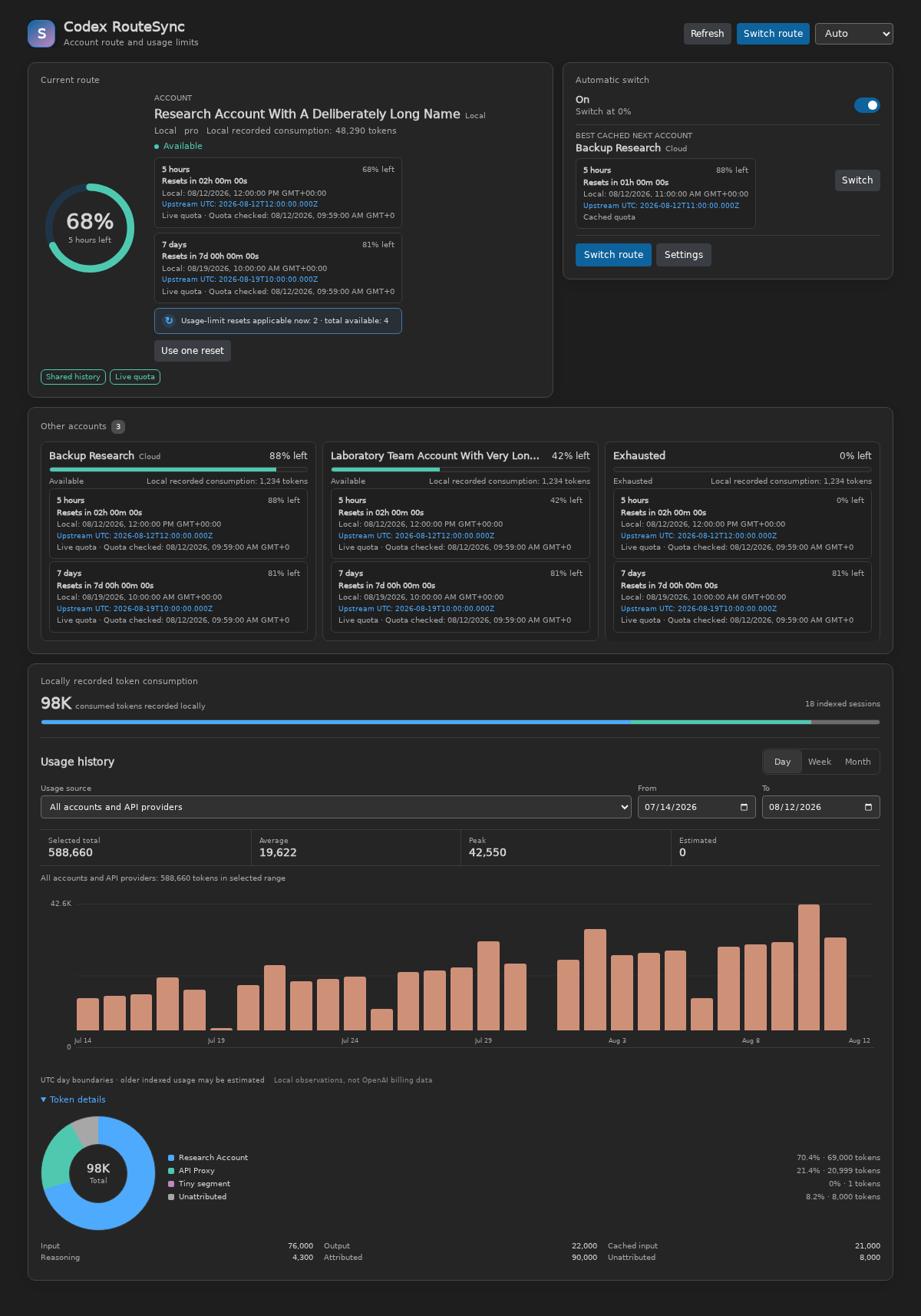
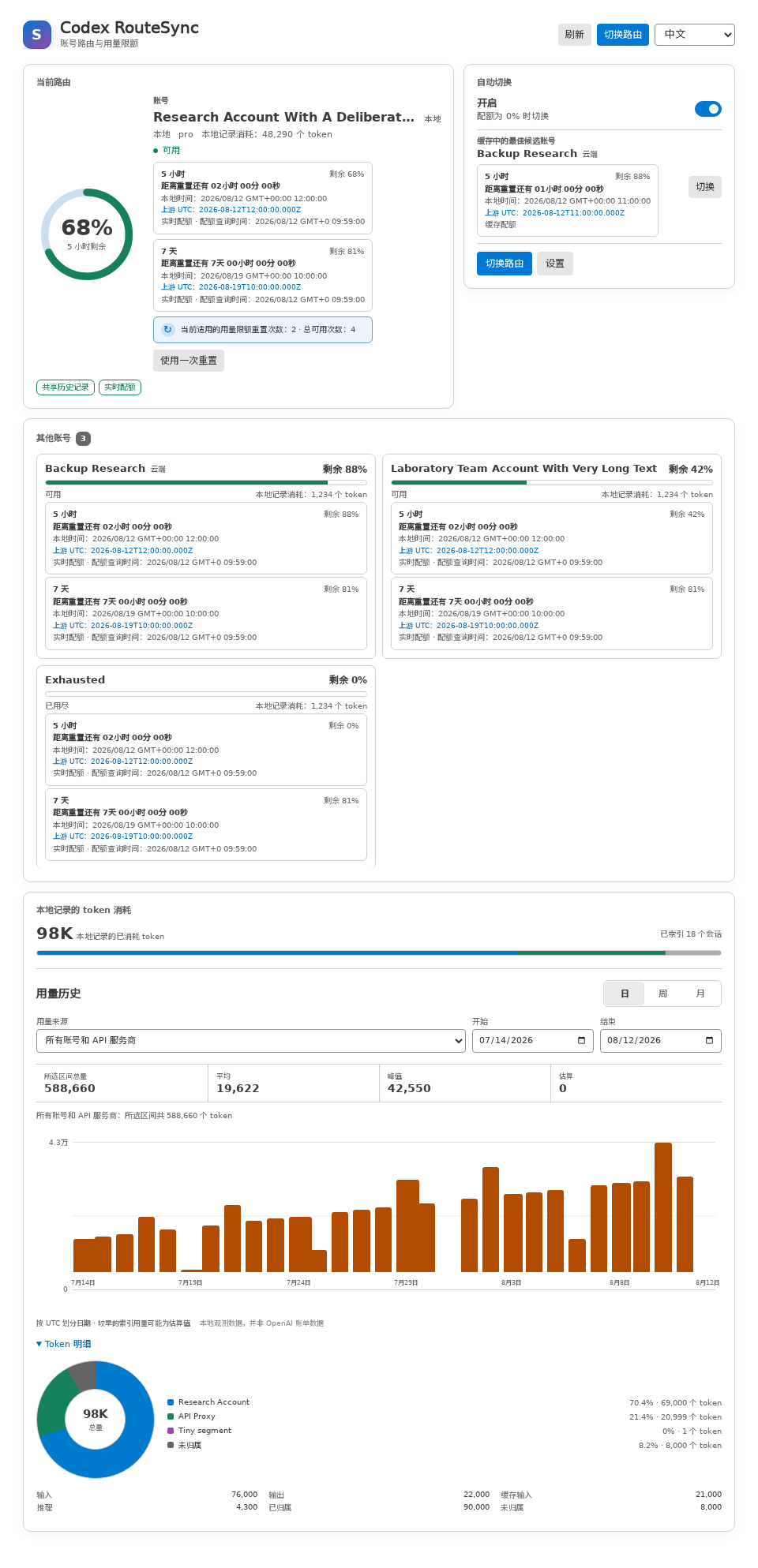
Switch the Dashboard language to 简体中文 at any time:
Install
Install the extension from its Visual Studio Marketplace page, or open Extensions in VS Code and search for Codex RouteSync.
For offline installation, download the latest .vsix from GitHub Releases, then run Extensions: Install from VSIX.... To use the terminal instead, run the command below. Replace VERSION with the version in the downloaded filename.
code --install-extension codex-routesync-VERSION.vsix
Move from the previous Marketplace listing
If you installed Codex SwitchBridge from an earlier Marketplace listing, complete these steps before enabling Codex RouteSync:
- Open the previous installation and move every synced or cloud account and API provider to Local.
- Disable or uninstall the previous installation, then run Developer: Reload Window.
- Install Codex RouteSync from the link above and re-enter your storage password.
Accounts, API providers, configuration files, backups, and shared history under the configured CODEX_HOME remain available. Existing codex-switchbridge.* settings also remain in effect. The listings have different extension identities, so the previous installation's globalState, SecretStorage, and stored per-route usage attribution do not migrate automatically.
Disable or uninstall Codex Account Switch before enabling Codex RouteSync. Both extensions write the same local Codex files.
Account and API-provider switching
Open Codex RouteSync from the Activity Bar. Saved accounts and API providers appear as peers in the sidebar instead of living in separate directories. The graphical Dashboard automatically opens or returns to the foreground in the central editor area. The explicit Open Dashboard action remains available as a fallback.
| When you select |
RouteSync applies |
| A Codex account |
Saved account credentials, account routing, and the original OpenAI base URL |
| An API provider |
Saved API authentication, provider configuration, and the shared-history route |
Before applying the next selection, RouteSync writes the latest active credentials back to the outgoing saved entry. It uses atomic authentication writes, a cross-window switch lock, and rollback snapshots.
After a successful switch, the Codex extension may still hold its old authentication in memory. The default Reload recommended status-bar action lets you reload when needed without repeated notification popups.
Dashboard, quota reset time, and local token usage
The Dashboard displays the remaining percentage for every quota window returned for the current and saved accounts, including accounts that expose only a 7-day window. Each window includes a live countdown to the second, local date and time with seconds and time-zone offset, and the exact upstream UTC timestamp. Available earned rate-limit resets are shown when the account service provides them. When the current account has an applicable reset, Use one reset consumes it through the official Codex App Server protocol after confirmation, then refreshes the account quota. Missing, invalid, or due reset times are labeled explicitly instead of being estimated.
The Dashboard also indexes cumulative token_count events from local Codex rollout files under the active CODEX_HOME. It displays the recorded total, input, output, cached input, reasoning output, attributed and unattributed usage, plus a breakdown for every tracked account and API provider. An accessible doughnut chart shows the share attributed to each source without double-counting cached input or reasoning output. The orange history chart groups activity by day, week, or month; it supports source and date filters and shows the selected total, average, peak, and estimated amount.
The header language selector supports Auto, English, and 简体中文. Auto follows the VS Code display language; explicit choices take effect immediately and persist without a window reload. VS Code command, view, welcome, and setting text is also localized in English and Simplified Chinese.
RouteSync assigns each new token increment to the selection active when Codex recorded it, even if one conversation continues across an account/API switch. Per-selection tracking begins locally after this version is activated. Older shared openai sessions cannot be assigned safely and appear as Earlier or unattributed; uniquely identifiable older provider sessions can still be mapped to their saved profile.
The dashboard is an activity view, not a bill or cost estimate. The account service supplies remaining percentages rather than an absolute remaining-token allowance; API-provider routes expose only locally recorded token use unless the provider offers a compatible quota API. Older activity that cannot be dated exactly is marked estimated or kept outside the chart. Cached input is included in input, and reasoning output is included in output. Account quota requests and OAuth token refresh use codex-switchbridge.proxy, VS Code's http.proxy, or the extension-host proxy environment in that order; environment resolution honors NO_PROXY. The dedicated setting is machine-scoped and excluded from Settings Sync. VS Code stores its value in local settings, so prefer an unauthenticated local proxy or protect the settings file if the URL contains credentials. Index data remains on this device and contains counters, timestamps, fingerprints, and opaque IDs, not conversation text, file paths, labels, provider names, or credentials. Run Refresh Local Token Usage for an immediate rescan.
Shared conversation history
With codex-switchbridge.shareHistoryAcrossProviders enabled, account mode and Responses-compatible API-provider mode use the same local Codex history bucket under one CODEX_HOME. New threads remain visible when you move between the two modes.
This is local history continuity. It does not merge ChatGPT web history, Codex Cloud tasks, connectors, quotas, or history between devices.
Shared routing requires an API provider with:
wire_api = "responses"
base_url = "https://your-provider.example/v1"
Repair older threads
Older threads may carry a provider-specific history ID. Stop active Codex output, then run Codex RouteSync: Repair Shared Conversation History.
The repair process creates backups, updates only provider identity fields, validates rollout JSONL and SQLite records, and stops if a rollout changes while it is being checked. Activation never rewrites history. Python 3 is required only for this maintenance command.
See Conversation history across modes for details.
Features
- One-click switching between saved Codex accounts and API providers
- One flat route list for saved accounts and API providers
- Shared local conversation history across both modes, enabled by default for new threads
- Local or VS Code Settings Sync storage for accounts and provider profiles
- Account quota display in the tree and status bar
- Wide editor Dashboard with graphical quota, precise reset clocks, earned reset redemption, a source doughnut chart, and filterable daily/weekly/monthly local token history
- Immediate English/Simplified Chinese Dashboard switching and localized VS Code contributions
- Manual token refresh and rotating background token maintenance
- Shared local quota cache across VS Code windows
- Optional encryption for saved authentication data
- Account import and export
- Explicit, backup-first repair for older provider-tagged threads
Commands
Codex RouteSync: Add AccountCodex RouteSync: Add API ProviderCodex RouteSync: Switch AccountCodex RouteSync: Switch API ProviderCodex RouteSync: Switch ModeCodex RouteSync: Refresh TokenCodex RouteSync: Refresh QuotaCodex RouteSync: Refresh Local Token UsageCodex RouteSync: Import AccountsCodex RouteSync: Export AccountsCodex RouteSync: Repair Shared Conversation HistoryCodex RouteSync: Reload Window
Settings
| Setting |
Default |
Description |
codex-switchbridge.language |
auto |
Follow VS Code or use English/Simplified Chinese in the Dashboard |
codex-switchbridge.proxy |
"" |
Machine-only HTTP(S) proxy for account quota requests and OAuth token refresh; excluded from Settings Sync; empty uses VS Code and extension-host proxy settings |
codex-switchbridge.shareHistoryAcrossProviders |
true |
Keep new local conversation history available across account and Responses-compatible API-provider modes |
codex-switchbridge.reloadWindowAfterSwitch |
statusBar |
Show a non-blocking reload action, never notify, or reload automatically after a switch |
codex-switchbridge.quotaRefreshInterval |
30 |
Check one saved account per interval for token maintenance and quota refresh |
codex-switchbridge.tokenAutoUpdate |
true |
Refresh saved account tokens when they are expired or near expiry |
codex-switchbridge.showStatusBar |
true |
Show current selection, quota, token usage, and reload recommendations in the status bar |
codex-switchbridge.authDirectory |
"" |
Store local saved entries in this directory; empty uses the default Codex directory |
codex-switchbridge.defaultSaveTarget |
local |
Save new accounts and API providers locally or in synced extension storage |
Requirements and scope
- Codex CLI must be installed and available to the VS Code extension host.
- Each Codex account must complete a successful
codex login flow before it can be saved.
- Shared history applies only to local threads under the same
CODEX_HOME.
- Only Responses-compatible API providers can use the shared-history route.
- Existing Codex output must stop before history repair runs.
Project
Codex RouteSync is an independent open-source project derived from jqknono/codex-account-switch, with substantial modifications by ShawBob001.
Released under the MIT License.

