Claude Code Context Picker

Pick files, code, and web page elements — then send them straight into Claude Code chat.
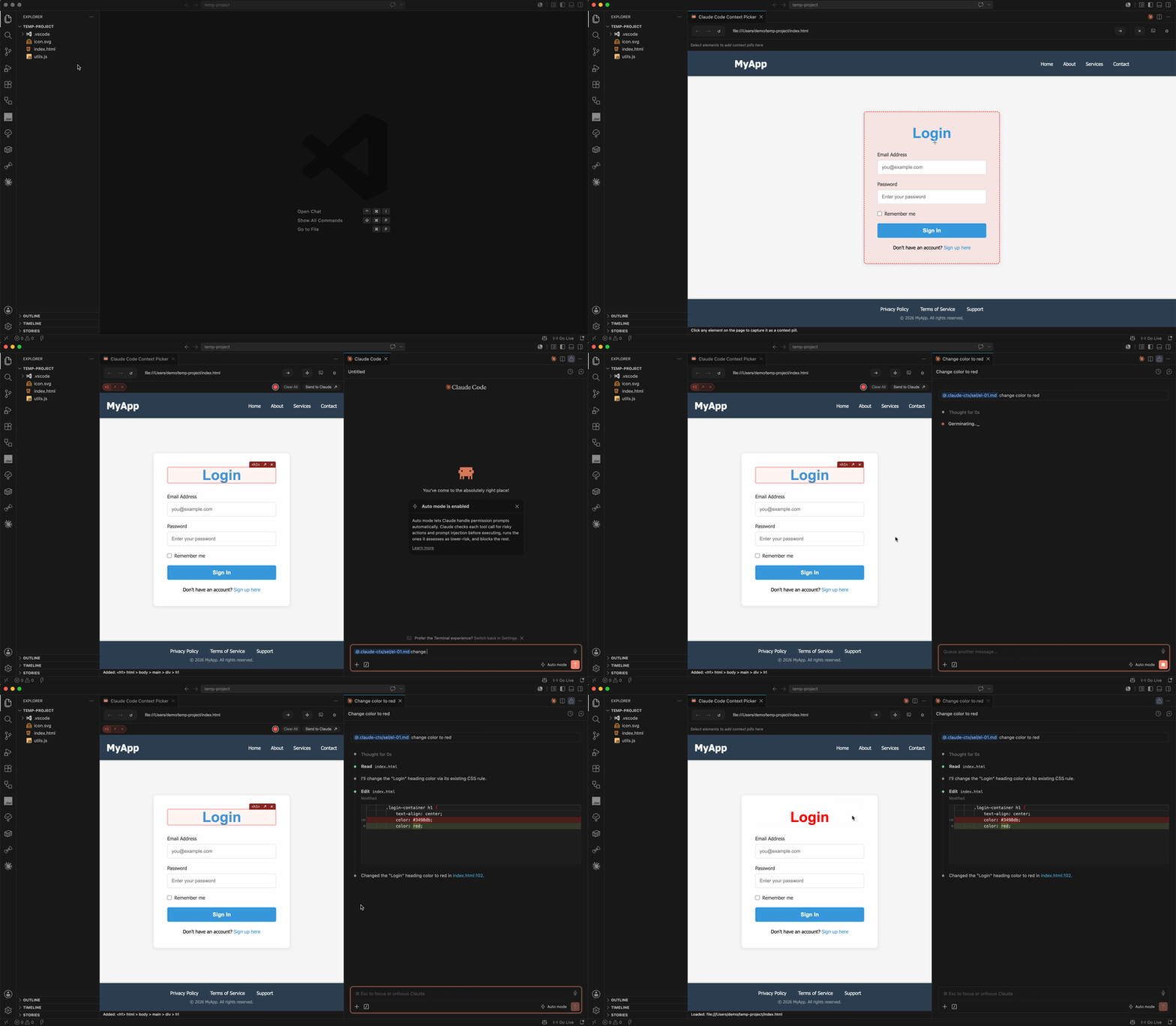
Stop describing UI bugs in words. Browse your app inside VS Code, click what you mean, and let Claude see the exact element, file, or line of code.


Why use this?
Working with Claude Code on real projects means sharing context — a button that looks wrong, a file that matters, or the three lines you just changed. This extension makes that fast:
- Browse and click local apps, staging sites, or the public web in VS Code to capture any element for Claude.
- Right-click files, folders, selections, lines, or terminal logs to add them to chat.
Everything arrives in Claude Code as @mention pills, ready to use in your next prompt.
Features
Browse & select elements
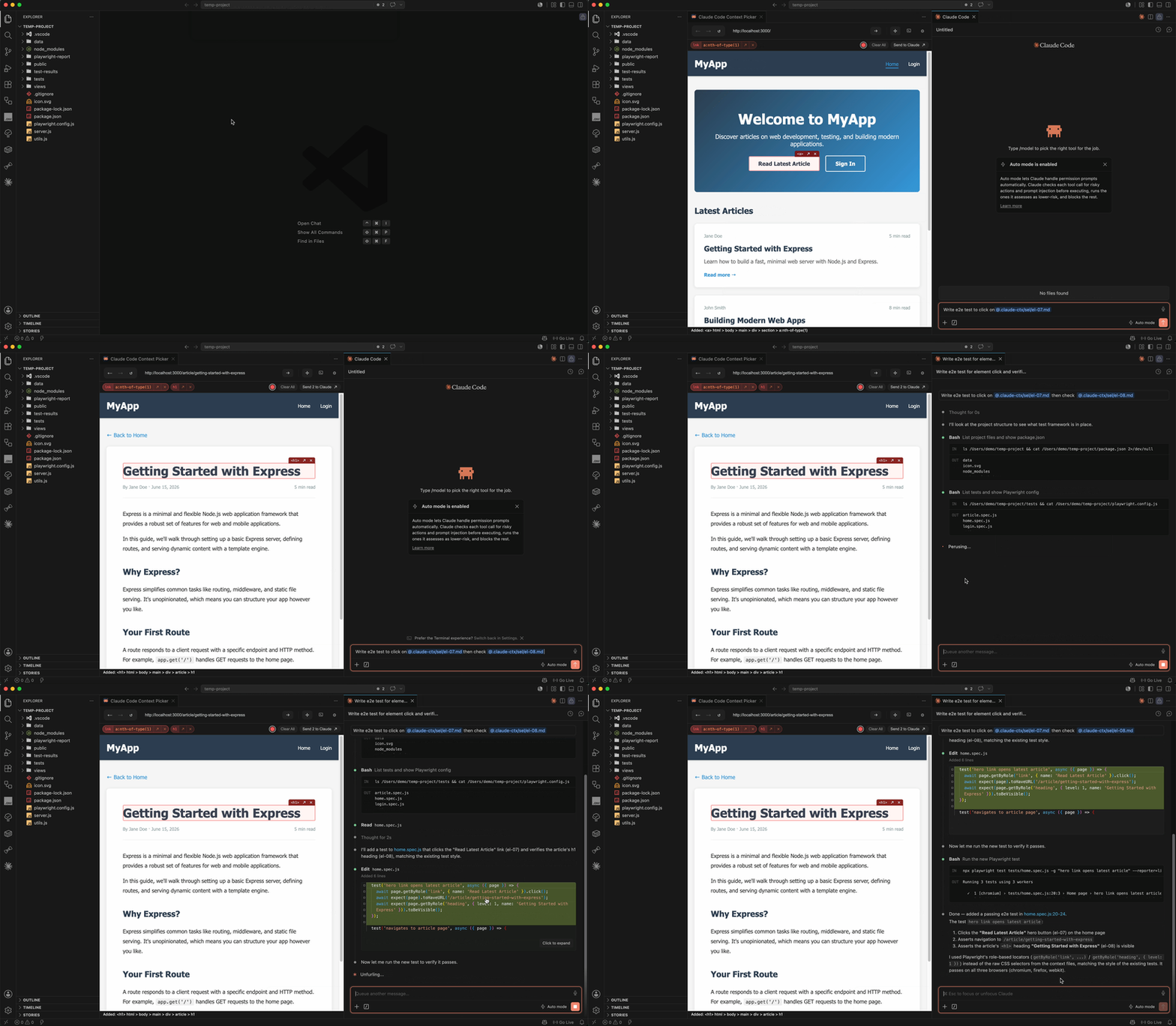
Open any http or https URL in a built-in browser panel — local apps, staging sites, or the public web. Use the toolbar to navigate, then capture what you need:
- Click to select — turn on Select Element and click anything on the page
- Right-click — Add to context tray or Send to Claude Code chat without picker mode
- Context tray — selections appear as labelled pills; send one, send all, or clear the tray
- Colored overlays — each pick gets a border on the page; hover a pill to highlight its element (and vice versa)
With Auto Send to Chat on, picks go straight to Claude Code. Turn it off to queue elements in the tray first.
Add files & folders from the Explorer
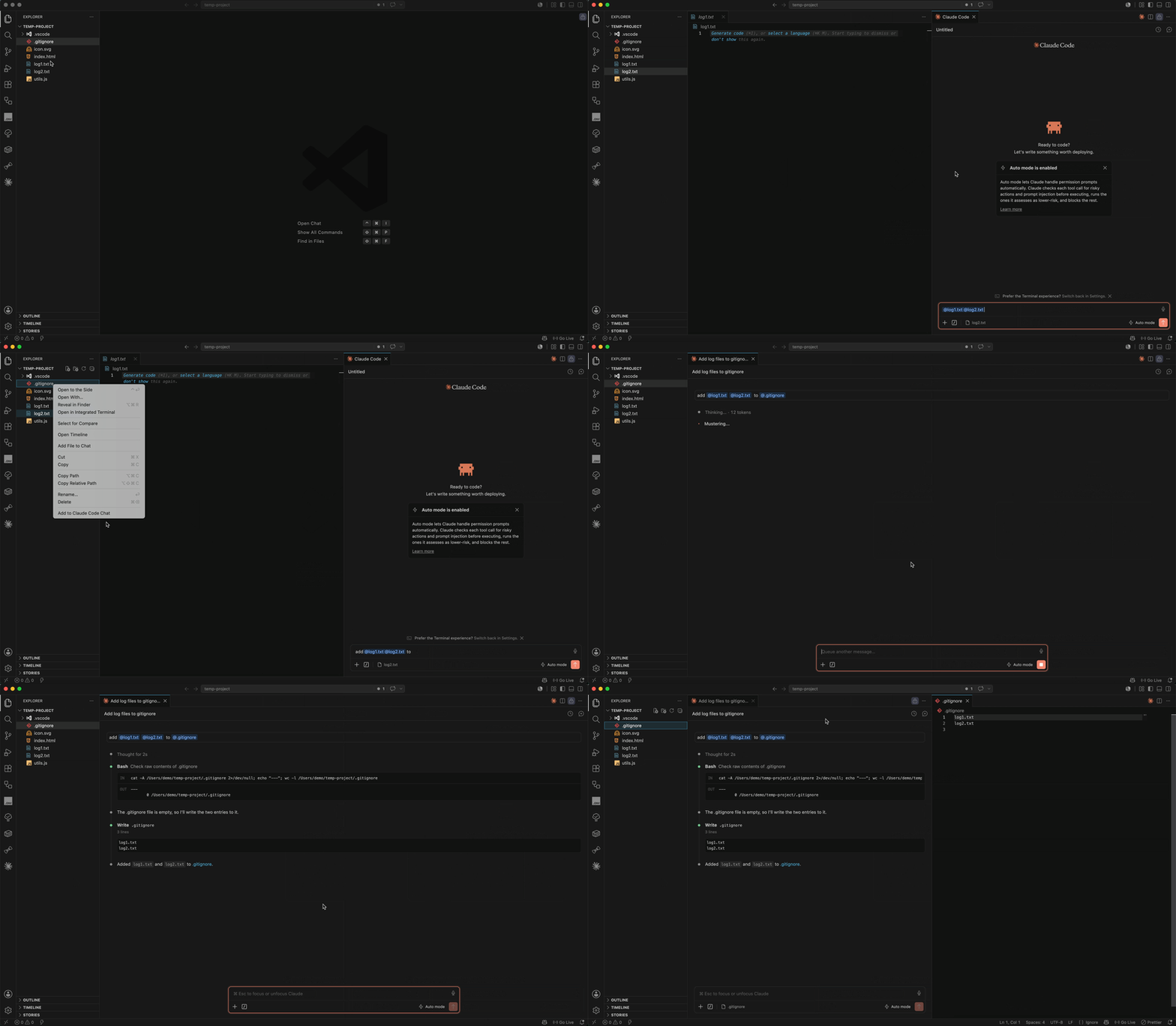
Right-click a file or folder in the Explorer (or an editor tab) and choose Add to Claude Code Chat. Claude gets an @mention for that resource in one step.
Add code selections & lines
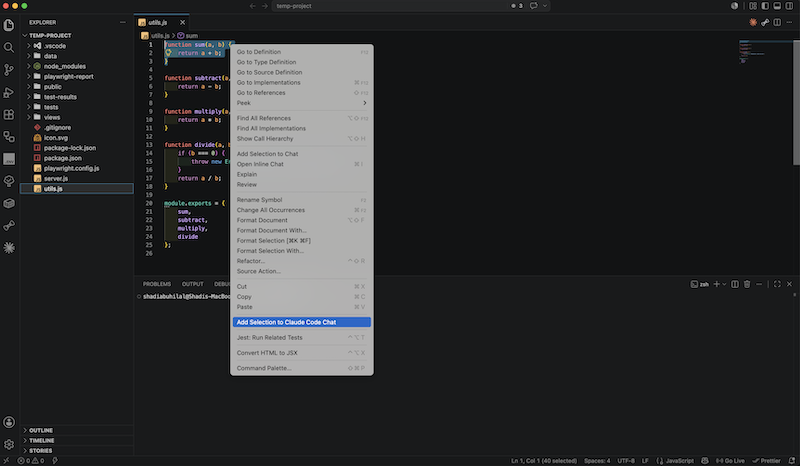
- Selected text — highlight code, right-click, and choose Add Selection to Claude Code Chat.
- A single line — right-click in the editor or on a line number and choose Add Line to Claude Code Chat.
Add terminal output
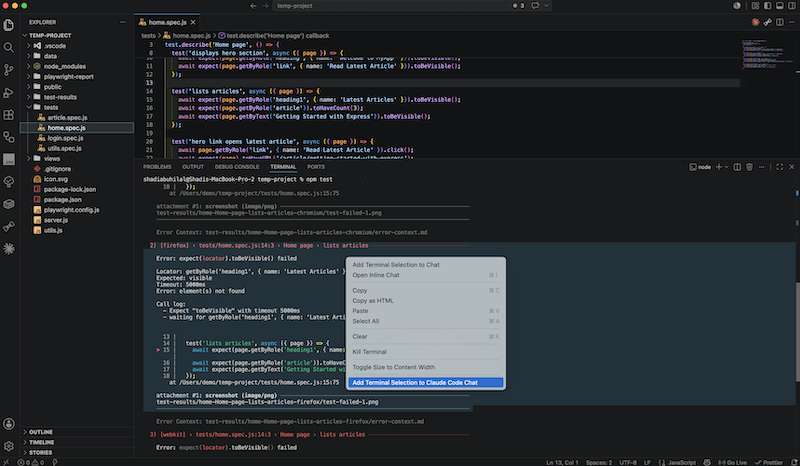
Select text in the integrated terminal, right-click, and choose Add Terminal Selection to Claude Code Chat.
Open local HTML files in the browser
Working on a static page in your project? Right-click a local .html, .htm, or .xhtml file and choose Open in Claude Code Context Picker to preview and pick elements from it.
Stays out of your way
- Selections remembered — your picked elements are restored the next time you open the panel.
- Clear context cache — delete all captured context from the Command Palette.
- Keep Git clean — optionally add captured context to your global Git ignore so it never gets committed.
Requirements
|
|
| VS Code |
Version 1.80 or newer |
| Claude Code |
Install the official extension — required for chat integration |
| Workspace folder |
Needed to use the Context Picker Browser (to open the browser panel and save selections). Editor chat commands work without a folder |
Installation
- Open Extensions (
Ctrl+Shift+X / Cmd+Shift+X).
- Search for Claude Code Context Picker.
- Click Install.
Quick start
- Install Claude Code and open a project folder.
- Press
Ctrl+Shift+Alt+B (Cmd+Shift+Alt+B on macOS), or run Open Claude Code Context Picker from the Command Palette.
- Enter a URL (e.g.
http://localhost:3000) and press Go.
- Click Select Element, then click something on the page — it is sent to Claude Code chat (when Auto Send to Chat is on).
Tips
| What you want to do |
How |
| Open the browser |
Ctrl+Shift+Alt+B / Cmd+Shift+Alt+B, or Command Palette → Open Claude Code Context Picker |
| Pick an element |
Select Element → click, or right-click → Send to Claude Code chat |
| Queue elements first |
Turn off Auto Send to Chat in settings; use the tray Send to Claude button when ready |
| Change highlight color |
Settings → Accent Palette (blue, orange, green, purple, red, cyan) |
| Open settings |
Click ⚙ in the browser toolbar |
| Rebind the shortcut |
Preferences: Open Keyboard Shortcuts — default avoids Ctrl/Cmd+Shift+B (Run Build Task) |
Settings
Search @ext:ShadiAbuHilal.claude-code-context-picker in VS Code Settings.
| Setting |
What it does |
| Default URL |
Page to load automatically when you open the browser |
| Auto Send to Chat |
Send picked elements to Claude Code immediately (on by default). When off, they go to the context tray first |
| Accent Palette |
Color for overlays and tray pills |
Commands & shortcuts
| Command |
Shortcut (Windows / Linux) |
Shortcut (macOS) |
| Open Claude Code Context Picker |
Ctrl+Shift+Alt+B |
Cmd+Shift+Alt+B |
All commands are under Claude Code Context Picker in the Command Palette (Ctrl+Shift+P / Cmd+Shift+P):
- Open Claude Code Context Picker — open the browser panel
- Open in Claude Code Context Picker — preview the active HTML file
- Add to Claude Code Chat — mention a file, folder, or tab
- Add Selection to Claude Code Chat — mention selected code
- Add Line to Claude Code Chat — mention the line under the cursor
- Add Terminal Selection to Claude Code Chat — mention selected terminal output
- Clear Context Cache — delete all captured context
- Add .claude-ctx to Global Gitignore — keep captured context out of Git
Languages
The extension follows your VS Code display language. Translations are included for English, Chinese (Simplified & Traditional), French, Spanish, Japanese, Korean, Russian, and Turkish.
Things to know
- Claude Code is required for
@mention chat integration.
- Some sites may not load fully — pages with strict login or security flows can be harder to preview in an embedded browser.
- HTML preview — Open in Claude Code Context Picker works for
.html, .htm, and .xhtml files.
- Large folders — adding a folder to chat includes up to 8 files at a time.
Known issues
- Editor tab flicker on send — Sending a pick to Claude Code Chat can cause a brief flicker in the editor tabs. We're still investigating a fix.
- Removed picks aren't removed from Claude Code chat — Deleting an element from the context tray doesn't remove its
@mention from the Claude Code Chat input. This is a limitation of the current integration between the two extensions, not something Claude Code Context Picker can control.
Privacy
- Captured context is stored only in your workspace on your machine.
- Nothing is sent anywhere until you add it to Claude Code chat.
- This extension does not collect telemetry or analytics.
Support
Found a bug or have an idea? Open an issue on GitHub.
Enjoying this extension?
If Claude Code Context Picker is useful to you, please leave a rating and review on the Marketplace and share it with your team — it helps a lot!
This is an unofficial extension, not affiliated with Anthropic. Claude and Claude Code are trademarks of Anthropic, PBC.

