Skip to content
| Marketplace
Sign in
Visual Studio Code>Other>Saropa WorkspaceNew to Visual Studio Code? Get it now.
Saropa Workspace

Saropa Workspace

Saropa

|
3 installs
| (0) | Free
Pin files as favorites and run scripts. Single-click opens, double-click executes.
Installation
Launch VS Code Quick Open (Ctrl+P), paste the following command, and press enter.
Copied to clipboard
More Info

Saropa Workspace

Saropa Workspace

Pin any file as a favorite — single-click to open it, double-click to run it.
Developed by Saropa to make Flutter & Dart development faster.


VS Marketplace publisher GitHub stars GitHub forks GitHub issues GitHub last commit

VS Code License: MIT


💬 Have feedback on Saropa Workspace? Please share it by opening an issue on GitHub!


Saropa Workspace turns a VS Code activity-bar sidebar into a place for the files and scripts you reach for constantly. Pin a pubspec.yaml, a build script, a database seeder, or a deploy command, and keep them one click away. Files open on a single click; scripts run on a double-click. Pins can live with your repo (so the whole team gets them) or with your VS Code profile (so they follow you across projects), and scripts can run on a schedule while VS Code is open.

The marker for this extension is a referee's whistle — call the play, run the script.


Features

📌 Pin & open

Pin any file as a favorite from the editor title menu or the Explorer right-click menu. A single click on a pin opens the file in an editor — instant access to the configs, docs, and entry points you touch every day, without hunting through the file tree.

Pins appear in a dedicated Saropa Workspace sidebar (activity-bar view) with two groups:

  • Project Pins — scoped to the current repository.
  • Global Pins — scoped to your VS Code profile.

▶️ Run scripts

A double click on a pinned script executes it. Each pin carries its own run configuration:

  • Command prefix — the interpreter or runner (for example python, node, bash).
  • CLI arguments — passed to the script on every run.
  • Working directory — where the command executes.
  • Environment variables — applied to that run only.

By default scripts run in the integrated terminal so you see live output. Switch a run to a background output channel when you want it out of the way.

A command can carry placeholder tokens ($file, $dir, $fileName, $workspaceRoot, …) expanded at run time, and interactive tokens (${prompt:Label} for an input box, ${pick:a,b,c} for a quick pick) so one parameterized pin replaces a pin-per-variant. A background run is stoppable from the tree — with a Force Kill for a wedged process — and shows its last-run status (success / failure, exit code, and duration) right on the pin.

Because VS Code tree views have no native double-click event, every pinned script also has an inline play button and a context-menu Run action. Use whichever you prefer — the result is identical. See Double-click vs inline run below.

⏰ Schedule

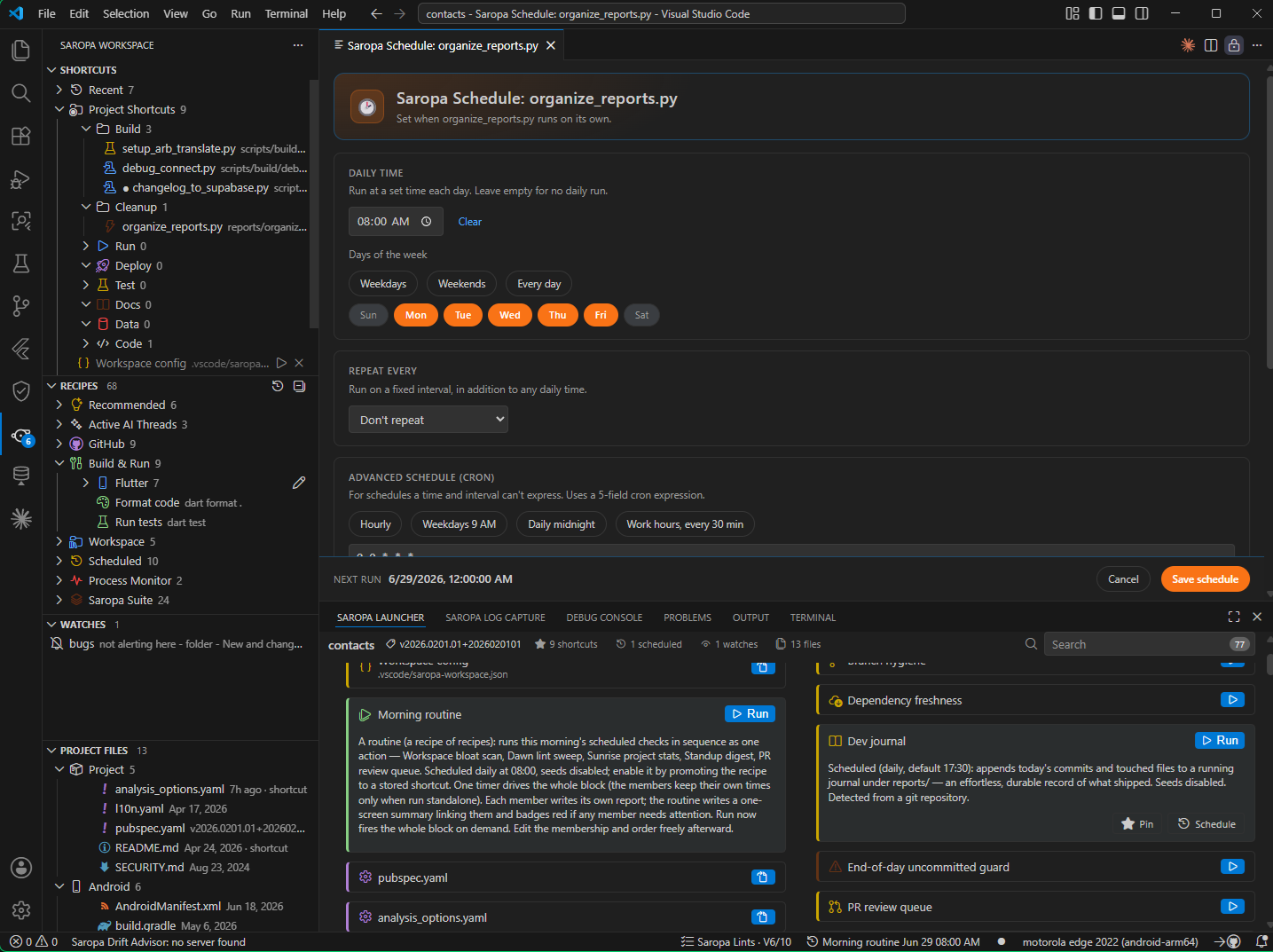
Run a pinned script at a time of day, on a repeating interval, or both — for as long as VS Code is open. Scheduling runs in-process (it is not OS cron and does not survive a VS Code restart), which keeps it simple, project-local, and free of system configuration. A status-bar item shows the soonest upcoming scheduled run and reveals that pin when clicked, so what is queued is always visible.

🧩 Recipes

Saropa Workspace reads your project and offers auto-detected pins — never a blank "create" button. From your .git/config it surfaces one-click links to open the repo, the current branch, a pull request, Issues, CI, and Releases (GitHub, GitLab, or Bitbucket); from your manifests it offers run dev / test / lint / build / install, docker compose up, a database migrate, opening the entry point or all config files, and more — each detected for your ecosystem. Recipes appear in a collapsed Recipes group. Remove one and it stays gone; Restore Recipes brings them back; Promote to Pin turns a recipe into a stored, fully editable pin. Turn the group off with saropaWorkspace.recipes.enabled.

Pins are not limited to files: a pin's action can open a URL, run a shell command line, invoke a VS Code command, or run a macro (an ordered sequence of those steps).

🗂️ Organize with groups

Create named groups (folders) under the Project and Global roots, then drag pins to reorder them and move them between groups (multi-select moves several at once). A group remembers its open/closed state. Give any pin a custom icon and color (Set Icon & Color…) — both theme-aware — to tell apart a large pin set at a glance.

⚡ Fast access

Reach a pin without opening the sidebar:

  • Run Pin… — a Command Palette quick pick of every pin across both scopes and all groups, with the pins you ran most recently listed first.
  • Run Pin with Overrides… — run a pin with one-off arguments, working directory, or environment for that invocation only; the stored pin is untouched.
  • Keybindings — bind Run Top Pin 1–5 (the first five pins in tree order) or Run Pin by Reference (matched by id, label, path, or basename) in the Keyboard Shortcuts editor.

🕘 Recent

A Recent group at the top of the sidebar lists the pins you ran most recently — across both scopes — each showing how long ago it ran and a "(scheduled)" tag when an unattended scheduled run triggered it. Single-click opens (or shows recipe details); the play button or a double-click re-runs. It is powered by a local, on-device run history that records every run, manual or scheduled, and keeps a lifetime run count per pin. The history stays on your machine and is never transmitted; turn collection off with saropaWorkspace.telemetry.enabled, or clear it with Reset Run History.

💡 Smart suggestions

Open a file often enough without pinning it and a toast offers to pin it — to the project scope when it is inside a workspace folder, otherwise global. The offer is made at most once per file, and open counts stay on this machine and are never transmitted. Tune or disable it with saropaWorkspace.suggestions.openThreshold and saropaWorkspace.suggestions.enabled.

🎯 Run-target inference

When you pin a runnable file, Saropa Workspace offers the right command out of the box: a package.json's scripts (run via the package manager detected from your lockfile — npm, pnpm, yarn, or bun), a Makefile's targets (make <target>), or run directly for a shebang script. The choice becomes a normal, editable run config; a file with no detectable target falls back to the default behavior.

🪄 Auto-pins

Common project files appear automatically so a fresh checkout is useful immediately. The defaults are pubspec.yaml and analysis_options.yaml, and the set is configurable per project. Auto-pins are removable — and removal persists, so a file you dismiss stays gone. Changed your mind? Restore Auto-Pins brings them back.

📥 Import existing favorites

Already using favorites from another extension? Saropa Workspace detects and imports .favorites.json (the format used by the kdcro101 "Favorites" extension), so you keep your existing shortcuts when you switch. Scan Sibling Projects for Favorites… looks one folder level up from each open workspace folder and imports favorites it finds in immediate siblings as global pins (explicit and user-invoked — never an automatic disk crawl).

📄 Project Files at a glance

A second view in the sidebar lists the project's interesting files — README, CHANGELOG, ROADMAP, and package manifests (package.json, pubspec.yaml, Cargo.toml, pyproject.toml, go.mod) — when they exist. Each row shows when the file was last modified and, where the file declares one, its version (read from the manifest or the top entry of the changelog). See at a glance whether the changelog is current and what version the project is up to, then single-click to open. Configure the file list with saropaWorkspace.projectFiles.files, or hide the view with saropaWorkspace.projectFiles.enabled.


Screenshots

Screenshots are coming. In the meantime, the Getting Started steps below walk through the full workflow.


Getting Started

  1. Install Saropa Workspace from the VS Code Marketplace.
  2. Open the Saropa Workspace view from the activity bar (the whistle icon).
  3. Pin a file:
    • From an open editor — Pin Active File (Project) in the editor title context menu, or Pin Active File (Global).
    • From the Explorer — right-click a file and choose Saropa: Pin File (Project) or Saropa: Pin File (Global).
  4. Single-click a pin to open the file. For a script, double-click (or use the inline play button) to run it.

On first use, common project files (pubspec.yaml, analysis_options.yaml) appear as auto-pins. Remove any you don't want — the removal sticks — or run Restore Auto-Pins to bring them back.

Usage

  • Open a file — single-click its pin.
  • Run a script — double-click its pin, click the inline play button, or use Run from the context menu.
  • Configure a run — set the command prefix, CLI arguments, working directory, and environment variables per pin; choose the integrated terminal (default) or a background output channel.
  • Schedule a script — give a pin a time of day and/or a repeating interval; it runs while VS Code is open.
  • Rename / unpin — use the inline icons or the pin's context menu.

Project vs global pins

Pins are scoped, and the scope decides where they are stored:

Scope Stored in Shared how
Project .vscode/saropa-workspace.json in the repository Commit the file — every teammate gets the same pins.
Global Your VS Code profile Synced across your machines via VS Code Settings Sync.

Use Project pins for repo-specific entry points and scripts the whole team should share; use Global pins for personal shortcuts you want on every project.


Double-click vs inline run

VS Code tree views do not emit a native double-click event, so Saropa Workspace times two clicks itself. Within the window set by saropaWorkspace.doubleClickMs (default 400 ms), a second click runs the pinned script; a single click opens the file.

Click timing can feel different across machines and input devices, so there are two unambiguous ways to run that never depend on it:

  • the inline play button on each pinned script, and
  • Run in the pin's context menu.

If a double-click ever feels unreliable, use the play button — it is the deterministic run path.


Settings reference

All settings live under the saropaWorkspace.* namespace.

Setting Default Description
saropaWorkspace.autoPins.patterns ["pubspec.yaml", "analysis_options.yaml"] Filenames or globs auto-pinned per project (removable). Removing an auto-pin keeps it removed.
saropaWorkspace.doubleClickMs 400 Window in milliseconds for detecting a double-click on a pin (range 150–1000). A second click within this window runs the file; a single click opens it.
saropaWorkspace.defaultUseIntegratedTerminal true Run pinned scripts in the integrated terminal by default (so output is visible). When off, runs in the background and streams to an output channel.
saropaWorkspace.terminalName "Saropa Workspace" Name of the reused integrated terminal for pinned scripts.
saropaWorkspace.interpreterDefaults see below Default command prefix per file extension, used when a pin has no explicit command set. An explicit per-pin command always wins.
saropaWorkspace.projectFiles.enabled true Show the Project Files view, listing files like README, CHANGELOG, and package manifests with their last-modified time and declared version.
saropaWorkspace.projectFiles.files see docs Root-relative file names surfaced in the Project Files view. Each is shown only when it exists.
saropaWorkspace.recipes.enabled true Show the auto-detected Recipes group derived from the project's own files.
saropaWorkspace.telemetry.enabled true Keep a local, on-device run history (the Recent group and palette recents). Never transmitted.
saropaWorkspace.suggestions.enabled true Offer to pin a file you open often but have not pinned.
saropaWorkspace.suggestions.openThreshold 6 How many opens of an unpinned file trigger the pin suggestion.

Default interpreterDefaults map:

{
  ".py": "python",
  ".js": "node",
  ".mjs": "node",
  ".cjs": "node",
  ".ts": "ts-node",
  ".ps1": "pwsh -File",
  ".sh": "bash",
  ".rb": "ruby"
}

A pin's own command prefix always overrides the per-extension default.


Commands

Available from the Command Palette and the view's context menus:

Command What it does
Pin Active File (Project) / (Global) Pin the file in the active editor to project or global scope.
Saropa: Pin File (Project) / (Global) Pin a file selected in the Explorer.
Open Open a pinned file (the single-click action).
Run Execute a pinned script (the double-click / play-button action).
Run Pin… Quick-pick any pin across scopes and groups, recents first.
Run Pin with Overrides… Run a pin with one-off args / cwd / env for that run only.
Run Top Pin 1–5 / Run Pin by Reference Bindable run commands for the Keyboard Shortcuts editor.
Configure Run… Edit a pin's command prefix, args, cwd, env, and terminal-vs-background.
Configure Schedule… Set a pin's daily time, repeat interval, and enabled flag.
Stop / Force Kill Stop (or force-kill) a running background pin.
Set Icon & Color… Give a pin a custom theme-aware icon and color.
New Group / Rename / Unpin Create a group; rename a pin or group; remove a pin.
Promote to Pin / Restore Recipes Turn a recipe into a stored pin; bring removed recipes back.
Reset Run History Clear the local Recent list and run counts (on-device only).
Restore Auto-Pins Re-add auto-pins that were previously removed.
Import Favorites… / Scan Sibling Projects for Favorites… Import .favorites.json; import favorites from sibling projects.
Show Output Reveal the shared output channel.
Refresh / Refresh Project Files Reload the Pins or Project Files view.
Copy Path Right-click any file row (either view) to copy its full path.

Documentation

Guide Covers
FAQ Common questions — scopes, storage, double-click, the views.
Project Files view The last-modified / version overview and how to configure it.
Run recipes Run configurations, interpreter defaults, and placeholder tokens.
Scheduling Daily times, intervals, and what a scheduled run does.
Keybindings Binding shortcuts to run pins.
Pin icons and colors Customizing a pin's tree icon and color.
Privacy What is stored, where, and why nothing is transmitted.
Architecture How the extension is put together (for contributors).

Roadmap

Planned work and the current backlog live in ROADMAP.md.


Contributing

Issues and pull requests are welcome. See CONTRIBUTING.md to get started.

Building from source

The extension lives in the extension/ folder.

cd extension
npm install
npm run build      # one-off bundle
npm run watch      # rebuild on change

Press F5 in VS Code to launch the Extension Development Host with the extension loaded.


Part of the Saropa Suite

Saropa Workspace is part of the Saropa Suite — a developer toolkit for fortifying your Flutter and Dart workflow.

Extension Purpose
Saropa Workspace Pin files and scripts as favorites; single-click open, double-click run, scheduling.
Saropa Lints Strict behavioral and security static analysis for Flutter & Dart.
Saropa Log Capture Persistent, searchable runtime logging inside VS Code.
Saropa Drift Advisor Deep SQLite/Drift database diagnostics and query profiling.

Install the Saropa Suite to get the full toolkit in one click.


Contact & License

Email: dev@saropa.com
License: MIT — use it however you like.


GitHub | Issues | Saropa Suite | Saropa

  • Contact us
  • Jobs
  • Privacy
  • Manage cookies
  • Terms of use
  • Trademarks
© 2026 Microsoft