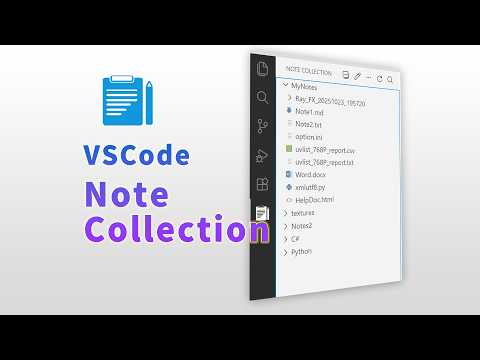
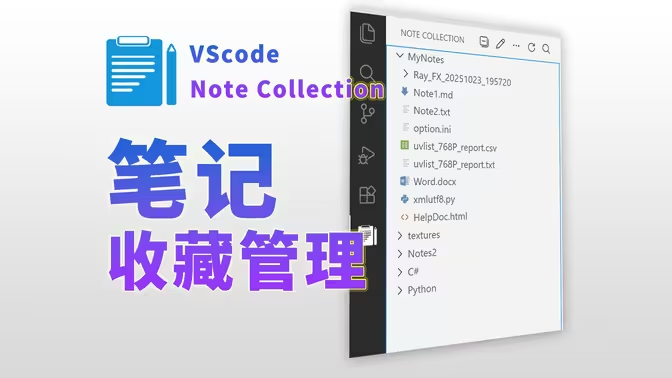
Note Collection
Note Collection

language: English | 简体中文 | 繁體中文 | Français | Deutsch | Español | 日本語 | 한국어 | Русский | Italiano | Português (Brasil) | Türkçe | Polski | Čeština
A VS Code extension for managing and collecting tagged note files. Organize your notes efficiently through a clean and intuitive interface.
Features
- Organize notes by tags: Categorize notes into custom tags, supporting multi-level directory tags
- Full-text search: Search content instantly across all note files
- Tag management: Easily create, rename, and delete tags
- Import/Export: Import JSON backup files to restore data, export collection to TXT or JSON backup files
- Drag and drop: Drag note files/folders to different tags for quick categorization
- File integration: Open notes in new windows or show in file explorer
- Enable/Disable notes: Toggle note visibility without deleting them
- Multi-language support: Supports 12 languages
- English, 简体中文, 繁體中文, Français, Deutsch, Español
- 日本語, 한국어, Русский, Italiano, Português (Brasil), Türkçe, Polski, Čeština
Video guide
Installation
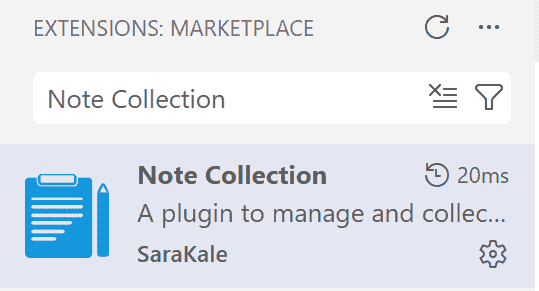
Install from VS Code Marketplace
- Open VSCode
- Go to Extensions panel (Ctrl+Shift+X)
- Search "Note Collection" or marketplace install
- Click Install
Install from VSIX file
- Download the latest
.vsix file from Releases page
- Open VS Code
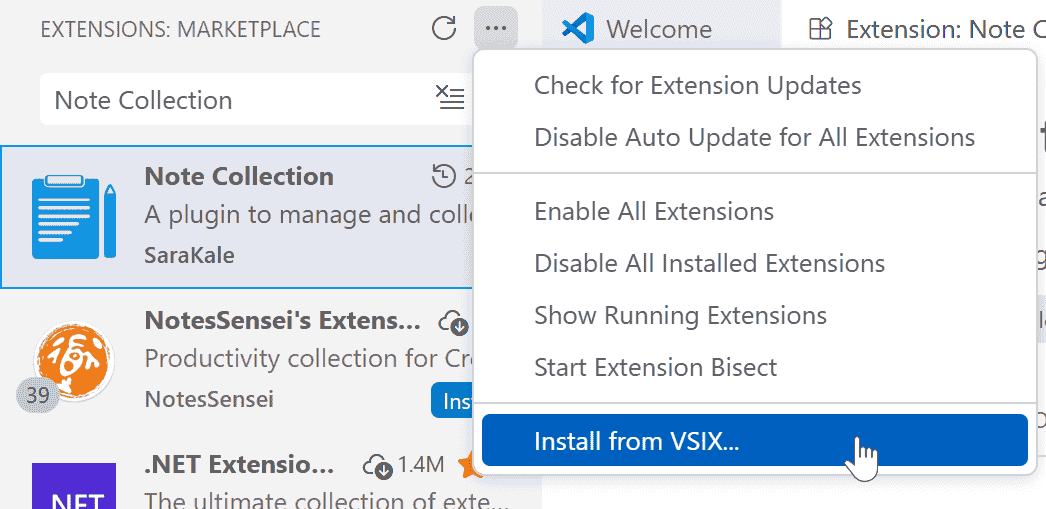
- Press Ctrl+Shift+P to open Command Palette
- Select "Extensions: Install from VSIX..."
- Select the downloaded
.vsix file
Usage
Getting Started
- After installation, the "Note Collection" view will appear in the left activity bar
- Click the icon to open the side panel
- Start adding your notes!
- Need to restart VS Code to switch languages.
Basic Operations
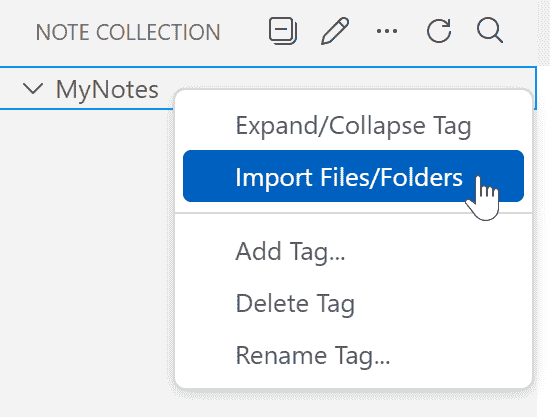
- Right-click on a tag, select "Import Files/Folders..." to add note files/folders
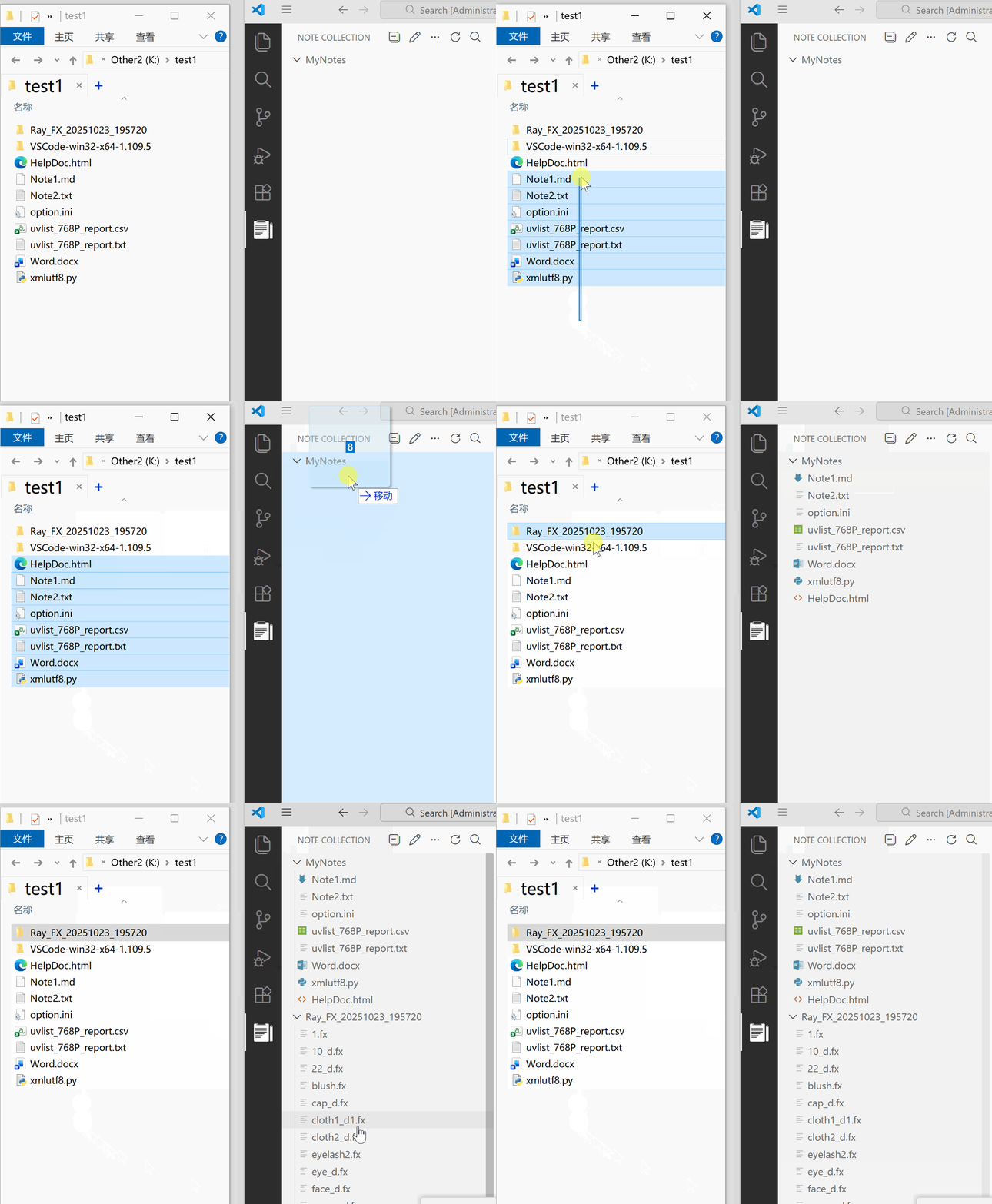
- Drag files/folders from file explorer into tags
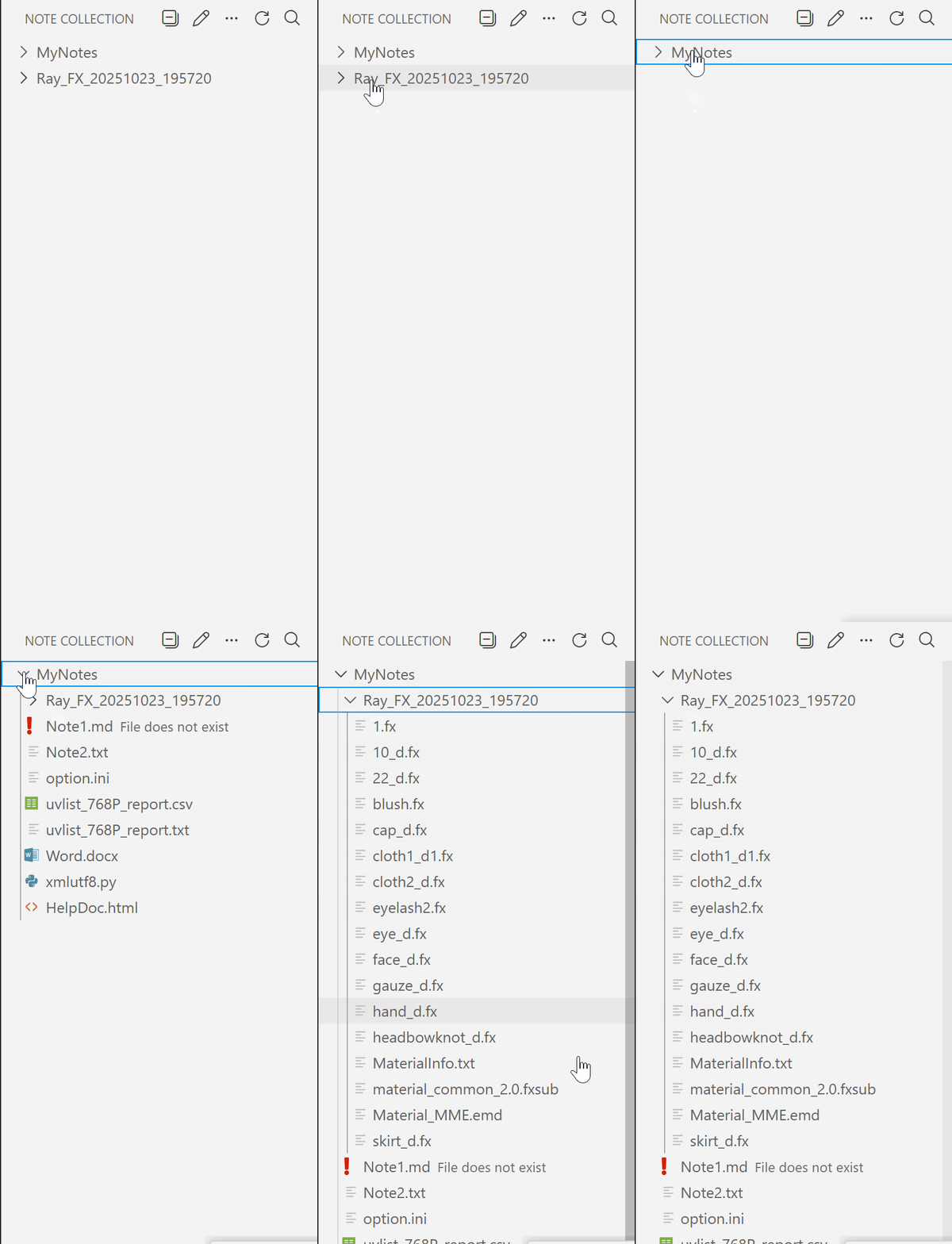
- If a file is moved or deleted, a warning icon and prompt will appear.

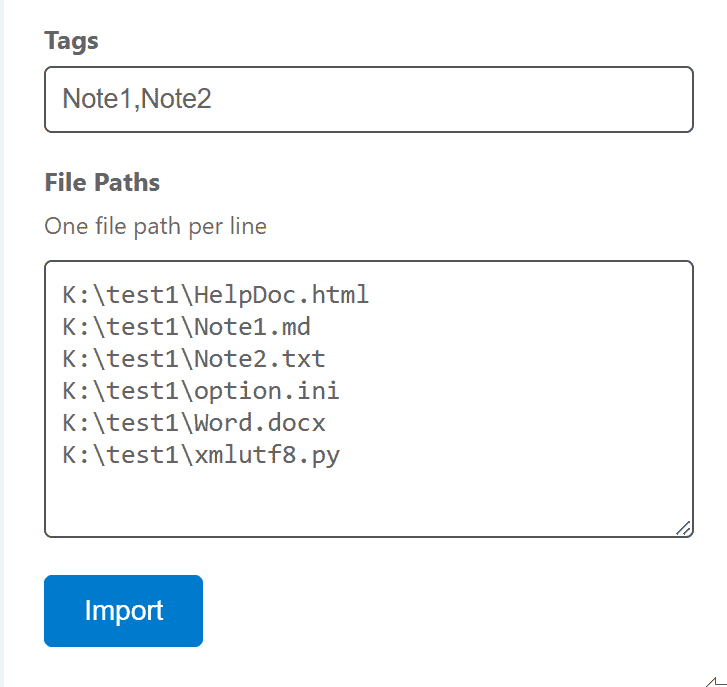
- You can also manually enter paths in more operations, which will open a dedicated Webview panel to enter more paths.
- If new files/folders are added in the file explorer, the interface will automatically refresh. If new files or folders do not appear, you can manually click the refresh button.
- When moving or deleting files/folders, the interface will not refresh quickly. You need to manually click the refresh button to update.
- Click "Add Tags..." in the "More" menu to create new tags/multi-level tags
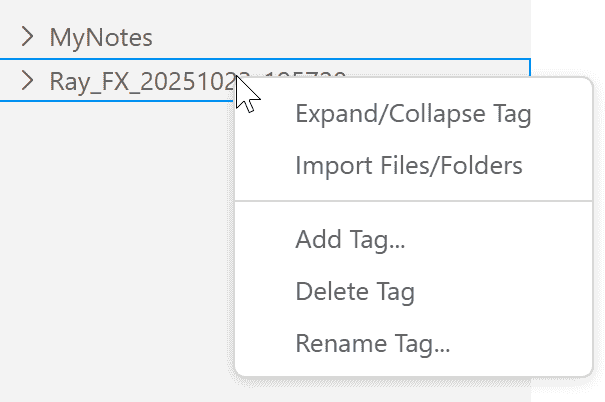
- Right-click on tags to add tags, rename tags, delete tags
- Deleting tags will not delete the note files within them, only remove them from the collection
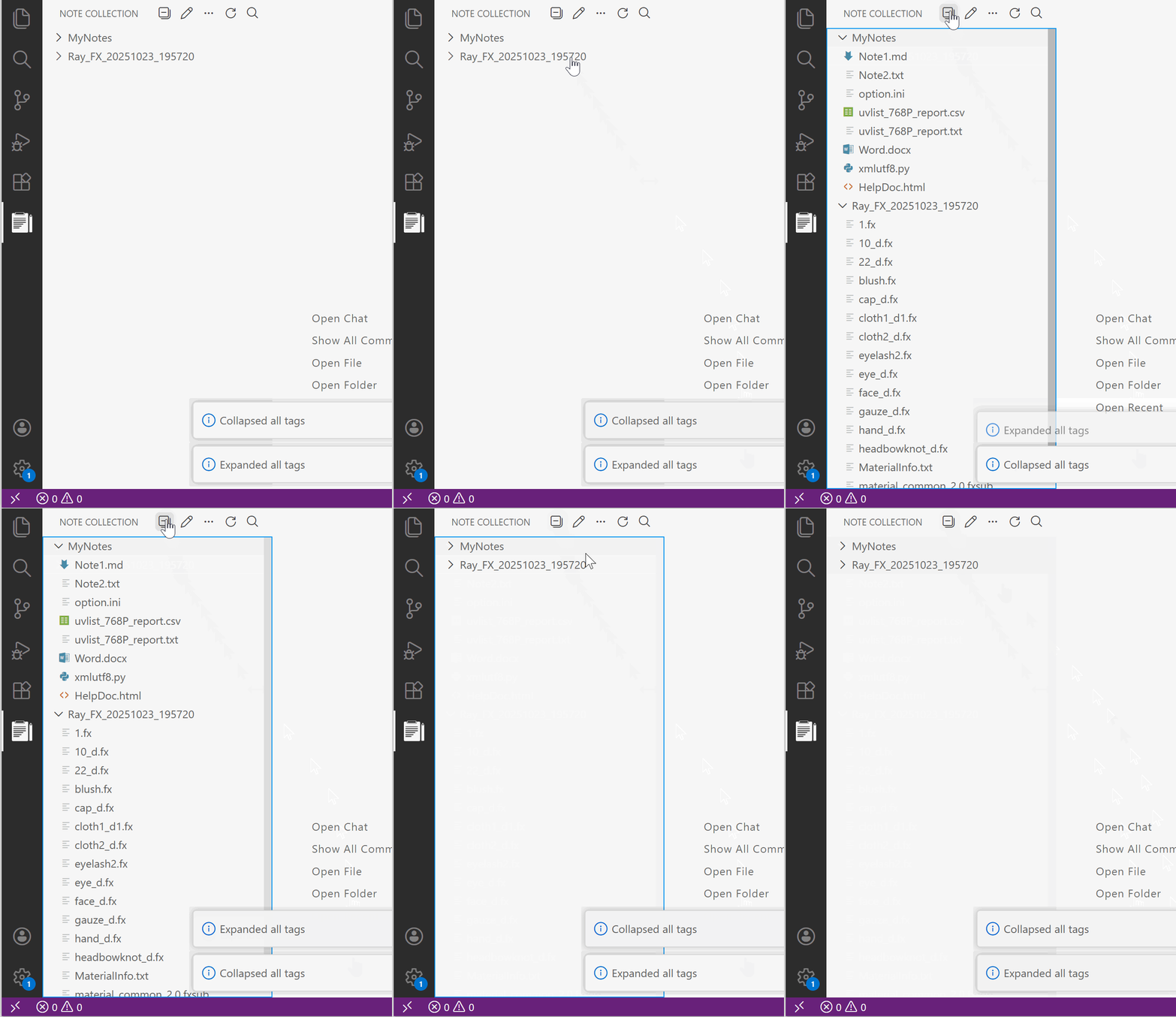
- Click the collapse icon to expand/collapse all tag content
- You can also move tags into other tags
Searching Notes
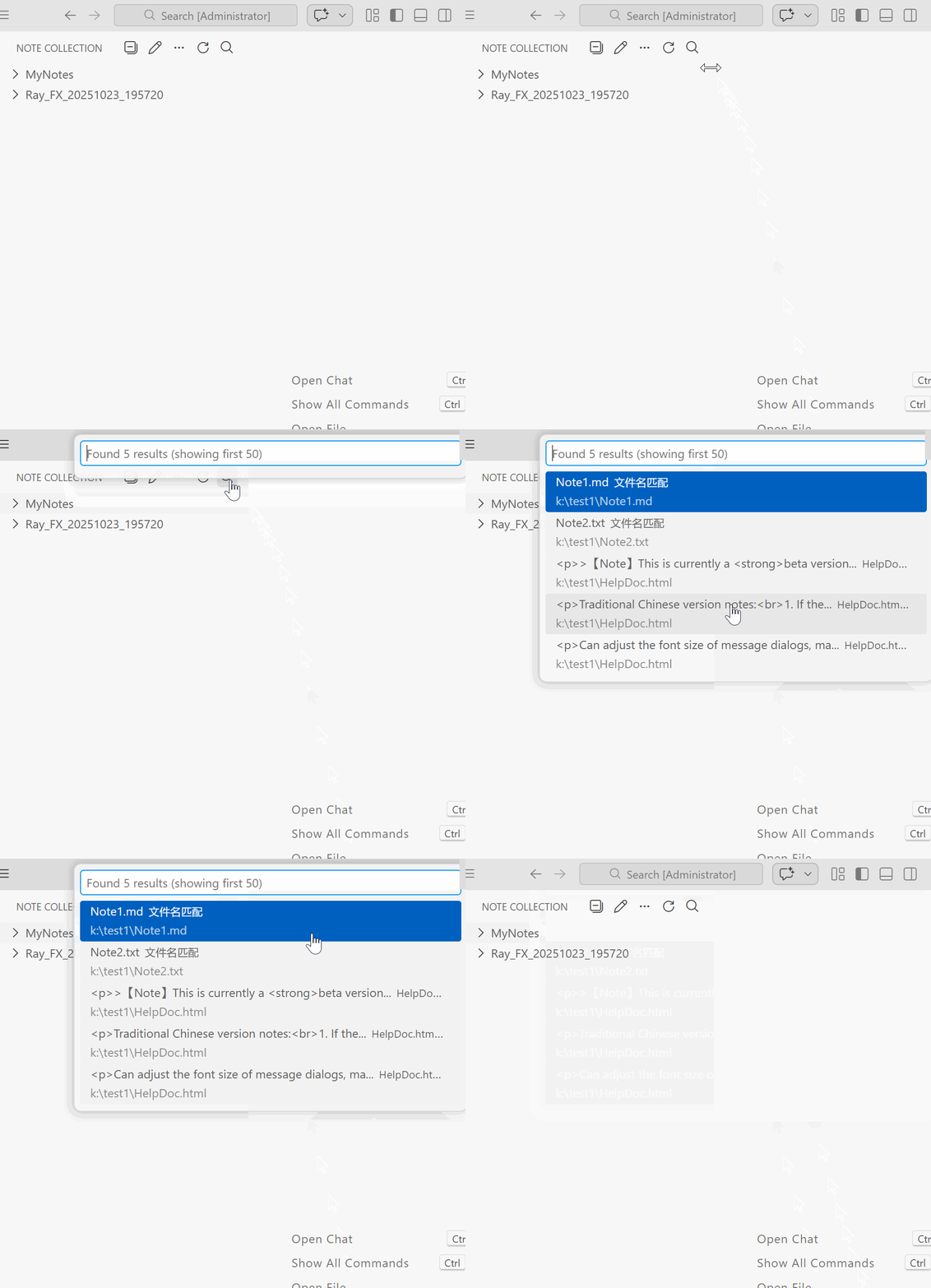
- Click the search icon in the toolbar
- Enter search keywords to find notes in all tags
- Displays up to 50 matching results
- Only supports common text formats; images/documents/videos will only search for filenames. Binary files require third-party full-text search software, such as: Recoll, DocFetcher, etc.
Note Operations
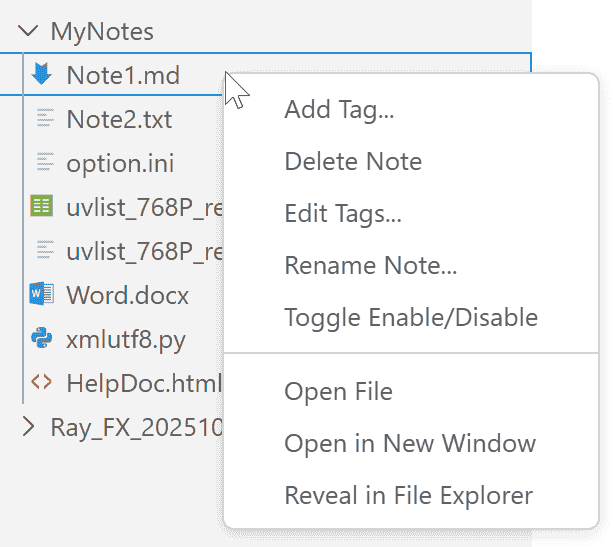
- Open: Double-click or select "Open File" from right-click menu
- Show in Explorer: Open the location of the file in the explorer
- Rename Note: Can change to a new name
- Edit Tags: Add multiple tags to notes
- Delete Note: Remove notes from the collection
- Enable/Disable: Hide/show note file items without actually deleting the file.
Export TXT / Import Export JSON Backup Files
- In more operations:
- Export as TXT: Export the entire note collection list as a TXT file
- Export JSON Backup File: Create a JSON backup file to save your note collection state for easy recovery or migration to other devices.
- Import JSON Backup File: Restore note collection state from a previously exported JSON backup file.
- Note: Importing a JSON backup file will overwrite the current note collection state, please proceed with caution.
Screenshots
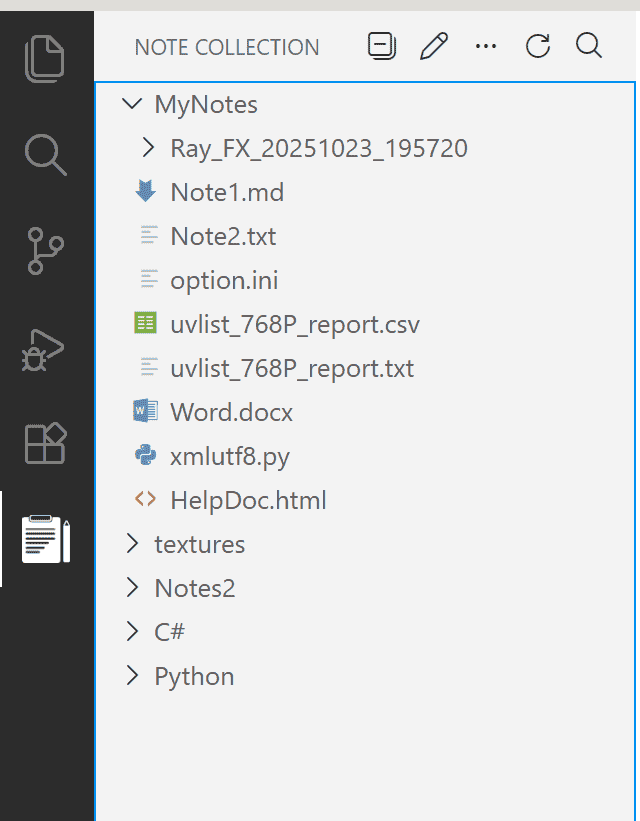
Requirements
- Visual Studio Code version 1.80.0 or higher
Known Issues
- After first installation, you may need to restart VS Code to switch languages.
- When collapsing/expanding tags, there might be UI refresh issues. Try manually expanding tags to resolve.
- If there are too many note items, VS Code may take a long time to load. I tested with 6000+ notes and it took 8 seconds to open. If notes don't appear, please wait patiently for them to load.
Contributing
Contributions are welcome! Feel free to submit Pull Requests.
- Fork this repository
- Create a branch and commit
- Open a Pull Request
Build Instructions
Local Development
- Clone the repository
git clone https://github.com/sarakale/vscode-note-collection.git
cd vscode-note-collection
- Install dependencies
npm install
- Compile TypeScript
npm run compile
- Press F5 in VS Code to start debugging
Package Extension
- Install vsce (VS Code Extension Packager)
npm install -g vsce
- Package as
.vsix file
npm run package
Or use vsce command directly
vsce package
- The generated
.vsix file can be manually installed.
Changelog
Check CHANGELOG.md for update details of each version.
License
This project is licensed under GPL-3.0 License - see the LICENSE file for details.
Support
If you encounter any issues or have feature suggestions, please visit:
Acknowledgments
- Thanks to all users who use and support this extension
- Inspired by vscode-project-manager, adding more features based on it.
| |