Skip to content
| Marketplace
Sign in
Visual Studio Code>Programming Languages>Pro Console LoggerNew to Visual Studio Code? Get it now.
Pro Console Logger

Pro Console Logger

Salek Masud Parvez

|
11 installs
| (1) | Free
Professional inline console logs for JavaScript & TypeScript. Features theme-aware phantom text and Quokka-like instant feedback.
Installation
Launch VS Code Quick Open (Ctrl+P), paste the following command, and press enter.
Copied to clipboard
More Info

Pro Console Logger

Real-time debug output, right where you need it.

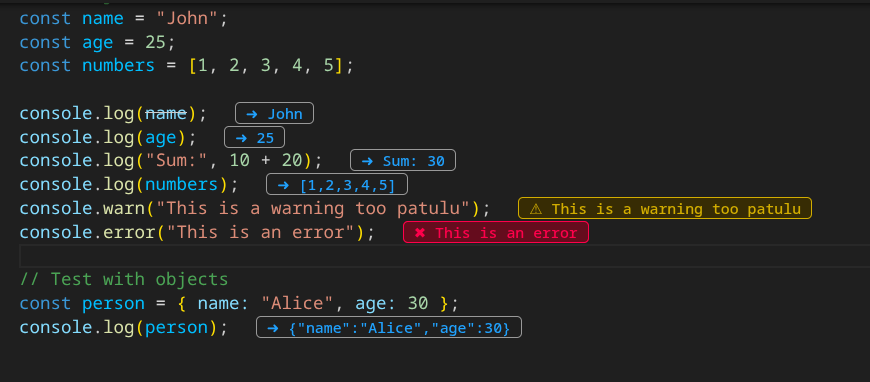
Pro Console Logger is a high-performance VS Code extension for Node.js and TypeScript developers. It intercepts debug output and renders console.log results as inline phantom text directly next to the code statement that generated them. No more context switching between the Editor and the Debug Console.

Developed by Salek Masud Parvez (parvez.dev).

Extension Screenshot


🚀 Key Features

  • Inline Execution Capture: Logs appear instantly at the end of the line as you step through code or hit breakpoints.
  • Pro Color System:
    • Strings: Rendered using your theme's string color (debugTokenExpression.string).
    • Primitives (Numbers/Booleans): Rendered using your theme's number color (debugTokenExpression.number).
    • Errors: Critical failures trigger a full-line highlight using your theme's error colors (editorError.background and editorError.foreground).
  • Theme Awareness: Automatically adapts to your active VS Code theme colors for seamless integration.
  • Performance Optimized: Uses advanced memory management to handle heavy logging sessions without slowing down the editor.
  • Configurable: Customize inline display style, visibility, and logging level in settings.

🏁 Getting Started

  1. Install the extension from the VS Code Marketplace.
  2. Open a JavaScript or TypeScript project.
  3. Start a Debug Session (F5) using Node.js or Chrome debugger.
  4. As console.log statements execute, the output will appear inline next to the code line.

Example Usage

const user = "Alice";
const score = 42;

console.log(user);  //  ‣ "Alice"
console.log(score); //  ‣ 42

You will see the values right in the editor as phantom inline text.


⚙️ Settings & Configuration

You can customize the behavior of Pro Console Logger in VS Code Settings (Ctrl+,):

Setting Description Default
consoleLogger.showStrings Display string values inline true
consoleLogger.showPrimitives Display numbers/booleans inline true
consoleLogger.errorHighlight Highlight errors with red background true
consoleLogger.maxInlineLogs Maximum number of inline logs per file 100

⌨️ Commands & Keybindings

You can access the extension commands via Command Palette (Ctrl+Shift+P):

Command Description Default Keybinding
consoleLogger.toggle Toggle inline logging on/off Ctrl+Alt+L
consoleLogger.clear Clear all inline logs Ctrl+Shift+Alt+L

🛠 Troubleshooting

  • Inline logs not appearing: Make sure you are running a debug session, not just running the file normally.
  • Performance issues on large files: Adjust consoleLogger.maxInlineLogs in settings.
  • Theme contrast issues: Ensure your VS Code theme is Light or Dark; the extension adapts automatically.

🎨 Supported Themes

  • Light: Automatic light-color contrast.
  • Dark: Automatic dark-color contrast.
  • Custom themes: Inline text colors may require manual adjustment in settings.

🤝 Contributing

We welcome contributions from the community!

  1. Fork the repository.
  2. Create a branch: git checkout -b feature/new-feature
  3. Make your changes and commit: git commit -m "Add new feature"
  4. Push to the branch: git push origin feature/new-feature
  5. Open a Pull Request.

📄 License

This project is licensed under the MIT License.


Developed by Salek Masud Parvez (parvez.dev)


---

  • Contact us
  • Jobs
  • Privacy
  • Manage cookies
  • Terms of use
  • Trademarks
© 2026 Microsoft