R3BL Semantic Configuration


This extension provides powerful features for Rust development in VS Code:
- Enhanced Semantic Highlighting - Automatically applies optimized color rules for
Rust semantic tokens
- Debounced rust-analyzer Flycheck - Keeps your IDE responsive by intelligently
timing
cargo check runs
- Rustdoc Folding - Fold/unfold all documentation comments (
/// and //!) with a
single command
- Use Statement Folding - Collapse all
use imports at the top of a file into a
single foldable region
- Rustdoc Structure Navigator - Quickly jump to headings within a rustdoc block or
navigate between rustdoc blocks in a file
- Scroll Current Line to Top - Quickly scroll the editor viewport so that the current
line is positioned at the top of the screen
- Rustdoc Link Auto-Insertion - Automatically fetch and insert repeating link
reference definitions in rustdoc comments
- Switch rust-analyzer Cargo Target - Quickly switch between common compilation
targets from a dropdown or status bar item
Table of Contents
Feature 1: Semantic Highlighting
What It Does
Automatically applies enhanced semantic token color customizations optimized for Rust
development. This extension is designed as a companion to the
R3BL Theme and
provides color rules that perfectly complement the theme's palette.
Why This Feature Exists
VS Code uses two separate highlighting systems:
| Layer |
Provided By |
Customizable Via |
Capabilities |
| TextMate Tokens |
Theme files |
Theme package |
Basic syntax: keywords, strings, comments |
| Semantic Tokens |
Language servers (rust-analyzer) |
settings.json only |
Context-aware: mutability, lifetimes, traits |
The key constraint: VS Code themes cannot include semantic token customizations. These
rules must be defined in your settings.json - they cannot be bundled with a theme
package.
This is why we need a separate extension - to automatically manage semantic token
settings for you, rather than requiring manual configuration.
Screenshots
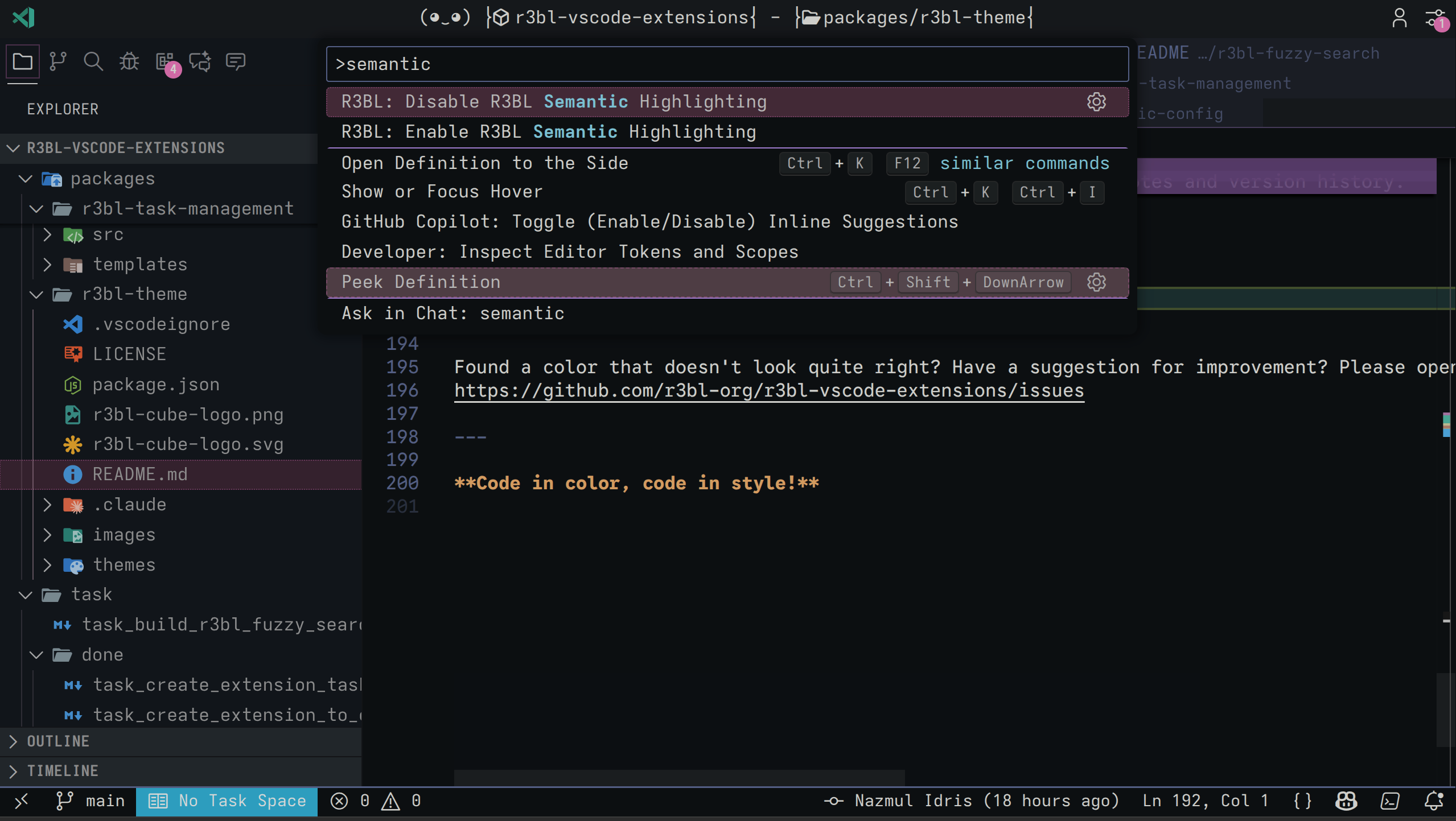 Manual enable/disable commands in the Command Palette
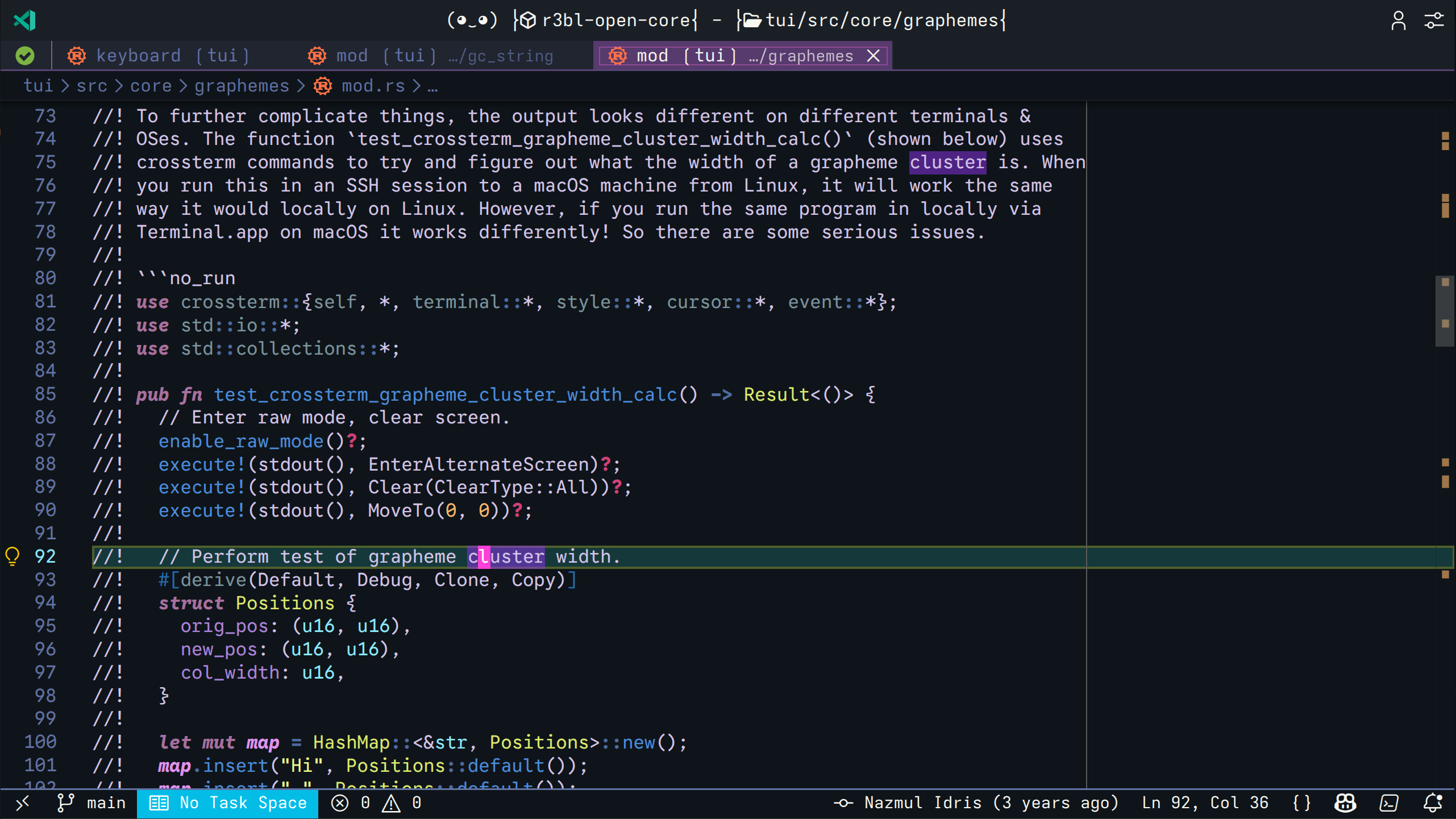 Semantic highlighting in action
How It Works
Auto-Activation
When installed with one of the R3BL themes active, the extension automatically:
- Detects an R3BL theme is active
- Applies semantic highlighting to global configuration
- Shows a success notification
Theme Watcher
Monitors theme changes. When you switch to an R3BL theme:
- Checks if settings need applying
- Prompts: "R3BL theme detected! Apply enhanced semantic highlighting?"
- Applies settings on confirmation
Manual Control
Use commands in Command Palette (Ctrl+Shift+P):
R3BL: Enable R3BL Semantic HighlightingR3BL: Disable R3BL Semantic Highlighting
Semantic Token Rules
| Token Type |
Color |
Style |
Description |
| Functions & Methods |
#4B8CDC |
- |
Function and method names |
| Structs |
#DDE86E |
- |
Struct type names |
| Enums |
#FCB141 |
- |
Enum type names |
| Enum Members |
#FFCE66 |
- |
Enum variant names |
| Variables |
#E192EF |
- |
Variable names |
| Mutable Variables |
#E192EF |
Bold Italic |
Mutable variable names |
| Parameters |
#7c86f4 |
- |
Function parameters |
| Properties |
#ad83da |
- |
Struct field access |
| Lifetimes |
#c56db599 |
- |
Lifetime annotations |
| Keywords |
#a8709e |
Italic Bold |
Rust keywords |
| Control Flow |
#d14178 |
Bold |
if, match, loop, etc. |
| Type Aliases |
#ecc68e |
- |
Type alias names |
| Traits |
#d1de73 |
- |
Trait names |
| Unsafe |
#e02b9d |
- |
Unsafe functions/operators |
| Self |
#ce55b7 |
- |
self keyword |
| Operators |
#4d6a9f |
Bold |
Arithmetic and logical operators |
| Deprecated |
- |
Strikethrough |
Deprecated items |
| Unresolved Reference |
#ff6edb |
Strikethrough |
Unresolved references |
Feature 2: Debounced rust-analyzer Flycheck
The Problem: IDE Lag During Typing
When you're coding intensely - typing fast, thinking through logic, refactoring - you need
your IDE to be instantly responsive. Every keystroke should feel immediate.
rust-analyzer's checkOnSave runs cargo check every time you save a file. While
useful, this creates problems:
- Heavy CPU usage during compilation blocks the IDE
- Lag and stuttering interrupt your coding flow
- Constant interruptions when you're rapidly saving while experimenting
- On large projects, each check can take several seconds
The result: your IDE becomes sluggish exactly when you need it most - during active
development.
The Solution: Intelligent Debouncing
Debounced flycheck solves this by waiting for you to stop typing before running
cargo check:
You type → Timer starts (1 second)
You type again → Timer resets
You stop typing → Timer expires → Flycheck runs
Why this works:
- While you're actively typing, no heavy computation - IDE stays responsive
- After you pause (finished a thought, reviewing code), flycheck runs
- You get compile feedback exactly when you need it - during natural pauses
- Your coding flow is never interrupted by background compilation
Configuration
The feature is enabled by default. Customize in settings.json:
{
    "r3bl-semantic-config.debouncedFlycheck.enabled": true,
    "r3bl-semantic-config.debouncedFlycheck.delayMs": 1000,
    "r3bl-semantic-config.debouncedFlycheck.languages": ["rust"],
    "r3bl-semantic-config.debouncedFlycheck.autoDisableCheckOnSave": true
}
| Setting |
Type |
Default |
Description |
enabled |
boolean |
true |
Enable debounced flycheck |
delayMs |
number |
1000 |
Milliseconds to wait after last keystroke (100-10000) |
languages |
string[] |
["rust"] |
Language IDs to monitor |
autoDisableCheckOnSave |
boolean |
true |
Auto-disable rust-analyzer.checkOnSave |
How It Works
- Text change detected → Timer starts (or restarts)
- Status bar shows countdown → "⏱️ Flycheck in 0.8s..."
- Timer expires → "🚀 Running flycheck..."
- Flycheck completes → Status bar hides
The timer is global - all Rust file changes share one timer since runFlycheck checks
the entire workspace.
Keybinding for Manual Trigger
Default keybinding: Ctrl+R (when editing a Rust file)
This command:
- Cancels any pending debounced flycheck
- Runs flycheck immediately
- Hides the status bar countdown
To customize the keybinding, add to your keybindings.json:
{
    "key": "ctrl+shift+r", // <- Or your preferred shortcut
    "command": "r3bl-semantic-config.runFlycheck",
    "when": "editorTextFocus && !editorReadonly && editorLangId == rust"
}
Auto-Disable checkOnSave
When autoDisableCheckOnSave is true (default), the extension automatically sets
rust-analyzer.checkOnSave to false. This prevents redundant checks - debounced
flycheck replaces save-triggered checks.
You'll see: "Disabled rust-analyzer.checkOnSave (debounced flycheck is now handling this)"
Feature 3: Rustdoc Folding
What It Does
Provides commands to fold (collapse) or unfold (expand) all Rust documentation comments in
a file. This makes it easy to focus on the code by hiding lengthy documentation blocks.
| Comment Type |
Example |
Behavior |
/// |
Item docs |
Folded by these commands |
//! |
Module docs |
Folded by these commands |
// |
Regular |
Not affected (stays visible) |
Keybindings
| Keybinding |
Command |
Description |
Ctrl+- |
Fold All Rustdocs |
Collapse all /// and //! |
Ctrl+= |
Unfold All Rustdocs |
Expand all rustdoc blocks |
These keybindings only activate when:
- You're editing a Rust file
- The editor has focus
Auto-Fold on File Open
By default, rustdoc comments are not automatically folded when you open a Rust file.
This preserves navigation targets — for example, when using "Go to Definition", the
destination line remains visible instead of being collapsed inside a folded block.
If you prefer rustdocs to be automatically folded on file open, enable it in
settings.json:
{
    "r3bl-semantic-config.autoFoldRustdocsOnOpen": true
}
| Setting |
Type |
Default |
Description |
autoFoldRustdocsOnOpen |
boolean |
false |
Auto-fold rustdocs when opening a Rust file |
You can always fold on-demand with Ctrl+-.
How It Works
- Scans the document for consecutive lines starting with
/// or //!
- Groups them into blocks (module-level and item-level separately)
- Creates folding ranges for each block
- Manual fold shows status bar feedback: "Folded 5 rustdoc blocks in filename.rs"
Navigation-friendly behavior:
- Auto-fold only runs on first file open, not when switching tabs
- This preserves your "Go Back" navigation history
- Closing and reopening a file will auto-fold again
Manual Trigger
Use Command Palette (Ctrl+Shift+P):
R3BL: Fold All RustdocsR3BL: Unfold All Rustdocs
Feature 4: Use Statement Folding
What It Does
Detects all use (import) statements at the top of each Rust file and, when enabled,
exposes them as a single foldable region. This lets you collapse imports to focus on the
actual code.
Configuration
By default, use statements are not automatically folded when you open a Rust file by
this extension. If you prefer use statements to be automatically folded on file open,
enable it in settings.json:
{
    "r3bl-semantic-config.autoFoldUseStatementsOnOpen": true
}
| Setting |
Type |
Default |
Description |
autoFoldUseStatementsOnOpen |
boolean |
false |
Enable or disable auto-folding of use statements on file open. |
The folding range provider for use statements is always registered, so manual
fold/unfold via Ctrl+- / Ctrl+= is always available regardless of this setting. This
setting only controls whether use statements are automatically folded when opening a
Rust file.
How It Works
- Scans from the top of the file, skipping preamble (
//! module docs, #![...] inner
attributes, regular comments, blank lines)
- Groups all consecutive
use statements into a single block, including:
- Single-line
use foo::bar;
- Multi-line
use with braces spanning multiple lines
- Blank lines and comments between
use groups
- Creates a single foldable region (requires at least 2 lines of imports)
Integration with Fold/Unfold Commands
Import folding integrates seamlessly with the existing rustdoc fold/unfold commands when
autoFoldUseStatementsOnOpen is enabled:
Ctrl+- folds both rustdoc blocks and the import blockCtrl+= unfolds both- Status bar shows: "Folded 5 rustdoc blocks + imports in filename.rs"
- Auto-fold on open also folds imports (when enabled)
Scope
- Top-of-file only —
use statements inside inner modules or test blocks are not
affected
- Native VSCode folding — the fold gutter arrow appears next to the import block, and
VSCode's built-in "Fold All" (
Ctrl+K Ctrl+0) includes it
Feature 5: Rustdoc Structure Navigator
What It Does
Provides a quick navigation command for jumping to headings within rustdoc blocks or
navigating between rustdoc blocks in a file. Similar to Go to Symbol in Editor
(Ctrl+Shift+O) but for rustdoc documentation structure.
Two Modes
| Cursor Position |
Behavior |
| Inside a rustdoc block |
Shows TOC with headings, TOP, BOTTOM, and LINK REF DEFS |
| Outside any rustdoc block |
Shows all rustdoc blocks in the file |
Keybinding
| Keybinding |
Command |
Description |
Ctrl+Shift+Y |
Navigate Rustdoc Structure |
Open rustdoc heading/block navigator |
This keybinding only activates when editing a Rust file with editor focus.
To customize the keybinding, add to your keybindings.json:
{
    "key": "ctrl+shift+y",
    "command": "r3bl-semantic-config.navigateRustdocs",
    "when": "editorTextFocus && editorLangId == rust"
}
Note: Ctrl+Shift+Y is bound to Debug Console (workbench.debug.action.toggleRepl)
by default. You may need to remove that binding:
{
    "key": "ctrl+shift+y",
    "command": "-workbench.debug.action.toggleRepl"
}
How It Works
Inside a rustdoc block:
The QuickPick shows a structured TOC:
| Item |
Description |
<TOP> |
Jump to the first line of the rustdoc block |
| Headings |
All #, ##, ### headings, indented by level |
<LINK REF DEFS> |
Jump to the start of link reference definitions (if any exist) |
<BOTTOM> |
Jump to the last line of the rustdoc block |
Link reference definitions are markdown lines like /// [label]: URL typically found at
the bottom of large rustdoc blocks. The <LINK REF DEFS> entry only appears when such
definitions are present.
Outside any rustdoc block:
- Finds all rustdoc blocks (
/// and //!) in the file
- Labels each block by its first heading or first content line
- Shows a QuickPick listing all blocks for coarse navigation
- Selecting a block jumps to its start line
What It Does
Allows you to quickly scroll the editor viewport so that the current cursor line is
positioned at the top of the screen. This is a general editor utility that works in any
file, not just Rust files.
Keybinding
| Keybinding |
Command |
Description |
Ctrl+M |
Scroll Current Line to Top |
Reveal active cursor line at top |
This keybinding is active whenever the editor has focus.
Feature 7: Rustdoc Link Auto-Insertion
What It Does
When writing Rust documentation, you often reuse markdown link references across multiple
files (e.g., [`SIGWINCH`]). This feature saves you from having to hunt down the
definition URL. It automatically searches your workspace for an existing definition and
inserts it at the bottom of your current rustdoc block.
Keybinding
By default, the shortcut is Ctrl+Shift+L (or Cmd+Shift+L on macOS) when the editor is
focused and the language is Rust.
{
    "command": "r3bl-semantic-config.insertRustdocLinkDef",
    "key": "ctrl+shift+l",
    "mac": "cmd+shift+l",
    "when": "editorTextFocus && editorLangId == 'rust'"
}
How It Works
- Smart Selection: Place your cursor inside a link reference (like
[`OSC`]) or
highlight the term.
- Search: Press the shortcut. The extension uses Ripgrep to rapidly scan your
workspace for an existing
/// or //! definition for that term.
- Insert: If it finds a unique definition, it automatically appends it to the bottom
of the rustdoc block your cursor is currently in, matching the block's comment style
(
/// or //!).
- Choose: If multiple different definitions are found, it prompts you with a
QuickPick menu so you can choose the correct one.
Configuration
You can configure the maximum number of unique definitions shown in the QuickPick menu:
{
    "r3bl-semantic-config.insertRustdocLinkDef.maxResults": 5 // Default is 5
}
Feature 8: Switch rust-analyzer Cargo Target
Quickly change "rust-analyzer.cargo.target" from an interactive dropdown menu or
directly from the status bar, making cross-compilation target switching fast and
effortless.
What It Does
When working with cross-platform Rust projects (e.g. compiling for Windows GNU/MSVC,
Linux, or macOS Apple Silicon), you often need to point rust-analyzer to a specific
compilation target so that target-specific cfg blocks, dependencies, and types are
correctly analyzed.
This feature provides:
- Curated Dropdown:
Host / Default (clears the setting to use your machine's native target)aarch64-apple-darwin (macOS Apple Silicon)x86_64-unknown-linux-gnu (Linux 64-bit)x86_64-pc-windows-gnu (Windows MinGW / GNU)x86_64-pc-windows-msvc (Windows Visual Studio / MSVC)Custom Target... (prompt to enter any arbitrary target triple)
- Active Target Badge: Highlights the currently active target with
$(check) and
(Current).
- Status Bar Item: Displays dynamic platform icons and concise labels like
🐧 Linux x64, 🍎 macOS ARM, 🪟 Win-GNU x64, 🌐 Wasm32, or $(chip) Host in the
status bar for quick reference and one-click target switching. Hovering displays the
full triple.
- Automatic Workspace Reload: Automatically executes
rust-analyzer.reloadWorkspace
after changing targets so the IDE updates immediately.
Command & Keybinding
- Command Title:
R3BL: Switch Rust Target (rust-analyzer)
- Command ID:
r3bl-semantic-config.switchRustTarget
You can bind a keyboard shortcut to this command in your keybindings.json:
{
    "key": "ctrl+alt+t",
    "command": "r3bl-semantic-config.switchRustTarget",
    "when": "editorLangId == rust"
}
Or open the Keyboard Shortcuts UI (Ctrl+K Ctrl+S), search for Switch Rust Target, and
assign your preferred key combination.
Configuration
{
    "r3bl-semantic-config.rustTarget.showInStatusBar": true
}
Project-Scoped Configuration & Safety
To prevent accidental machine-wide changes, compilation target switching is strictly
project-scoped:
- Saved to
.vscode/settings.json: When you pick a target, it is written exclusively
to the active workspace's .vscode/settings.json (ConfigurationTarget.Workspace). It
is never written to your global User settings (settings.json).
- No Cross-Project Contamination: Setting a Windows or WebAssembly target in one
repository will never leak into or break other Rust projects on your machine.
- Requires an Open Workspace: Target switching requires an open project folder or
workspace. If invoked in an empty window, the extension notifies you to open a project
folder first.
- Clean Reset on Host / Default: Selecting Host / Default removes
"rust-analyzer.cargo.target" from .vscode/settings.json (and clears any legacy
user-level setting), ensuring rust-analyzer and Cargo revert to your machine's native
host target.
Requirements
Why rust-analyzer is Required
Both features in this extension depend on rust-analyzer:
- Semantic Highlighting - rust-analyzer provides token information (e.g., "this
variable is mutable", "this is a lifetime")
- Debounced Flycheck - rust-analyzer's
runFlycheck command executes cargo check
Recommended Settings
For the best experience with this extension's folding features, add these settings to your
settings.json. These ensure that folding is enabled and that this extension has sole
control over use statement folding behavior:
{
    "editor.folding": true,
    "editor.showFoldingControls": "always",
    "editor.foldingStrategy": "auto",
    "editor.foldingImportsByDefault": false,
    "editor.foldingHighlight": true,
    "r3bl-semantic-config.autoFoldRustdocsOnOpen": false,
    "r3bl-semantic-config.autoFoldUseStatementsOnOpen": false
}
| Setting |
Why |
editor.folding |
Must be true for any folding to work |
editor.foldingImportsByDefault |
Set to false so VSCode doesn't auto-fold imports on its own, conflicting with this extension |
editor.foldingStrategy |
"auto" lets language-specific folding providers (including this extension) work |
autoFoldRustdocsOnOpen |
Set to true if you want rustdoc comments auto-folded when opening Rust files |
autoFoldUseStatementsOnOpen |
Set to true if you want use statements auto-folded when opening Rust files |
Note: If editor.foldingImportsByDefault is true, VSCode will auto-fold use
statements regardless of this extension's autoFoldUseStatementsOnOpen setting — which
can cause confusing behavior. Set it to false for predictable results. The extension
will show a one-time warning notification if it detects this conflict when you open a
Rust file.
Commands
| Command |
Command ID |
Keybinding |
Description |
R3BL: Enable R3BL Semantic Highlighting |
r3bl-semantic-config.enable |
- |
Apply semantic highlighting settings |
R3BL: Disable R3BL Semantic Highlighting |
r3bl-semantic-config.disable |
- |
Remove semantic highlighting settings |
R3BL: Run Flycheck (Debounced) |
r3bl-semantic-config.runFlycheck |
Ctrl+R |
Manually trigger flycheck, cancels pending |
R3BL: Fold All Rustdocs |
r3bl-semantic-config.foldRustdocs |
Ctrl+- |
Collapse all ///, //!, and use blocks |
R3BL: Unfold All Rustdocs |
r3bl-semantic-config.unfoldRustdocs |
Ctrl+= |
Expand all rustdoc and use blocks |
R3BL: Navigate Rustdoc Structure |
r3bl-semantic-config.navigateRustdocs |
Ctrl+Shift+Y |
Jump to headings or blocks in rustdocs |
R3BL: Scroll Current Line to Top |
r3bl-semantic-config.scrollToTop |
Ctrl+M |
Reveal active cursor line at top |
R3BL: Insert Rustdoc Link Definition |
r3bl-semantic-config.insertRustdocLinkDef |
Ctrl+Shift+L |
Auto-insert link reference definitions |
R3BL: Switch Rust Target (rust-analyzer) |
r3bl-semantic-config.switchRustTarget |
- |
Switch active rust-analyzer cargo target |
Shared Infrastructure
This extension uses the R3BL Shared extension for centralized services across all R3BL
extensions (message queuing, global configuration, and more).
See the
R3BL Shared documentation
for available services, API usage, and configuration options.
Release Notes
See
CHANGELOG.md
for detailed release notes and version history.
License
MIT
Contributing
Found a bug or have a suggestion? Please open an issue at:
https://github.com/r3bl-org/r3bl-vscode-extensions/issues
Responsive IDE + Beautiful Highlighting = Enhanced Productivity!

