UniRTOS is a unified embedded development kit developed by Quectel for its full range of cellular communication modules. It provides consistent APIs and component architecture, supports cross-platform development and efficient porting, and integrates rich middleware, drivers, protocol stacks, and application examples to accelerate the development and deployment of intelligent embedded devices.
Features
🎯 Create New Project: Clone and create a new UniRTOS project.
🏛️ Create Demo Project: Choose a demo project and add to your current unirto proejct, or start from scratch.
⛩️ Build SDK: Build SDK from your unirtos project.
📸 Flash Firmware to Module: Flash your UniRTOS firmware to the module.
📜 Requirements: Follow the steps, to prepare your machine to build UniRTOS project.
How to use
📰 Create New Project
Create New Project
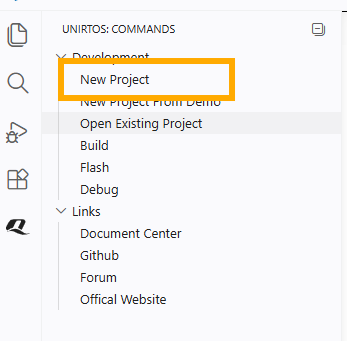
From UniRTOS menu -> Development -> New Project
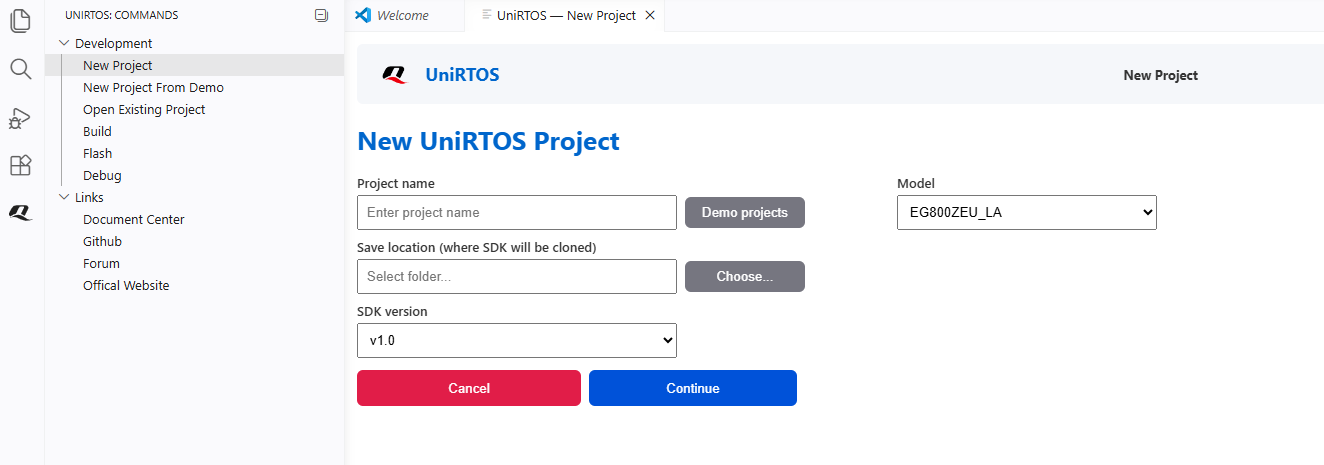
Required fields will show in the panel
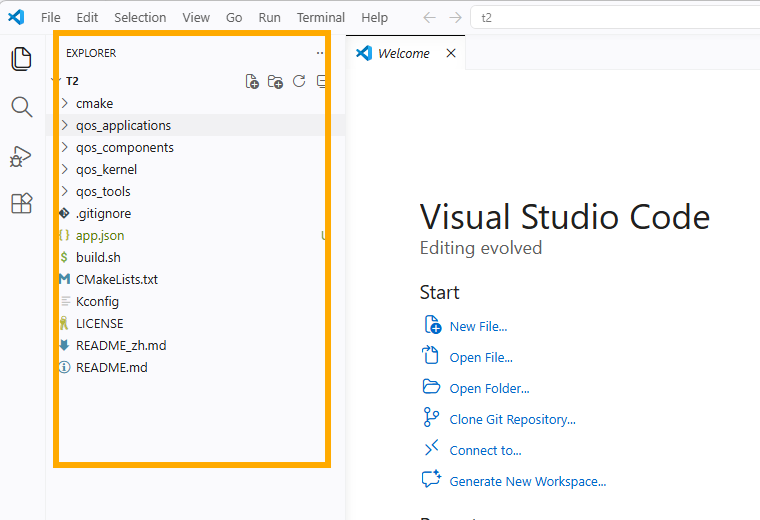
Fill in the required fields, and push continue. The new project will open when cloning is done
🪧 Create Demo Project
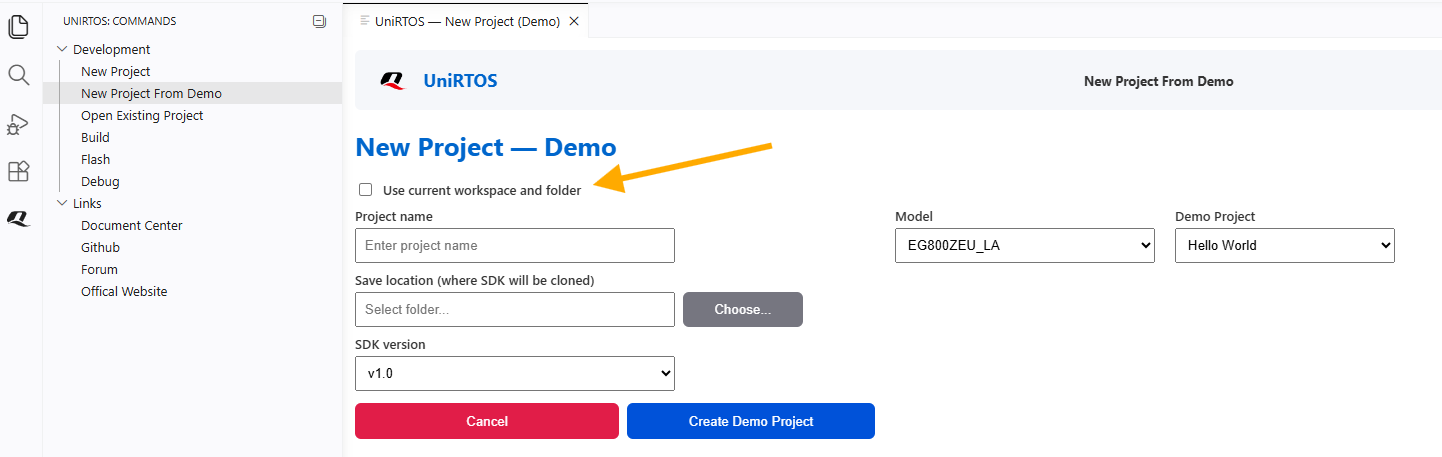
Create Demo Project
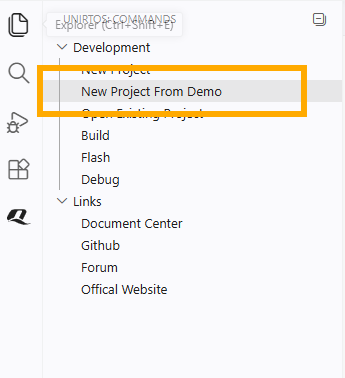
From UniRTOS menu -> Development -> New Project From Demo.
Required fields will show in the panel, please choose to create a new project or use the current one.
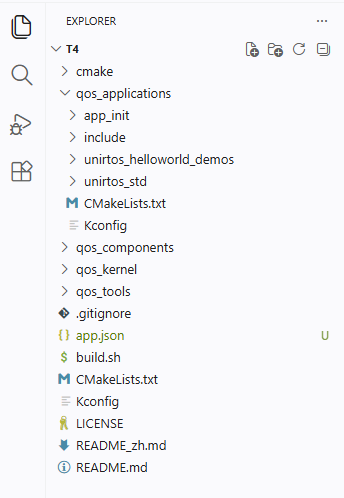
Fill in the required fields, and push continue. The demo project will open when cloning is done for the sdk and demo project.
👷 Build UniRTOS Project
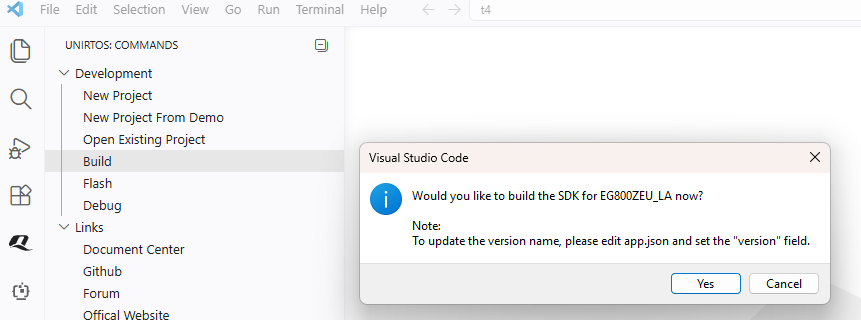
Build UniRTOS sdk
Note:
Please install all requirements before building the sdk (For More info, check requirements guide)
Please open UniRTOS project to use this feature
From UniRTOS menu -> Development -> Build.
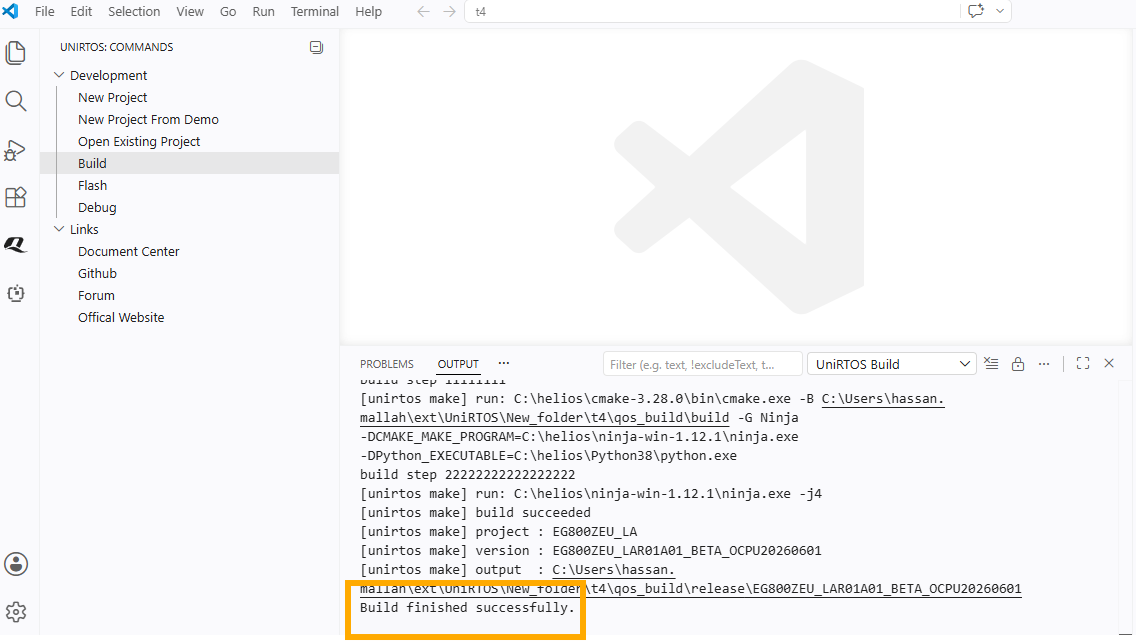
Output tab will open and will show the process, with successful message at the end.
🔦 Flash UniRTOS Firmware
Flash UniRTOS Firmware
Note:
Please install all requirements before building the sdk (For More info, check requirements guide)
Please open UniRTOS project to use this feature
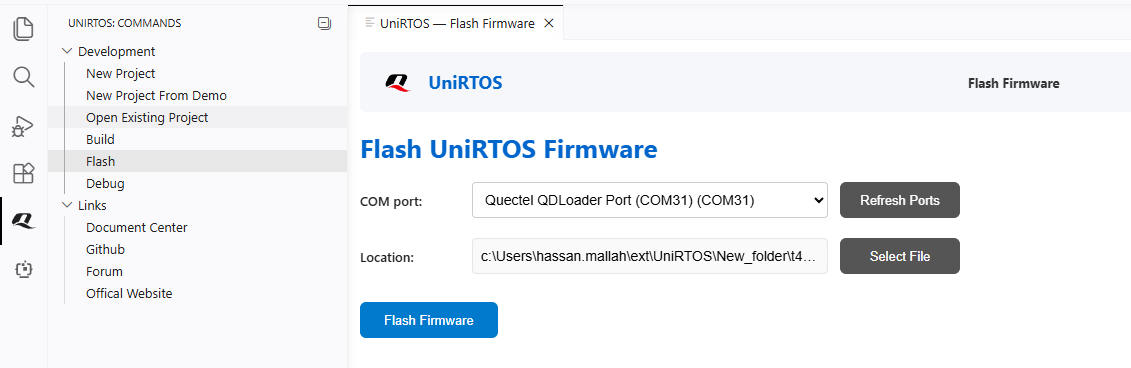
From UniRTOS menu -> Development -> Flash.
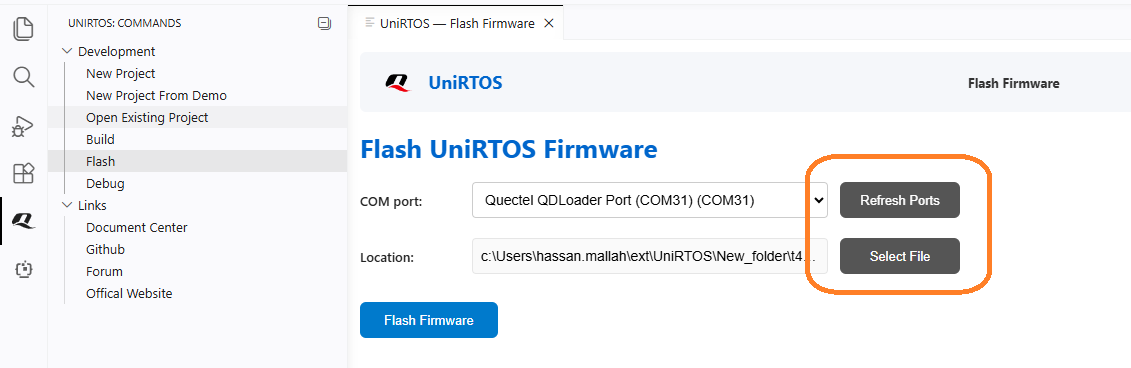
2. The extension will find the port + the config file.
Or you can find config file manually: Find quec_download_usb.ini or at_command.hbinpkg
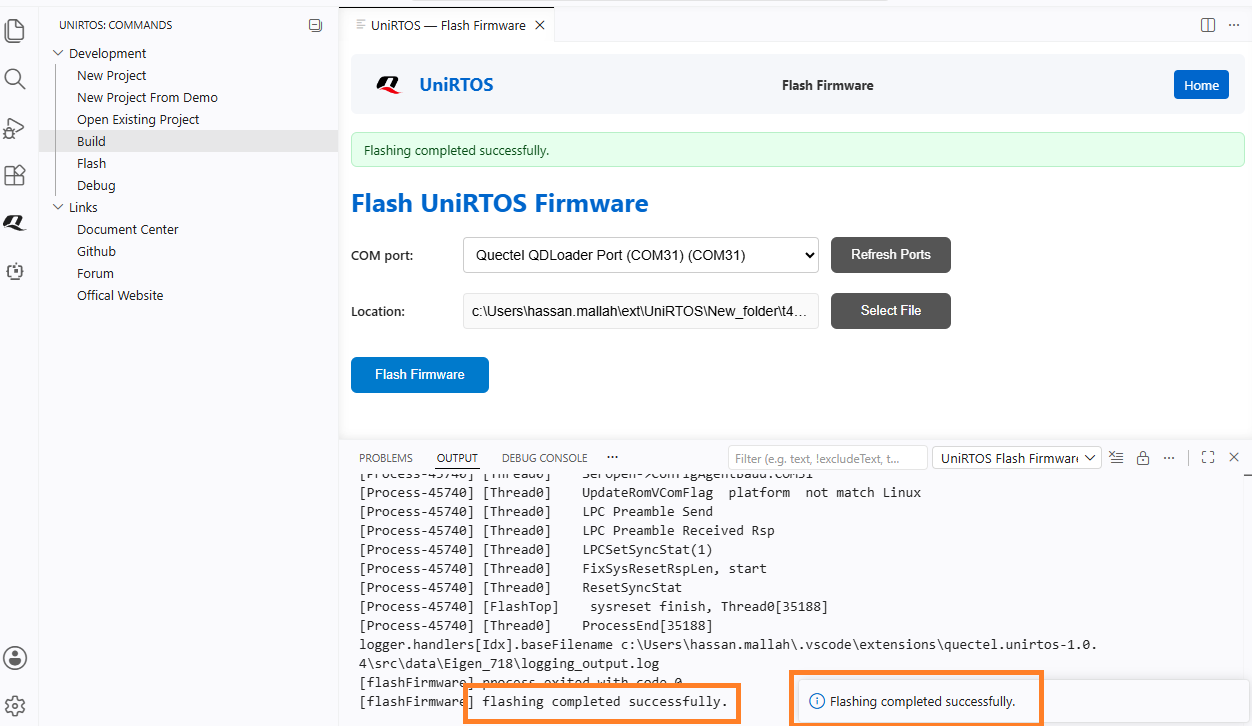
Output tab will open and will show the process, with successful message at the end.