Quectel RTOS



English · 简体中文
Quectel RTOS brings three Quectel embedded toolchains into one VS Code extension. Install it once, then switch toolchains from the SOLUTION bar at the top of the panel — no second extension and no window reload.
| Solution |
Purpose |
Host OS |
| UniKnect |
MCU firmware development with the UniKnect SDK — build, flash and debug over ST-Link, with an integrated serial console |
Windows, Linux |
| UniRTOS |
UniRTOS project creation, build, clean, flash and debug, using the Quectel flashing tool |
Windows |
| QuecPython |
MicroPython development on Quectel modules — file transfer, interactive REPL, firmware flashing and on-device file-system access |
Windows |
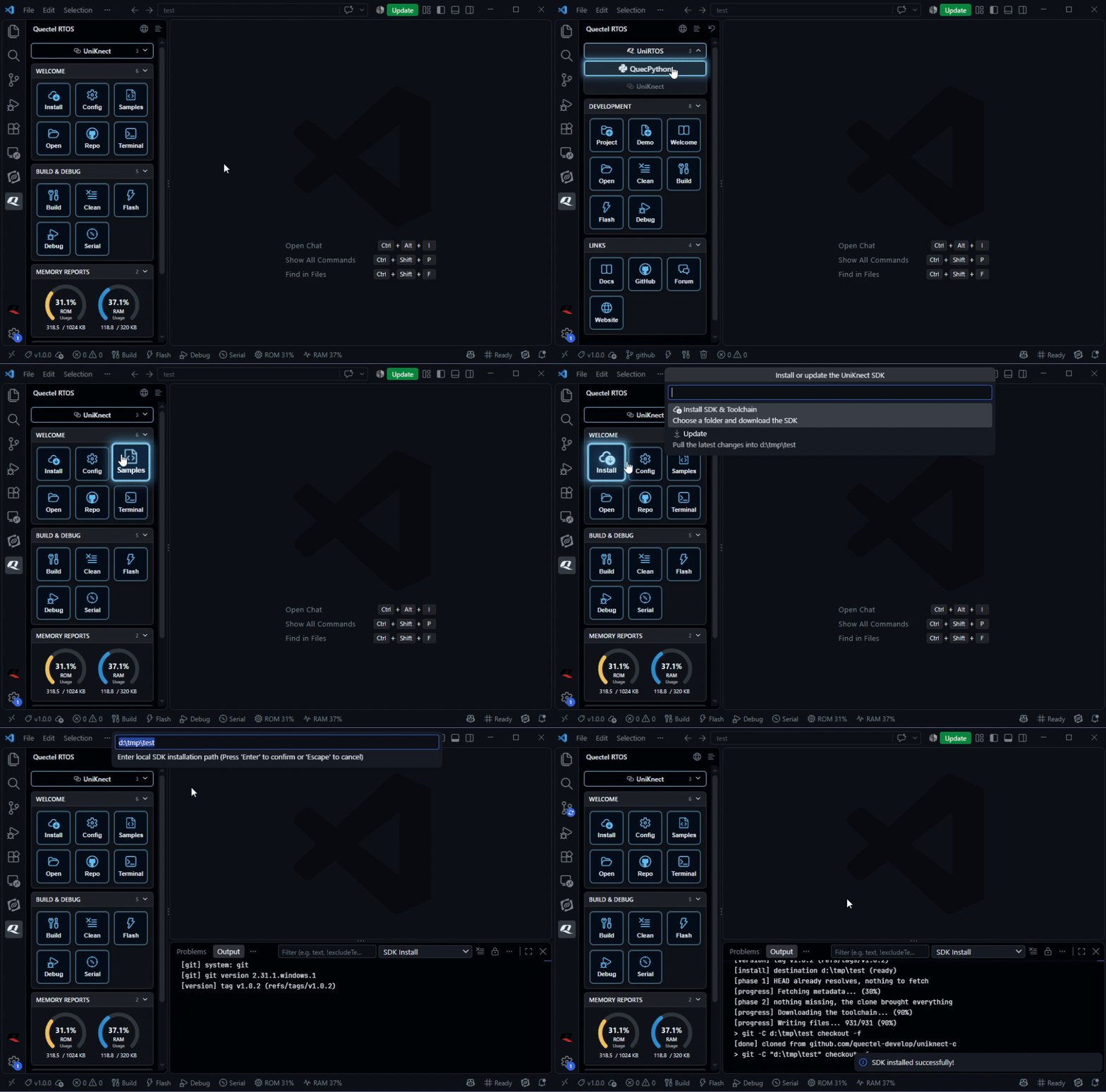
Only the selected product's panel, status-bar items and editor integrations are active. Switching products releases the previous product's resources, and your selection is remembered across restarts.
Contents
Use this guide to get started, understand the panel, and find the right toolchain section quickly:
Quick start
- Install this extension from the Marketplace, or from a
.vsix file.
- Open your project folder in VS Code.
- Click the Quectel RTOS icon in the activity bar to open the panel.
- Choose your toolchain from the SOLUTION bar.
- Run the workflow from the panel buttons, for example Install SDK → Configure → Build → Flash → Debug.
Some actions download a tool the first time they run (see Downloaded on first use); that first run requires an internet connection. After that, the tools run offline.
The panel
All three products share one panel and the same interaction model, so the layout and shortcuts remain familiar when you switch products:
| Control |
Where |
What it does |
| SOLUTION bar |
Top of the panel |
Shows the active product. Hover to reveal the other two products; click to switch |
| Group bar |
Each group |
Folds or unfolds the group. The number on the right shows how many buttons it contains |
| Language (globe) |
First group header |
Switches this window's extension text between English and Chinese. |
| Layout (layers / list) |
First group header |
Switches between the card grid and a one-button-per-row list with full button names. The choice is remembered |
| Restore button (back icon) |
First group header |
Appears after you drag buttons into a custom order; restores the default order |
Buttons can be dragged into any order, and the order is remembered per product.
Switching between products
At rest, the SOLUTION bar is a single button: the current product, its name and a highlighted border. A chevron on the right shows the product count, indicating that more choices are available.
Hover over it and the other two products unfold below. The list pushes the rest of the panel down instead of floating over it, so it never covers the controls underneath. Keyboard navigation works as well: tab into the bar to unfold it, then tab through the products.
Switching products replaces the panel content, status-bar items and editor integrations in place. The view itself is not destroyed, so the sidebar does not flicker or reset.
Which language the panels are in
Every window adapts to the current VS Code display language, and the globe override applies only to that window.
- the editor's display language — a Chinese VS Code gives Chinese panels with no configuration at all, an English one gives English panels;
- a click on the globe, which switches for the rest of the session.
The override is deliberately not remembered, so the next window starts from the editor again and there is no setting to reset. This affects the extension's own strings only: VS Code's menus, settings page and notifications follow the editor's display language, which is a VS Code setting.
UniKnect — MCU development
The panel contains four groups, shown in the order below.
WELCOME
| Button |
Action |
| Install SDK |
Clone the UniKnect SDK. Prompts for the version and install path. If an SDK is already installed, the same button also offers Update, which fetches and merges into that folder |
| Configure |
Select the target model and set up the build environment |
| Samples |
Browse the SDK's sample projects |
| Open |
Open an existing project in this window. See Open Existing Project |
| Code Repo |
Open the UniKnect GitHub repository inside VS Code |
BUILD & DEBUG
| Button |
Action |
| Build |
Compile the project. If Configure has not been run yet, the build does not start and a notice asks you to configure the project first |
| Clean |
Remove build artifacts |
| Flash |
Flash firmware to the target after checking the ST-Link driver |
| Debug |
Launch a cortex-debug session |
| Serial |
Open the Serial Panel — port configuration, a CLI command builder and a live log of what the device sends back |
| Terminal |
Open the shared workbench terminal |
MEMORY REPORTS
Shows the ROM and RAM usage produced by the build as two dials and refreshes automatically after each build.
AI ASSISTANT
| Button |
Action |
| Copilot |
Open or close GitHub Copilot Chat |
| API Key |
Open the OpenAI-compatible provider settings for the base URL and API key |
Open Existing Project
Open shows a folder picker and opens the selected folder in the current window.
- The extension does not validate that the folder is a UniKnect project. If you pick the wrong folder, VS Code returns to the previous location and nothing is lost.
The status bar row
When UniKnect is active, the status bar shows six items to the right of VS Code's "No problems" item, in the same order as the panel:
| Item |
Hover |
Click |
| Build |
Build project |
Build |
| Flash |
Flash firmware |
Flash |
| Debug |
Start debugging |
Debug |
| Serial |
Open serial panel |
Opens the Serial Panel |
| ROM |
ROM usage in KB |
Shows ROM usage once a build has written a report |
| RAM |
RAM usage in KB |
Shows RAM usage once a build has written a report |
The four action buttons use the same command IDs as the panel buttons, so their behaviour is identical. The two readouts are not clickable: they mirror the dial values in the panel so you can monitor ROM and RAM during a build. They show -- until a build report exists, because 0% would imply a binary that has not been produced.
One-click Debug
Starts cortex-debug debugging in one click, with support for breakpoints, stepping, variables, watches and the call stack.
UniRTOS — module OpenCPU development
A Commands view covers the full workflow:
| Button |
Action |
| Welcome |
Open the guided walkthrough (toolchain, Python, Git, driver, CLI) |
| New Project |
Create a project from scratch |
| New Project From Demo |
Create a project from one of the bundled demo projects |
| Open Existing Project |
Open a project you already have |
| Clean |
Remove build artifacts |
| Build |
Compile the project with the UniRTOS toolchain |
| Flash |
Flash firmware to the target with FlashToolCLI.exe |
| Debug |
Start a debugging session |
| Document Center, GitHub, Forum, Official Website |
Open the matching resource inside VS Code |
AI ASSISTANT
The same group every solution carries - see UniKnect's above.
| Button |
Action |
| Copilot |
Open or close GitHub Copilot Chat |
| API Key |
Open the OpenAI-compatible provider settings for the base URL and API key |
The walkthrough on the Welcome page guides toolchain, Python, Git, Quectel driver and UniRTOS CLI setup in the required order.
QuecPython — module MicroPython development
One panel with four groups.
WELCOME
| Control |
Action |
| Firmware status strip |
Shows the selected firmware image, or a hint when none is selected |
| Select Firmware |
Choose the firmware image to flash |
| Flash Firmware |
Flash the selected image to the module |
| Clear (group header) |
Forget the current firmware selection |
QUICK ACCESS
| Button |
Action |
| Projects |
The bundled project pages |
| Current Project |
The project you have open |
| My Projects |
Your saved projects |
FILE SYSTEM (USR)
The on-device file system is shown as a card beside the other two groups. Each node's context menu offers Run Script, Delete File, Export File and Delete Directory, and the group header provides Refresh.
AI ASSISTANT
The same group every solution carries - see UniKnect's above.
| Button |
Action |
| Copilot |
Open or close GitHub Copilot Chat |
| API Key |
Open the OpenAI-compatible provider settings for the base URL and API key |
While a module is connected, the Command Palette also provides connect / disconnect, download file or folder to the device, format document, set terminal line terminator, toggle hex translation and clear terminal.
The extension ships .pyi stubs for the QuecPython modules, so Pylance resolves import machine and friends.
Requirements
- VS Code 1.85.0 or later.
- UniKnect needs no pre-installed tooling. Everything it uses is included with the extension or downloaded on first use: Git (the system installation when available, otherwise a portable build), the ST-Link driver and the flashing tools. It works on Windows and Linux, even on a machine with only VS Code installed.
- Git — needed by UniRTOS and QuecPython for cloning and for some CLI commands. Install it from the official site and make sure it is on your
PATH (on Windows, choose "Git from the command line and also from 3rd-party software"). Restart VS Code afterwards and verify with git --version.
- UniRTOS and QuecPython are Windows-only. On Linux and macOS they are visible but disabled, with the reason shown. On Linux, make sure
build.sh in your project is executable (chmod +x build.sh).
- A debug probe for flashing and debugging on hardware — ST-Link for UniKnect. Its driver is installed for you; see below.
- On Linux, the first Debug or the first serial connection asks for your administrator (sudo) password once. OpenOCD needs udev permission to open the probe, and the serial console needs the same for the board's USB-UART; the extension sets both up and verifies them for you, and does not start a session or open a port when the check fails. The password goes only to
sudo — it is not stored or logged. If you have already run sudo in a terminal, the cached credential is used instead.
Downloaded on first use
Six Windows tools are not bundled with the installer. Together they are about 120 MB, while the rest of the extension is under 8 MB, and each tool is used by only one action. The required tool is downloaded automatically the first time that action runs, with a progress notification showing the percentage and a progress bar:
| Tool |
Fetched when |
Size |
QuecPythonDownload.exe, get_com.exe, QPYcom.exe |
QuecPython: clicking Flash Firmware |
97.3 MB |
FlashToolCLI.exe (Eigen_718) |
UniRTOS: opening the Flash page |
11.7 MB |
| Portable Git |
UniKnect: Install SDK, when the archive is not already on the machine |
6.3 MB |
| ST-Link driver (STSW-LINK009) |
UniKnect: Flash or Debug, when the archive is not on the machine |
5.1 MB |
Each tool is unpacked to the location it would have occupied in a fully bundled package, so runtime behaviour is the same. Before downloading, the extension checks whether the tool is already present and records the decision in the Quectel RTOS output channel. Existing tools are not downloaded again until the extension is updated.
UniKnect Flash and Debug check the ST-Link driver first. If the driver is missing, the extension downloads and installs it before starting the build. The check runs on every click and deliberately has no "do not ask again" option, but it recognises an installed driver from either Windows' installed-driver list or an attached probe bound to the correct driver. If the check is wrong and the probe works, Continue Anyway starts the build; dismissing the prompt cancels it. A successful driver installation passes the gate immediately, so you do not need to unplug and reconnect the board. Every decision is written to the Quectel RTOS output channel.
Settings
| Setting |
Default |
What it does |
quectel.uniknect.sdkPath |
"" |
Where the UniKnect SDK is installed or cloned. Also set by Install SDK |
unirtos.mirrorSource |
github |
Repository mirror used by the UniRTOS CLI commands |
QuecPython.defaultLineTerminator |
\r\n |
Text appended to every line sent to the module. Escape sequences are supported |
QuecPython.translateHex |
true |
Translate incoming hex data. Set to false to show raw hex |
QuecPython.outputChannelToFile |
false |
Also write the QuecPython terminal output to a log file |
QuecPython.showRunCommandInEditorContextMenu |
true |
Show Run Code in the editor context menu |
QuecPython.userProjects |
[] |
Your saved QuecPython projects |
Companion extensions
The extension is also an extension pack, so VS Code can offer the following companion extensions during installation. None is required: each product still works without them, and each companion only adds the integration listed below.
| Extension |
What it adds |
marus25.cortex-debug |
Debug adapter used by Debug in UniKnect and UniRTOS. Without it, the command reports that no configuration was found |
GitHub.copilot-chat |
Chat support for AI Assistant, and the host for the serial log tool referenced as #quectelSerialLog |
johnny-zhao.oai-compatible-copilot |
OpenAI-compatible provider configured by API Key |
ms-vscode.cpptools |
C/C++ IntelliSense for SDK and firmware sources |
ms-vscode.vscode-serial-monitor |
VS Code's own serial monitor, alongside the built-in Serial Panel |
ms-python.autopep8 |
Formatting for QuecPython scripts |
ms-ceintl.vscode-language-pack-zh-hans |
Chinese (Simplified) UI for the editor itself. The extension's own Chinese strings are included and do not need it |
Package notes
Building the extension needs Node.js and npm.
Node.js 20.19 or later is required. npm comes with Node.js, so it needs no separate installation or version.
The same commands work on Windows and Linux:
node --version                # 20.19 or later
npm --version

npm install                   # install dependencies; run once
npm run compile               # build only
npx @vscode/vsce package      # build and package (.vsix)
npm run compile is optional — npx @vscode/vsce package runs the production build for you before packing. Run it separately only when you want to verify the build without packaging.- The generated .vsix excludes the large tools; they are downloaded on first use, as described above.
About Quectel
Quectel is a leading global provider of IoT solutions. This extension is part of Quectel's developer toolchain, designed to make embedded development with Quectel modules and related platforms simpler and more efficient.
License
Apache 2.0 — see LICENSE.
Enjoy developing with Quectel RTOS!

