Python Semantic Highlighter
IntelliJ-style semantic highlighting for Python in VS Code
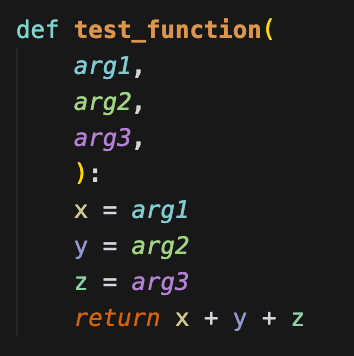
Give each symbol a unique color based on its name — making it easy to track variables, spot patterns, and understand code flow at a glance.
🌟 Why This Extension?
| Without |
With |
| All variables look the same |
Each variable has a unique color |
| Hard to track data flow |
Instantly see where values are used |
| Mental overhead to remember names |
Visual patterns emerge naturally |
✨ Features
🎨 Symbol-based Coloring
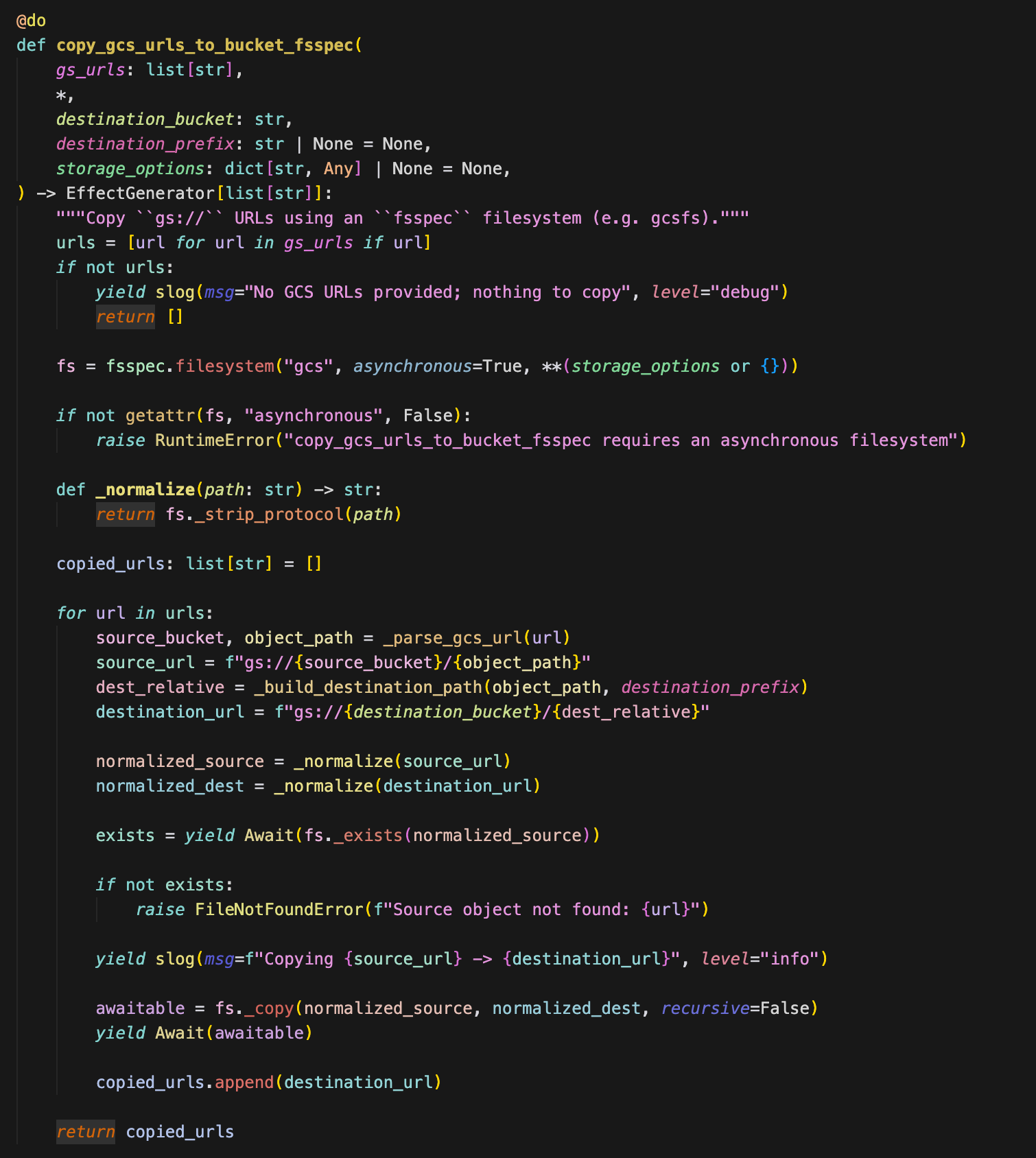
Every symbol gets a consistent, unique color based on its name:
- Same symbol = same color throughout the file
- Different symbols = visually distinct colors
- Colors persist across editing sessions
📁 Semantic Categories
Fine-tuned coloring for different Python constructs:
| Category |
Description |
| Local Variables |
Variables in local scope |
| Global Variables |
Module-level variables |
| Parameters |
Function/method parameters (consistent in definition & body) |
| Functions |
Function definitions and calls |
| Methods |
Method calls (obj.method()) |
| Classes |
Class definitions and references |
| Attributes |
Object attributes (self.name, obj.attr) |
| Decorators |
@decorator expressions |
| Type Annotations |
Type hints (def foo(x: int) -> str) |
| Kwargs |
Keyword argument names (func(name="value")) |
| Imports |
Imported module and symbol names |
| Builtins |
Python built-in functions |
| self/cls |
Special parameter names |
🎯 Smart Color Distribution
Uses the Van der Corput sequence for maximum color separation:
- Adjacent variables get maximally different colors
- No more similar-looking variables!
- Colors distributed evenly across your chosen hue range
⌨️ Keyword Colors
Fixed colors for Python keywords with full customization:
def, class, return, yield, await, asyncif, elif, else, for, while, break, continuetry, except, finally, raiseimport, from, as, with, lambda- Leave empty to use your theme's default colors
🔧 Visual Settings Panel
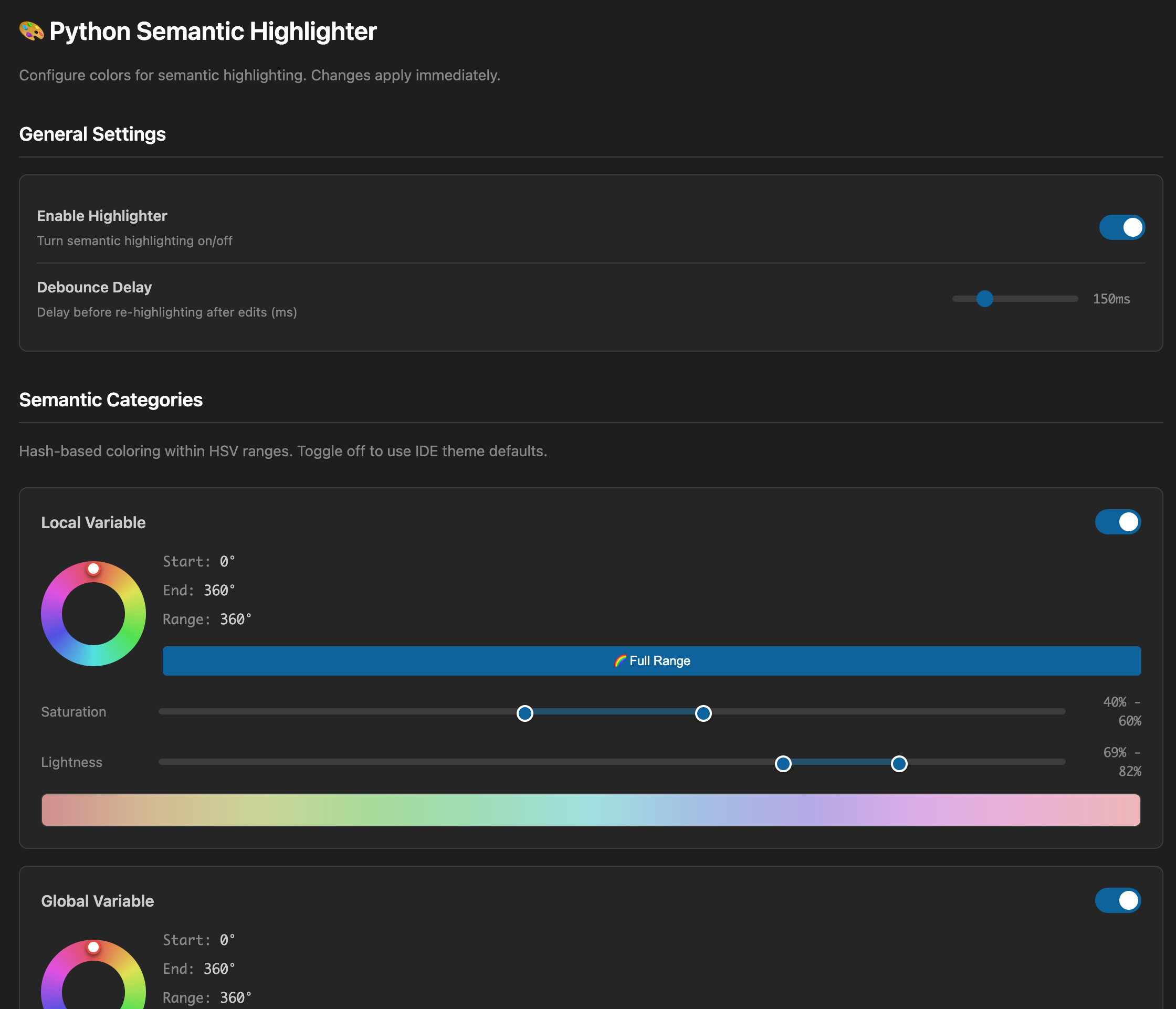
Beautiful settings UI with:
- Circular Hue Picker — Intuitive color wheel for selecting hue ranges
- HSV Sliders — Fine-tune saturation and lightness
- Live Preview — See color gradients as you adjust
- Per-category Toggles — Enable/disable each category
- Full Range Button — Quickly set hue to 0°-360°
📓 Jupyter Notebook Support
Works seamlessly with .ipynb files:
- Highlights code in notebook cells
- Handles IPython magic commands (
%matplotlib, %%time)
- Works with shell commands (
!pip install)
⚡ Fast Rust-based Parser
- Native Rust binary using
rustpython-parser
- Sub-millisecond parsing for most files
- Debounced updates for smooth editing
- Works in Peek Definition and split editors
- Highlights unsaved changes in real-time
📦 Installation
From VS Code Marketplace (Recommended)
- Open VS Code
- Go to Extensions (
Cmd+Shift+X / Ctrl+Shift+X)
- Search for "Python Semantic Highlighter"
- Click Install
Or install directly: View on Marketplace
From GitHub Releases
- Go to the Latest Release
- Download
python-semantic-highlighter-x.x.x.vsix
- In VS Code:
Cmd+Shift+P / Ctrl+Shift+P → Extensions: Install from VSIX...
- Select the downloaded file
| Platform |
Architecture |
| macOS |
Apple Silicon (arm64), Intel (x64) |
| Linux |
x64, arm64 |
| Windows |
x64 |
⚙️ Configuration
Open Settings Panel
The easiest way to configure:
- Command Palette:
Cmd+Shift+P → Python Semantic Highlighter: Open Settings Panel
- Extension Page: Click gear icon ⚙️ →
Open Settings Panel
- VS Code Settings: Search
pythonSemanticHighlighter → Click link
Settings Overview
| Setting |
Description |
Default |
enable |
Enable/disable highlighting |
true |
debounceMs |
Delay before re-highlighting (ms) |
150 |
semanticCategories |
HSV ranges for each category |
See below |
keywordColors |
Fixed colors for keywords |
{} (theme default) |
Example Configuration
{
  "pythonSemanticHighlighter.enable": true,
  "pythonSemanticHighlighter.debounceMs": 150,
  "pythonSemanticHighlighter.semanticCategories": {
    "localVariable": {
      "enabled": true,
      "hueRange": [0, 360],
      "saturation": [40, 60],
      "lightness": [55, 70]
    },
    "parameter": {
      "enabled": true,
      "hueRange": [0, 360],
      "saturation": [45, 65],
      "lightness": [55, 70]
    }
  },
  "pythonSemanticHighlighter.keywordColors": {
    "def": "#CC7832",
    "class": "#CC7832",
    "return": "#CC7832"
  }
}
🎮 Commands
| Command |
Description |
Python Semantic Highlighter: Open Settings Panel |
Open visual configuration UI |
Python Semantic Highlighter: Refresh |
Force re-highlight current file |
Python Semantic Highlighter: Toggle |
Enable/disable highlighting |
🏗️ How It Works
┌─────────────────────────────────────────┐
│           Python Source Code            │
└─────────────────┬───────────────────────┘
                  │
                  ▼
┌─────────────────────────────────────────┐
│      Rust Parser (rustpython-parser)    │
│  • Parses Python AST                    │
│  • Extracts symbols with positions      │
│  • Identifies semantic categories       │
│  • Handles Jupyter magic commands       │
└─────────────────┬───────────────────────┘
                  │ JSON
                  ▼
┌─────────────────────────────────────────┐
│         VS Code Extension               │
│  • Receives symbol information          │
│  • Applies Van der Corput distribution  │
│  • Generates HSL colors per category    │
│  • Applies TextEditor decorations       │
└─────────────────────────────────────────┘
🔧 Requirements
- VS Code 1.85.0 or later
- macOS (Apple Silicon & Intel), Linux (x64/arm64), or Windows (x64)
❓ FAQ
Q: Colors aren't showing up?
A: Make sure the extension is enabled in settings. Try Cmd+Shift+P → Python Semantic Highlighter: Refresh. Also try reloading the window (Developer: Reload Window).
Q: How do I use theme default colors for keywords?
A: Leave the keyword color empty (don't set any value). The extension will fall back to your theme's colors.
Q: Colors are too similar?
A: The Van der Corput sequence ensures maximum separation. Try using the "Full Range" button in settings to use the full 0°-360° hue range.
Q: Does it work with virtual environments?
A: Yes! The extension analyzes the source code directly, no Python interpreter needed.
Q: Highlighting not updating on edits?
A: The extension now highlights unsaved changes in real-time (v1.4.1+). Make sure you have the latest version installed.
🤝 Contributing
Contributions welcome! Please see the GitHub repository for guidelines.
📄 License
MIT License - see LICENSE for details.
🙏 Acknowledgments
- rustpython-parser — Python parser in Rust
- Inspired by IntelliJ IDEA's semantic highlighting feature
Enjoy coding with colors! 🌈

