Reveal SSH folders via SMB
This repository is a fork of WSL Reveal in File Explorer by doonfrs.
This fork is maintained by Nouni2 at vscode-ssh-reveal-explorer-smb.
A VS Code extension that opens Windows File Explorer from Remote SSH connections through project-specific SMB or drive mappings, allowing you to reveal files and folders with a simple right-click. The original WSL support is retained.
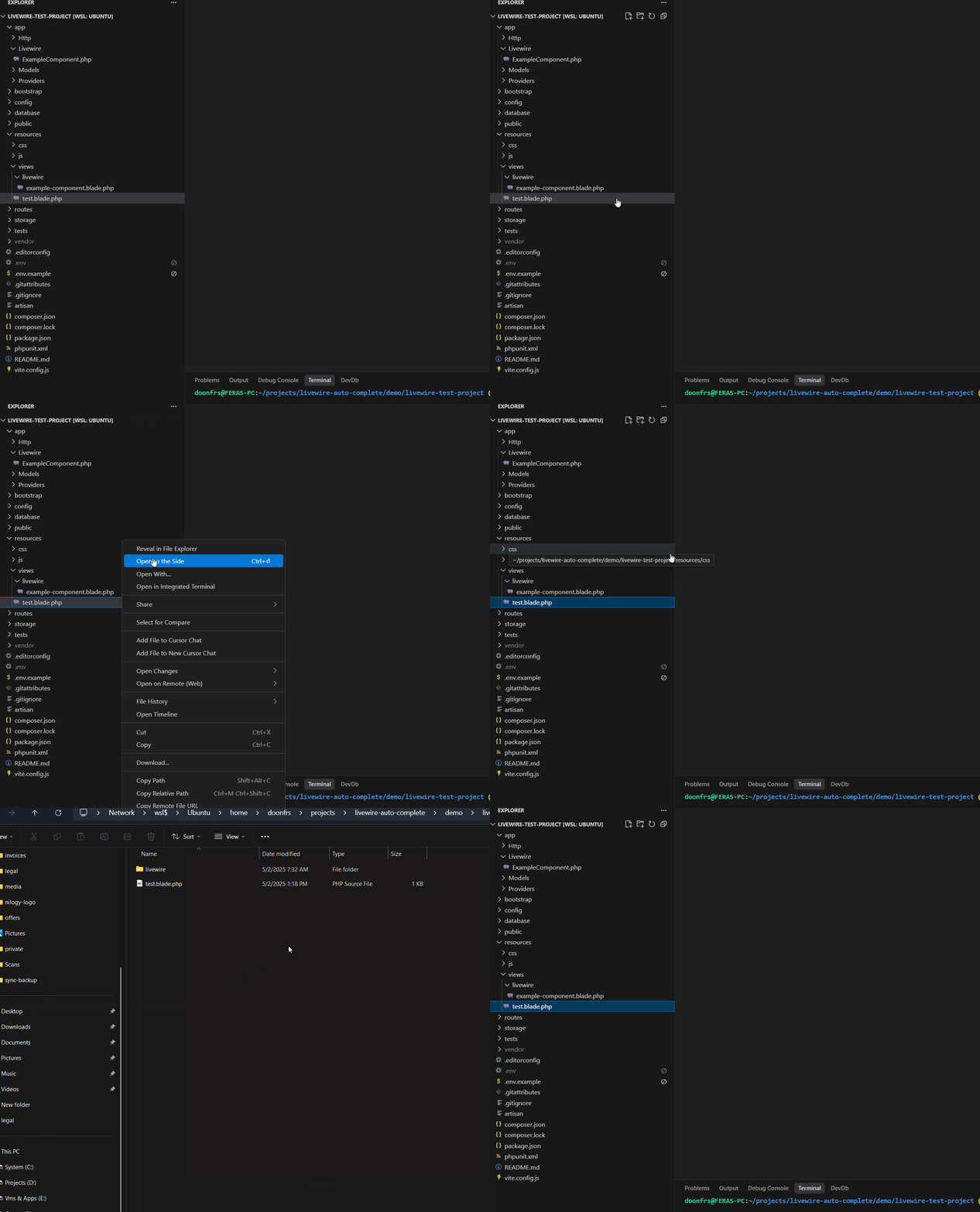
Original WSL demonstration from the upstream project:
☕ Support the Original Author
If this extension helps you, consider supporting the original author, doonfrs:

Features
- Remote SSH Support - Map remote folders (Linux or Windows hosts) to the network shares you see on Windows
- Project-Specific Mappings - Configure each project's remote paths and corresponding SMB shares or mapped drives in
.vscode/settings.json
- Zero Configuration for WSL - Works out of the box with any WSL distribution
- Custom File Explorer Support - Use your preferred file manager or stick with default Windows Explorer
- Context Menu Integration - Right-click any file or folder to reveal it in Windows Explorer or your custom choice
- Automatic WSL Detection - Dynamically detects your WSL distribution name
- Custom Distribution Support - Override auto-detection with your own distribution name
- Multiple Path Mappings - Each remote folder or drive can map to its own share
- Reliable Path Translation - Converts remote paths to Windows-compatible UNC paths
- Cross-Distribution Support - Works with Ubuntu, Debian, Alpine, and other WSL distributions
Prerequisites
- VS Code on Windows, connected to WSL / WSL2 or to a Remote SSH host
- The extension installs into your local (Windows) VS Code, so Explorer opens on your own desktop
- For Remote SSH: the remote folders shared as network paths you can open from Windows
Show Your Support
If you find this extension useful:
Usage
- Connect from Windows VS Code to your Remote SSH host or WSL distribution
- For Remote SSH, configure your project mappings in
.vscode/settings.json as shown under Path Mappings for Remote SSH
- Right-click any file or folder in the VS Code explorer panel
- Select "Reveal in File Explorer" from the context menu
- Windows File Explorer opens with the mapped file or folder selected
WSL needs no configuration by default. Remote SSH requires a Windows-accessible share or mapped drive and a corresponding path mapping.
Keyboard Shortcuts
| Shortcut |
Action |
Shift+Alt+R |
Runs this extension's reveal command when the VS Code Explorer has focus |
Ctrl+K, R |
Reveals the active editor's file |
These shortcuts apply in Windows VS Code windows connected to Remote SSH or WSL. When the reveal command receives no resource, it falls back to the first workspace folder.
How It Works
The extension runs in your local VS Code on Windows and works out the Windows path from the remote item:
- Remote SSH: replaces the matching remote path prefix with the Windows path you configured in that project's
pathMappings, preserving the rest of the item's path
- WSL: reads the distribution name from the VS Code window and converts Linux paths with
wslpath to Windows UNC format (\\wsl.localhost\Distribution\path), falling back to \\wsl$\Distribution\path if needed (or uses your custom configuration)
- WSL: opens Windows drive paths directly:
/mnt/c/Users/me/project opens as C:\Users\me\project
- Reveals and selects the item with
explorer.exe, or opens its containing folder with your custom command
Configuration
The existing wsl-reveal-explorer.* setting names are retained for compatibility. In the Settings UI, search for "Reveal SSH folders via SMB".
Path Mappings for Remote SSH
Explorer can only open a remote folder through a path Windows can reach, such as an SMB share or a mapped drive. In your SSH project's .vscode/settings.json, tell the extension which Windows path each remote folder is shared as:
{
  "wsl-reveal-explorer.pathMappings": {
    "D:\\": "\\\\host\\proj1",
    "E:\\": "\\\\host\\proj2",
    "/home/me/projects": "\\\\server\\projects"
  }
}
With these settings:
| Remote folder |
Opens in Explorer |
D:\src\app (Windows host) |
\\host\proj1\src\app |
E:\data (Windows host) |
\\host\proj2\data |
/home/me/projects/site (Linux host) |
\\server\projects\site |
Rules:
- Keys are remote paths, values are Windows paths. Forward slashes and trailing slashes are fine in both.
- The longest matching key wins, so you can map a whole disk and override one folder inside it.
- Keys match whole folder names only:
/home/me/proj does not match /home/me/project.
- Windows remote paths (
D:\...) ignore case, Linux remote paths do not.
- If no key matches, the extension shows an error with a shortcut to this setting.
Tip: put mappings for one host in that project's .vscode/settings.json when different hosts need different mappings.
Custom WSL Distribution Name
The distribution name is detected automatically, so this is rarely needed. If you still want to force a specific name, you can override it:
Via Settings UI:
- Open VS Code Settings (
Ctrl+,)
- Search for "Reveal SSH folders via SMB"
- Set "Default Distribution Name" to your distribution name
Via settings.json:
{
  "wsl-reveal-explorer.defaultDistributionName": "Ubuntu2"
}
Common examples:
Ubuntu2 - for secondary Ubuntu installationsUbuntu-22.04 - for version-specific Ubuntu distributionsDebian - for Debian distributionskali-linux - for Kali Linux distributions
Note: Leave this setting empty (default) to use automatic detection. This setting does not affect Windows drive paths (/mnt/c/...), which always open as C:\....
Path Prefix (legacy)
wsl-reveal-explorer.pathPrefix is the older single-prefix setting. For Remote SSH it is only used when no pathMappings key matches, and it puts the whole remote path under one share:
{
  "wsl-reveal-explorer.pathPrefix": "\\\\server\\share"
}
/home/user/project then opens as \\server\share\home\user\project. Prefer pathMappings for new setups. In WSL windows, leave it at the default \\wsl$.
Custom File Explorer
Use your preferred file manager instead of the default Windows Explorer:
To launch an application directly without PowerShell startup, set customCommand to an object:
{
  "wsl-reveal-explorer.customCommand": {
    "executable": "explorer.exe",
    "args": ["{path}"]
  }
}
Provide the executable without surrounding quotes and each argument as a separate array entry. Paths with spaces need no extra quoting. {path} is replaced with the containing folder inside each argument. This form does not interpret shell variables, pipes, or command chaining; it launches executables directly, rather than PowerShell scripts or batch files.
Existing string commands remain supported through PowerShell:
Via Settings UI:
- Open VS Code Settings (
Ctrl+,)
- Search for "Reveal SSH folders via SMB"
- Set "Custom Command" to your preferred command
Via settings.json:
{
  "wsl-reveal-explorer.customCommand": "explorer.exe {path}"
}
Available placeholders:
{path} - The containing folder of the selected file or folder
Examples:
- Total Commander:
"C:\\totalcmd\\TOTALCMD64.EXE /O /T {path}"
- FreeCommander:
"C:\\FreeCommander XE\\FreeCommander.exe /C /T {path}"
- Directory Opus:
"C:\\Program Files\\GPSoftware\\Directory Opus\\dopus.exe {path}"
- Q-Dir:
"C:\\Q-Dir\\Q-Dir.exe {path}"
Note: Leave this setting empty (default) to use Windows Explorer.
Development
To contribute or modify this extension:
# Clone the repository
git clone https://github.com/Nouni2/vscode-ssh-reveal-explorer-smb.git
Set-Location vscode-ssh-reveal-explorer-smb

# Open in VS Code
code .

# Press F5 to run in Extension Development Host
# Test the functionality by right-clicking files in the explorer
Tests
The path conversion lives in src/paths.js and has no VS Code dependency, so it runs under plain Node:
npm test
tests/machine.test.js additionally checks the generated paths against your real machine (real wslpath, real drives, every folder must exist). It runs only under Windows Node started from the WSL share:
Set-Location \\wsl.localhost\<Distribution>\path\to\vscode-wsl-reveal-explorer
node --test "tests/*.test.js"
# Also open one Explorer window the same way the extension does:
$env:REVEAL_OPEN = "1"; node --test "tests/*.test.js"
Troubleshooting
If the extension doesn't work:
- Ensure you're running VS Code on Windows, in WSL mode or Remote SSH
- Check that the extension is installed locally: in the Extensions view it should be listed under "Local", not under the WSL or SSH section. Reload the window after updating.
- Check that Windows File Explorer can access your configured paths manually
- For WSL:
\\wsl$\<distribution>
- For Remote SSH: the Windows path in your
pathMappings
Distribution Detection Issues
If the extension opens the wrong folder or fails to work:
Check your actual WSL distribution name:
# In WSL terminal, run:
wsl.exe -l -v
Set the correct distribution name manually:
- Use the exact name from the command above
- Go to VS Code Settings and search for "Reveal SSH folders via SMB"
- Set "Default Distribution Name" to the correct name (e.g.,
Ubuntu-22.04, Ubuntu2)
If you set this setting earlier as a workaround, try clearing it first: detection now uses wslpath and $WSL_DISTRO_NAME, which report the real distribution name (e.g. Ubuntu2, not Ubuntu)
Remote SSH Issues
For Remote SSH connections:
"No path mapping matches ...": add the remote folder (or one of its parents) to pathMappings. The error shows the exact remote path to use.
Explorer opens but shows an error: paste the mapped Windows path into Explorer's address bar. If that fails too, the share itself is not reachable from Windows.
Path mapping examples:
Remote path: D:\src\app              (Windows host)
Windows path: \\host\proj1\src\app
Configuration: "pathMappings": { "D:\\": "\\\\host\\proj1" }

Remote path: /home/user/project      (Linux host)
Windows path: \\server\share\project
Configuration: "pathMappings": { "/home/user": "\\\\server\\share" }
File Explorer Issues
If your custom file explorer doesn't open:
- Verify the file explorer is installed and accessible from the configured path
- Check the custom command syntax - ensure it's a valid PowerShell command
- Test manually: Try running the command directly in PowerShell to debug issues
- Use default: Set the custom command to empty to fall back to Windows Explorer
License
This project is licensed under the MIT License - see the LICENSE file for details.
Credits
Fork Maintainer
Nouni2
Original Author
Feras Abdalrahman

