USE - Universal Solution Explorer
USE (Universal Solution Explorer) - Visual Studio-style Solution Explorer for VS Code and Cursor.
Organize work in a logical tree, independent of disk folders:
Solution -> Solution Folders -> Projects -> Files
Publisher: Nishiio · Format: *.solution.json
Marketplace
Install / rate / follow the project here:
https://marketplace.visualstudio.com/items?itemName=Nishiio.universal-solution-explorer
If USE helps you, please leave a rating and a short review on the Marketplace page - it really helps the project grow.
And do not hesitate to ask for evolutions (features, UX, Git, languages, etc.) in the Q&A / reviews: feedback is welcome.
- EN: Rate the extension and request features on the Marketplace page.
- FR: N'hesitez pas a noter l'extension et a demander des evolutions sur la page Marketplace.
Screenshots
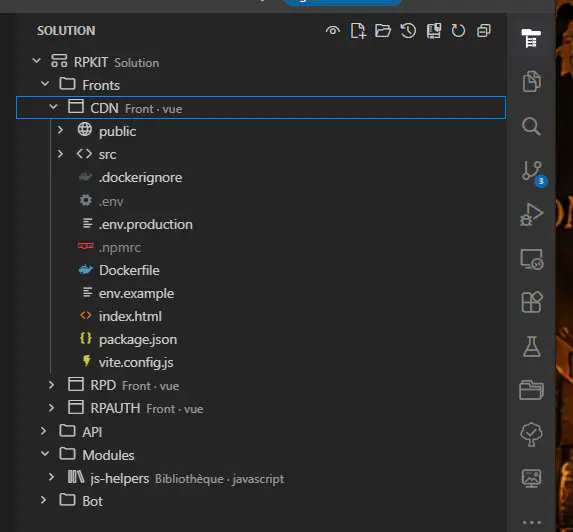
Solution Explorer
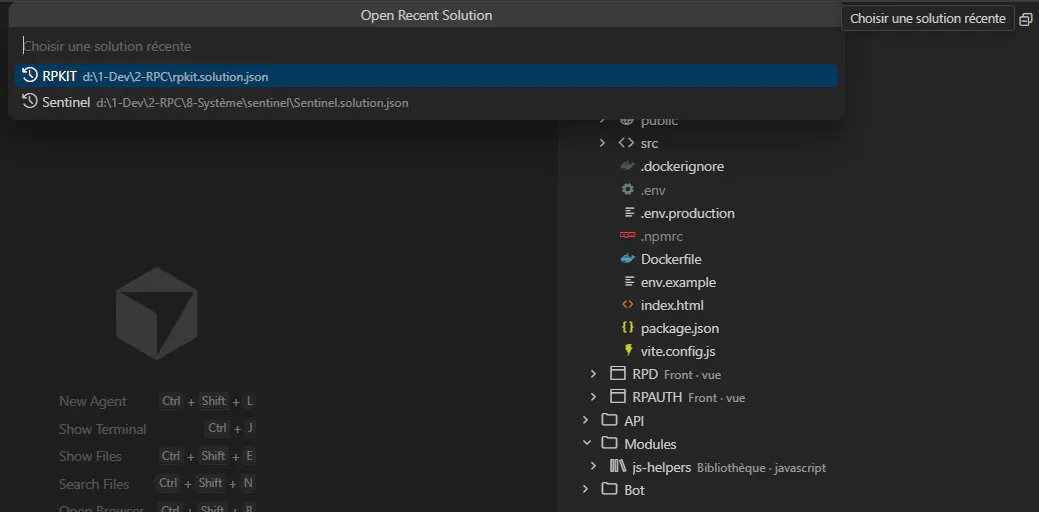
Open Recent
Features
Logical structure
- Create / open a solution (
*.solution.json)
- Nested Solution Folders (rename, strict delete if not empty)
- Projects: add existing folder, rename, move, type, language
- Expand a Project -> real filesystem tree
Create New Project
- Dedicated USE wizard (Visual Studio-style: template → snippets → configure → summary)
- Extensible Project Bases: Vue 3 + TS, Node Express API, C# Console, Node.js Console, Hello World, Empty
- Templates shown as tiles: project-type icon + technology logo
- Optional snippets: README, .gitignore, EditorConfig, VS Code recommendations
- Adds the project to the current solution, or creates a new
*.solution.json
Personal templates
- Command My Project Templates… (File menu, USE toolbar, welcome view, or My templates… in the wizard)
- Build your own Project Bases: named folders, named files, optional static content
- Visual file tree + Monaco code editor (syntax highlighting, line numbers)
- Drag and drop to nest folders/files or move them back to the project root
- Type and technology picked as tiles (same icons as the wizard)
- Stored once per PC in
~/.use/project-templates.json (shared by Cursor and VS Code)
- Appear in Create New Project under Custom (or Web / Backend / Console from the project type)
- No dynamic variables: files are written as-is
Quick access
- Activity Bar USE
- Toolbar: Create Project · Templates · Create Solution · Open · Open Recent · Sync · Refresh · clutter filter
- Restore last solution on startup
- Recent solutions history
Workspace / Git
- Auto sync solution + projects to Workspace
- Git decorations + Stage / Unstage / Open Changes
- View File History (Timeline + commits)
- Add to .gitignore
UI language
- Setting
universalSolutionExplorer.uiLanguage
en (default) or fr- Changing the language reloads the window automatically
Settings
| Setting |
Default |
Role |
uiLanguage |
en |
USE UI language (en / fr) |
restoreLastSolution |
true |
Restore last solution on startup |
maxRecentSolutions |
12 |
Recent history size |
syncWorkspaceFolders |
true |
Auto workspace sync |
workspaceSyncMode |
projects |
projects or solutionRoot |
hideNoiseEntries |
true |
Clutter filter |
Prefix: universalSolutionExplorer.*
Quick start
- Install USE from the Marketplace
- Open Activity Bar icon USE
- Create New Project / My Project Templates / Create Solution / Open / Open Recent
- Right-click -> New Solution Folder / Add Existing Project
Notes
- Remove from Solution != Delete
- Personal templates do not support
{{projectName}} or other tokens — content is copied as written
- OS splash screen for Cursor cannot be provided by an extension

