Worktree Hopper







Switch git worktrees from the Source Control view, in place, without reloading the window.
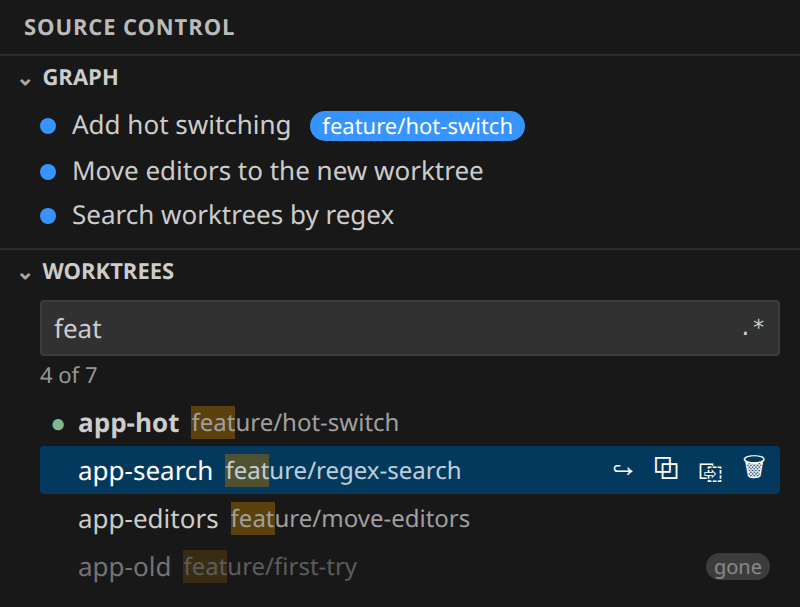
A Worktrees panel sits under Changes and the Graph. Type a few letters of a folder, branch or path, press Enter,
and the window is on that worktree, with your open files, the Graph and Changes following along.
Why
If you keep a worktree per task or pull request, getting to the right one means File → Open Folder, a full
reload, and losing your terminals and chat. With Worktree Hopper it is one click, and nothing restarts.
Features
- Every worktree, in Source Control. Folder, branch (or detached commit), and tags for
main, open, gone
and locked. ● marks the active one.
- Search by text or regex. Name, branch or path, with matches highlighted. Alt+R or
.* toggles regular
expressions.
- Hot switch. No reload: extensions, terminals and chat panels keep running.
- Your editors come along. Open files reopen at the same path in the new worktree; unsaved ones stay put.
- Source Control follows. Changes and the Graph show the active worktree, scrolled to its current commit.
- Delete with a confirmation. 🗑 (or the Delete key) asks Yes/Cancel. Uncommitted changes or a lock ask a
second time. The branch is kept.
- New window when you want one. Alt+click, or ⧉ on the row.
Keyboard
| Key |
Action |
| Ctrl+Alt+W (Cmd+Alt+W) |
Jump to the search box |
| ↑ / ↓ |
Move through the list |
| Enter |
Switch in this window |
| Alt+Enter |
Open in a new window |
| Delete |
Delete the selected worktree (asks first) |
| Alt+R |
Toggle regular expressions |
| Esc |
Clear the search |
How the hot switch works
VS Code restarts every extension when the first folder of a window changes, and not when a later one does. So
the folder you opened stays first, and the active worktree is swapped in as a second folder:
- The first switch turns the window into a multi-root workspace (extensions restart once; the window does not
reload).
- Every switch after that is instant.
- Switching back to the first folder removes the second one.
Prefer one folder per window? Set worktreeHopper.switchMode to reload.
Settings
| Setting |
Default |
What it does |
worktreeHopper.switchMode |
hot |
hot swaps the worktree in place; reload reopens the window on it. |
worktreeHopper.openIn |
sameWindow |
Where a plain click opens. Alt+click does the other. |
worktreeHopper.moveEditors |
true |
On a hot switch, reopen open editors in the new worktree. |
worktreeHopper.followInGit |
true |
On a hot switch, show only the active worktree in Source Control. |
worktreeHopper.revealInGraph |
true |
After a hot switch, scroll the Graph to the worktree's current commit. |
worktreeHopper.hidePrunable |
false |
Hide worktrees whose folder is gone. |
Tips
- Drag the Worktrees header between Changes and the Graph; VS Code remembers where you put it.
- VS Code asks whether to trust each new worktree folder. Trust their parent folder once (Workspaces: Manage
Workspace Trust) to skip that.
- Terminals already open stay where they were; new ones start in the active worktree.
Requirements
- VS Code 1.85 or newer, or a compatible editor (Cursor, VSCodium, Windsurf).
git on the machine where the workspace lives. Works locally and over Remote SSH, WSL and Dev Containers.
Feedback
Found a bug or have an idea? Open an issue.

