
Arduino+ for a better Arduino IDE
Arduino+ integrates features that are terribly missed in the Arduino IDE 2.x for a better coding experience. It also runs in VS Code.
Features
Toggle Line Comments: Quickly comment/uncomment lines with // - perfect for debugging!
Duplicate Line: Duplicates the selected line and inserts it below.
Snippet Manager: An enhanced clipboard to keep and modify several code snippets. Rename them, insert them with Ctrl+Shift+V from a list, and share them with import/export.
Sketch Anchors: Set an anchor and jump anytime to the desired position. The anchor list shows the anchors of all tabs, grouped by file. Anchors follow their line when you add or remove lines above.
Comment Anchors: Write // @anchor WiFi Setup into your code (or use Insert Comment Anchor). They live in the code, so they survive saving, renaming and sharing the sketch, and show up in the same anchor list.
Number Converter: Converts the number at the cursor between decimal, hex (0xC8) and binary (0b11001000), also padded to 8/16/32 bit, Arduino style (B11001000) and as character ('A').
Color Picker: Place the cursor on a color like 0xFF8000, 0xF800 (RGB565), strip.Color(255, 0, 0), CRGB(255, 0, 0) or tft.color565(255, 0, 0), pick a new one with sliders (RGB, HSV) and replace it, or convert it to another format. A second swatch shows how the color looks on a TFT after rounding to RGB565.
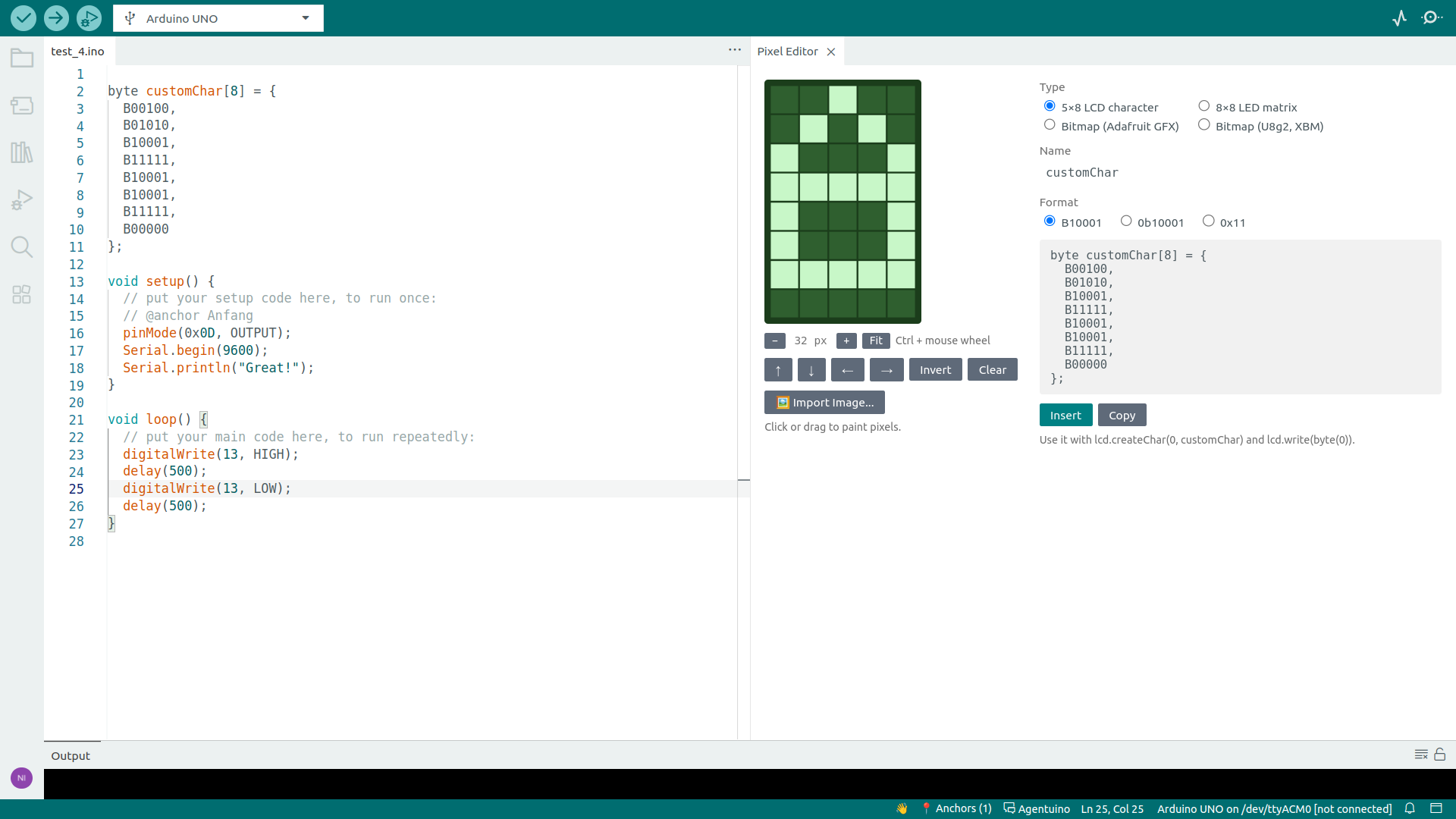
Pixel Editor: Paint pixel graphics and insert them as byte array (B10001, 0b10001 or 0x11):
- 5×8 custom characters for HD44780 LCDs (
lcd.createChar)
- 8×8 images for LED matrices with MAX7219 (
lc.setRow)
- Bitmaps of any size up to 128×128 for OLEDs and TFTs, either for Adafruit GFX (
display.drawBitmap) or for U8g2 (u8g2.drawXBMP)
Select an existing array before opening the editor to change it, type and size are detected automatically.
Zoom with the −/+ buttons or Ctrl + mouse wheel, large bitmaps can be scrolled.
Import images (PNG, JPG, GIF, BMP, WebP): the editor switches to a bitmap in the size of the image (scaled down to 128×128 if larger) and turns it into pixels. Choose a smaller size or LCD/matrix afterwards, the image is fitted again. The threshold is chosen automatically (the motif lights up), you can adjust it, use dithering for photos and invert. Touch it up by hand afterwards.
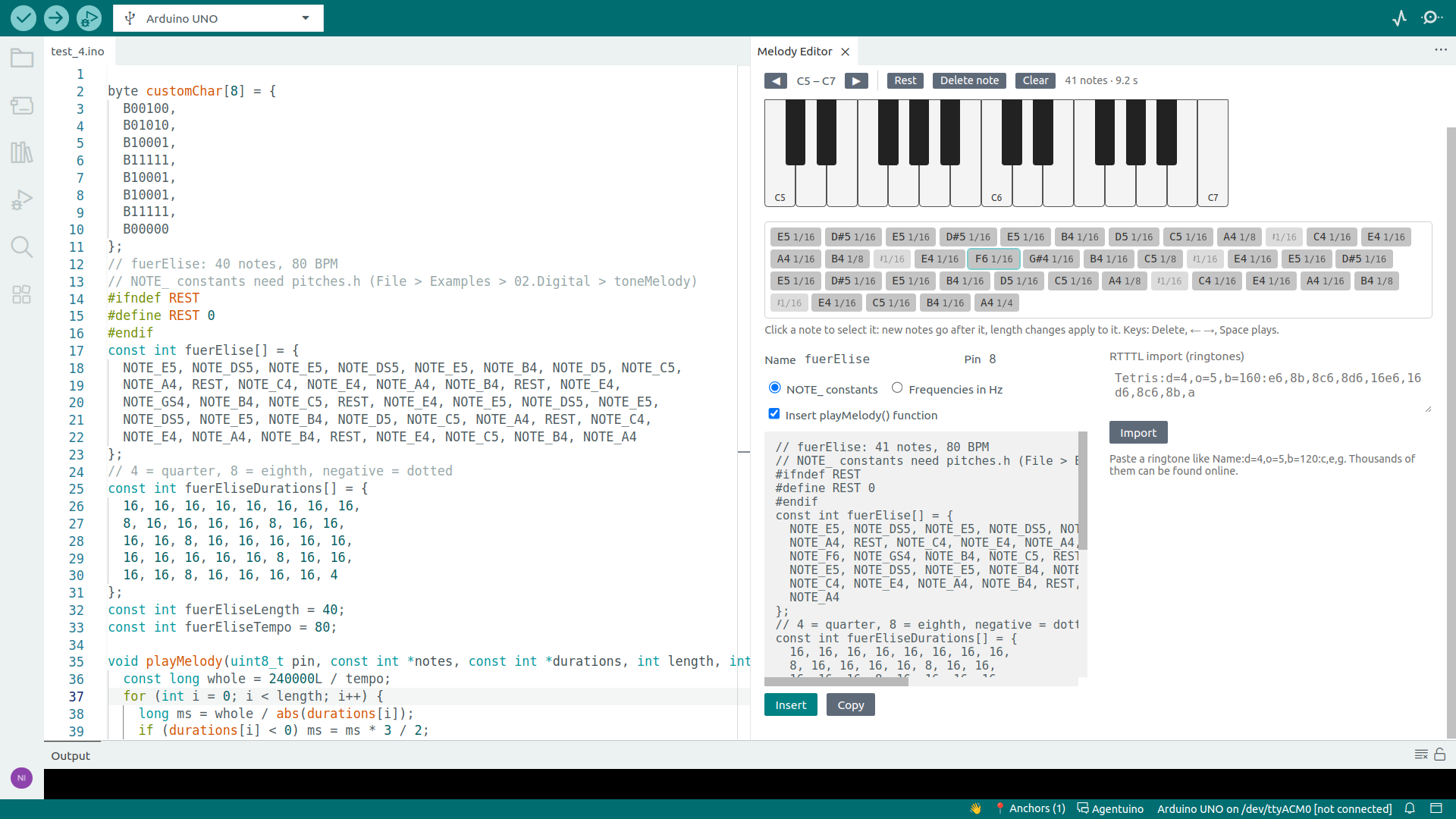
Melody Editor: Compose melodies for tone() on a piano keyboard, play them right in the editor and insert them as note and duration arrays (NOTE_C4 or Hz) with a ready playMelody() function. Imports RTTTL ringtones (like Tetris:d=4,o=5,b=160:e6,8b,8c6) and existing melody arrays, and comes with examples (Für Elise, Ode an die Freude, Korobeiniki).
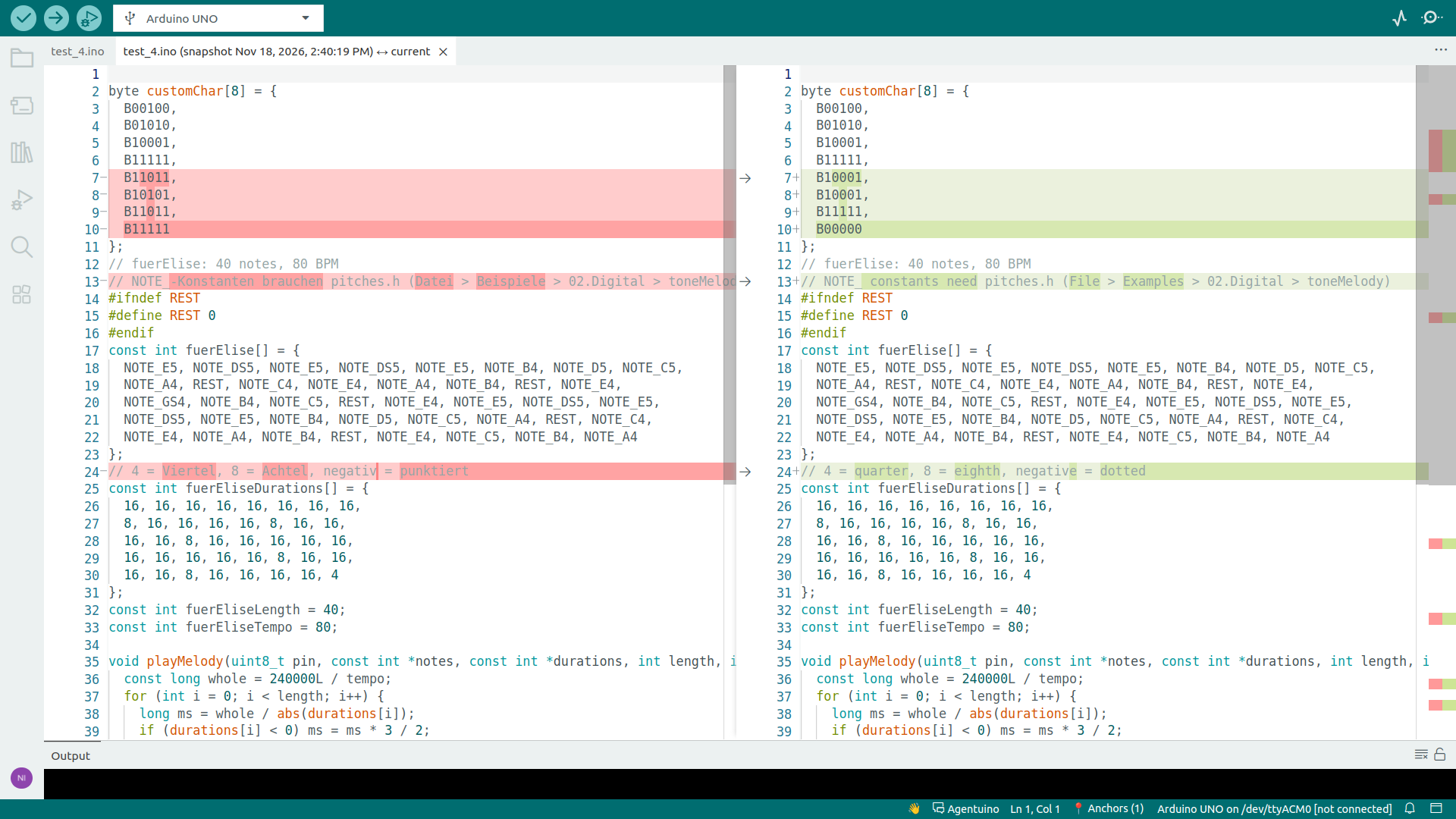
Sketch Snapshots: The Arduino IDE has no history. Save the state of all tabs (including unsaved changes) with a note, compare it with the current state later and restore the whole sketch or single files. Before restoring, the current state is saved as snapshot, so nothing gets lost. Snapshots are stored in ~/.arduinoplus/snapshots/.
TODO List: Shows all TODO and FIXME comments of the whole sketch (all tabs and src/). Click one to jump there.
About Page: Version, changelog and a button to uninstall Arduino+ completely.
🌍 Automatic language detection based on IDE settings. Supported are: en, de, es, fr, it.
Failed Features
Arduino IDE is not VS Code. A lot of functions are disabled but not documented. It's hard to develop an extension so sometimes ideas will fail.
- Trigger Reset by Command: Requires unavailable Python dependencies and doesn't work for ESP32-CAM.
- Mousewheel Zoom: Extension API lacks mouse wheel event access.
- Compiler Flag Manager: System files get overwritten on board updates.
- Serial Monitor Search: Extension API has no access to Serial Monitor.
Screenshots
Installation
The easiest way is the Extension Manager: click 📥 Install and choose the file arduinoplus-X.X.X.vsix. It also tells you when an update is available.
Without the Extension Manager you need the VSIX file arduinoplus-X.X.X.vsix in the same folder with the installer. The installer will install the plugin in your home folder.
Windows
Run install_arduinoplus_windows.bat as administrator
Linux
chmod +x install_arduinoplus_linux.sh
./install_arduinoplus_linux.sh
macOS
chmod +x install_arduinoplus_macos.sh
./install_arduinoplus_macos.sh
Restart the Arduino IDE afterwards.
VS Code
Install Arduino+ from the Visual Studio Marketplace or search for Arduino+ in the Extensions view.
VS Code already has Toggle Line Comment and Duplicate Line, so Arduino+ hides them there. The shortcuts for anchors only work in the Arduino IDE, because VS Code uses them for building and debugging. All features are in the context menu → Arduino+.
Usage
You can access all features through the right click context menu → Arduino+.
| Feature |
Shortcut |
| Toggle Line Comment |
Ctrl+/ |
| Duplicate Line Down |
Ctrl+Shift+D |
| Set Anchor |
Ctrl+Shift+B |
| Show Anchors |
Ctrl+Shift+A |
| Insert Snippet |
Ctrl+Shift+V |
On macOS use Cmd instead of Ctrl.
The number of anchors in the current file is shown in the status bar. Click on it to see the anchors of the whole sketch.
Anchors
There are two kinds of anchors, both appear in the same list:
|
📍 Anchor |
🔖 Comment Anchor |
| Created with |
Set Anchor |
Insert Comment Anchor or // @anchor Name |
| Stored in |
~/.arduinoplus/anchors.json |
your code |
| Survives renaming the sketch |
no |
yes |
| Visible for others |
no |
yes |
Use 📍 anchors to keep your code clean, use 🔖 comment anchors for sketches you share or rename. In unsaved sketches only comment anchors survive saving.
Snippets
Export writes all snippets into a JSON file. Import adds the snippets of such a file to your existing ones.
Uninstallation
Uninstall Arduino+ either with the Extension Manager or with the button on the About Arduino+ page (context menu → Arduino+ → About Arduino+). Both will remove:
- Your saved snippets, anchors and snapshots:
~/.arduinoplus/
- The extension file:
~/.arduinoIDE/extensions/arduinoplus-X.X.X.vsix
- The deployed extension:
~/.arduinoIDE/deployedPlugins/arduinoplus/
Before anything is deleted, you will be asked twice and see the list of files. Restart the Arduino IDE afterwards.
In VS Code uninstall Arduino+ in the Extensions view. Your data in ~/.arduinoplus/ is kept there, delete it yourself if you don't need it anymore.
💙 Support Arduino+
Arduino+ is free and open source. If it saved your day, consider buying me a coffee! ☕


Every contribution helps keep this project alive! 🚀

