🌌 Welcome to Gloria
Gloria (プロジェクト_Gloria) is an immersive, high-contrast dark theme built primarily for the JavaScript ecosystem in Visual Studio Code. Inspired by cyberpunk aesthetics, neon terminal command centers, and retro-futuristic computing lore (Temet Nosce), Gloria turns your code editor into a radiant terminal workspace.
A theme you can tune while you code. Gloria's built-in control panel lets you change glow brightness, syntax colors, and editor colors in real time. Try a preset or move a slider and watch the live preview respond—no JSON editing or editor restart needed for these adjustments.
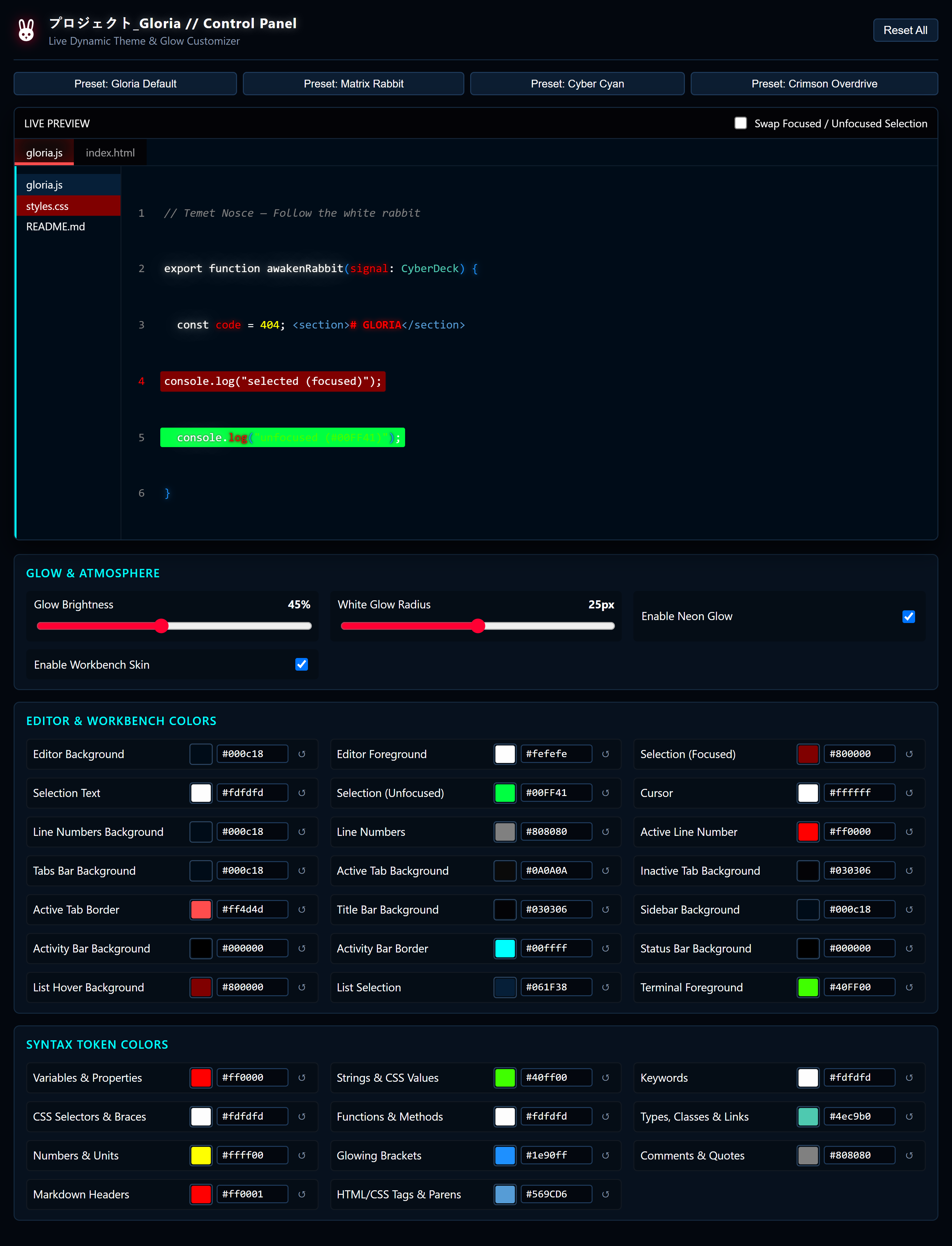
Live glow adjustments, presets, and color controls—all from the built-in panel.
Unlike traditional color themes that are limited to simple static syntax tokens, Gloria integrates:
- 🔮 Multi-Layer Neon Bloom: Real-time radiant text glow with customizable white halo radius and brightness across syntax roles, structural HTML ancestors, CSS curly brackets, and Markdown headers.
- 🎛️ Live Control Panel: Change glow, syntax colors, and editor colors from the sidebar, with a built-in preview and live updates—no restart for these adjustments.
- 🍷 High-Contrast Burgundy Selection: Crisp, readable flat white text highlighted over a luminous burgundy background.
- 🎯 Counter-Strike 2 CFG Support: A hobby addition with dedicated TextMate grammar for glowing commands, aliases, keybinds, and cvars.
- 🛡️ Zero Runtime Dependencies & Safe Cleanup: Clean vanilla JavaScript architecture with single-command workbench file restoration.
⚡ Key Features
🔮 Multi-Layered Neon Glow
Custom multi-layer text bloom with independent white halo radius and live brightness control (0.0 to 1.0) synchronized across all visible editor splits.
|
🎛️ Interactive Control Panel
Built-in sidebar GUI (featuring the Gloria Rabbit), live code preview, and color presets. Adjust syntax colors, editor colors, and glow while you code—no restart needed for these adjustments.
|
🧬 Structural AST Highlighting
Intelligent AST-aware decorations: qualifying ancestor tags glow to clarify deep hierarchies, while CSS units, parentheses, and braces receive distinct radiant styling.
|
🎯 Counter-Strike 2 CFG Grammar
Built-in language mode for .cfg files featuring glowing commands, aliases, cvars, keybind strings, numbers, booleans, and // #region folding.
|
🍷 High-Contrast Burgundy Selection
Selected text displays crisp, readable flat white over deep burgundy through lightweight editor decorations in both standard dark and high-contrast environments.
|
🛡️ Safe Injection & One-Click Restore
Gloria automatically cleans up workbench injections when switching themes. Run Gloria: Restore VS Code Workbench at any time to instantly revert to stock VS Code.
|
🎛️ Interactive Control Panel
Move a slider. Pick a color. Keep coding. Your changes apply live.
Open Gloria Theme in the VS Code Activity Bar to adjust your theme while you work. The panel includes a live code preview, four color presets, glow sliders, and individual color controls for syntax and the editor. Brightness, radius, preset, and color adjustments apply without restarting the editor or reloading the window.
The complete control panel, rendered directly from the extension's HTML and styles.
The initial workbench skin setup requires one window reload when prompted. After setup, the live adjustments above need no further reloads.
How to Open the Control Panel
- Click the Gloria Rabbit icon in the Activity Bar on the left edge of your VS Code window:

- Or press Ctrl+Shift+P (macOS: Cmd+Shift+P) and run:
Gloria: Open Theme Control Panel
What You Can Customize
🚀 Quick Start
1. Install Extension
Search for Gloria Theme in the Extensions view (Ctrl+Shift+X) and click Install, or run via terminal:
code --install-extension Nihilnia.gloria-theme
2. Activate Theme
- Press Ctrl+K Ctrl+T (or Ctrl+Shift+P → Preferences: Color Theme).
- Select Gloria.
- Reload the window when prompted to activate the full custom workbench skin.
3. Safe Uninstallation & Restoration
Gloria patches the workbench only while Gloria is the active color theme. Switching away automatically unpatches VS Code. To restore anytime manually:
- Press Ctrl+Shift+P.
- Run Gloria: Restore VS Code Workbench.
- Reload the window. Stock VS Code HTML files are completely restored.
🎯 Counter-Strike 2 Support

Gloria features native TextMate syntax highlighting for Counter-Strike 2 (.cfg) configuration scripts:
// #region Movement & Viewmodel
alias "+jumpthrow" "+jump; -attack; -attack2"
alias "-jumpthrow" "-jump"
bind "v" "+jumpthrow"

viewmodel_fov 68
sensitivity 1.45
fps_max 0
// #endregion
- Commands & Aliases: Rendered in glowing crisp white.
- CVars & Settings: Rendered in radiant neon red.
- Key Binds & Strings: Rendered in luminous cyber green.
- Numeric Values: Rendered in vibrant yellow.
- Booleans: Rendered in clean flat white.
- Comments (
//): Rendered in italic muted gray with line-comment toggling (Ctrl+/).
- Folding Regions: Native code folding support for
// #region and // #endregion.
[!TIP]
Gloria automatically detects autoexec.cfg and .cfg files inside CS2 config directories (.../csgo/cfg/ and .../userdata/<id>/730/local/cfg/). For custom locations, select Counter-Strike 2 Config in the status bar language selector.
⚙️ Configuration
Prefer editing your settings.json directly? All parameters are fully configurable:
{
  "workbench.colorTheme": "Gloria",
  "gloria.enableWorkbench": true,
  "gloria.brightness": 0.45,
  "gloria.whiteGlowRadius": 25,
  "gloria.disableGlow": false,
  "gloria.maxDecorationFileSize": 1000000
}
Settings Reference
| Setting |
Type |
Default |
Description |
gloria.enableWorkbench |
boolean |
true |
Enables custom workbench skin and glow injection while Gloria is active. |
gloria.brightness |
number |
0.45 |
Master brightness for glow effects (0.0 = flat / no glow, 1.0 = maximum bloom). |
gloria.whiteGlowRadius |
number |
25 |
Outer white halo radius in pixels (0 to 50), adjustable independently. |
gloria.disableGlow |
boolean |
false |
Disables token glow while retaining custom editor chrome styling. |
gloria.maxDecorationFileSize |
integer |
1000000 |
Maximum document length in characters for structural AST decorations. |
🐇 Design Philosophy & Lore

"Temet Nosce" — Know Thyself
Gloria was engineered on the principle that a coding environment should be an inspiring visual instrument without sacrificing long-term ergonomic readability:
- Deep Obsidian Background (
#03070e): Reduces eye fatigue during late-night coding sessions while maximizing contrast for neon accents.
- Purposeful Bloom: Glow highlights syntactic anchors (keywords, functions, variables, brackets, headers) while data values, strings, types, and comments remain flat and legible.
- The Gloria Rabbit: The cyber rabbit emblem symbolizes agility, swift navigation, and following curiosity down the programming rabbit hole.
📜 Credits & License
| Author |
Nihil |
| Publisher |
Nihil |
| Repository |
 |
| License |
 © Nihil. © Nihil. |