Database Editor for VS Code
A fast, lightweight SQLite database editor built directly into VS Code. Browse tables and views, edit data, run queries, manage schemas, and optionally work with the open database through GitHub Copilot Chat.

Features
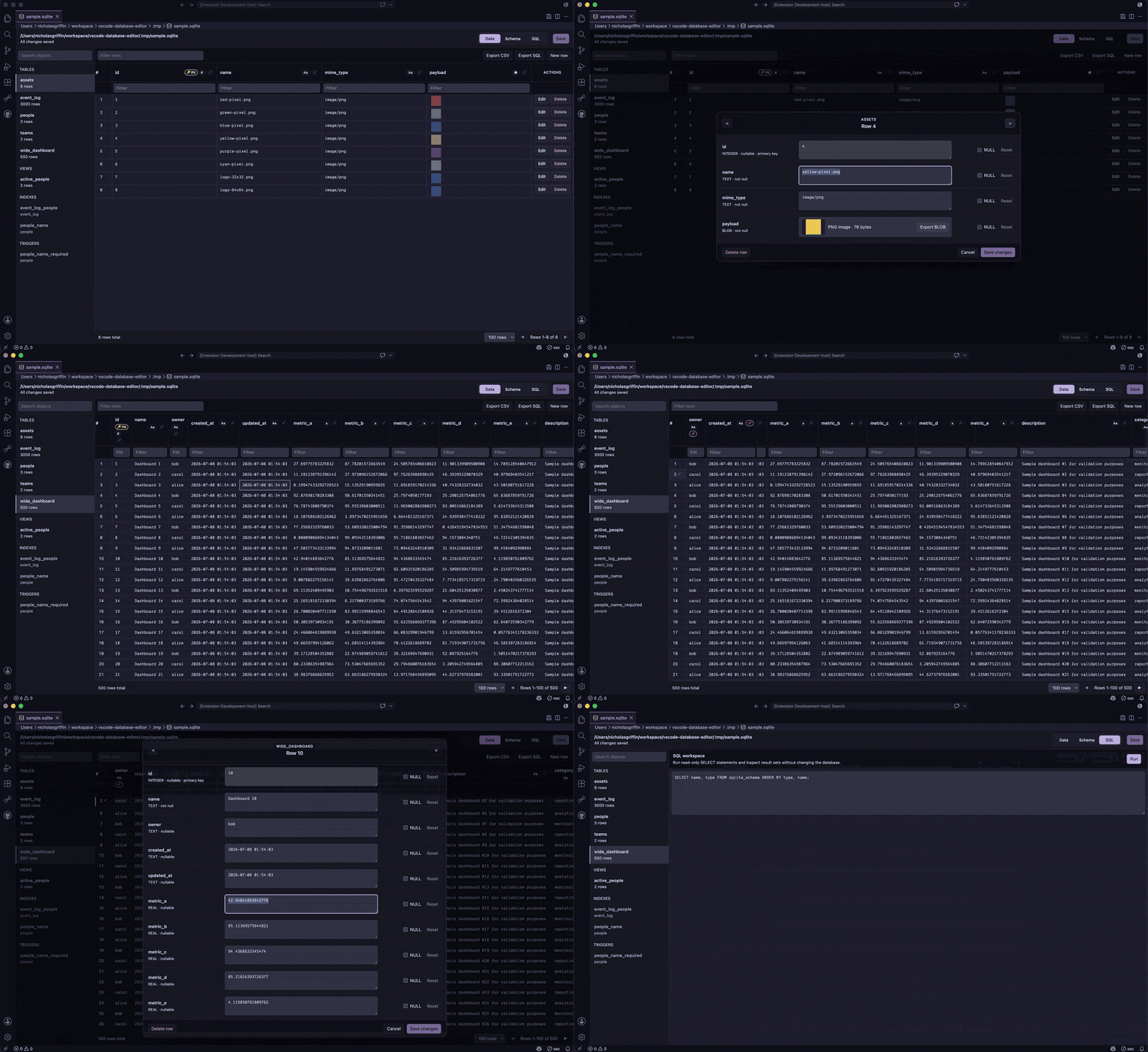
- Open any SQLite file — Supports
.db, .db3, .sqlite, .sqlite3, .sdb, .s3db, and .gpkg files
- Browse database structure — Tables, views, indexes, triggers, columns, primary and foreign keys in a clean sidebar
- Copilot integration — Use Copilot Chat to inspect schema, run queries, and analyze tables with privacy-safe context
- CSV import — Preview and explicitly map CSV columns into an existing table with transactional rollback on failure
- Paged data grid — Sort, filter, and paginate through table data with per-column search
- Data editing — Double-click editable cells for inline or modal editing, add rows, and delete one or many selected rows
- Image preview — BLOB columns with PNG/JPEG/GIF/WebP images render as thumbnails inline
- Pin rows & columns — Pin important columns to the left and mark rows for easy reference
- VS Code save integration — Edits are tracked and saved using the normal
Ctrl+S / Cmd+S flow with undo/redo support
- Schema management — Create, rename, and drop tables; add and remove columns
- Indexes and health checks — Create and inspect indexes, inspect triggers, and run bounded integrity and foreign-key checks
- SQL workspace — Run SELECTs, PRAGMAs, and multi-statement SQL scripts with result grids, query history, rollback-safe writes, and normal VS Code save tracking
- SQLite SQL language support — Syntax highlighting, comments/bracket behavior, and SQLite-focused snippets for standalone scripts
- Export — Export visible rows as CSV, or dump schema and table data as SQL
- Local SQLite runtime — Powered by
sql.js (SQLite compiled to WebAssembly) with no native SQLite installation or database server required
Usage
- Run Database Editor: New SQLite Database from the Command Palette, or open a recognized SQLite database file (
.db, .db3, .sqlite, .sqlite3, .sdb, .s3db, or .gpkg). For another extension, run Open as SQLite Database from the Command Palette or the Explorer context menu.
- The custom editor launches automatically — browse tables in the sidebar.
- Click a table to view its data in the paged grid.
- Click once to select a cell, double-click to edit it, or use the row Actions column for row-level editing.
- Press
Ctrl+S (Cmd+S on macOS) or click Save to persist changes unless databaseEditor.instantCommit is enabled.
The new-database command uses VS Code's Save dialog, writes a valid empty SQLite file through the workspace filesystem, and opens it directly in the custom editor. This works for local files and writable virtual-workspace filesystem providers.
Command Palette actions include New SQLite Database, Open as SQLite Database, Save Database, and—when Copilot integration is enabled—Chat with SQLite Database.
How editing and saving work
The extension loads the database into an in-memory SQLite runtime. Grid edits, schema changes, SQL writes, and confirmed Copilot writes update that working copy and mark the VS Code custom editor as dirty. The original file is not replaced until the normal VS Code Save command runs. Save As, revert, hot-exit backups, and VS Code's custom-editor undo/redo flow are supported.
Tables can be edited using their declared primary key or SQLite rowid. Views and tables without a usable row identity remain available for browsing and SQL queries but cannot be changed through the data grid. BLOB values are read-only in the grid and can be previewed or exported from row details.
Use the Schema tab to understand and evolve the database structure without leaving the editor. The default Graph view visualizes tables, views, columns, primary keys, foreign keys, and directed relationships; switch to DDL whenever you want the generated SQLite definition for the selected object.
The schema tools support:
- Relationship graph cards for tables and views, including PK/FK/not-null/type markers on columns.
- Directed foreign-key edges from referencing columns to referenced columns, with isolated tables still shown.
- Graph and DDL views side by side in the same Schema tab, so visual inspection does not replace the textual schema.
- Clicking a graph card to select that table/view and sync the sidebar, DDL, and data grid.
- Table management actions for creating, renaming, and dropping tables, plus adding or removing columns.
- Automatic refresh after schema changes so the graph, sidebar, DDL, and grid stay in sync.
- A bounded Check health action that runs SQLite
quick_check and foreign_key_check without changing the database.
Schema changes run against the editor's in-memory database copy first. Save with the normal VS Code Ctrl+S / Cmd+S flow when you're ready to persist them.
SQL workspace
Use the SQL workspace to inspect data, run schema introspection, or apply manual SQLite changes against the editor's in-memory database copy. Successful write scripts mark the custom editor dirty and refresh the sidebar/grid; persist them with the normal VS Code save flow.
The workspace supports:
- Read-only
SELECT, safe WITH, VALUES, EXPLAIN, and read-only PRAGMA statements.
- Multi-statement scripts, including scripts that end with a result-producing query.
- Mutating SQLite statements such as
INSERT, UPDATE, DELETE, CREATE, ALTER, and DROP.
- Automatic transaction wrapping for mutating scripts without explicit transaction control, with rollback if a later statement fails.
- User-managed transactions via
BEGIN, COMMIT, ROLLBACK, SAVEPOINT, and RELEASE when you need explicit control.
- Query history for recently executed scripts, available from the SQL workspace toolbar.
If a script with explicit transaction control commits a change before a later statement fails, the workspace still marks the database as possibly changed and refreshes the UI so unsaved changes are not hidden.
SQLite SQL files
The extension contributes a dedicated SQLite SQL language mode for standalone scripts. It adds SQLite-specific highlighting for PRAGMAs, dialect keywords, built-in functions, bind parameters, BLOB literals, and SQLite CLI dot commands while retaining VS Code's base SQL grammar. It also provides snippets for tables, inserts, upserts, common table expressions, transactions, indexes, and query plans.
Files ending in .sqlite.sql or .sqlite3.sql use the mode automatically. A generic .sql file can opt in by selecting SQLite SQL from VS Code's language picker or by starting with -- sqlite (or -- language=sqlite). The extension deliberately does not claim every .sql file, so it does not replace VS Code's built-in SQL mode or conflict with another SQL language extension by default.
GitHub Copilot integration
When GitHub Copilot Chat is installed, use @sqlite, its /schema, /query, /explain, and /profile commands, or the “Chat with SQLite Database” editor action. The participant keeps recent conversation turns and receives privacy-safe editor context: the active database, selected table/view, sort state, selected column names, selected visible row numbers, and whether filters are active. Grid row values and raw filter text are never included in that automatic context.
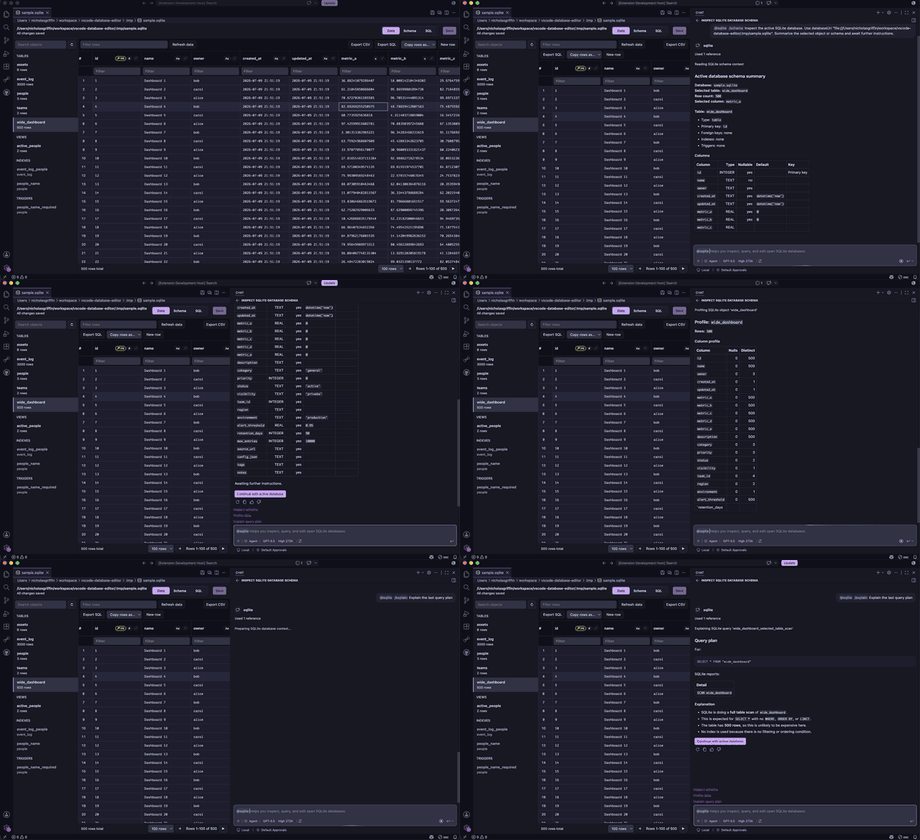
Copilot tools can:
- List open databases and require an explicit
databaseUri whenever more than one is open.
- Return a paginated schema summary or focused columns, keys, indexes, triggers, and CREATE SQL for the selected object.
- Run validated
SELECT/safe WITH queries with cancellation, a configurable time budget, and a configurable row cap.
- Run grounded
EXPLAIN QUERY PLAN analysis and aggregate table profiling without returning sample rows.
- In read/write mode, apply one confirmed modification or an atomic, confirmed multi-statement migration through the editor's dirty/save/undo history.
The integration has two access modes:
- Read-only (
ro) — The default. Copilot can inspect schema and run validated read-only query and analysis tools. It cannot run INSERT, UPDATE, DELETE, DDL, PRAGMA, ATTACH, VACUUM, or scripts.
- Read/write (
rw) — Enables confirmed modification and migration tools. Confirmations identify the target database and preview the SQL. Successful changes refresh the webview, mark the document dirty, and can be saved, undone, or redone normally.
Copilot privacy and limits
Query rows are processed inside the extension host and sent to the language model only when a query tool is used. Columns matching databaseEditor.copilot.sensitiveColumnPatterns are replaced with [REDACTED] before tool results are returned. Defaults cover common password, token, secret, API-key, and SSN names. This name-based redaction is a safeguard, not a substitute for reviewing database contents before granting Copilot access.
databaseEditor.copilot.enable hides the participant and tools and also blocks tool invocation at runtime.databaseEditor.copilot.accessMode controls read-only versus confirmed read/write access.databaseEditor.copilot.maxResultRows controls the query response cap (default 200, maximum 500).databaseEditor.copilot.queryTimeoutMs controls the soft query/analysis time budget (default 5000 ms).databaseEditor.copilot.sensitiveColumnPatterns configures case-insensitive regular expressions used for value redaction.
SQLite runs in-process, so cancellation and timeout checks occur between SQLite result steps; they cannot interrupt a single long native/WASM step. Set databaseEditor.copilot.accessMode to rw only when you intend to review and confirm database changes.
Keyboard shortcuts / mouse actions
These shortcuts apply while focus is inside the SQLite custom editor. Text fields keep native copy/paste/undo behavior, while grid shortcuts operate on the current cell or selected visible rows.
| Shortcut |
Action |
| Single-click |
Select the focused cell or row |
| Double-click |
Edit the cell using databaseEditor.doubleClickBehavior (inline by default; read-only/BLOB cells use the row modal) |
| Enter |
Save an inline cell edit |
| Shift+Enter |
Insert a newline while editing inline text |
| Escape |
Cancel an inline edit, or clear the current grid selection |
| Ctrl+C / Cmd+C |
Copy the selected grid cell; use Copy rows as… for selected/visible row copy formats |
| Ctrl+Z / Cmd+Z |
Undo the last database edit through VS Code's custom-editor undo stack |
| Ctrl+Y / Cmd+Shift+Z |
Redo the last undone database edit |
| Ctrl+S / Cmd+S |
Save the database through VS Code's normal Save command |
| Ctrl+Delete / Cmd+Delete |
Smart delete: delete selected rows, delete the selected row, or clear the selected editable cell |
| Shift+Click |
Select a visible row range for batch copy/delete |
| Ctrl+Click / Cmd+Click |
Add or remove visible rows from the current batch selection |
Configuration
Settings use the extension's actual databaseEditor.* namespace. They can be set globally, per workspace, or per resource where VS Code supports resource-scoped settings.
| Setting |
Default |
Description |
databaseEditor.maxFileSizeMb |
200 |
Maximum SQLite file size, in MB, loaded by the WebAssembly editor backend (0 = unlimited). The current editor uses the WASM/sql.js backend. |
databaseEditor.defaultPageSize |
500 |
Rows per page when a database opens. The pager also offers common sizes and includes custom defaults. |
databaseEditor.autoPagination |
true |
Load the next bounded row chunk in the background when you scroll near the bottom, while retaining previously loaded rows. |
databaseEditor.maxRows |
0 |
Maximum browsable rows per table/view after filtering (0 = unlimited). Paging still applies within the cap. |
databaseEditor.instantCommit |
never |
Auto-save strategy after grid, schema, or SQL writes: always, never, or remote-only. Manual Save remains available in every mode. |
databaseEditor.doubleClickBehavior |
inline |
Cell double-click action: inline for scalar grid editing, or modal for the row editor. |
databaseEditor.blobExportMode |
native |
BLOB export method: native uses VS Code's save dialog/filesystem APIs; web uses a webview download link. |
databaseEditor.queryTimeoutMs |
30000 |
Soft query time budget for grid browsing and row-stepped reads. SQLite/WASM can only check this between statement steps, not during a single long SQLite step. |
databaseEditor.maxUndoMemoryBytes |
52428800 |
Maximum combined before/after snapshot bytes retained for a single undoable edit. Larger edits still mark the database dirty but skip per-edit undo snapshots to avoid excessive memory use. |
databaseEditor.copilot.enable |
true |
Enables the @sqlite participant and SQLite language-model tools. |
databaseEditor.copilot.accessMode |
ro |
Copilot access: read-only (ro) or user-confirmed read/write (rw). |
databaseEditor.copilot.maxResultRows |
200 |
Maximum rows returned by a Copilot query (1–500). |
databaseEditor.copilot.queryTimeoutMs |
5000 |
Soft time budget in milliseconds for Copilot query and analysis tools. |
databaseEditor.copilot.sensitiveColumnPatterns |
common secret names |
Case-insensitive regular expressions for columns whose values are redacted before Copilot receives query results. |
Requirements
- VS Code 1.125.0 or later
- No external database server or native SQLite installation is required; the extension bundles its WebAssembly SQLite runtime
Known Limitations
- Only SQLite databases are supported.
- The full database is loaded into memory.
databaseEditor.maxFileSizeMb protects the editor from unexpectedly large files, but practical limits still depend on available memory.
- SQL workspace changes run against the editor's in-memory copy until you save the custom editor.
- Do not edit the same database concurrently from another application. The editor does not live-merge external changes, and saving an older in-memory snapshot can replace newer changes in the main database file.
- For local file URIs, the editor warns when it can detect a non-empty adjacent
-wal file. It does not replay, merge, checkpoint, truncate, or delete WAL/SHM sidecars; close or checkpoint the owning SQLite connection, then reopen the database before editing.
- WAL detection is best-effort and unavailable for virtual or remote filesystem providers where adjacent-file probing is unsupported.
- Locked files and files changed by external writers may fail to open or save. Resolve the lock/external writer and reopen the database rather than assuming the in-memory snapshot is current.
- Query timeouts are cooperative checks between SQLite result steps; a single expensive SQLite/WASM step cannot be interrupted mid-step.
- Views and tables without a usable primary key or
rowid are browse-only in the data grid. They can still be queried from the SQL workspace.
- Automatic Copilot redaction is based on output and referenced column names. Review sensitive databases before allowing query results to be sent to a language model.
License
Apache 2.0 — see LICENSE for details.
| |

