


About Mynthra 🍃
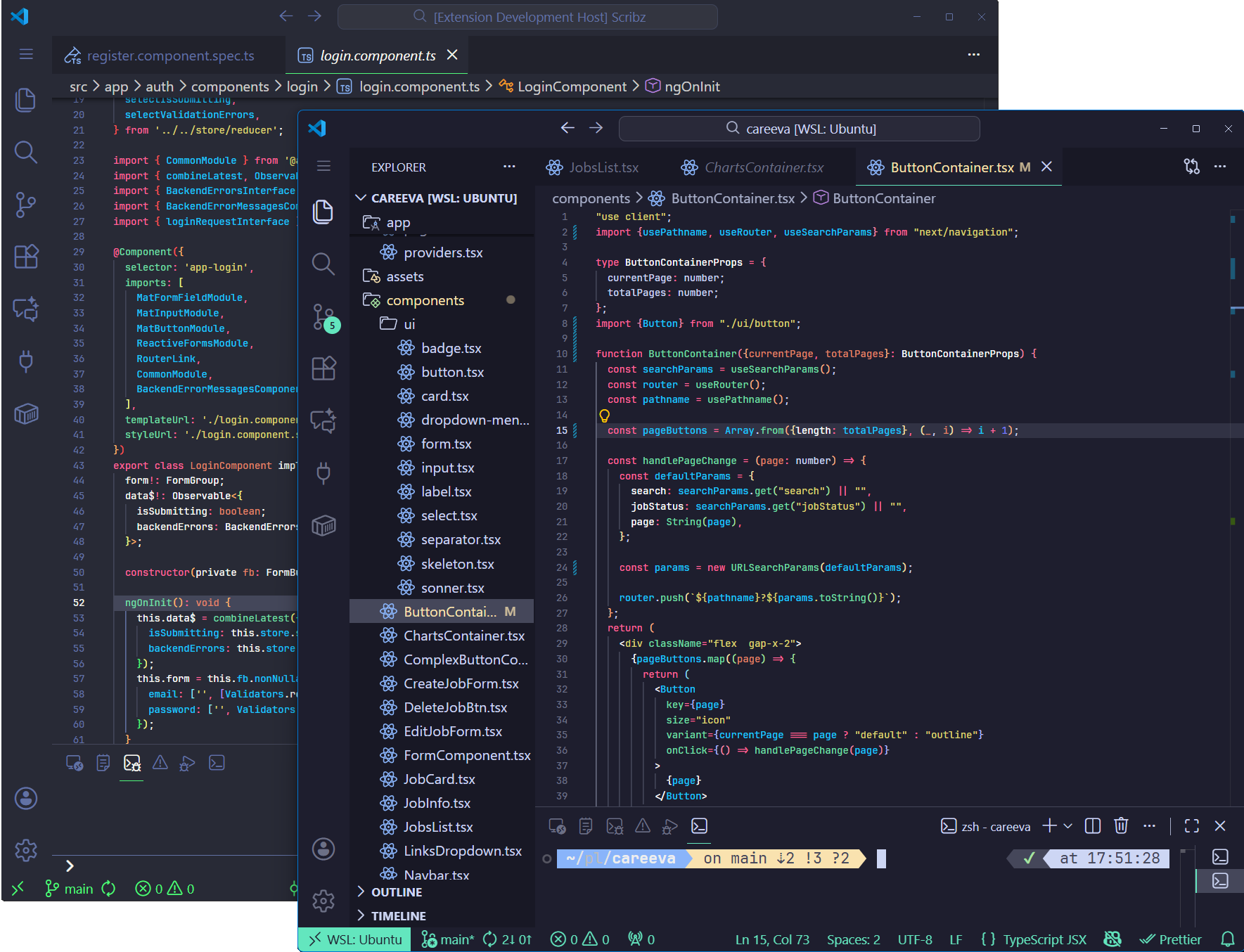
Mynthra is a modern dark VSCode theme designed for developers who value clarity and visual harmony in their coding environment. Built with the JavaScript and TypeScript ecosystem in mind, it provides carefully crafted syntax highlighting that enhances code readability without sacrificing aesthetics.
Two Variants, One Vision 🍂
- Mynthra — The classic variant with a deeper, darker background and mint-green accents that keep your code crisp and focused
- Mynthra Vaporwave — A softer, pale dark variant specifically designed for Angular development with adjusted syntax highlighting
Both variants share the same philosophy: reduce eye strain during extended coding sessions while maintaining excellent syntax distinction for JavaScript, TypeScript, React, Angular, Node.js, HTML, CSS, and JSON.
Key Features
- Optimized for JavaScript/TypeScript — Syntax colors designed specifically for modern web development
- Framework-friendly — Works beautifully with React, Next.js, Angular, and Node.js projects
- Eye-comfort focused — Balanced contrast that reduces fatigue during long sessions
- Clean UI elements — Minimalist sidebar, terminal, and editor chrome
- Consistent highlighting — Predictable color patterns across different file types
Installation
From VSCode Marketplace (Recommended)
- Open VSCode
- Go to Extensions (
Ctrl+Shift+X or Cmd+Shift+X)
- Search for "Mynthra"
- Click Install
Quick Install via Command Palette
- Press
Ctrl+P (Windows/Linux) or Cmd+P (macOS)
- Type:
ext install Mynthra.mynthra-theme
- Press Enter
Manual Installation
Download the latest .vsix file from GitHub Releases and install via:
Extensions: Install from VSIX... in the Command Palette
Activation
After installation:
- Open Command Palette (
Ctrl+Shift+P or Cmd+Shift+P)
- Type "Color Theme" and select Preferences: Color Theme
- Choose either:
- Mynthra (classic dark)
- Mynthra Vaporwave (purple-tinted)
Contributing 🌿
Contributions are welcome! If you'd like to improve Mynthra:
- Fork the repository
- Create your feature branch (
git checkout -b feature/amazing-improvement)
- Commit your changes (
git commit -m 'Add some improvement')
- Push to the branch (
git push origin feature/amazing-improvement)
- Open a Pull Request (follow the PR template provided)
Please use the appropriate issue template when reporting bugs or requesting features. All templates are available in the .github folder.
Support & Feedback
If you enjoy using Mynthra, consider:
- Starring the repo on GitHub
- Sharing it with fellow developers
- Reporting issues or suggesting improvements

Copyright © 2025-present Hamza Kargın