Skip to content
| Marketplace
Sign in
Visual Studio Code>Programming Languages>Visual SqitchNew to Visual Studio Code? Get it now.
Visual Sqitch

Visual Sqitch

Preview

Manc Software

|
1 install
| (0) | Free
See where every database sits in your Sqitch plan, compare with upstream, and deploy, revert and verify with previews
Installation
Launch VS Code Quick Open (Ctrl+P), paste the following command, and press enter.
Copied to clipboard
More Info

Visual Sqitch icon

Visual Sqitch

See where your database sits in its Sqitch plan, and deploy, revert and verify with a preview of exactly what will run.

Visual Sqitch is a preview: it works on real projects, and its features may still change.

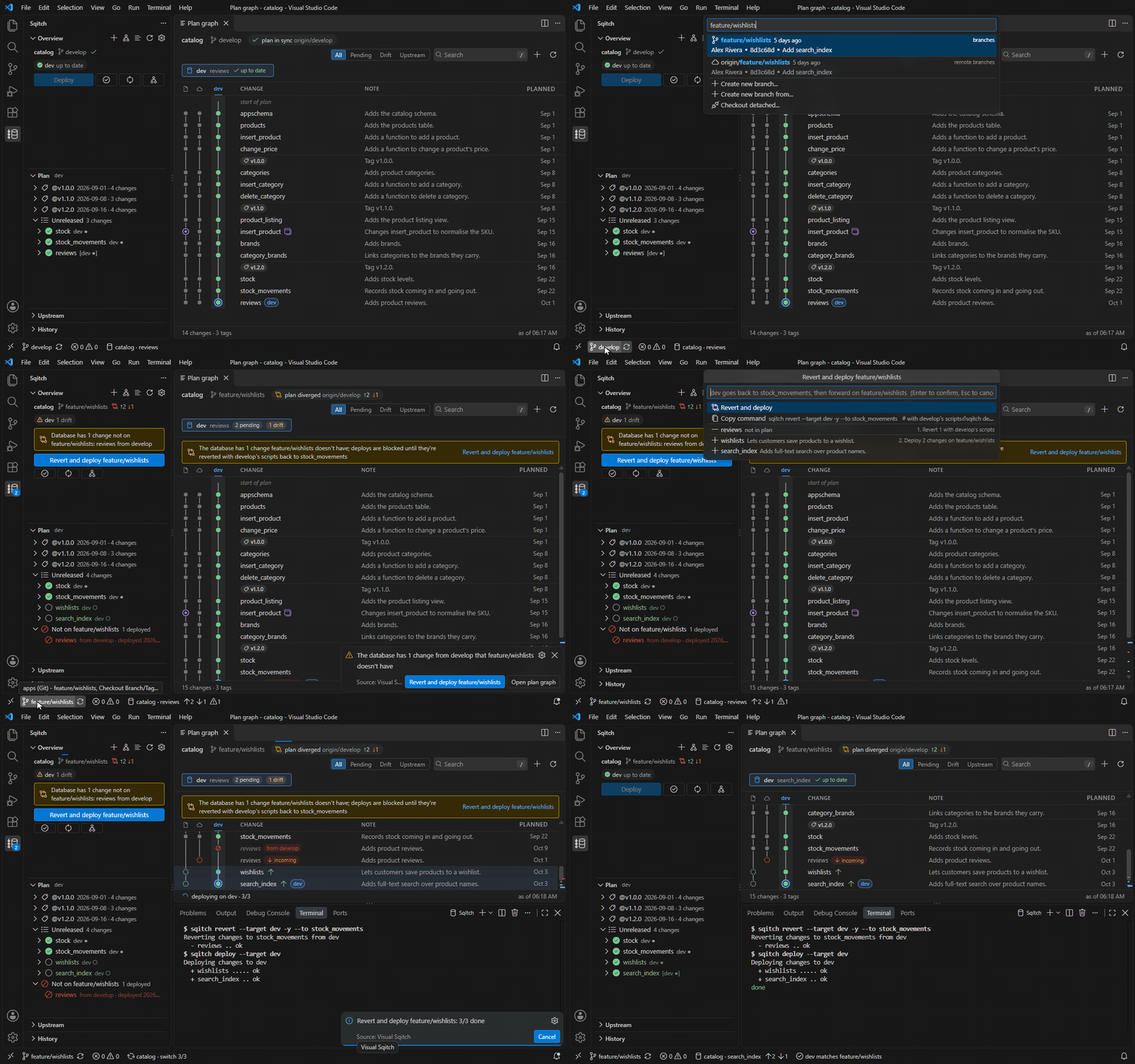
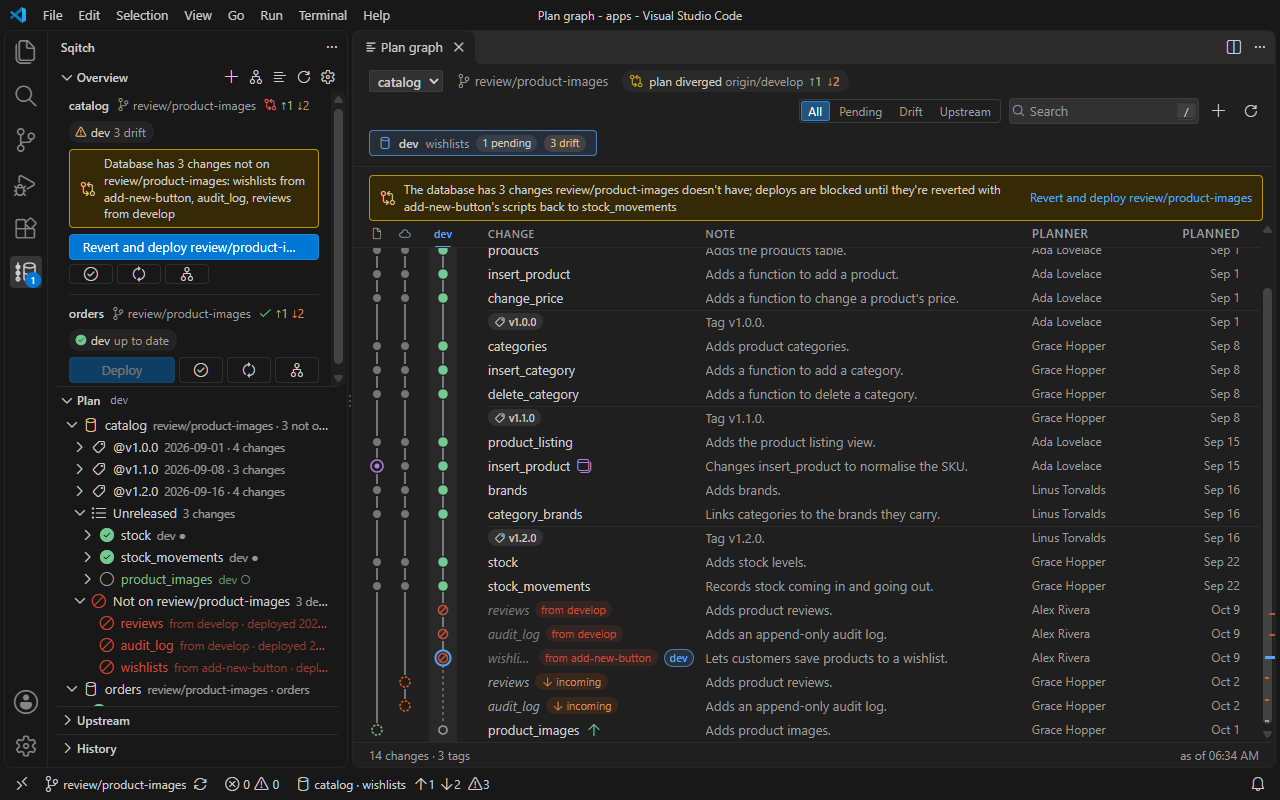
The database has a change from develop after a switch to a feature branch; Revert and deploy undoes it with develop's scripts, then deploys the feature branch

Features

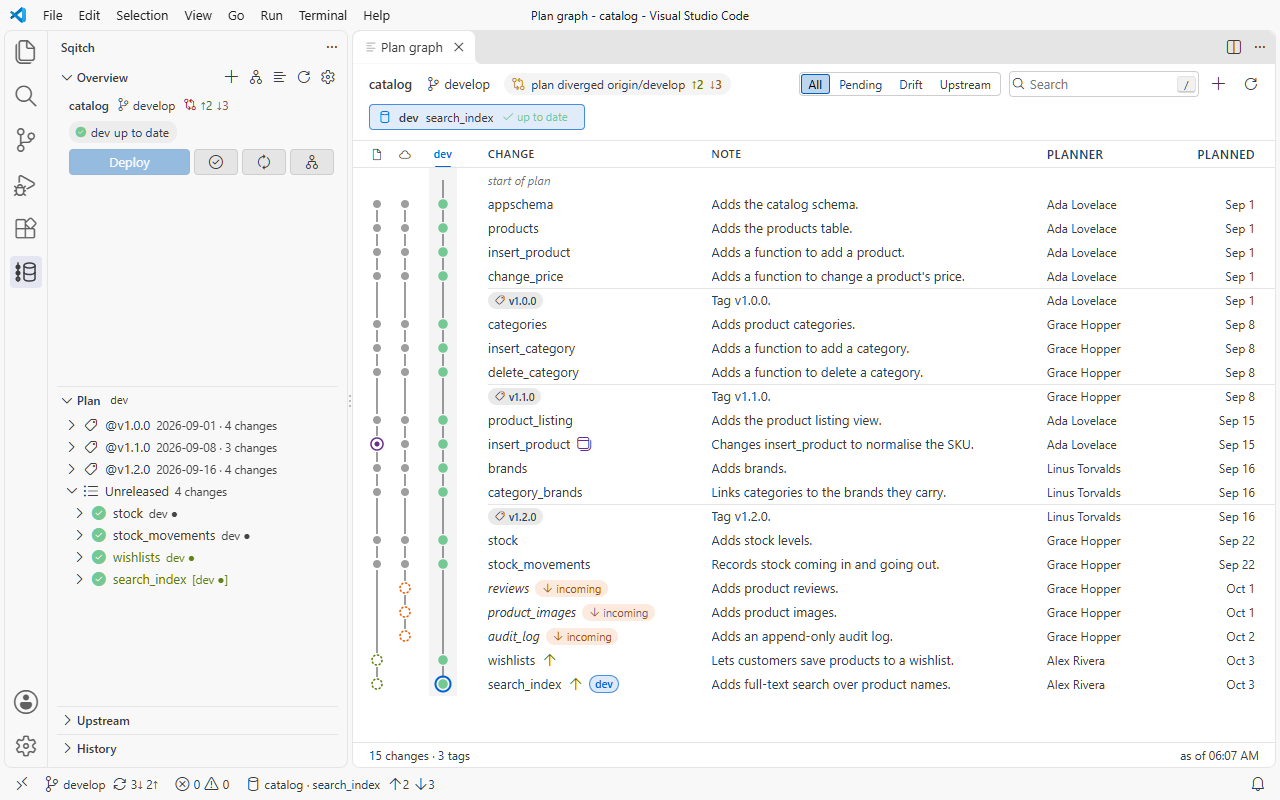
Overview and Plan Graph

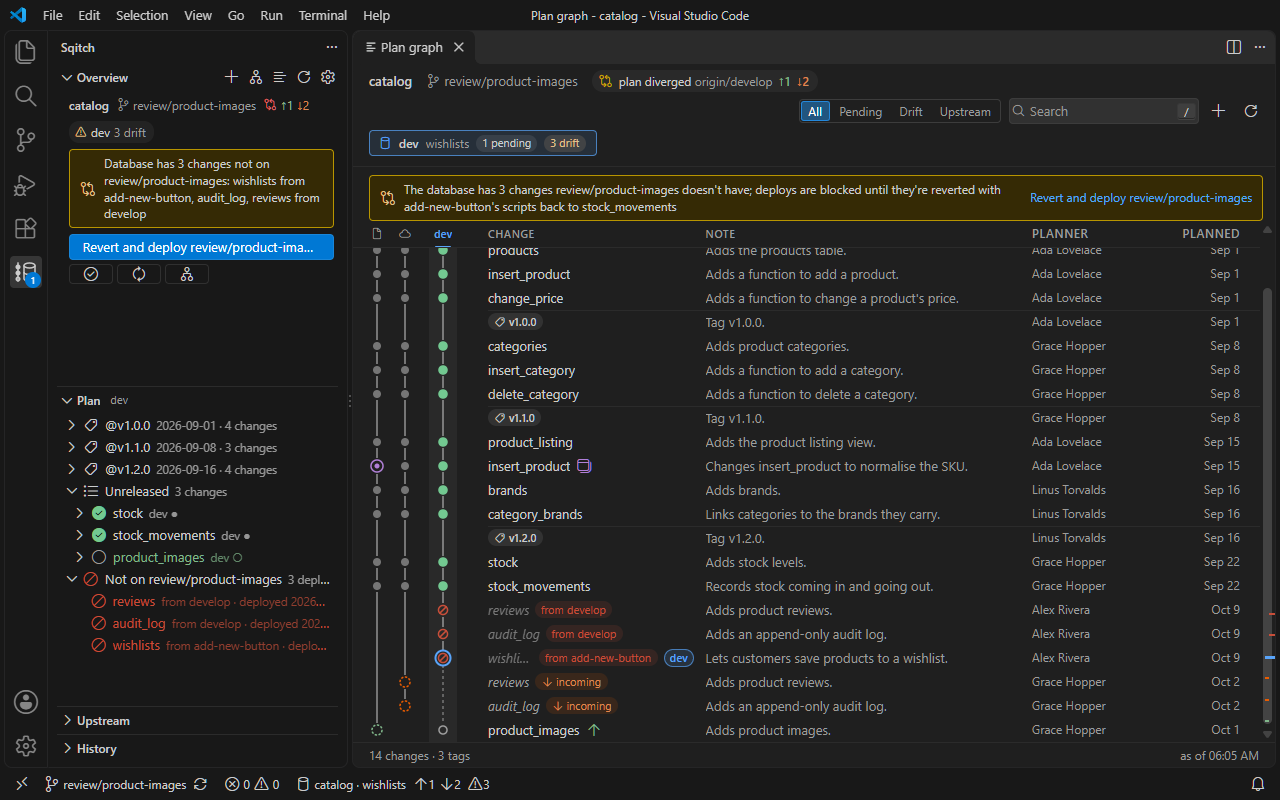
Every change in plan order, with lanes for your local plan, the upstream plan and your database. Pending changes, drift, failed deploys and changes deployed from other branches each have their own colour and shape.

The Overview in the sidebar and the Plan Graph, with a database that has changes from other branches

Revert and deploy across branches

Check out a branch and the database still has the last branch's changes, which sqitch can't revert from here. Revert and deploy undoes them with the scripts from the branch they came from, then deploys the branch you're on.

Deploy, revert and verify with a preview

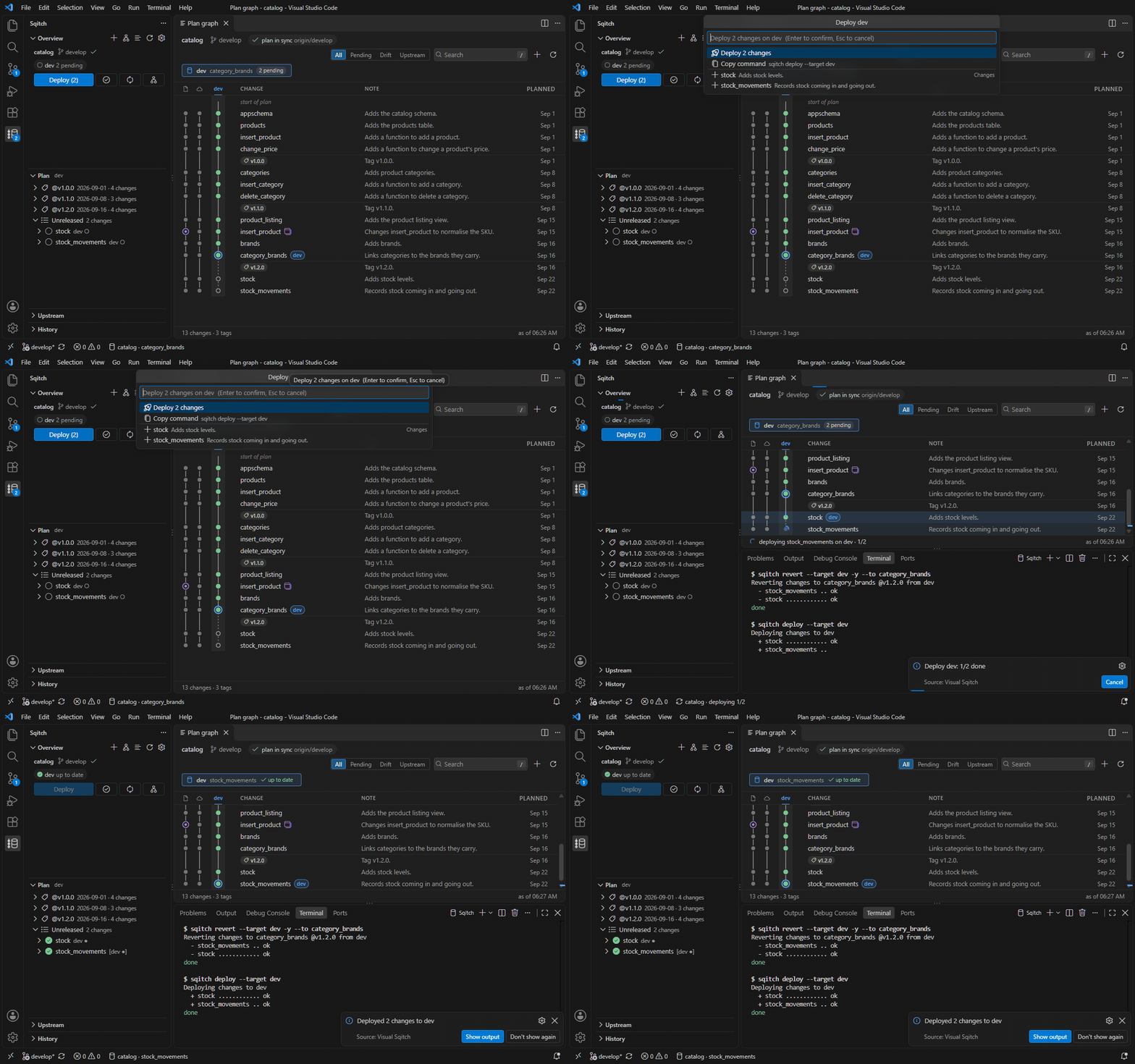
Every deploy, revert and rebase shows the changes it will touch and the literal sqitch command before anything runs. Deploy to or revert to any change from the plan, the graph, a hover or CodeLens, or drag the database's head marker.

Deploying two pending changes: the preview lists them with the sqitch command, then the deploy runs

Recover from a failed deploy

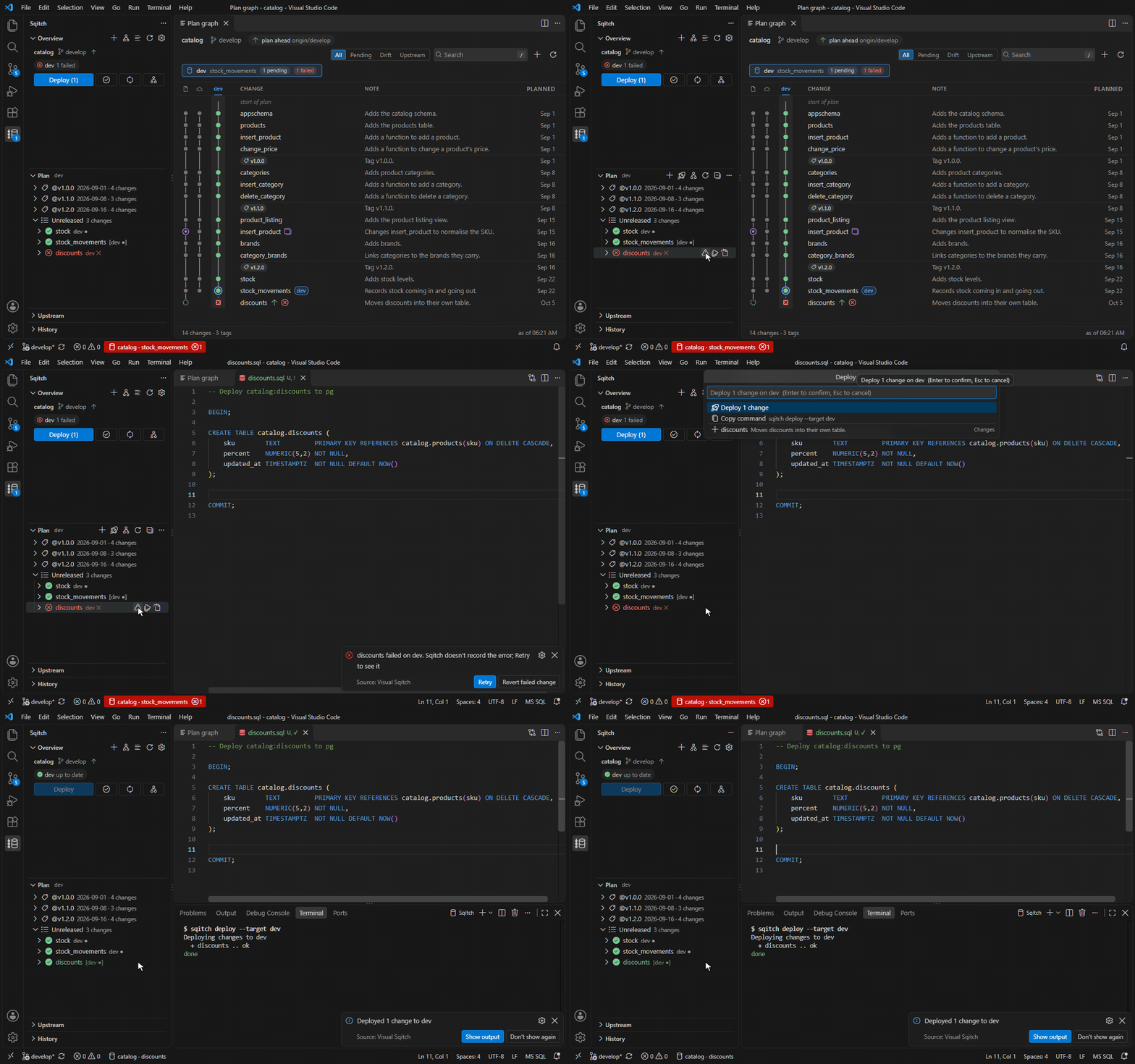
A failed deploy is shown where it happened. Fix failed change opens the deploy script with the error, and offers to retry or to clean up what the change left behind.

A failed deploy: Fix opens the script, the faulty statement is removed and the deploy is run again

Editing sqitch.plan

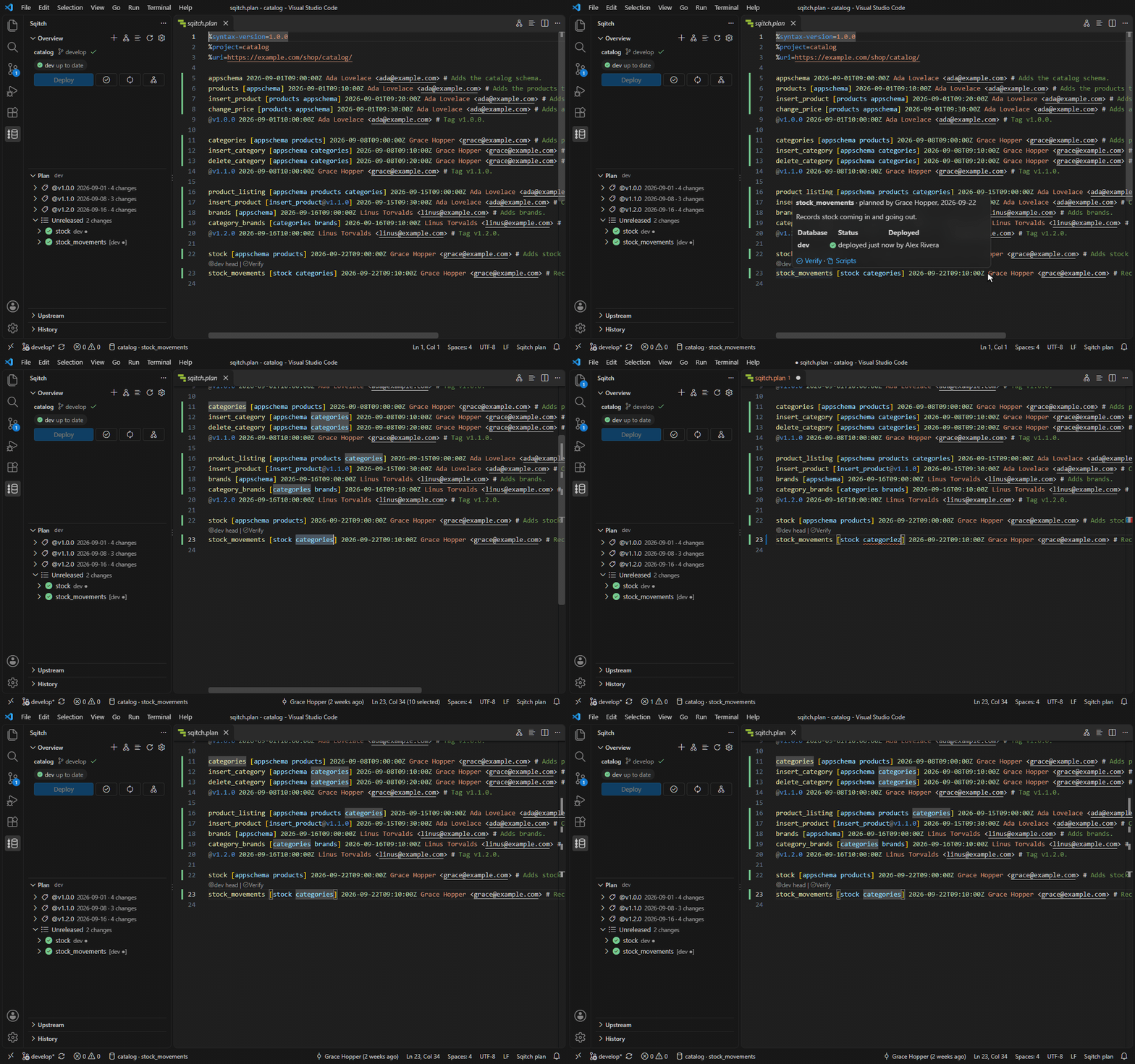
Highlighting, a status mark in the gutter for each change, hovers with the database's status and actions, CodeLens on the deployed head, and diagnostics for the mistakes sqitch would reject, as you type.

Hovering a change in sqitch.plan, then a misspelt dependency is flagged and undone

Set up connection

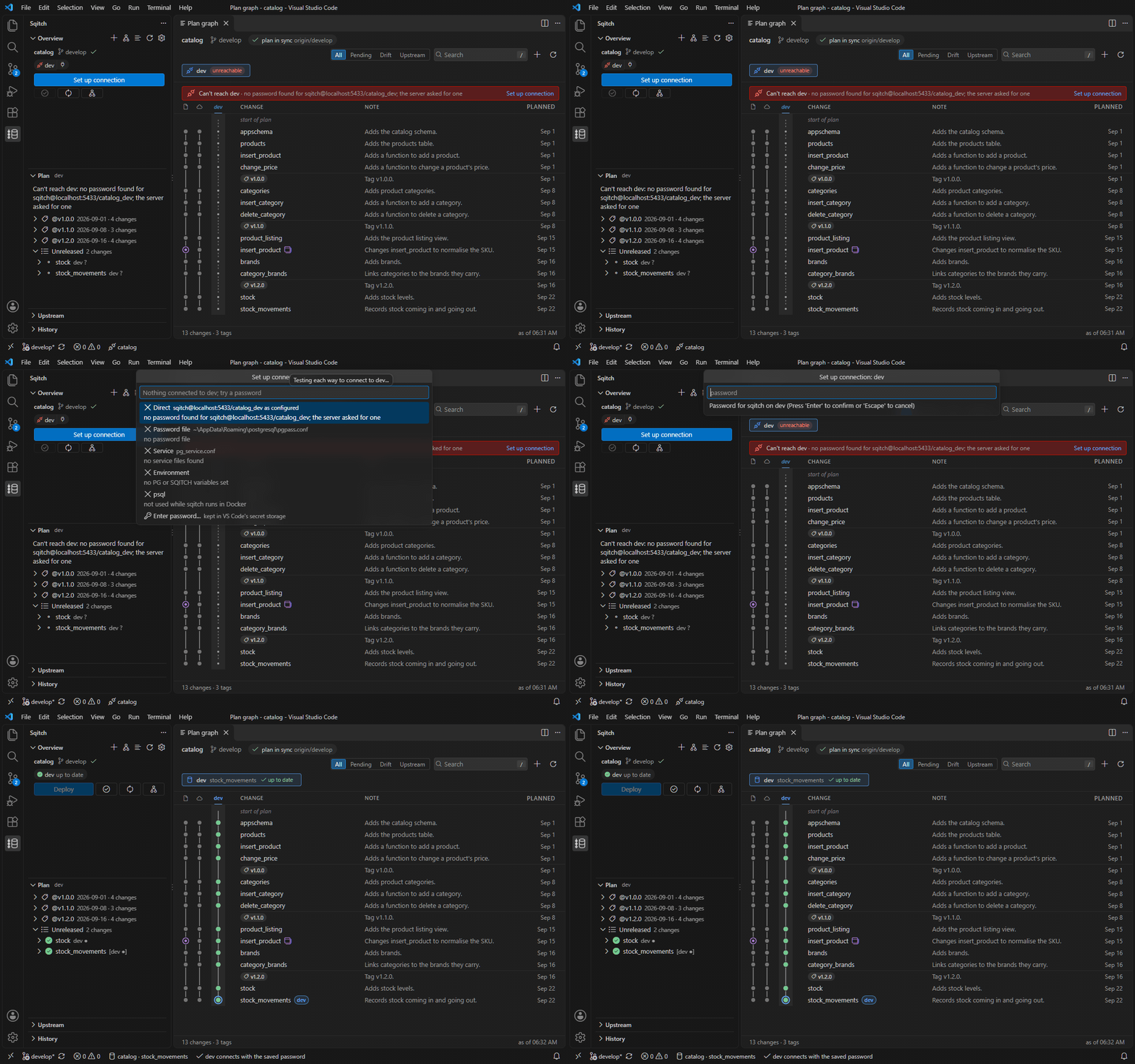
When a database can't be reached, Set up connection tries each way of connecting (the URI, the password file, a service file, the environment) and shows what each found. A password you enter is kept in VS Code's secret storage.

A database URI without a password: Set up connection lists what it tried, then a password is entered and the database connects

Several projects at once

Every Sqitch project in the workspace shows in the Overview and the Plan view, each with its own database.

Two projects, catalog and orders, in one workspace

Upstream and History

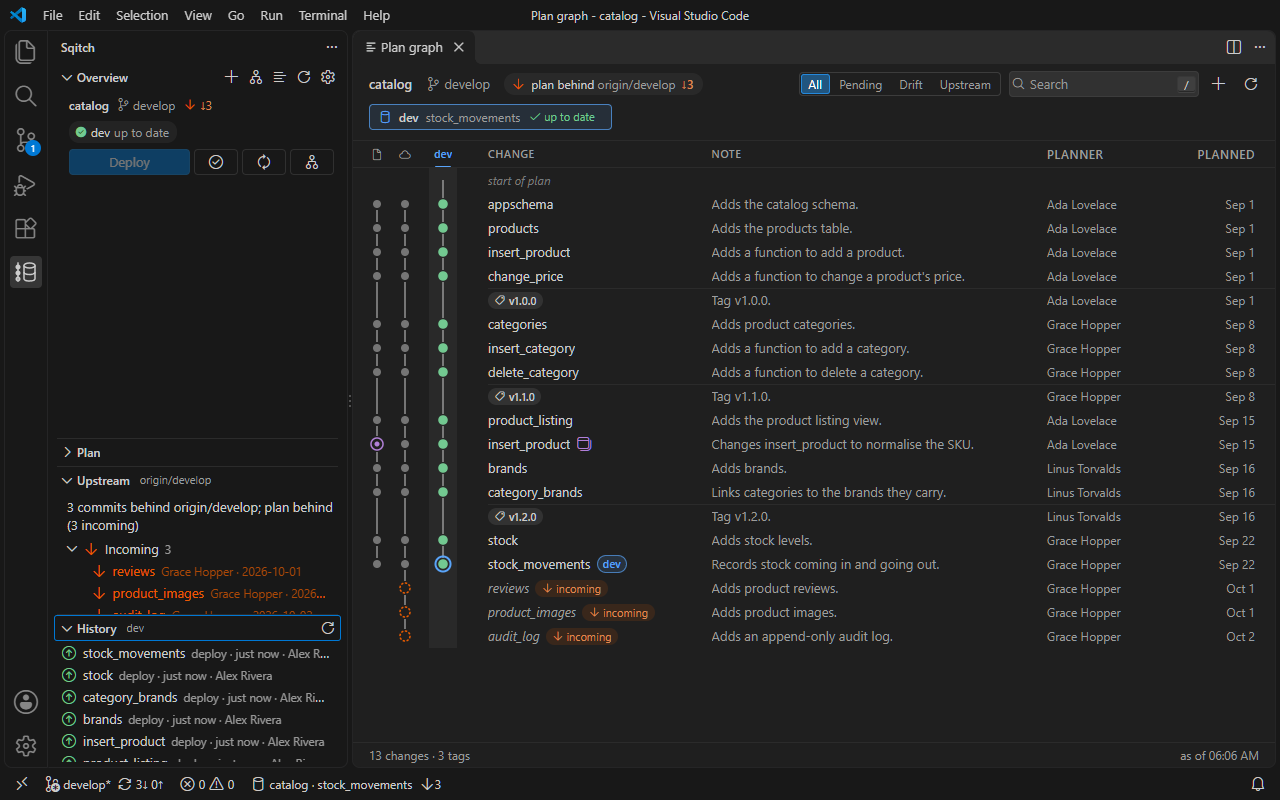
The Upstream view compares your plan with an upstream git ref (origin/develop by default): incoming changes, changes only you have, and conflicts. Sync fetches, fast-forwards and offers to deploy what arrived. The History view lists the database's deploy, revert and fail events.

The Upstream view with three incoming changes and the History view

Light themes, high contrast themes and a colour-blind status preset are supported.

The Overview and Plan Graph in the Light Modern theme

Requirements

  • VS Code 1.100 or later, in a trusted workspace
  • A Postgres database
  • Sqitch, either on your PATH or through Docker, which runs the sqitch/sqitch image when sqitch isn't installed. A sqitch installed on the machine runs scripts through psql, so psql needs to be on the PATH too
  • git, for the upstream comparison, branch switching and Revert and deploy

Quick start

  1. Open a folder that contains a sqitch.plan and sqitch.conf.
  2. Open the Sqitch view in the activity bar. The Overview shows where the database is in the plan.
  3. If the database can't be reached, choose Set up connection.
  4. Deploy, or open the Plan Graph to look around first. The walkthrough (Welcome: Open Walkthrough..., then Get started with Visual Sqitch) goes through the same steps.

Settings

Setting Default Description
visualSqitch.executable "" sqitch executable path, or "docker" to force Docker; empty auto-detects (PATH, then Docker)
visualSqitch.dockerImage "sqitch/sqitch:latest" Docker image used when sqitch runs through Docker
visualSqitch.upstreamRef "origin/develop" git ref the local plan is compared against
visualSqitch.exclude [] globs of folders whose sqitch projects are ignored, e.g. **/fixtures/**
visualSqitch.autoFetch 0 minutes between background git fetches, 0 for off
visualSqitch.codeLens.scope "heads" where sqitch.plan shows CodeLens actions (heads, all, off)
visualSqitch.statusColors "default" status colour preset for the views, graph and gutter (default, colorblind, vivid)
visualSqitch.timeoutMinutes 0 minutes before a running sqitch command is stopped, 0 for no limit

Privacy

Visual Sqitch sends no telemetry and contacts no service of its own. It connects only to the databases in your sqitch.conf (directly through the bundled pg driver, or through psql), runs git against your repository (fetch only when you sync, or on a timer if you turn on visualSqitch.autoFetch, which is off by default), and runs sqitch, locally or through Docker, which pulls the sqitch/sqitch image the first time it is used. Its webviews have a content security policy that blocks every network request.

Support

Questions and bug reports go to the Q&A tab of the extension's Marketplace page.

Licence

Visual Sqitch is proprietary software, free to use; the terms are in the LICENSE file that comes with the extension. Third-party components and their licences are listed in its ThirdPartyNotices.txt.

  • Contact us
  • Jobs
  • Privacy
  • Manage cookies
  • Terms of use
  • Trademarks
  • Your Privacy Choices
  • Consumer Health Privacy
© 2026 Microsoft