Explorer Exclude Manager — The Maintained Version of Explorer Exclude
Important for existing Explorer Exclude users
Explorer Exclude Manager is the actively maintained Marketplace release of the original Explorer Exclude project.
Existing users should install Explorer Exclude Manager and uninstall the previous Marketplace extension after the configuration migration is complete:
Both extensions manage the same built-in VS Code exclusion settings. Keeping both extensions enabled may cause conflicting backups or unexpected configuration changes.
Explorer Exclude Manager is the currently maintained version of the original Explorer Exclude extension for Visual Studio Code.
The project continues to be developed in the original GitHub repository. Current and future Marketplace releases are published by MadCatPX under the name Explorer Exclude Manager, with improved configuration isolation, glob handling, and compatibility with current VS Code versions.
Explorer Exclude was originally created by Peter Schmalfeldt. Peter has authorized MadCatPX to maintain the project in its original repository and publish future releases through the MadCatPX Marketplace publisher.
Explorer Exclude Manager is not a separate fork or replacement repository. It is the continued maintenance of the same project under a new Marketplace publishing identity.
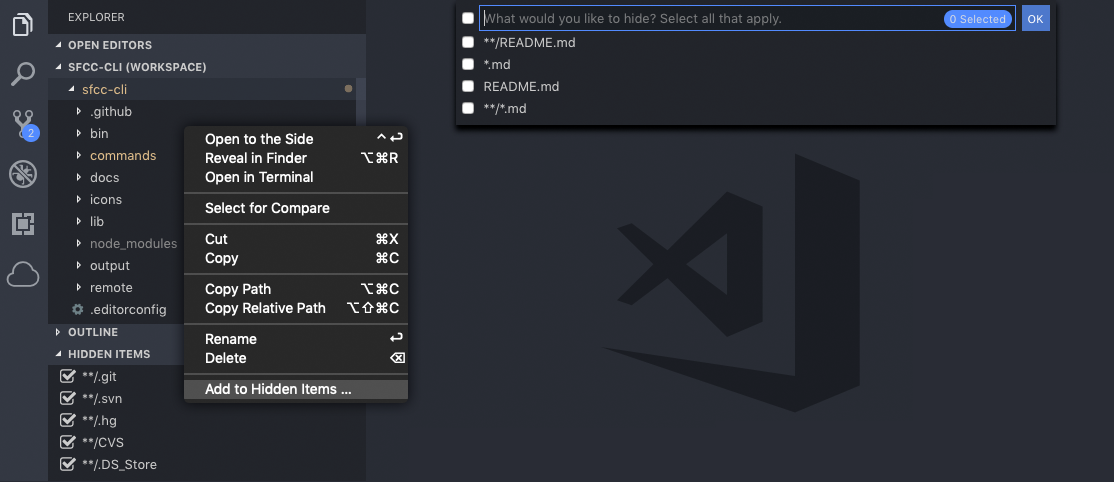
Features
- Hide files and folders from Explorer, Search Results, and Quick Open.
- Manage hidden entries from the Excluded Items Explorer pane.
- Support single-root and multi-root workspaces.
- Toggle hidden entries and groups without manually editing settings.
- Manage
files.exclude and search.exclude independently.
- Preserve grouped glob patterns such as
**/{__pycache__,.pytest_cache}.
- Separate Global and Workspace rules while preserving conditional exclusion values and workspace overrides.
Explorer Exclude Manager changes VS Code exclusion settings. It never deletes or moves files.
Installation
Install the extension from the VS Code Extensions view by searching for Explorer Exclude Manager.
You can also install it directly from the Visual Studio Marketplace:
Install Explorer Exclude Manager
To install a packaged .vsix file, use Extensions: Install from VSIX....
For source checkout and contribution guidance, see Developer Setup.
Usage
Hide files and folders
In the VS Code Explorer, right-click a file or folder and choose Add to Excludes....

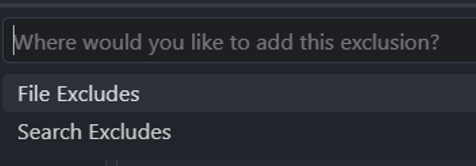
Choose File Excludes to update files.exclude, Search Excludes to update search.exclude, or both when the resource should be hidden from both places.
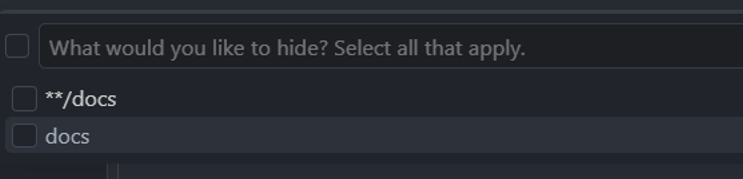
With the pattern picker enabled, which is the default, select one or more proposed glob patterns. The extension writes the selected patterns to the chosen workspace setting.
To skip the pattern picker and add the selected resource's workspace-relative path directly, configure:
{
  "explorerExcludeManager.showPicker": false
}
Manage excluded items
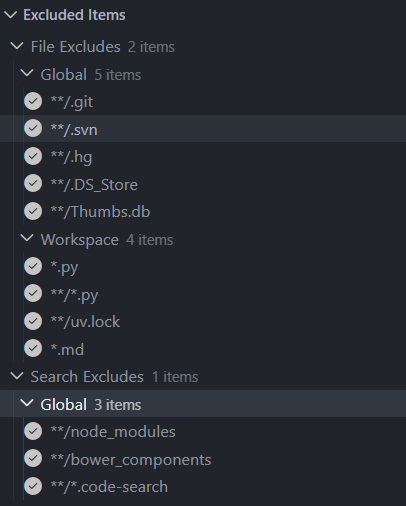
Open the Excluded Items pane in Explorer to review the effective exclusions. Entries are grouped by File Excludes and Search Excludes, then by Global and Workspace scope. Global groups are collapsed by default.
- Select an entry to toggle whether that pattern is active. Toggling a global rule creates a workspace override instead of changing the global setting.
- Right-click a workspace entry and choose Remove from Hidden Items to delete it from the corresponding workspace setting.
- Use the inline group actions to enable, disable, reset, or open the relevant VS Code setting for that group.
- File Excludes also provides a group visibility toggle.
- Use Reset Hidden Items to restore workspace exclusions that the extension previously changed. VS Code asks for confirmation first.
Configuration behavior
Explorer Exclude Manager manages the following built-in VS Code settings:
files.excludesearch.exclude
These are shared VS Code settings and are not specific to Explorer Exclude or Explorer Exclude Manager.
The extension writes changes to the workspace scope so project exclusions do not unintentionally copy user-level exclusions into a workspace. In a multi-root workspace, review the workspace-level settings and ensure generated relative patterns match the intended folder.
Grouped glob keys are retained as complete patterns. For example:
{
  "files.exclude": {
    "**/{__pycache__,.pytest_cache}": true
  }
}
The grouped key remains one entry instead of being split into separate patterns.
Migrating from Explorer Exclude
Explorer Exclude Manager uses the explorerExcludeManager.* configuration namespace.
On activation, it automatically migrates explicitly configured values from the previous explorerExclude.* namespace:
explorerExclude.backup to explorerExcludeManager.backupexplorerExclude.showPicker to explorerExcludeManager.showPicker
Migration preserves the original user, workspace, or workspace-folder scope and does not overwrite a value already configured for Explorer Exclude Manager.
The extension does not copy files.exclude or search.exclude, because these are built-in VS Code settings already shared by both Marketplace releases.
Migration steps for existing users
- Install Explorer Exclude Manager.
- Open or reload VS Code so the extension can migrate the previous configuration.
- Confirm that your exclusion settings and hidden items work as expected.
- Uninstall the previous
PeterSchmalfeldt.explorer-exclude Marketplace extension.
- Reload VS Code once more.
Uninstalling the previous Marketplace extension after migration is strongly recommended. Both extensions manage the same built-in exclusion settings, and keeping both enabled can result in conflicting backups or unexpected configuration changes.
Compatibility
Explorer Exclude Manager requires VS Code 1.110.0 or newer.
See Troubleshooting for installation, migration, configuration, and workspace-related issues.
Support
When opening an issue, include:
- Your VS Code version
- Your Explorer Exclude Manager version
- Your operating system
- Your workspace type
- Relevant
files.exclude or search.exclude settings
- Steps to reproduce the issue
Credits and attribution
Explorer Exclude was originally created by Peter Schmalfeldt.
The project remains in its original repository and is now maintained by MadCatPX with the original author's permission. Current releases are published as Explorer Exclude Manager through the MadCatPX Marketplace publisher.
Copyright (c) 2019 SFCC DevOps
The original copyright notice and MIT License are retained in this repository.
License
Explorer Exclude Manager is distributed under the MIT License.

