Lista Beads
Browse, manage, and act on Beads issues without leaving VS Code. Beads is a distributed, git-backed graph issue tracker built for AI agents and developer workflows — it lives in your repo alongside your code, with no external service required.
Screenshots
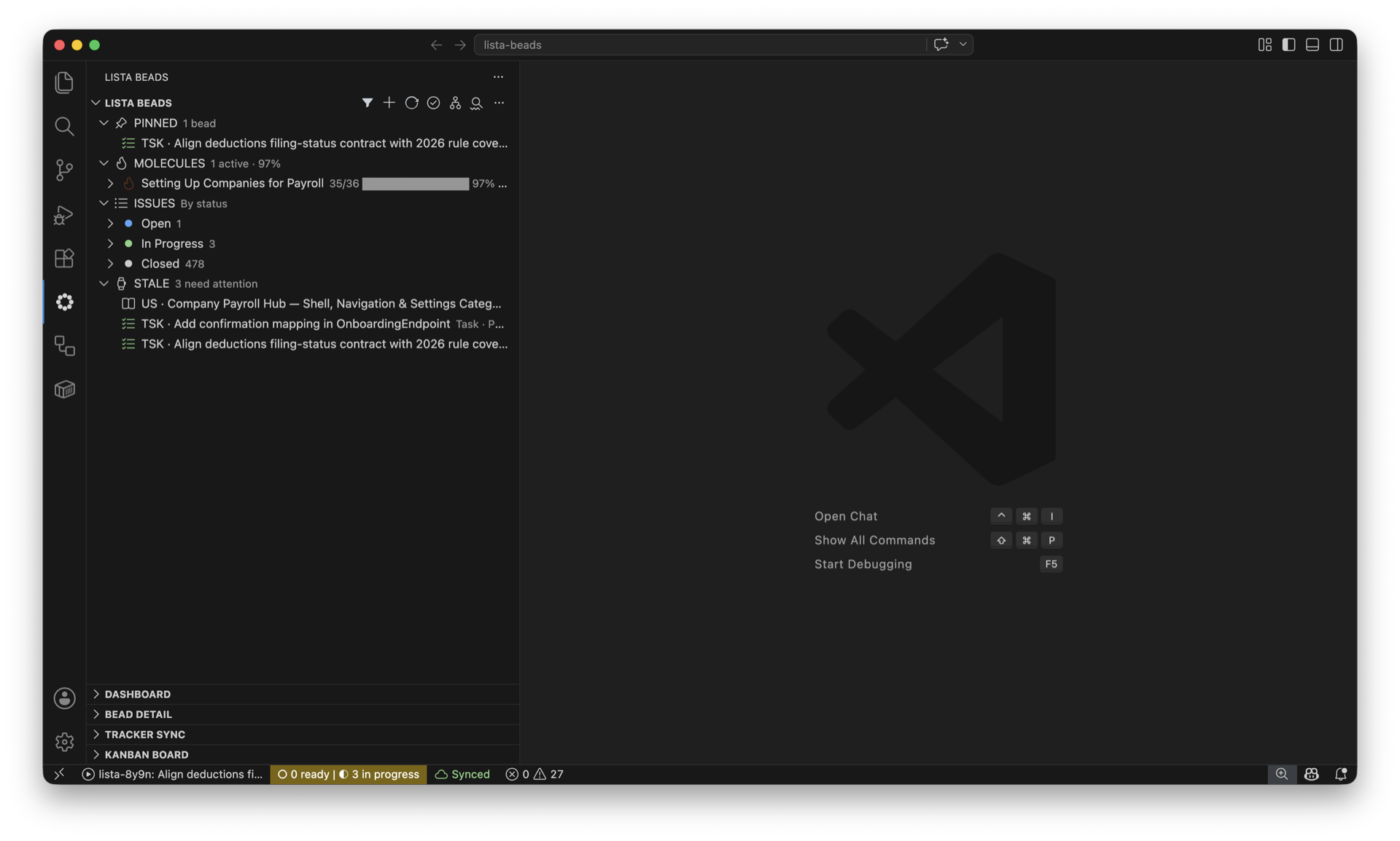
Issue Tree
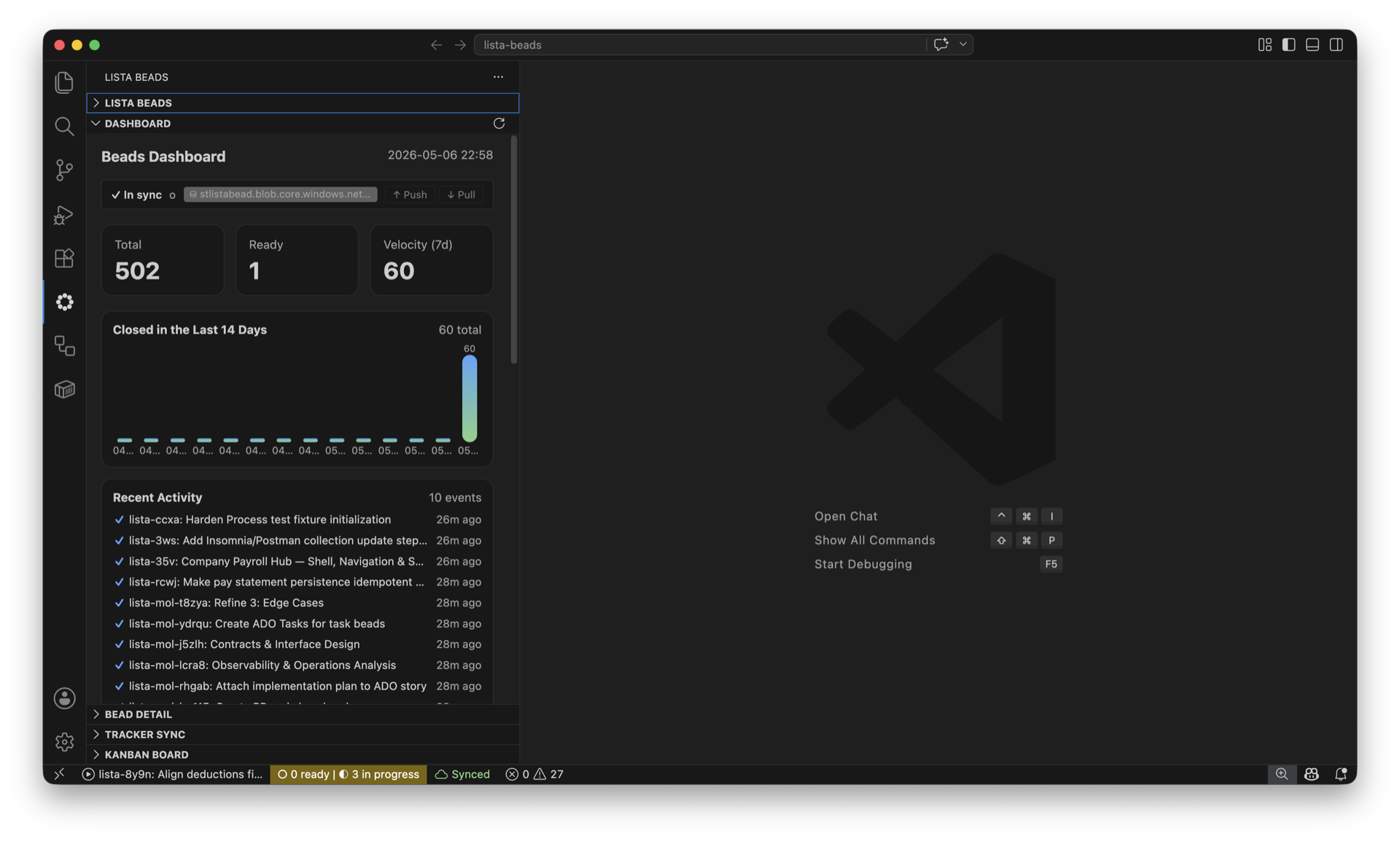
Dashboard
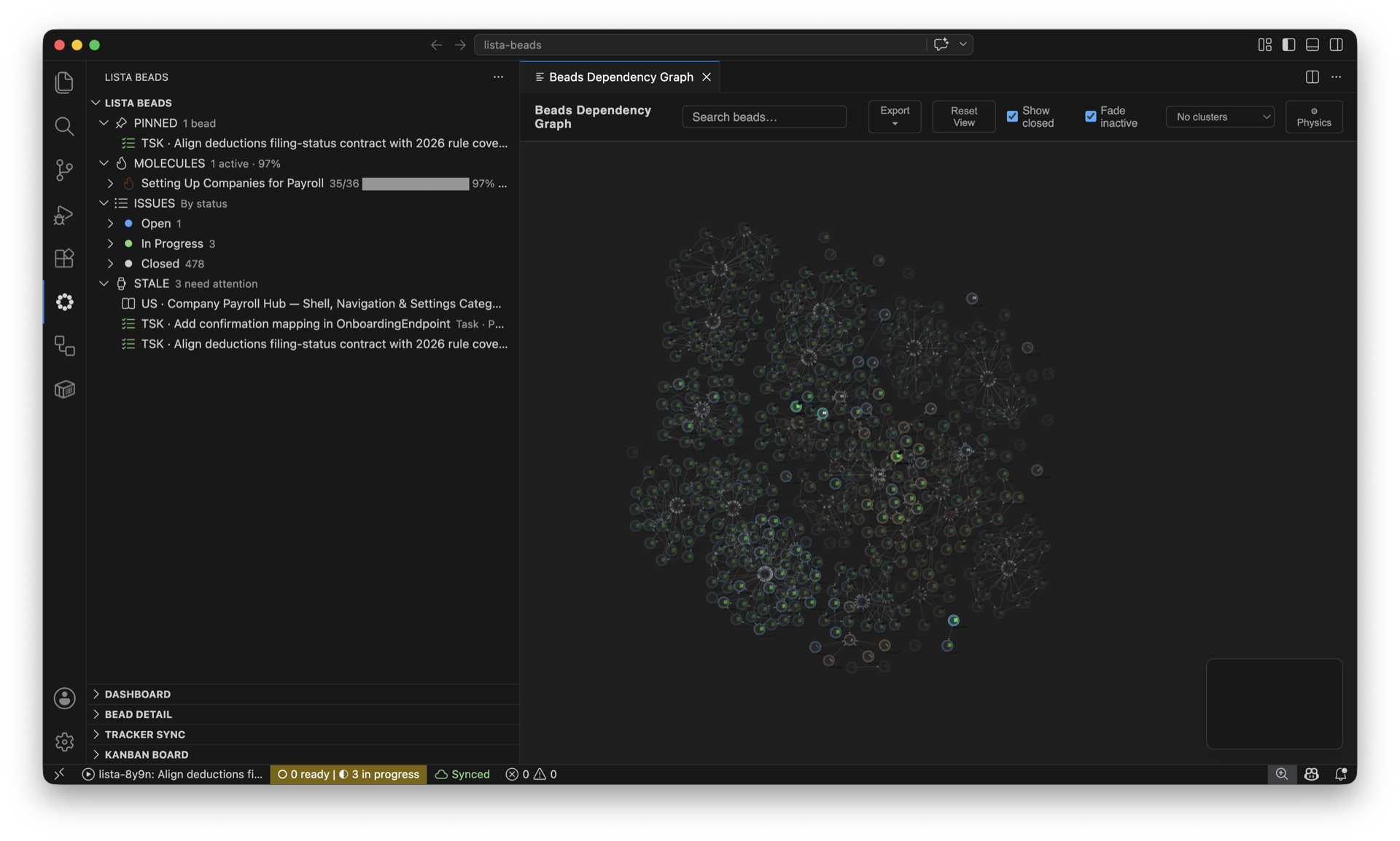
Dependency Graph
Dolt Sync (Embedded vs. Remote Server)

Issue Detail Panel

Table of Contents
Requirements
Getting Started
- Install Lista Beads from the VS Code Marketplace.
- Open any workspace that contains a Beads repository (one with a
.beads/ directory).
- Click the Beads icon in the Activity Bar — your issues appear instantly.
New to Beads? You have two options to initialize a database:
From inside VS Code: open the Beads view, click Initialize Beads… in the welcome panel, or run Beads: Initialize Beads in Workspace from the command palette. The extension opens an integrated terminal pre-loaded with bd init for you to confirm.
From a terminal:
bd init
bd create "My first task" --type task
Need a refresher on Beads concepts? Run Beads: Open Setup Guide to jump to the docs.
Features
Beads Tree View
Browse all your beads in a rich, filterable tree. Issues are grouped by type and decorated with priority badges, status icons, and assignee information at a glance.
- Filter by type, status, assignee, or free-text search via
Beads: Filters. Filters persist for the session and can be stacked.
- Save & load filter presets for quick switching between filter configurations.
- Inline actions — start, close, defer, reopen, or assign a bead directly from the tree without opening a detail panel.
- Search — click the search icon in the toolbar or use
Beads: Search Beads to find beads by keyword.
- Create a new bead from any selected editor text via
Beads: Create Bead from Selection.
- Delete beads via the context menu; multi-select is supported with cascade or orphan options for dependents.
- Quick Open (
Beads: Quick Open) — fuzzy-search picker for fast navigation.
- Pagination — large lists are paginated (configurable via
listaBeads.pageSize); click Load More to expand.
- Auto-refresh on disk changes or on a configurable polling interval (
listaBeads.autoRefreshInterval).
Tip: Set listaBeads.filterTypes to [] to show all issue types, or narrow it down to just ["task"] to focus your work.
View Modes
The toolbar provides two independent toggles that change how beads are displayed:
- Hierarchy view (
$(type-hierarchy) icon) — switches from the default "By status" grouping (Status → Type → Issues) to a parent/child hierarchy (Epics → Features → Tasks). Any issue with children becomes collapsible; standalone issues appear at the root. Closed and deferred beads are automatically hidden so the tree focuses on active work — active children of completed parents are promoted to root level. Toggle again to return to status view.
- Ready view (
$(pass) icon) — filters to only show unblocked issues (no active blockers) using bd ready semantics. Combines with hierarchy view — you can see ready issues in tree form. The icon fills in when active.
Both toggles persist across window reloads (stored per-workspace).
Issue Detail Panel
Click any bead to open a rich detail panel with full description, metadata, status, priority, assignee, labels, timeline, and linked dependencies — all rendered in a clean webview that adapts to panel size. URLs in descriptions and comments are clickable, and bead ID references (e.g. lista-beads-xxxx) auto-link for quick cross-bead navigation.
Dashboard
The Dashboard panel provides a unified overview of your Beads workspace:
- Dolt Sync bar — remote sync status with interactive Push / Pull buttons (see Dolt Sync)
- Key metrics — total issues, ready count, 7-day velocity
- Closed in the Last 14 Days — sparkline bar chart
- Recent Activity — latest events across the workspace
- Status & Type breakdowns — distribution at a glance
- Team — active swarm agents and top assignees
- Convoys — active convoy progress bars; click any convoy to open it in the detail view and see its child beads
- Worktrees — git worktree listing linked to beads via
task/ branch naming
- Formulas — available workflow formulas
Refresh with Beads: Refresh Dashboard.
Dependency Management
Manage bead dependencies directly from the tree view context menu:
- Add Dependency… — right-click any issue → select a blocker from a searchable list of all beads
- Remove Dependency… — right-click any issue → pick an existing dependency to remove
Dependencies are stored via bd dep add/remove and visible in the Dependency Graph and the detail panel.
Dolt Sync
When your .beads/ database has a Dolt remote configured, Lista Beads shows sync status and provides push/pull controls:
- Dashboard sync bar — shows in-sync status or pending change counts with ↑ Push and ↓ Pull buttons. Includes a server indicator (⛁ host:port/db) so you can verify which remote you're connected to
- Push to Remote / Pull from Remote — commands available from the dashboard or the command palette
- Auto-check on open — optionally check for pending remote changes when the workspace opens (
listaBeads.doltAutoSyncCheck)
Dependency Graph
Visualize how your beads relate to each other with an interactive graph.
Use Beads: Show Dependency Graph (or the graph icon in the Beads view title bar) to open the dependency graph panel. Nodes are color-coded by status; click any node to open the detail panel for that bead.
Pinned Beads
Pin frequently-accessed beads to keep them at the top of the tree view. Pinned beads are shown in a dedicated section above the type groups.
- Pin — via the inline icon on any bead, or
Beads: Pin Current Bead from the command palette
- Unpin — via the inline icon on a pinned bead
CodeLens
Lista Beads surfaces bead references directly in your code via CodeLens:
- Status icons alongside bead IDs referenced in comments or commit messages (
listaBeads.codeLensStatusIcons)
- Quick actions — inline Done and View actions for referenced beads (
listaBeads.codeLensShowQuickActions)
Wisps
Wisps are structured, step-by-step workflow guides generated from Beads formulas. They appear as a collapsible Active Wisps section in the tree view, with each step shown as a child node.
- Inline progress — each wisp shows a compact progress bar (
3/7 ███░░░░░░░ 43%) with the current step title
- Actionable steps — current and ready steps are highlighted with distinct colors and context menus
- Complete a step — click the checkmark icon on the step node, or run
Beads: Complete Step.
- Squash a wisp — via
Beads: Wisp Actions → Squash: condenses the wisp into a digest record.
- Burn a wisp — via
Beads: Wisp Actions → Burn: discards the wisp.
The wisps section stays visible across molecule transitions to prevent tree churn, and uses fast-path refresh (~100ms) when wisp steps change.
My Work
The My Work section appears automatically when you have in-progress beads assigned to you. It detects your identity from git config and shows all your claimed beads in one place — no need to dig through the full issue tree.
Formulas are reusable .formula.toml workflow templates stored in .beads/formulas/. They drive Wisp creation and help standardize recurring workflows across your team.
Beads: Run Workflow Formula — browse formulas, fill in variables, and launch a new wisp from inside VS CodeBeads: Instantiate Formula — create a new formula instance directly
You can also instantiate a formula from a terminal:
bd mol wisp create <formula-name> [--var key=value ...]
Export & Search
Beads: Export — export filtered beads as JSONL, Markdown, or Obsidian notesBeads: Search Beads — fuzzy search across all beadsBeads: Show Orphaned Beads — find beads referenced in commits but missing from the tracker
Stale Issue Management
Beads that go without activity for a configurable period are flagged as stale:
Beads: Show Stale Issues — filter the tree to show only stale beadsBeads: Close All Stale Issues — batch-close all stale beads- Configure the threshold with
listaBeads.staleDays (default: 14 days)
- Get a warning when stale count reaches
listaBeads.staleWarnThreshold (default: 20)
Tracker Sync (Multi-Tracker Integration)
The Tracker Sync panel provides bidirectional sync with external issue trackers through the bd CLI. All five supported trackers appear in a unified sidebar view:
| Tracker |
CLI Command |
Auth Config |
| Azure DevOps |
bd ado sync |
bd config set ado.pat <token> |
| GitHub |
bd github sync |
bd config set github.token <token> |
| Jira |
bd jira sync |
bd config set jira.api_token <token> |
| Linear |
bd linear sync |
bd config set linear.api_key <key> |
| GitLab |
bd gitlab sync |
bd config set gitlab.token <token> |
Setup: Configure each tracker via the bd config CLI — run Beads: Configure Tracker from the Tracker Sync panel for guidance. For Azure DevOps in particular:
bd config set ado.org      <your-organization>
bd config set ado.project  <your-project>
bd config set ado.pat      <your-personal-access-token>
PAT scopes: Generate the token from
Azure DevOps user settings with at least
Work Items: Read & Write. Tokens are stored in bd's configuration,
not in VS Code settings.json.
Features:
- Sync — Pull, push, or full bidirectional sync per tracker
- Sync All — Sync all configured trackers in one action
- Status — See connection status, last sync time, and pending items at a glance
- Progress — Notification progress bar during sync operations
- Dedup — Prevents duplicate syncs for the same tracker
Settings
General
| Setting |
Type |
Default |
Description |
listaBeads.repoPath |
string |
(workspace) |
Absolute path to the Beads repo. Leave empty to use the current workspace root. |
listaBeads.bdPath |
string |
"bd" |
Path to the bd CLI executable. Set this if bd is installed in a non-standard location. |
listaBeads.filterTypes |
array |
["task","story","epic","feature"] |
Default issue types shown in the tree. Set to [] to show all types. |
listaBeads.typePrefixes |
object |
{} |
Optional type abbreviations shown before tree items (e.g. { "task": "TSK" }). |
listaBeads.autoRefreshInterval |
integer |
0 |
Auto-refresh interval in seconds. 0 = disabled (uses file watchers instead). |
listaBeads.pageSize |
integer |
100 |
Max issues per type group before pagination. |
listaBeads.lintEnabled |
boolean |
true |
Run bd lint and surface quality warnings in the Problems panel. |
listaBeads.notifyOnAssignment |
boolean |
true |
Show a notification when a bead is assigned to the current git user. |
Stale Issues
| Setting |
Type |
Default |
Description |
listaBeads.staleDays |
integer |
14 |
Days without activity before a bead is considered stale. |
listaBeads.staleWarnThreshold |
integer |
20 |
Show a warning when stale bead count reaches this threshold. 0 = disabled. |
CodeLens
| Setting |
Type |
Default |
Description |
listaBeads.codeLensStatusIcons |
boolean |
true |
Show status symbols alongside bead CodeLens titles. |
listaBeads.codeLensShowQuickActions |
boolean |
true |
Show inline Done and View CodeLens actions for referenced beads. |
Dolt Sync
| Setting |
Type |
Default |
Description |
listaBeads.doltAutoSyncCheck |
boolean |
true |
Check for pending remote changes on workspace open. |
Swarm / Team
| Setting |
Type |
Default |
Description |
listaBeads.agentNames |
array |
[] |
Known agent names to show in the dashboard team section even when idle. |
Tracker authentication (ado.pat, github.token, jira.api_token,
linear.api_key, gitlab.token) is configured via the bd CLI rather
than VS Code settings — see the
Tracker Sync section.
Commands
Navigation
| Command |
Description |
Beads: Quick Open |
Fuzzy-search picker for fast bead navigation |
Beads: Search Beads |
Search across all beads (also available as toolbar icon) |
Beads: Open Issue |
Open a bead in the detail panel |
Beads: Toggle View Mode |
Switch between "By status" and hierarchy view |
Beads: Toggle Ready View |
Filter to only unblocked/ready issues |
Beads: Show Dependency Graph |
Open the interactive dependency graph |
Beads: Show Orphaned Beads |
Find beads referenced in commits but missing from the tracker |
Beads: Show Stale Issues |
Filter to stale beads only |
Beads: Reveal Beads Location |
Show the configured repo path in the Explorer |
Beads: Load More Issues |
Load the next page of issues in a type group |
Actions
| Command |
Description |
Beads: New Bead |
Create a new bead (with type, title, and optional parent) |
Beads: Create Bead from Selection |
Create a bead from selected editor text |
Beads: Start Issue |
Quick-start an issue (claim + set in-progress) |
Beads: Close Issue |
Mark a bead as closed |
Beads: Defer Issue |
Defer a bead for later |
Reopen |
Reopen a closed, deferred, or blocked bead |
Beads: Assign Issue |
Assign a bead to a user |
Add Dependency… |
Add a blocker dependency to a bead |
Remove Dependency… |
Remove an existing dependency from a bead |
Beads: Delete Issue |
Delete a bead (with cascade/orphan options) |
Beads: Close All Stale Issues |
Batch-close all stale beads |
Pin Bead / Unpin Bead |
Pin or unpin a bead in the tree view |
Beads: Pin Current Bead |
Pin the currently focused bead |
Beads: Export |
Export filtered beads as JSONL, Markdown, or Obsidian |
Filters
| Command |
Description |
Beads: Filters |
Open the filter picker (type, status, assignee, text) |
Beads: Clear Filters |
Reset all filters to defaults |
Beads: Save Filter Preset |
Save current filters as a named preset |
Beads: Load Filter Preset |
Load a saved filter preset |
| Command |
Description |
Beads: Run Workflow Formula |
Browse and run a formula from .beads/formulas/ |
Beads: Instantiate Formula |
Create a new formula instance |
Beads: Wisp Actions |
Squash or burn an active wisp |
Beads: Complete Step |
Mark a wisp step as done |
Dashboard & Sync
| Command |
Description |
Beads: Refresh Dashboard |
Refresh the stats dashboard |
Beads: Push to Remote |
Push local Dolt changes to the remote |
Beads: Pull from Remote |
Pull remote Dolt changes locally |
Beads: Show Active Bead Options |
Quick-pick actions for the active bead |
Beads: Show Active Wisp Options |
Quick-pick actions for the active wisp |
Maintenance
| Command |
Description |
Beads: Refresh |
Reload the Beads tree view |
Beads: Initialize Beads in Workspace |
Open a terminal pre-loaded with bd init for the active workspace folder |
Beads: Open Setup Guide |
Open the Beads docs / setup guide in your browser |
Beads: Set Beads Location |
Point the extension at a specific Beads repo |
Beads: Run bd doctor |
Run health check on the Beads database |
Beads: Upgrade Beads Database |
Upgrade the Beads database schema |
Beads: Run Preflight / PR Readiness Check |
Run a PR readiness checklist |
Beads: Report Issue / Feedback |
Open a pre-filled GitHub issue to report bugs or suggest features |
Tracker Sync
| Command |
Description |
Beads: Sync Tracker |
Sync a specific tracker (pull/push/full) |
Beads: Sync All Trackers |
Sync all configured trackers |
Beads: Configure Tracker |
Show config instructions for a tracker |
Beads: Refresh Tracker Status |
Re-check all tracker statuses |
Azure DevOps users: ADO is one of the supported trackers under
Tracker Sync. Use Beads: Sync Tracker and select Azure DevOps;
see the Tracker Sync section
for setup.
Troubleshooting
bd command not found
Ensure the Beads CLI is installed and on your PATH. After installing, restart VS Code so it picks up the updated environment.
# Verify the CLI is reachable:
which bd && bd --version
If bd is installed in a non-standard location, set listaBeads.bdPath to the full path (e.g. /usr/local/bin/bd).
No beads appear / .beads directory not detected
The extension looks for a .beads directory in your workspace root.
- Run
bd init to create a Beads database in your project.
- If
.beads lives elsewhere (e.g. in a monorepo subfolder), set listaBeads.repoPath to the absolute path of the repo that contains .beads/.
- Confirm the tracker's required
bd config keys are set:
bd config get ado.org ado.project ado.pat   # ADO
bd config get github.token                  # GitHub
bd config get jira.api_token                # Jira
bd config get linear.api_key                # Linear
bd config get gitlab.token                  # GitLab
- Verify the PAT / token has not expired and carries the scopes required
by the tracker (e.g. ADO needs Work Items: Read & Write).
- Try syncing from the CLI to surface the underlying error:
bd ado sync # or: bd github sync, bd jira sync, etc.
- Open the Output panel in VS Code and select Beads from the
dropdown for detailed error messages.
Publishing
The extension is published to both the VS Code Marketplace and the OpenVSX Registry (used by Cursor and other compatible editors).
Prerequisites
- VS Code Marketplace: Obtain a Personal Access Token (PAT) from Azure DevOps with Marketplace > Manage scope.
- OpenVSX: Create an account at open-vsx.org and generate an access token. Ensure the
ListaDev namespace is claimed.
Manual Publishing
# Publish to VS Code Marketplace only
npm run publish

# Publish to OpenVSX only (requires OVSX_PAT env var)
OVSX_PAT=<your-token> npm run publish:ovsx

# Publish to both
VSCE_PAT=<your-token> OVSX_PAT=<your-token> npm run publish:all
CI/CD (GitHub Actions)
A workflow at .github/workflows/publish.yml automatically publishes on version tags. After bumping the version in package.json, tag the commit and push:
# After bumping to e.g. 1.1.5 in package.json
git tag v1.1.5
git push origin v1.1.5
The workflow builds, tests, packages, and publishes to both registries.
Required repository secrets:
| Secret |
Description |
VSCE_PAT |
VS Code Marketplace Personal Access Token |
OVSX_PAT |
OpenVSX Registry access token |


