Exclude ManagerVisual manager for hidden files and folders (files.exclude) with groups, pins, search, and QuickPick pattern variants. Installation Launch VS Code Quick Open ( Ctrl+P), paste the following command, and press enter.Copied to clipboard |

What is Exclude Manager?Exclude Manager is a VS Code extension that transforms the way you control your workspace visibility. Instead of manually editing the
Feature Showcase🗃️ Interactive CheckboxesToggle any
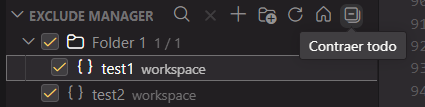
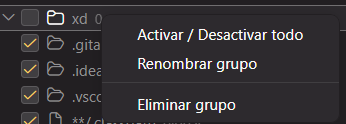
📁 Virtual GroupsOrganize your exclusion patterns into named, expandable virtual folders. Toggle all patterns inside a group with a single click, rename groups on the fly, or delete them entirely.
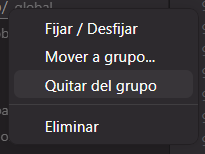
📌 Pin / Unpin PatternsRight-click any pattern to pin it — pinned items jump to the top of the list, making your most critical exclusions always visible and easy to toggle.
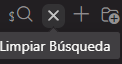
🔍 Live SearchClick the search icon in the sidebar header and start typing. The tree filters in real time as you type. Hit the × button to clear the search instantly.
🌐 Global & Workspace ScopesUse the header icons to instantly switch between your User (Global) settings and your Workspace settings. Each scope is managed independently.
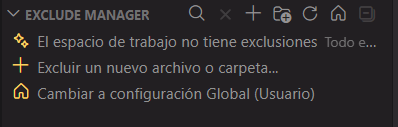
💡 Empty State HintsWhen a scope has no exclusions configured, the panel shows contextual shortcuts to add patterns or switch scope — so you're never left staring at a blank panel.
🗂️ Collapse AllClick the Collapse All button to collapse every expanded group at once and get a clean overview of your exclusion tree.
🧭 How to Use
⚙️ ConfigurationThis extension directly reads and writes VS Code's native configuration — no custom database or sync service required.
🔄 Auto-SyncIf you manually edit your 🌎 Bilingual Support (EN / ES)Exclude Manager automatically adapts to your VS Code display language:
📋 Requirements
📄 ChangelogSee CHANGELOG for a full list of changes across versions. Made with ❤️ by Latin Tools ⭐ If Exclude Manager saves you time, please give it a star on the Marketplace — it helps a lot! | |||||||||||||||||||||||||||||||||||