Dev Code Tracker
Know exactly how long you code. Zero setup. Zero cloud. Zero accounts.



Why Dev Code Tracker?
Most time trackers require an account, send your data to the cloud, or charge a monthly fee. Dev Code Tracker keeps everything local — your data never leaves your machine unless you choose to sync it.
| Feature |
Dev Code Tracker |
Cloud-Based Trackers |
| Account required |
No |
Yes |
| Data stays on your machine |
Always |
No |
| Works fully offline |
Yes |
Partial |
| Cost |
Free |
Paid plans |
| Self-hosted sync option |
Yes |
No |
How It Works
Open project  →  timer starts  →  ⏱ Dev Code Tracker - 0s
Working...    →  ⏱ Dev Code Tracker - 1h 23m 45s  (counts every second)
Idle 5 min    →  session saved  →  ⏱ Dev Code Tracker - 1h 23m  (static total)
Come back     →  new session starts  →  ⏱ Dev Code Tracker - 0s
Close VS Code →  session saved automatically
- Session starts when you open a project folder — no clicks needed
- Session ends after 5 minutes of idle (configurable)
- Multi-Root Workspaces supported — tracks the folder of the currently active file
- Works with VS Code, Cursor, Windsurf, Claude Code, and VSCodium
- Click the status bar timer to open your dashboard instantly
Status Bar
| State |
Display |
| Active (coding) |
⏱ Dev Code Tracker - 1h 23m 45s — live counter |
| Idle / between sessions |
⏱ Dev Code Tracker - 2h 15m — static today total |
| Online sync active |
☁ API connected |
| Local only |
⊟ Local only |
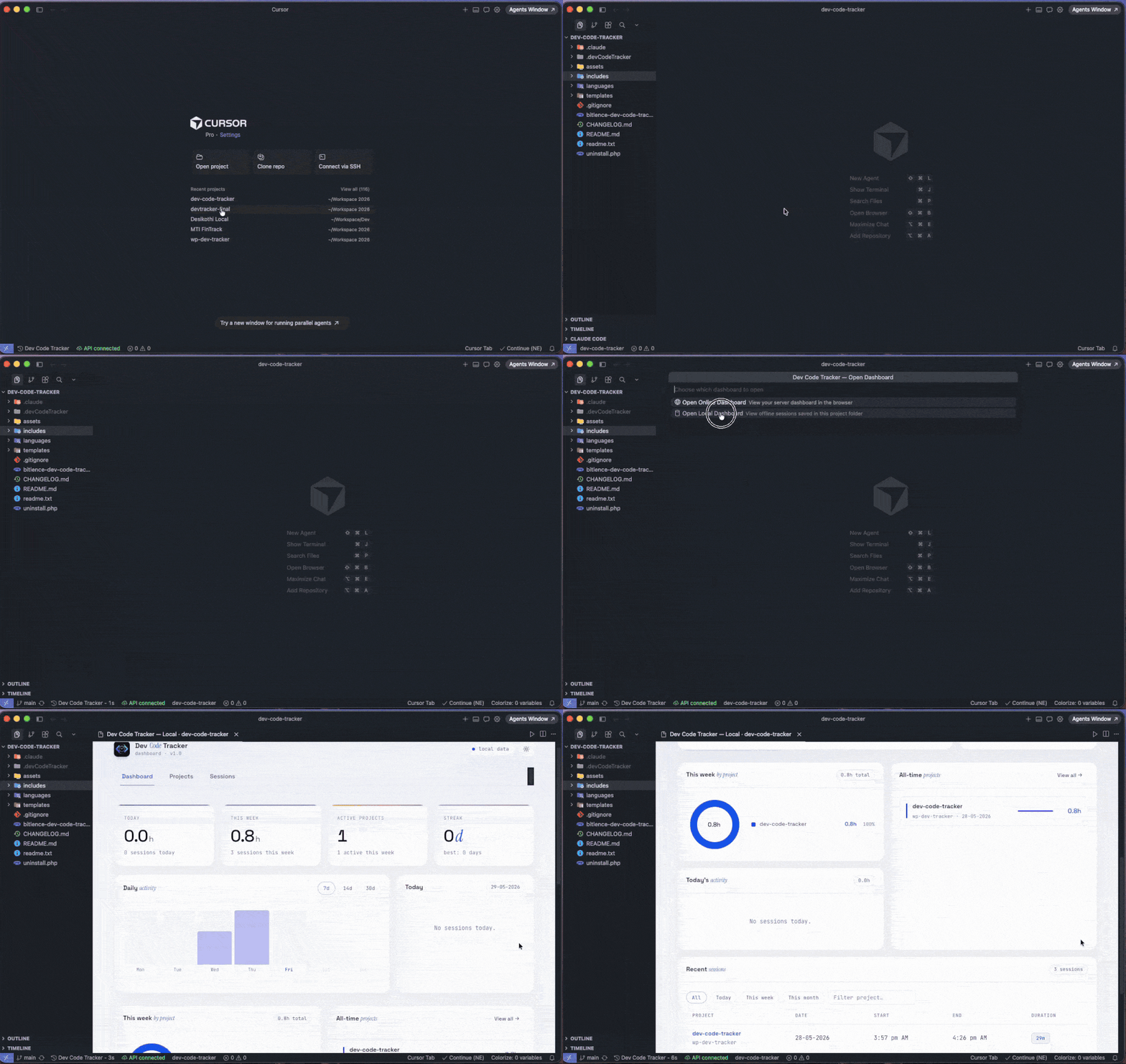
Dashboard
Open the offline local dashboard directly inside VS Code — no browser needed.
- Bar charts by day and project
- Per-session breakdown with start/end times
- Today's total at a glance
- Fully interactive, works with no internet
Commands
Open the Command Palette (Ctrl+Shift+P / Cmd+Shift+P) and type Dev Code Tracker:
| Command |
Shortcut |
| Open Dashboard (Online / Local) |
Cmd+Alt+D / Ctrl+Alt+D |
| Open Local Dashboard (Offline View) |
Cmd+Alt+L / Ctrl+Alt+L |
| Show Today's Summary |
— |
| Set Display Name for Project |
— |
| Configure Online API |
— |
| Sync to Server Now |
— |
| Clear Project Data |
— |
Local Data
Sessions are saved locally — no account, no cloud:
your-project/
  .devCodeTracker/
    sessions.json
Add .devCodeTracker/ to your .gitignore to keep session data private.
Each session stores: project, start_time, end_time, duration_seconds, date
Online Sync (Optional)
If you want to view history across machines or share with a team, you can self-host a PHP + MySQL backend:
- Upload
server/ directory contents (api.php, dashboard.html) to your server
- Run
server/setup.sql to create the tables
- Edit
api.php — set DB credentials, API key, and timezone_offset (e.g. 330 for IST, -300 for EST)
- In VS Code:
Ctrl+Shift+P → Dev Code Tracker: Configure Online API
- Enter your
api.php URL and secret key
Sessions sync automatically every 5 minutes.
Settings
| Setting |
Default |
Description |
devCodeTracker.idleTimeoutMinutes |
5 |
Pause timer after N minutes of inactivity |
devCodeTracker.syncIntervalMinutes |
5 |
Auto-sync interval (online mode) |
devCodeTracker.apiUrl |
— |
Your PHP API endpoint |
devCodeTracker.apiKey |
— |
Your API secret key |
Enjoying Dev Code Tracker?
A rating on the Marketplace takes 30 seconds and helps other developers find this extension.
Leave a review on the VS Code Marketplace
Found a bug or have an idea? Open an issue on GitHub — all feedback is welcome.
Official Website: devcodetracker.workshow.me
|
Built by Kuldipsinh Parmar

