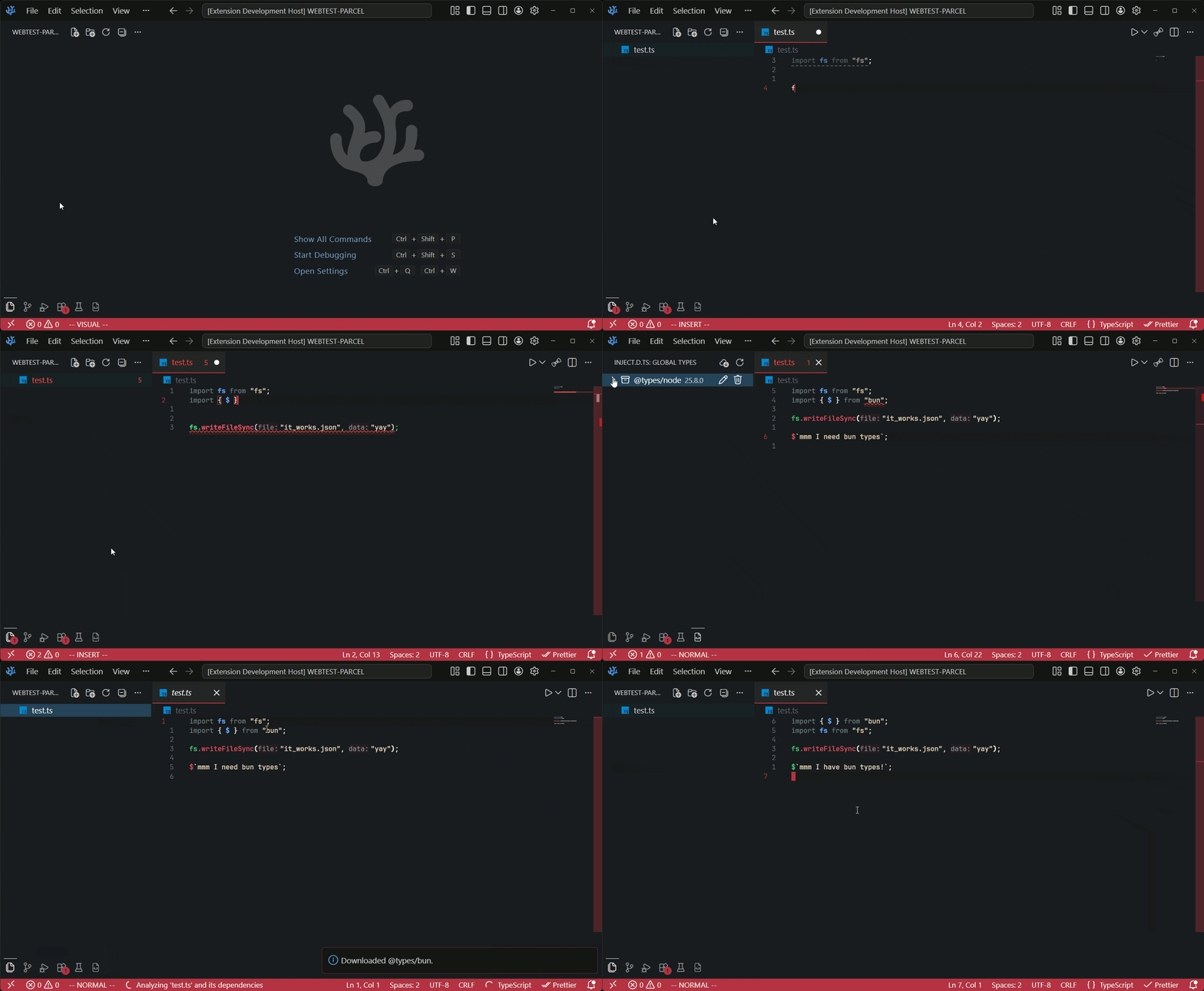
Use the Inject.d.ts activity bar icon to inspect bundled and downloaded declaration packages.
Run Download Types Package from the view title or command palette to add a package such as @types/lodash, @types/express, or @types/bun@latest, or anything you want to load globally!
Expand a package item to read its .d.ts files, use Change Types Package Version to install a different version, or Delete Types Package to remove downloaded packages and hide bundled packages.
_Demo: Installing @types/bun for script usage without needing to `npm install` it and no /node_modules_
Why?
Sometimes I wanted to do small scripts using Typescript but intelissense stops working due to the lack of any "@type/#" installed with npm (or you preffered package manaer), being annoying when doing vanilla scripts. So I had to do my scripts in .js, vscode for some reason provides node.js intelissense inside .js.
Do we need to npm install typescript types ".d.ts" everytime we wanna use Typescript for simple scripts!?? Not anymore.
🟢 Important: This is for only vscode-compatible editor's intelissense, doesn't validate in run-time...
Features
Bundles @types/node by default.
Injects declaration files through a TypeScript server plugin, so IntelliSense can see them in projects and loose files.
Adds an activity bar view named Inject.d.ts with a Global Types package list.
Downloads additional npm type packages into extension global storage.
Supports create, read, version changes, and delete for downloaded and bundled packages.
Does not modify the current workspace or run npm install / pnpm install inside your projects.
Notes
Downloading packages requires network access to the npm registry.
This is for editor IntelliSense and type checking inside VS Code-compatible editors. It does not change runtime behavior.
Project-local tsconfig.json settings can still affect how TypeScript reports conflicts between DOM, Node, Bun, and other global declarations.