Codex Sidecar for VS Code

Watch Codex work in a pane beside Claude Code, Cursor, or another coding agent.

When Claude Code hands a task to Codex (a review, a second opinion, a chore), Codex normally works out of sight and Claude reports back afterwards. With Codex Sidecar, a pane opens beside your chat and shows Codex's messages, commands and results as they happen.
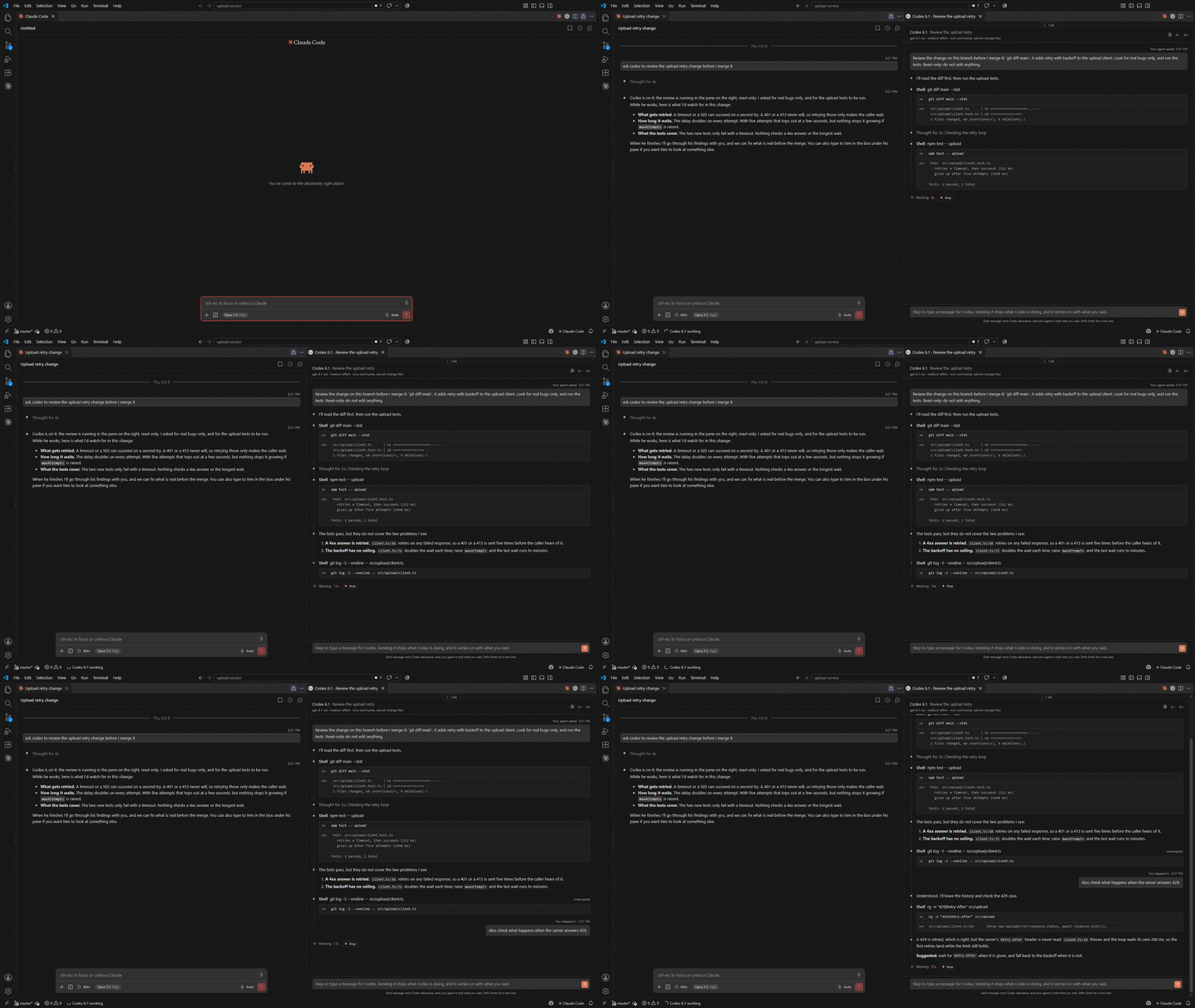
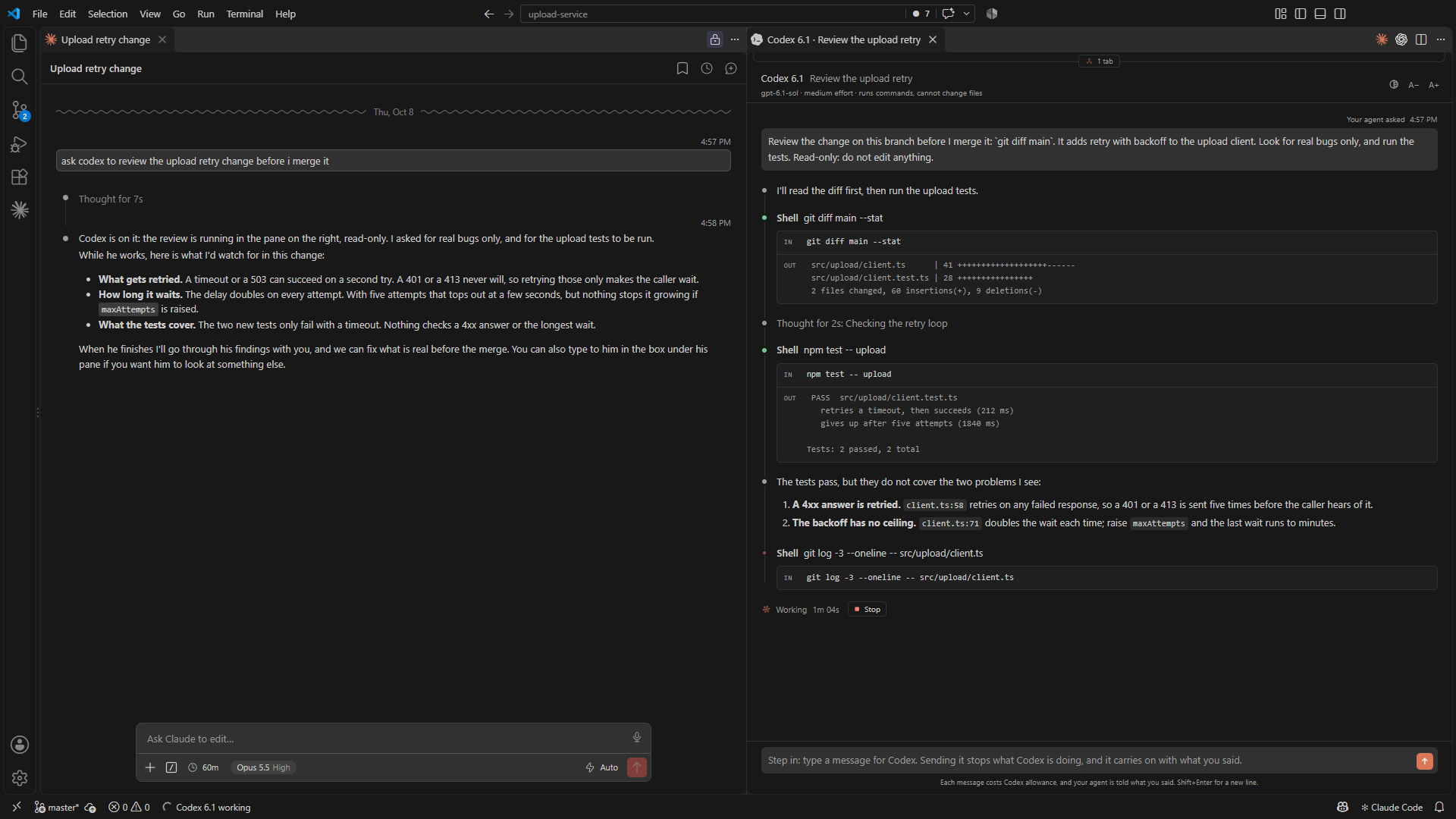
Claude Code on the left, asked for a review; on the right, Codex doing it: the commands it runs, what they print and what it has found so far.
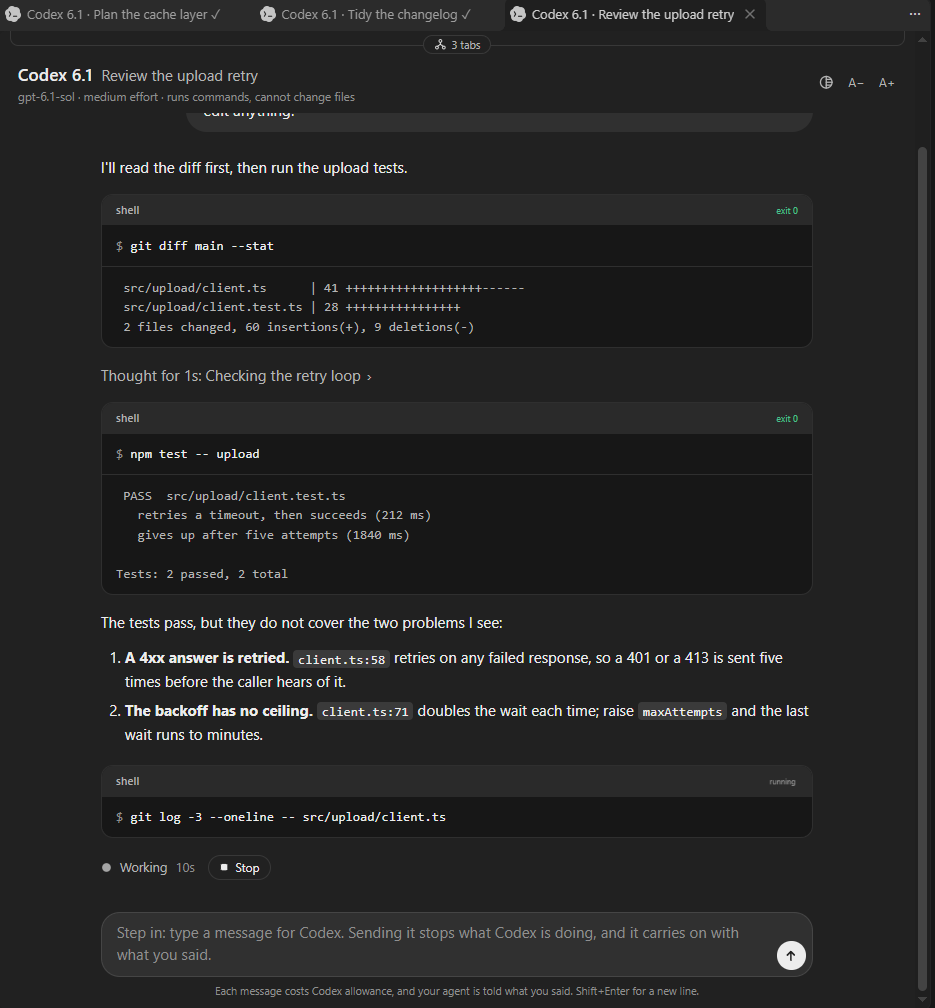
The pane up close: the task your agent gave, then each thing Codex says and does, with the commands it runs and what they print.
For Windows, with an experimental version for macOS and Linux (what that means). An independent project: not made or endorsed by OpenAI, Anthropic or anyone else named here (more).
Install
You need VS Code and the Codex CLI, signed in, so that codex runs in a terminal.
- In VS Code, open the Extensions view (
Ctrl+Shift+X).
- Search for Codex Sidecar and press Install. Or install it from its page on the Marketplace.
- Ask your agent for Codex: "ask Codex to review this change". The pane opens beside the chat.
Nothing needs setting up: the extension tells Claude Code, Cursor, Copilot and the other agents it knows about itself.
In Cursor or Antigravity, which do not search Microsoft's Marketplace: download codex-sidecar-vscode-1.0.1.vsix from the latest release, then in the Extensions view choose ... at its top and Install from VSIX...
Good to know before you do: the extension keeps a launcher, a record of each run and a page of instructions for your agents in your home folder. What it puts on your computer says exactly what and where. There are other ways to install, and an experimental version for macOS and Linux.
Using it
Ask Claude, or whichever agent you use, for what you want: "get Codex to review this change", "ask Codex for a second opinion on the plan". In Claude Code you can also type /codex-sidecar and the task. The agent writes the task to a file and runs the launcher, the pane opens, and when Codex is done the agent reads the answer and carries on. Your agent calls Codex when you ask, or when your project's instructions tell it to.
To step in while Codex works, type in the box at the foot of the pane and press Enter. Codex is stopped where it is, told that it was stopped and what you said, and carries on. This is stop-and-continue, not a whisper: the step it was on is cut off, and a command in mid-run is ended. Each message costs Codex allowance, as starting a run does. Once Codex has finished, the box is gone: the conversation is your agent's again, so ask your agent to carry it on.
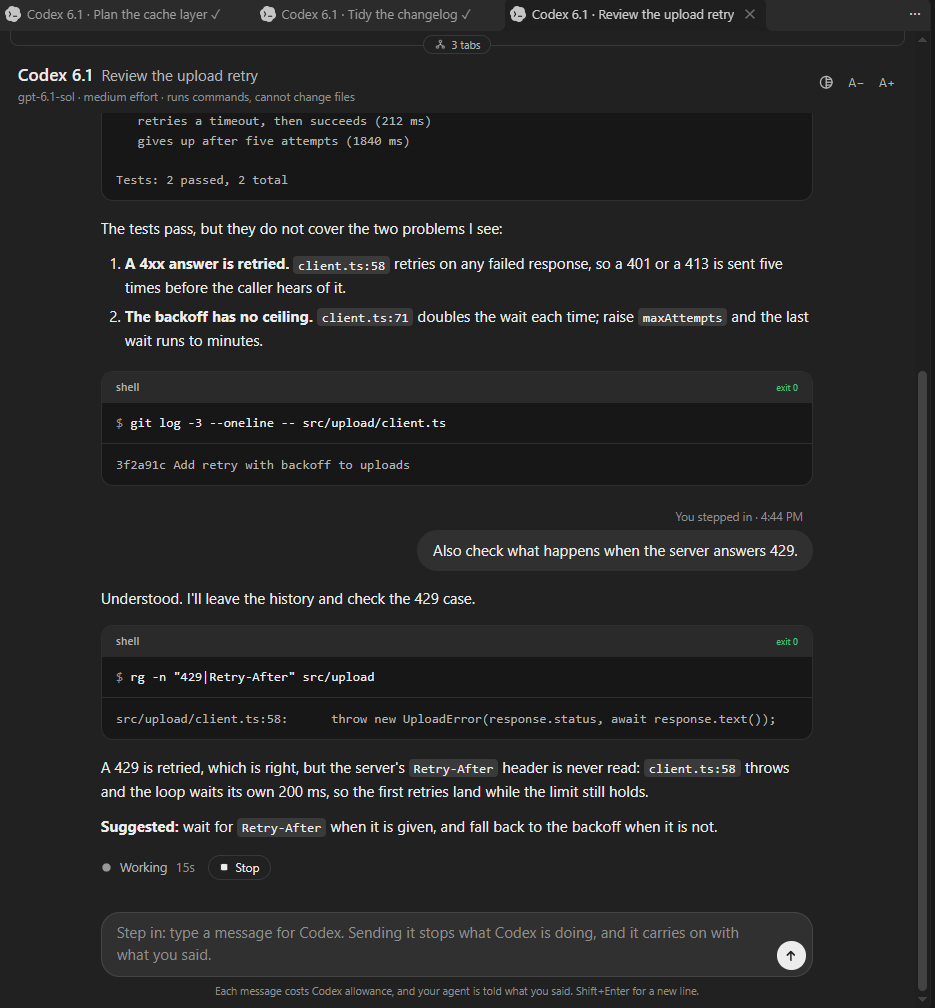
Stepping in: your message sits where it fell in the work, and Codex carries on with it.
You can run the launcher yourself too:
powershell -ExecutionPolicy Bypass -File "$HOME\.codex-sidecar\sidecar.ps1" -Prompt task.md -Out answer.md
| Option |
What it does |
-Prompt <file> |
The task. Codex cannot see Claude's conversation, so the file has to say everything. |
-Out <file> |
Where Codex's final answer is written. |
-Sandbox <mode> |
read-only (the default), workspace-write or danger-full-access. |
-Model <name> |
The model. Codex's own default when left out. |
-Effort <level> |
How hard the model thinks: low, medium, high, or another value your model accepts. Codex's own default when left out. |
-Dir <folder> |
The folder Codex works in. The current folder when left out. |
-Name <name> |
The name shown on the pane, if you call your helper something other than Codex. |
-Title "<a few words>" |
The name of the conversation, shown on its tab. The first line of the task when left out. |
-Role "<one line>" |
What Codex is there to do, shown in the overview. The start of the task when left out. |
-Codex <path> |
The Codex program, if it is not on the PATH. |
-CodexArgs '<args>' |
Anything else for codex exec, for example '--skip-git-repo-check'. |
When you stepped in during a run, the launcher's output ends with what you said, which is how the agent that called it comes to know.
Codex Sidecar: Show the latest run in the command palette brings back the last run after its tab has closed, and the overview lists every run of the past week.
What it does
- A tab for each conversation, named. The tab says who is working and on what ("Codex 6.1 · Review the upload retry": the helper's name, the number of its model, the conversation), and how it ended. Every conversation opens as a tab in the same place on the right, the newest in front, so your chat keeps its half; drag a tab wherever you like if you want two in view at once.
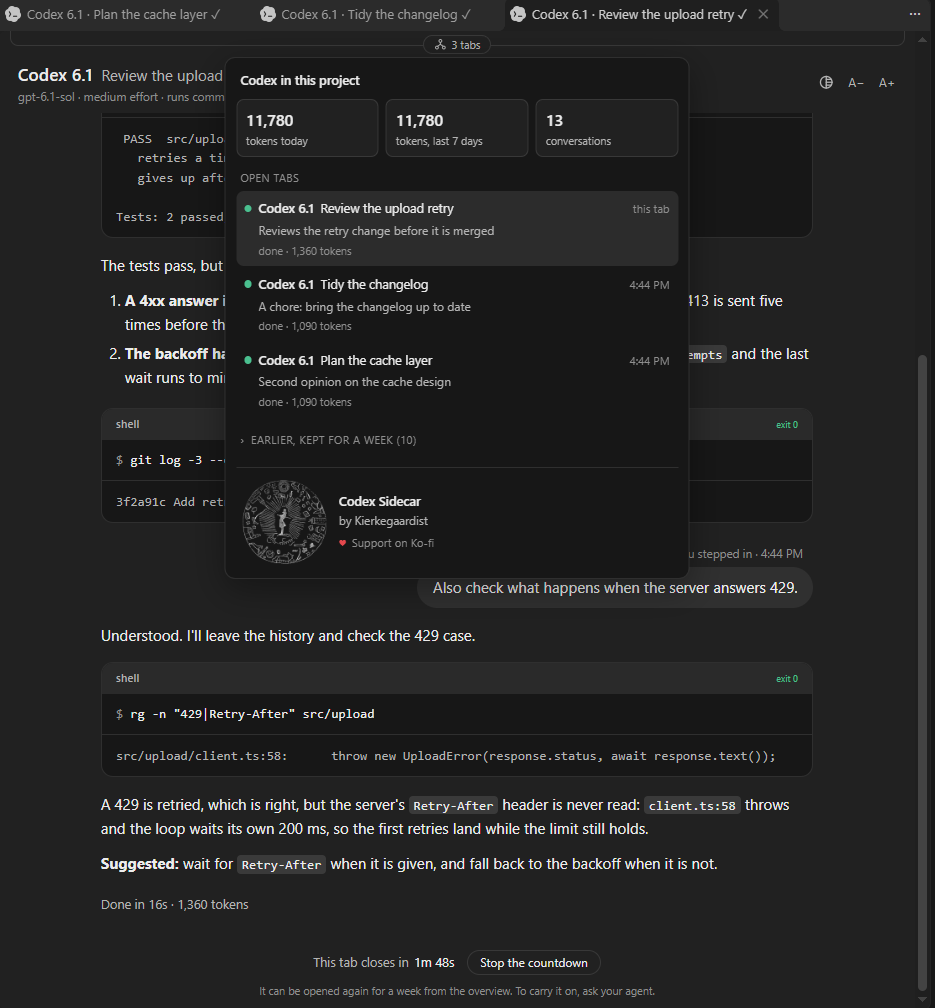
- An overview. A small button under the tabs opens a list of every conversation with Codex in the project: who, what for, how it stands and the tokens it has used (tokens, not money), with the totals for today and the week. A click brings one forward, or opens an earlier one again.
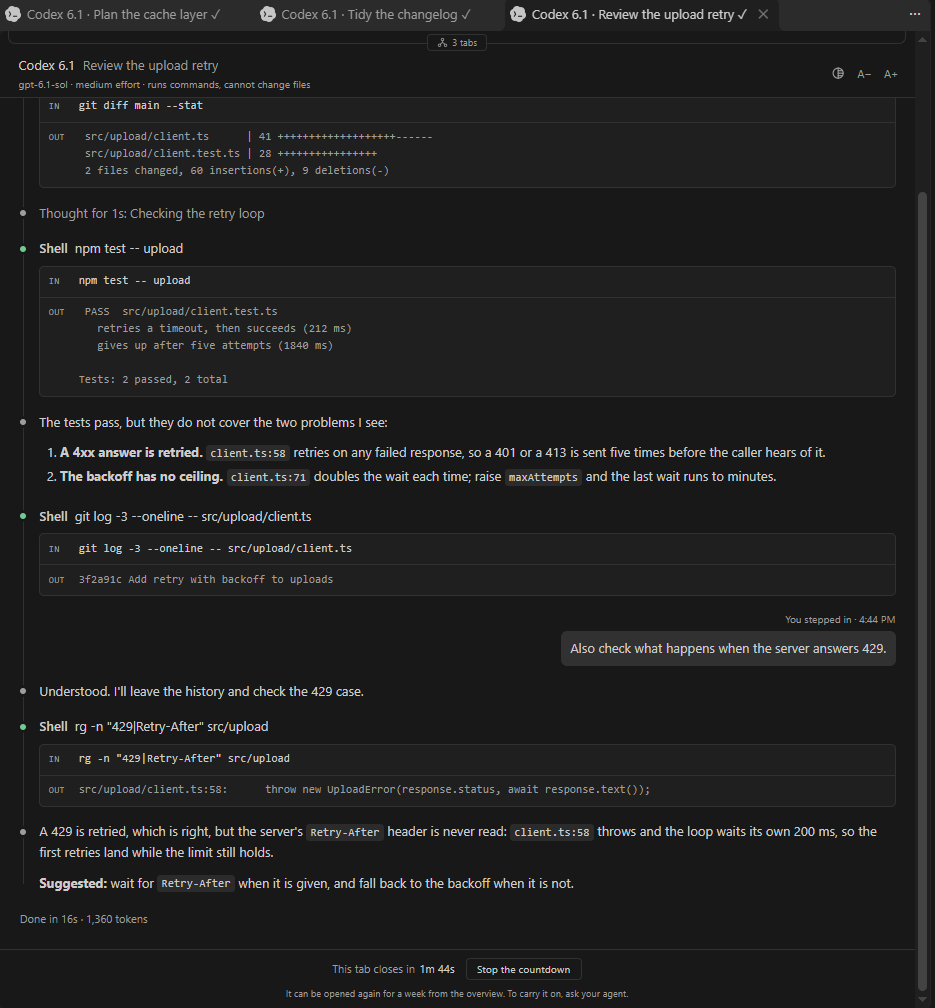
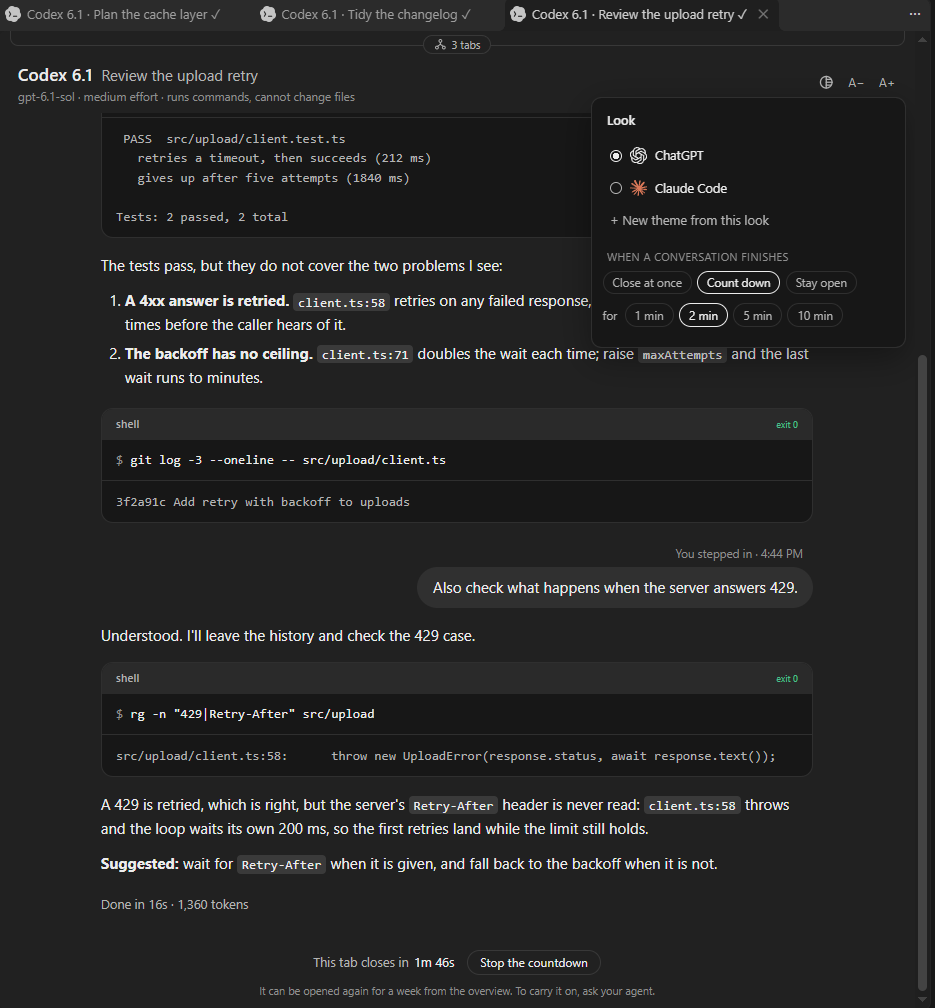
- Two looks, and your own. The ChatGPT look has its own colours, dark or light after your VS Code theme. The Claude Code look takes every colour and font from your VS Code theme and is laid out like the Claude Code panel, so the two sit side by side as one. From either you can make a theme of your own: pick its colours in the pane and give it a name.
- It says what is running. The top of the pane names the model and the effort level Codex is really on, read from Codex's own record of the session, whether you chose them or left them to Codex.
- What changed, one click away. Files Codex edits are listed as it goes and gathered at the end of the run. Click one to open its changes in the editor.
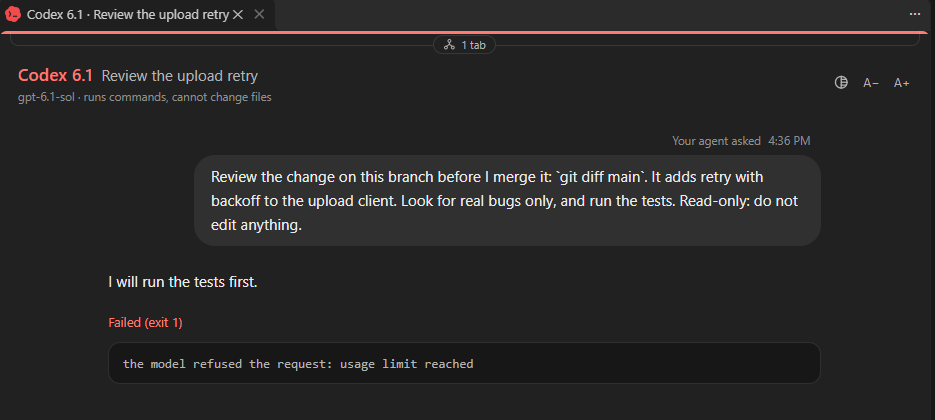
- It stays out of the way. A tab opens without taking the keyboard from your chat. Two minutes after Codex finishes it closes itself, counting down as it goes, unless you press Stop the countdown: then it stays, a conversation to read over, until you close it. If you would rather it closed at once, or never, or counted for longer, the round button at the top of the pane has that choice. A conversation that failed never closes itself: its tab stays, marked in red, until you close it. If you would rather nothing opened at all, a marker in the status bar shows when Codex is working, and a click on it brings the tab up.
- It remembers. The look, your themes, the text size and what becomes of a finished tab are ordinary VS Code settings, changed from the pane's own buttons or from Settings.
- A Stop button ends a run that has gone wrong.
A closer look
The overview. Every conversation in the project, the tokens each has used, and the totals for today and the week. Earlier ones are folded away until you ask for them.
The Claude Code look. The same conversation with every colour and font taken from your VS Code theme, laid out like the Claude Code panel.
Choosing a look. The round button at the top of the pane switches between the two looks, starts a theme of your own, and holds the choice of what becomes of a finished tab.
When something goes wrong. A conversation that failed keeps its tab, with a red mark on the tab, a red line across the top and the error in full, until you close it.
Works with
| Agent |
Setting up |
Tried |
| Claude Code |
none |
yes |
| Cursor |
none |
yes. The extension installs in Cursor too, and the pane opens there |
| GitHub Copilot in VS Code |
none |
yes |
| Google Antigravity |
none |
yes. It has nowhere for the pane, so keep VS Code open on the same folder to watch |
| Anything else that can run a command |
one block of instructions, pasted once |
no |
"Tried" means this: the agent was asked in plain words to "ask Codex" something, found the instructions by itself, ran the launcher and reported Codex's answer. That was in October 2026, on Windows, with Codex CLI 0.160, VS Code 1.141, Cursor 3.19 and Antigravity 2.21. Whether an agent asks before it runs the launcher is up to its own permission settings; the extension does not get round them. With another agent has the details.
With another agent
Nothing in Codex Sidecar is tied to Claude Code. The pane shows any run the launcher starts, whoever started it: another coding agent, a script, or you in a terminal. The setting up is done for the agents that read skills (pages of instructions) from a folder in your home folder:
| Agent |
Where it finds the skill |
| Claude Code |
~/.claude/skills |
| GitHub Copilot in VS Code |
~/.claude/skills and ~/.agents/skills |
| Cursor |
~/.claude/skills and ~/.agents/skills |
| Antigravity |
~/.gemini/config/skills, and ~/.gemini/antigravity-cli/skills for its CLI |
An agent's own folder gets the skill only when that folder is already there, which is to say when that agent is installed. Codex reads ~/.agents/skills as well, so the skill is marked for Codex not to pick up by itself: it is the helper, and should not go calling itself.
Any other agent has to be told by hand. Press Ctrl+Shift+P, run Codex Sidecar: Copy the instructions for another agent, and paste what it copied into the file that agent reads its standing instructions from, such as AGENTS.md. It is this block, with your own home folder in place of <home>:
## Codex as a helper (Codex Sidecar)

To hand Codex a task, or ask it for a second opinion, write the task to a file and run:

    powershell -ExecutionPolicy Bypass -File "<home>/.codex-sidecar/sidecar.ps1" -Prompt <task file> -Out <answer file>

The command returns when Codex is done; then read the answer file. The user watches Codex work in a pane beside this chat.

- Codex cannot see this conversation. Put everything it needs into the task file.
- Codex is read-only unless you add `-Sandbox workspace-write`.
- Add `-Title "<a few words>"` to name the conversation on its tab, and `-Role "<one line>"` to say what Codex is there to do: the user sees both.
- Other options: `-Model <name>`, `-Effort <low, medium or high>`, `-Dir <folder to work in>`, `-Name <the name shown on the pane>`.
- A long task can outlast a command's time limit: run the command in the background.
- The user can type to Codex in the pane while it works. When they did, the command's output ends with what they said: read it, and take it into account.
Other ways to install
What it needs, in full:
- Windows, with VS Code and Codex on the same machine. It has not been tried in a Remote SSH, WSL or container window.
- VS Code 1.85 or newer, with Claude Code or another agent.
- The Codex CLI, installed and signed in.
From a terminal. With the .vsix downloaded: code --install-extension codex-sidecar-vscode-1.0.1.vsix
Built from this repository. git clone https://github.com/Kierkegaardist/Codex-Sidecar-for-VS-Code.git, then in that folder powershell -ExecutionPolicy Bypass -File pack.ps1 -Install. It zips the extension's files into the same .vsix and installs it; nothing else is needed, no Node, and pack.ps1 is under 50 lines.
By Claude. Open Claude Code in VS Code and paste:
Install Codex Sidecar from https://github.com/Kierkegaardist/Codex-Sidecar-for-VS-Code
Claude builds it from the repository for you: it fetches whatever this repository holds at that moment and runs pack.ps1. Whether it asks before running each command is up to your own permission settings, and you are trusting the repository as it stands, so read What it puts on your computer first. For Claude is what it is told to do.
macOS and Linux (experimental)
There is a version for macOS and Linux, and it is experimental. The pane itself is the same on every system. What differs is the launcher: a shell script, sidecar.sh, written to do exactly what the Windows one does. Expect that something may not work entirely as it should. I am working towards the same quality there as on Windows, and a report of what breaks is the fastest way to it: please open an issue.
- What you need: VS Code 1.85 or newer, the Codex CLI signed in so that
codex runs in a terminal, and bash, which both systems have.
- Install: the same
.vsix from the latest release, the same way. To build it yourself: bash pack.sh --install (it needs zip).
- The launcher is kept at
~/.codex-sidecar/sidecar.sh, and its options are spelled the Unix way: bash ~/.codex-sidecar/sidecar.sh --prompt task.md --out answer.md, with --sandbox, --model, --effort, --dir, --name, --title, --role, --codex and --codex-args. The skill tells your agent the right one for your system.
- Not tried at all there: the agents other than by reading their documentation, and the "have Claude do it" install.
What it puts on your computer
The extension writes outside its own folder, in your home folder (~), each time VS Code starts.
| What |
Where |
Why |
| The launcher and a record of each run |
~/.codex-sidecar |
Your agent runs the launcher to call Codex. The runs are the task, Codex's output and how it ended, which is what the pane shows. They can hold anything the task or the output held, secrets included. |
A skill named codex-sidecar |
~/.claude/skills, ~/.agents/skills, and Antigravity's two folders under ~/.gemini |
A page of instructions that tells your agents, in every project, how to call Codex through the pane, when you ask or when your project's own instructions say to. An agent's own folder gets it only if that agent is installed. |
It writes and removes only its own codex-sidecar folder in each of those places, never anything else there. The setting codexSidecar.tellAgents switches the skill off and takes it away. It also reads, and never changes, Codex's own record of a session (~/.codex/sessions) to show the model, the effort and the tokens used. It sends nothing anywhere: what goes over the network is Codex's own doing.
- Uninstalling the extension takes the skill and the
~/.codex-sidecar folder away the next time VS Code starts, unless another editor (Cursor, say) still has the extension installed and so still needs them.
- Each run leaves a few small files in
~/.codex-sidecar/runs: the task, Codex's event stream, and how it ended. They hold whatever the task and Codex's output held, secrets included, so treat them as you would logs. Files older than a week are deleted when VS Code starts and every few hours while it is open, not on the minute; delete the folder yourself whenever you like.
- The extension starts no programs. It reads those files and draws them. The Stop button writes a small file that the launcher looks for, and so does a message you type for Codex; the launcher is what ends Codex, and what has it carry on with your message (
codex exec resume, on the same session). Clicking a changed file opens it with VS Code's own editor and git view.
- A run shows in the VS Code window whose folder it was started from, so two projects open at once do not see each other's runs.
If something goes wrong
- The pane does not open. A run shows in the VS Code window whose folder Claude is working in, so check the extension is installed there. If you installed a newer version over an older one, reload the window.
- Too many tabs to reach one. Every conversation is a tab, so a busy day makes a long tab bar. The mouse wheel scrolls it, and the overview button lists every tab and takes you to the one you click. For a scrollbar you can grab and drag, set VS Code's own
workbench.editor.titleScrollbarSizing to large (Settings, search for "title scrollbar"); to have tabs wrap onto further rows, switch on workbench.editor.wrapTabs. Both are VS Code's settings and change every tab bar, which is why the extension leaves them to you.
- "Codex was not found." Install the Codex CLI and sign in with
codex login. If it is installed somewhere unusual, tell Claude to add -Codex <path to codex> when it calls Codex; a line in your project's CLAUDE.md makes that stick.
- "Not inside a trusted directory." Codex refuses to work outside a git repository unless told otherwise. Run
git init in the project, or tell Claude to add -CodexArgs '--skip-git-repo-check'.
- Claude does not know about the pane, or calls Codex some other way. Type
/ in Claude Code and look for codex-sidecar. The extension writes that skill when VS Code starts, and only where Claude Code's folder (.claude in your home folder) is there, so reload the window if Claude Code was installed after it. Your project's own instructions come first: if its CLAUDE.md says how to call Codex, Claude follows that.
Preferences
| Setting |
Default |
What it does |
codexSidecar.theme |
chatgpt |
The look: chatgpt, claude, or the name of a theme of your own. The round button at the top of the pane switches it. |
codexSidecar.themes |
none |
Your own themes. They are made and changed from that same round button: New theme from this look, then pick the colours. |
codexSidecar.textSize |
100 |
Text size in percent. The A− and A+ buttons change it. |
codexSidecar.whenFinished |
countdown |
What becomes of a tab once its conversation is over: countdown (it counts down, then closes), close (it closes at once) or stay. The round button at the top of the pane sets this too. |
codexSidecar.closeAfterMinutes |
2 |
How long the countdown is, in minutes. The tab has a button to stop it. 0 means no closing while counting down is chosen. |
codexSidecar.openPanes |
automatically |
never stops panes opening by themselves; the marker in the status bar opens one when clicked. |
codexSidecar.tellAgents |
on |
Keeps a skill in the folders agents read, telling them how to call Codex through the pane. Off takes the skill away, and your agent then has to be told by hand. |
They are saved in your user settings, so they hold across projects and restarts.
Limits
- Made and tested on Windows. The macOS and Linux version is experimental and untested on real machines.
- The changes a click opens are git's: everything not yet committed in that file, which can include changes made before Codex's. Outside a git repository the file itself opens.
- Stepping in works only while Codex is working, and it cuts the current step off; Codex does not report the tokens of a step that was cut off, so the count shown leaves those out. In a mode where Codex may write, a step cut off in the middle of an edit can leave the edit half done, as Stop can.
- The overview's button and its line are drawn inside each tab, just under the tab strip: an extension cannot draw on VS Code's own tabs.
- Written against Codex CLI 0.160. If a later version changes the event stream, unknown events are shown plainly rather than dropped.
For Claude: installing this for someone
If you are Claude Code and the person you are working with has asked you to install Codex Sidecar, do this on their machine. These steps are for Windows; on macOS or Linux use bash pack.sh --install in step 3 and look for sidecar.sh in step 4, and tell them that version is experimental. Nothing here needs Node or any other tool to be installed.
- Check that
code --version and codex --version both run. If codex is missing, stop and tell them to install the Codex CLI and sign in with codex login; do not install it for them.
- Get this repository into a temporary folder:
git clone https://github.com/Kierkegaardist/Codex-Sidecar-for-VS-Code.git, or download it as a zip and expand it.
- In that folder run
powershell -ExecutionPolicy Bypass -File pack.ps1 -Install. It zips the extension's files into a .vsix and installs that with code --install-extension. Read pack.ps1 first if you want to see that this is all it does.
- Check that the launcher now exists at
.codex-sidecar\sidecar.ps1 in their home folder. The extension puts it there when it starts. If it is not there after a few seconds, ask them to reload the VS Code window.
- Check that
.claude\skills\codex-sidecar\SKILL.md now exists in their home folder too. The extension writes it when it starts, and it is how you will know to call Codex through the pane in later sessions, in any project. Nothing needs adding to their CLAUDE.md.
- Tell them it is installed, that they only have to ask you for Codex, that the pane opens by itself when you call it, and that the look and text size are changed with the buttons at the top of the pane. If an older version was installed before, ask them to reload the VS Code window.
Working on it
There is no build step and nothing to install. pack.ps1 zips the files into the .vsix, and pack.ps1 -Install also installs it. Reload the VS Code window afterwards: a running extension is not swapped in place.
dev/preview.html opens the pane in a browser with a made-up run, for working on the looks: add ?theme=claude, &kind=light or &zoom=120.
dev/testwindow.ps1 opens a second VS Code with its own settings, extensions and pretend home folder, packs the extension into it, and lets a script question its page, click in it and picture it; its first lines say how. dev/fake-codex.cmd stands in for Codex by replaying a recorded run, so trying the pane costs nothing: pass it to the launcher with -Codex. It answers a message typed in the pane too, with a second recording. dev/fake-codex.sh is the same stand-in for macOS and Linux, for trying launch/sidecar.sh: pass it with --codex.
Not affiliated
This is an independent project, not made or endorsed by OpenAI, Anthropic, Anysphere (Cursor), GitHub, Microsoft or Google. Their products are named to say what this works with, and "ChatGPT look" and "Claude Code look" say what the two looks resemble. The ChatGPT and Claude marks beside the two looks are not in this package: each is shown from its maker's own extension when that is installed, and left out when it is not. The Ko-fi button on this page is Ko-fi's own picture, shown from Ko-fi's site.
License
MIT. See LICENSE.

