IntelliG for VS Code
IntelliG is a native-feeling Git UI for VS Code users who miss IntelliJ's. It brings the workflows that made Git pleasant in IntelliJ IDEA's git4idea into VS Code: changelists, the branch popup, the shelf, the interactive-rebase planner, the commit-graph log, a three-pane merge window, and inline blame annotations. Rather than transplant Swing, IntelliG rebuilds those workflows the VS Code way and settles into native touchpoints like the diff editor and Explorer context menus.
Marketplace
Install IntelliG from either marketplace:
Or from the Extensions view (Ctrl/Cmd+Shift+X), search IntelliG and click Install.
Screenshots
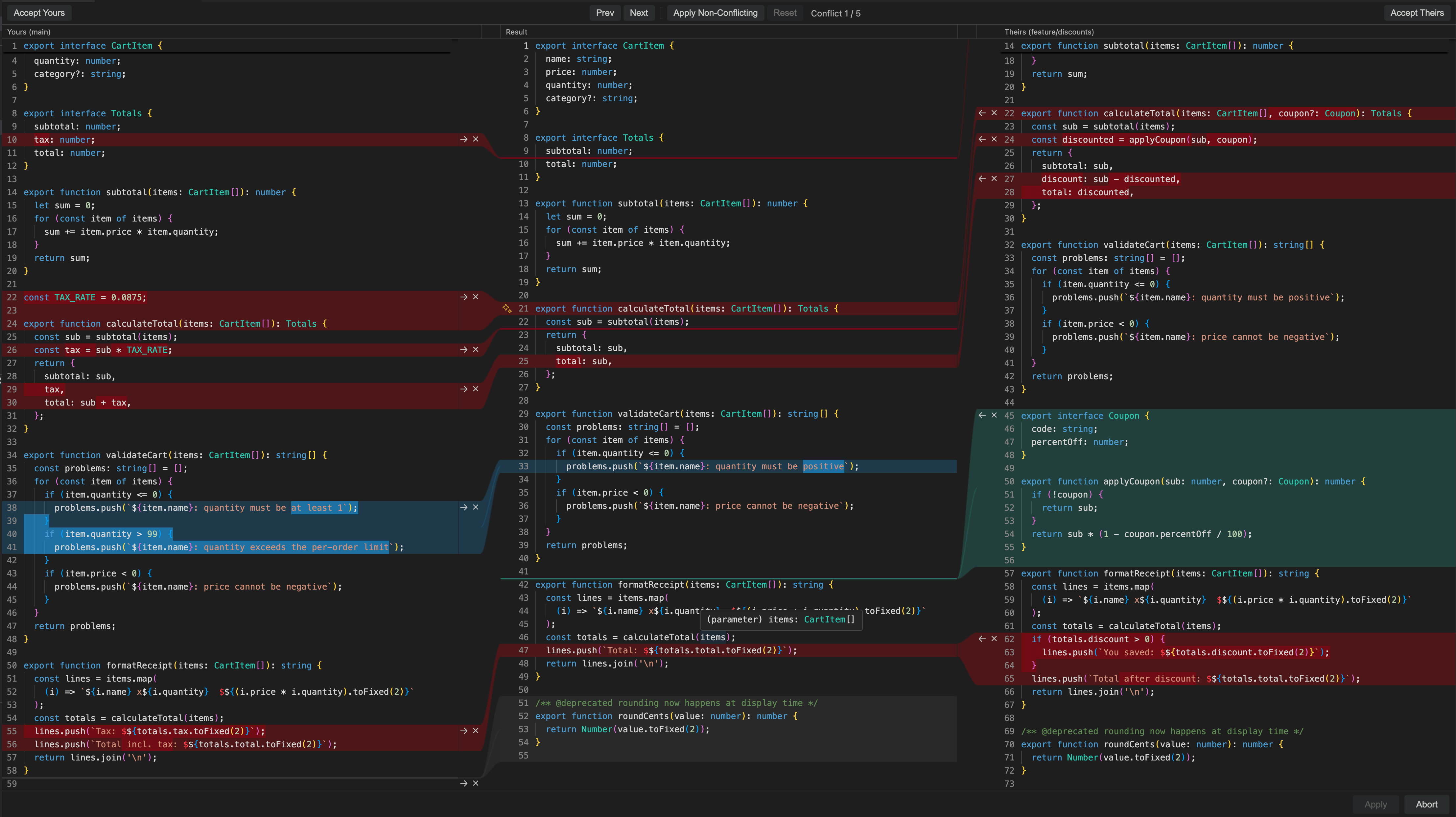
Three-way merge window — resolve conflicts IntelliJ-style: yours, the merged result, and theirs side by side. Accept a side (or both) per conflict, or apply all non-conflicting changes in one click.
Inline blame — per-line author, date, and commit as you read, color-coded by commit. Gutter and inline styles, whitespace/movement detection, and open-on-GitHub from the hover.

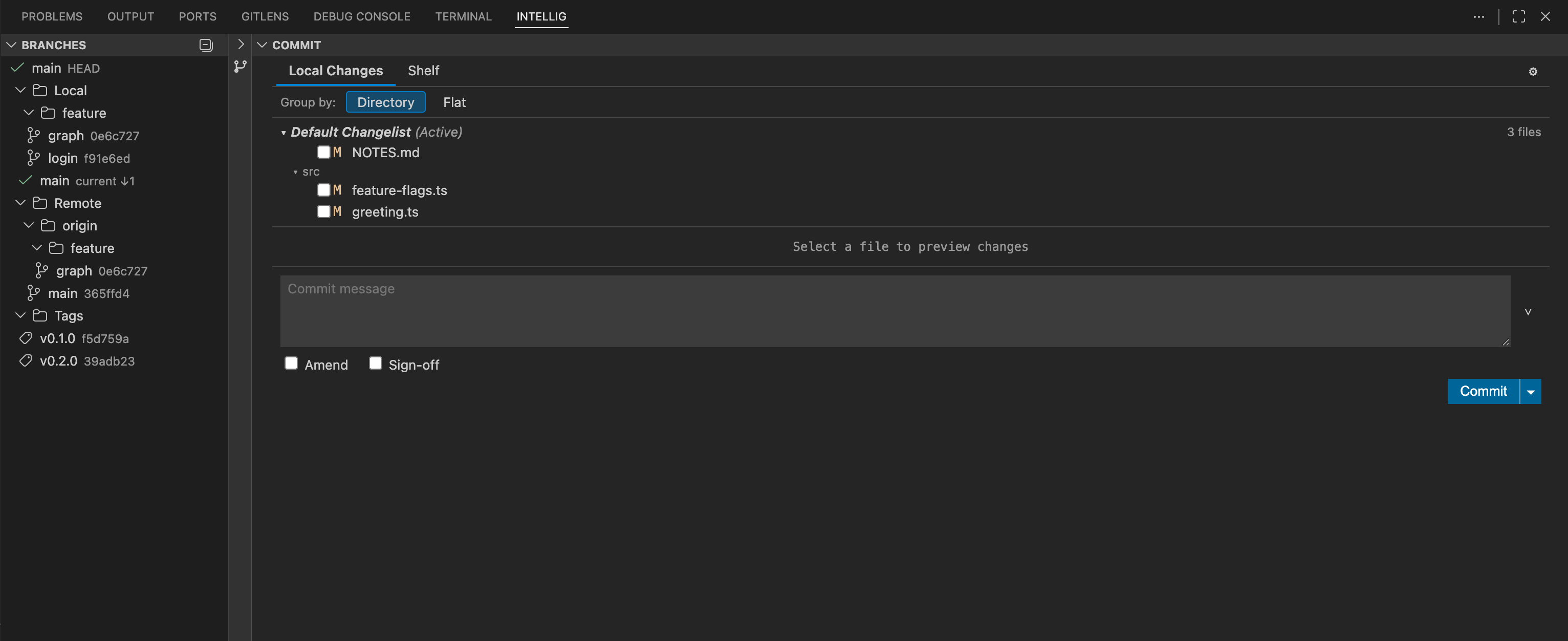
Commit tool window — Local Changes with staged, unstaged, and untracked files.
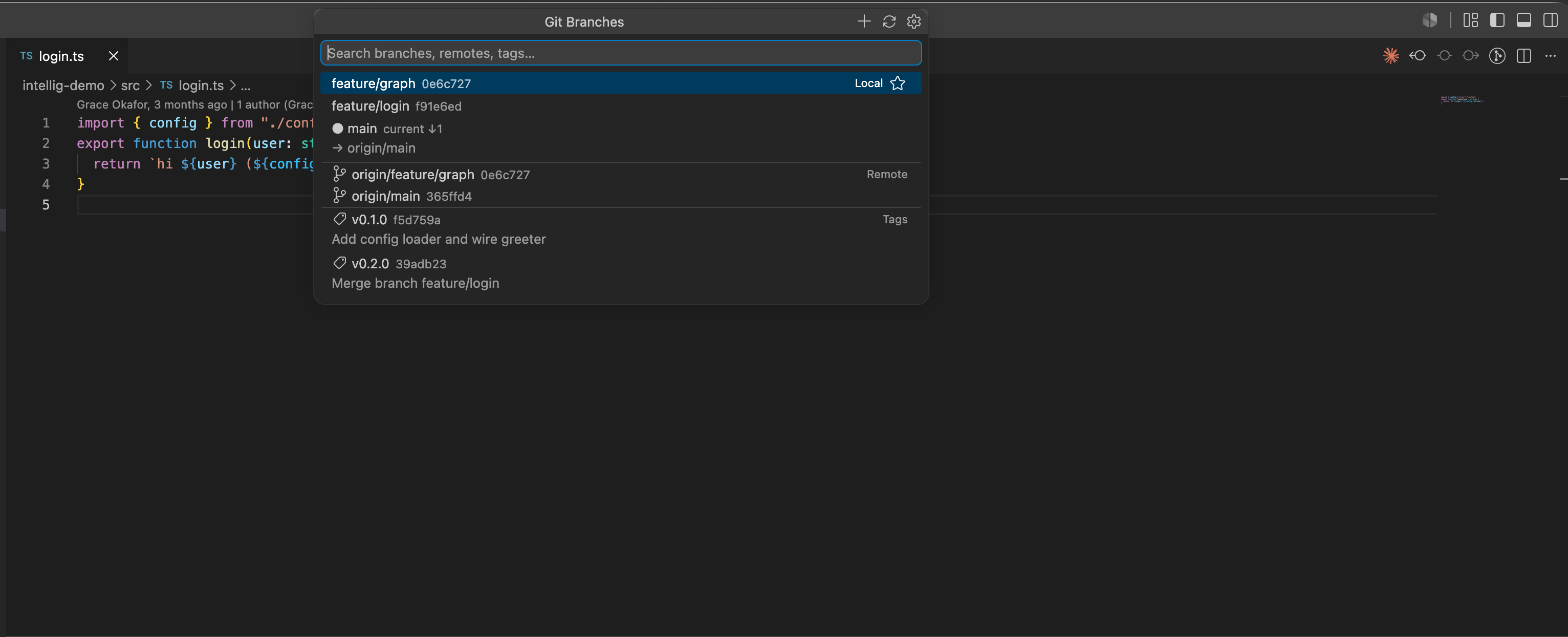
Branch popup — local, remote, and tag groups with contextual actions.
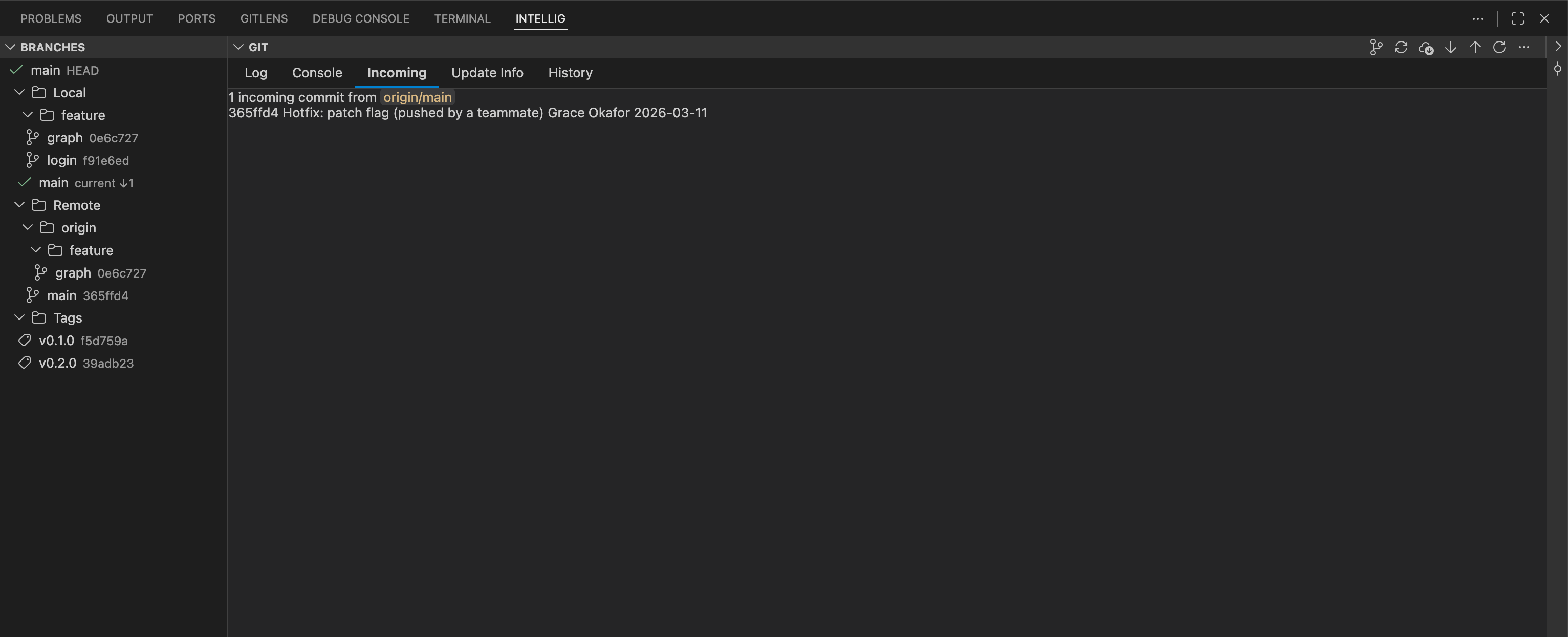
Incoming tab — commits waiting upstream before you pull.
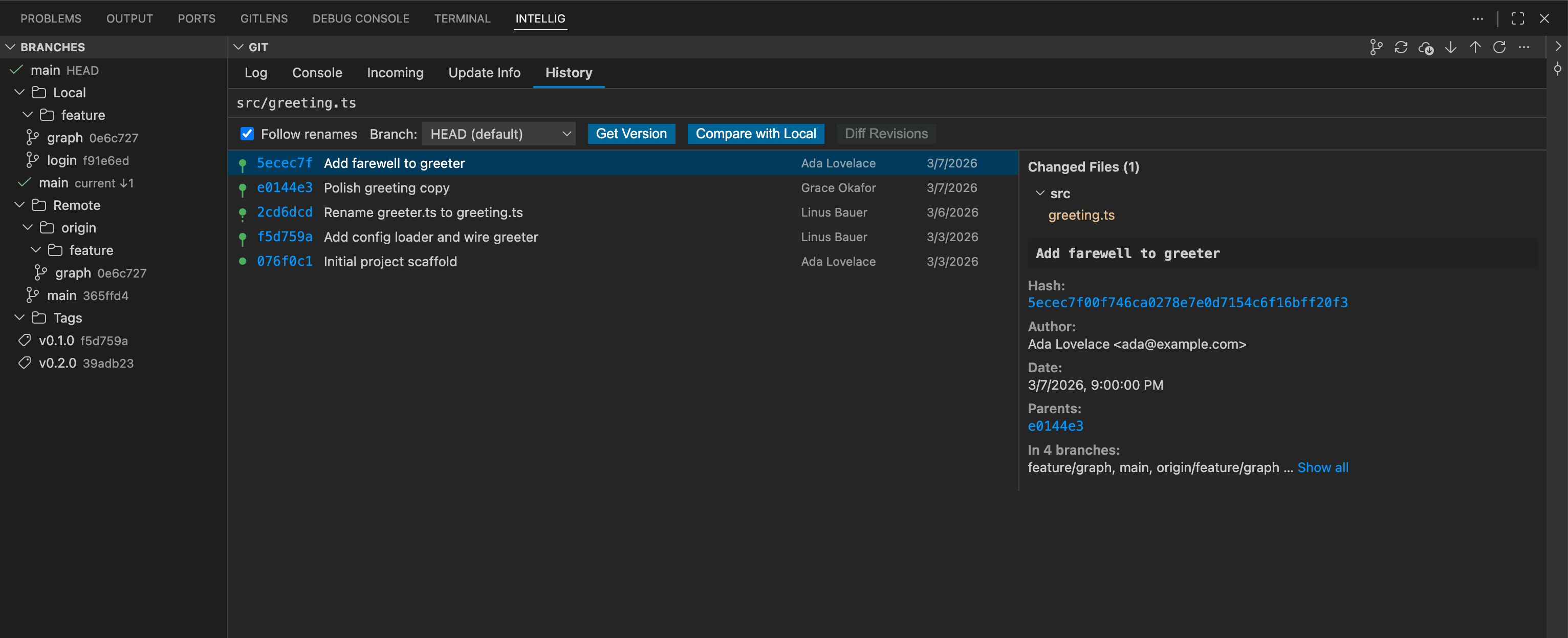
File history — follows renames across the file's whole history.
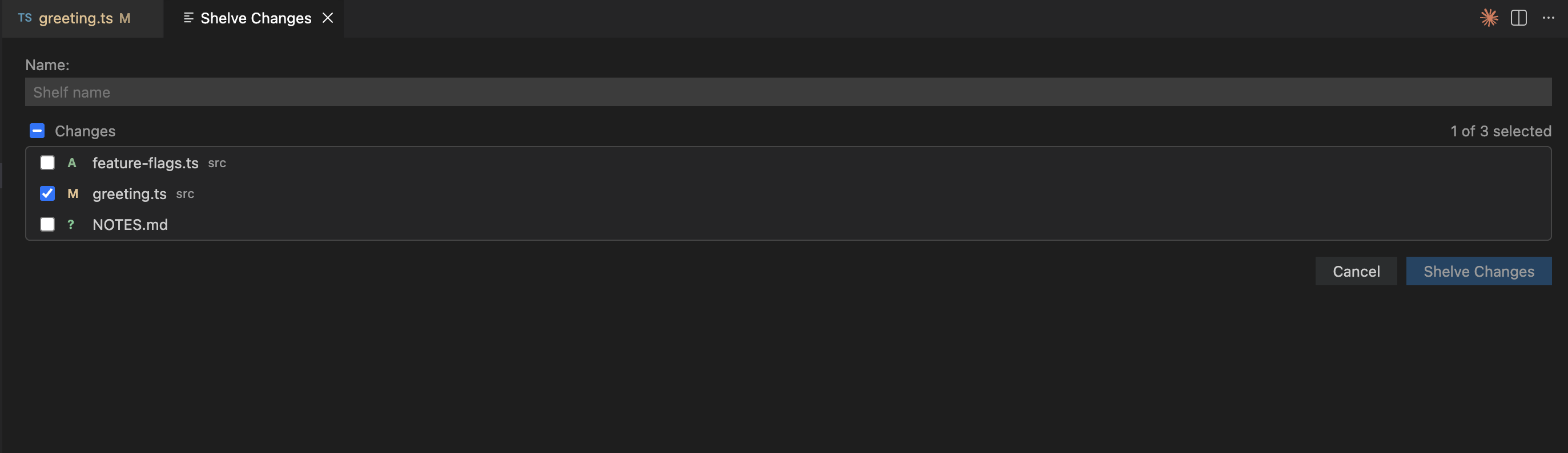
Shelve Changes — pick which files to shelve in a dedicated dialog.
Features
Commits & Changelists
- Commit Dialog — structured commit workflow with sign-off, custom author, recent-message history, and issue-link shortcuts
- Commit Tool Window (on by default) — dedicated SCM view with Local Changes + combined Shelf/Stash tab; disable
intellig.useCommitToolWindow to use the classic modal Commit dialog
- Changelists — organize pending changes into named lists with descriptions and an active-list indicator
- Revert & Drop Selected Changes — deselect individual files before reverting or dropping
- Commit File — commit a single file straight from its Explorer right-click menu (top of the IntelliG submenu)
- Branch Popup — sectioned, searchable popup with Recent, Favorites, and contextual action menus
- Branch Tree Provider — local, remote, and tag groups with right-click context menus
- Favorites — star branches for quick access
- Worktrees — each repository's worktrees in the Branches tree: open, lock, unlock, remove, create and prune from the right-click menu
- New Branch / New Tag dialogs — with validation and remote-start-point detection
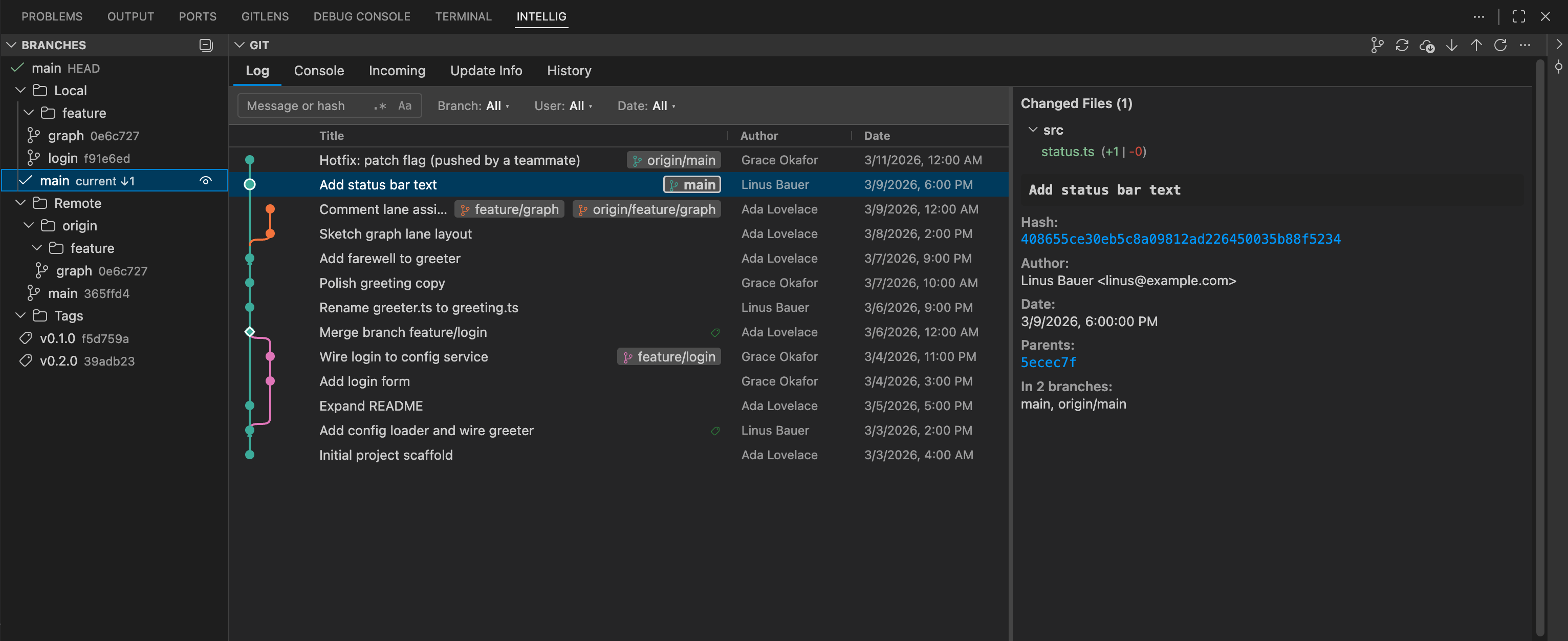
- Log with Graph — commit-history viewer with graph visualization, filtering, jump-to-hash, and cherry-pick highlighting
- File History —
--follow file history with branch filter, diff-any-two, and compare-with-local
- Branch Comparison — compare any branch with the current branch or the working tree
Push, Pull & Fetch
- Push Dialog — force-with-lease as the default safe force, protected-branch guard, multi-repo
- Pull Dialog —
--rebase / --ff-only / --autostash flags with automatic conflict handoff
- Push All Tags
- Auto Fetch — configurable scheduler with
fetch.tags auto-sync and an incoming-commits status-bar badge
Merge, Rebase & Cherry-pick
- Interactive Rebase — reorder, squash, fixup, edit, reword, and skip commits visually
- Merge Dialog — strategy flags (
--ff-only, --no-ff, --squash) with conflict handoff
- Three-way Merge View — accept current / incoming / both, plus apply-all-non-conflicting left/right
- Cherry-pick Variants — standard, without-commit, apply-selected-changes, and apply-files-to-branch
Shelf, Stash & Patches
- Shelf — shelve and unshelve changes, with silent variants, rename, and import-patches
- Stash Context Menu — branch-from-stash, rename, drop
- Apply Patch — create a patch from local changes or apply any
.patch / .diff
Blame & Annotations
- Inline + Gutter Blame — configurable annotation style (inline / gutter / both / off)
- Blame Options — Ignore Whitespace, Detect Movements Within File / Across Files, Annotate Previous Revision
Integrations
- Git Tool Window (tabbed) (on by default) — Log, History, Update Info, Incoming, Console tabs; disable
intellig.useTabbedGitToolWindow to restore the single Log panel
- Explorer & Editor Context Menus — stage, unstage, revert, diff, show history, open on remote
- External Hosting Links — open a commit on GitHub, GitLab, or Bitbucket from the inline blame hover, and turn issue references in commit messages into links to the host
- Status Bar — current branch + incoming/outgoing commit badge
- IntelliJ Keymap Preset — optional set of IntelliJ IDEA-style keyboard shortcuts
Multi-repo support
IntelliG discovers Git repositories in three layered ways and surfaces
them all together — single-repo workspaces, multi-root workspaces, and
folders that contain nested repos all "just work."
- One workspace folder, one repo. The most common case. The folder
itself is treated as a repository if it contains a
.git directory.
- Multi-root workspace. Each top-level workspace folder is scanned
for a repo. All discovered repos appear together in the branch popup,
status bar, and tool windows.
- Nested-repo discovery. If a workspace folder contains nested
repos (for example, a
~/work/ folder that holds
~/work/projectA/.git and ~/work/projectB/.git), both are
discovered up to the configured scan depth.
- Mid-session new-repo detection. Running
git init newproject/
inside a workspace folder is auto-detected — the new repository is
picked up without a reload.
Repository scope
When more than one repository is open, the Git Tool Window toolbar shows
a repository selector. It controls which repo the Log and the
Branches view show:
- Pick a single repository to scope both views to that repo — the
branch tree lists only that repo's local/remote/tag refs, and the log
graph shows only its commits.
- All Repositories (the default) shows a merged view: the branch tree
groups every repo's refs, and the log interleaves commits from all
roots into one graph.
Right-click actions resolve against the repository the clicked branch,
tag, or commit actually belongs to — so in the merged view an action on a
ref from one repo never operates on another.
Scan-depth and ignore configuration
Two settings control how deep IntelliG looks for nested repos.
Defaults and full descriptions live in the Configuration
reference → Multi-repo discovery table below;
the short version:
intellig.repositoryScanMaxDepth — how many directory levels
below each workspace folder are scanned for .git directories.
Default 1 (workspace folder itself + immediate children); -1
for unlimited depth (uses a realpath cycle guard so symlink
loops are safe). Mirrors VS Code's git.repositoryScanMaxDepth.intellig.repositoryScanIgnoredFolders — extra folder
basenames you want to skip during the scan. User-extensible.
The following folder basenames are always excluded from the nested-repo
scan and cannot be overridden: .git, node_modules, .vscode,
out, dist, .next, target, build, vendor. These are
hard-coded to keep the scan fast on real-world projects.
Submodule init mid-session is loaded as a separate top-level repo
(intentional — matches VS Code's built-in git extension behaviour).
Diagnostics: Output → IntelliG
IntelliG writes init failures, watcher errors, and per-file operation
diagnostics to a dedicated Output channel called IntelliG.
- Open via VS Code's Output panel (
View → Output), then pick
IntelliG from the channel dropdown.
- Init / watcher errors are surfaced here without flooding the
notification toast area.
- Operations that batch over many files — for example Import
Patches into Shelf — write a sanitized line per failed file so
you can spot the bad one without re-running.
- All output is sanitized: credentialed URLs and home-directory
paths are redacted before being written.
If the IntelliG output channel is missing, the extension didn't
finish activating. Reload the window and check the channel again.
Each diagnostic is written as a structured record — one block per
event — so you can scan, grep, and copy entries reliably. The first
line always follows this shape:
[<timestamp>] <LEVEL> <component>: <message>
<timestamp> is an ISO-8601 instant (e.g. 2026-05-12T14:03:11.482Z).<LEVEL> is the record's severity, uppercased and padded to five
characters (TRACE, DEBUG, INFO , WARN , ERROR).<component> names the subsystem that emitted the record.<message> is the sanitized message; embedded newlines are escaped
to a literal \n so each record stays on one parseable line.
When present, the following detail lines follow the header, each
indented two spaces:
ctx=<json> — structured context for the event, as a single-line
JSON object.cid=<correlationId> — correlates every record emitted while
handling the same command invocation.err=<message> — the error message, followed by its stack trace
with each frame on its own indented line.
Controlling log output
Two settings tune what reaches the channel:
intellig.log.level — the minimum severity admitted to the
logger (trace, debug, info, warn, error, or off;
default info). Records below the threshold are dropped before
they're built, and off silences the logger entirely. Changes
apply to subsequent records without a reload.intellig.log.console — when true, mirror each record to the
developer console as well as the channel (default false). The
console output is visible only in the Extension Development Host,
so this is aimed at contributors debugging IntelliG itself.
Coexistence with VS Code's built-in Git
IntelliG runs git directly via child_process rather than going
through VS Code's git extension API. The practical implications:
- IntelliG works even when
git.enabled is set to false.
- IntelliG does not register anything in the Source Control view — that
stays built-in Git's. Committing and staging live in IntelliG's own
IntelliJ-style panels (Commit tool window, Commit dialog, Git tool
window).
- File-tree decorations (M / U / A glyphs in the Explorer) come from
VS Code's built-in git extension. IntelliG does not register a global
file-decoration provider, so it does not double-paint Explorer
decorations.
- You can disable VS Code's built-in git decorations and still have
IntelliG's tool windows fully functional.
- Both extensions write to the same
.git/index file. Git serializes
concurrent writes via .git/index.lock; if you trigger
stage / commit / amend operations in both extensions in the same
instant, you may briefly see an "index locked" toast. This is
harmless — retry the operation and it will succeed.
Known limitations
- Submodule init mid-session — auto-loaded as a separate top-level
repo (intentional, matches VS Code's git extension).
- One-shot
rm -rf .git/ may not auto-detect — when the entire
.git/ directory is removed in a single syscall (rm -rf .git),
VS Code's FileSystemWatcher does not always deliver a child-path
delete event, so the repo may stay in IntelliG's view until you
reload the window. As a workaround, deleting .git/HEAD first
(rm .git/HEAD) reliably triggers the removal event. The repo is
fully removed if you drag its workspace folder out of VS Code, or
on the next window reload.
Requirements
- VS Code 1.85+
- Git installed and available on
PATH
Keyboard Shortcuts
All keybindings are declared by the extension and listed under Feature
Contributions on the extension's page, and in the Keyboard Shortcuts editor
(search for intellig) where every chord can be inspected or rebound. An
optional IntelliJ IDEA-style preset is available via the
intellig.keymapPreset setting — see that setting's description for the one
chord that behaves differently under the preset.
Configuration reference
Opt-in feature flags
| Setting |
Default |
Description |
intellig.useCommitToolWindow |
true |
Show the IntelliJ-style Commit tool window in the IntelliG panel; disable to use the classic modal Commit dialog |
intellig.useTabbedGitToolWindow |
true |
Use the tabbed Git tool window (Log/History/Incoming/…) |
intellig.keymapPreset |
"default" |
"default" or "intellij" |
Multi-repo discovery
| Setting |
Default |
Description |
intellig.repositoryScanMaxDepth |
1 |
Max depth for nested-repo discovery; -1 for unlimited |
intellig.repositoryScanIgnoredFolders |
[] |
Extra folder basenames to skip during the scan |
intellig.defaultRepo |
"" |
Preferred repo basename or absolute path when multiple are open |
intellig.autorefresh |
true |
Refresh the Git views live when the working tree changes; off = refresh only on Git ops + manual reload |
Commit & Push behavior
| Setting |
Default |
Description |
intellig.commitAuthor |
"" |
Optional commit-author override in Name <email> format |
intellig.commitMessageIssueLinks |
true |
Detect issue/PR references and render as clickable links |
intellig.warnAboutCrlf |
true |
Warn before committing CRLF line endings when core.autocrlf is not normalizing |
intellig.largeFileWarningMb |
50 |
Warn before committing files larger than this size in MB (0 disables) |
intellig.protectedBranches |
["main", "master"] |
Branches that require a confirm before destructive ops |
intellig.addCherryPickedFromSuffix |
true |
Append (cherry picked from commit <hash>) when cherry-picking a published commit |
intellig.pullRebase |
false |
Use --rebase by default in the Pull dialog |
intellig.autoOpenResolveConflictsDialog |
true |
Open the Resolve Conflicts dialog automatically on conflicts |
intellig.mergeWindow.enabled |
true |
Resolve conflicts in the IntelliG three-pane merge window; off = VS Code's built-in merge editor |
intellig.mergeWindow.autoApplyNonConflicting |
false |
Apply all non-conflicting changes automatically when the merge window opens |
Fetch & shelf
| Setting |
Default |
Description |
intellig.autoFetchEnabled |
true |
Enable periodic background fetch |
intellig.autoFetchInterval |
180 |
Auto-fetch interval in seconds |
intellig.fetchTags |
"auto" |
Tag-fetch policy: "auto", "all", or "never" |
intellig.shelve.removeAppliedFiles |
false |
Remove successfully-applied files from a shelf entry |
Blame annotations
| Setting |
Default |
Description |
intellig.blameAnnotationStyle |
"inline" |
"inline", "gutter", "both", or "off" |
intellig.blame.ignoreWhitespace |
true |
Pass -w to git blame |
intellig.blame.detectMovements |
"none" |
Moved-line detection: "none", "within" (-M), or "across" (-C) |
intellig.blame.colorMode |
"order" |
Background tint: "order" (age heat) or "author" |
intellig.blame.showAuthor |
true |
Show the author column (Author aspect) |
intellig.blame.showDate |
true |
Show the date column (Date aspect) |
intellig.blame.showRevision |
true |
Show the revision/hash column (Revision aspect) |
intellig.blame.authorNameFormat |
"full" |
Author rendering: "full", "firstname", "lastname", "initials", or "email" |
Diff
| Setting |
Default |
Description |
intellig.diff.ignorePolicy |
"default" |
Whitespace ignore policy for diffs (IntelliJ "Ignore whitespace"): "default", "trim-whitespaces", "ignore-whitespaces", or "ignore-whitespaces-empty-lines" |
intellig.lineStatus.enabled |
true |
Show live changed-line markers (added/modified/deleted vs HEAD) in the editor gutter, mirroring IntelliJ's change markers |
| Setting |
Default |
Description |
intellig.branches.showTags |
true |
Show the Tags section in the branches popup (toggle from the popup's settings gear) |
intellig.branches.showRecentBranches |
true |
Show the Recent section in the branches popup (toggle from the settings gear) |
intellig.branches.groupByDirectory |
true |
Indent branches that share a /-prefix (e.g. feature/*) in the branches popup |
UI polish
| Setting |
Default |
Description |
intellig.log.highlightCherryPicked |
true |
Dim commits already cherry-picked into the current branch |
intellig.log.showGpgColumn |
false |
Show a GPG/SSH signature status column in the commit log |
intellig.log.showAllRoots |
true |
Show commits from all workspace repositories merged into one log, matching the branch view; disable to scope a multi-repo log to one repository (G8) |
intellig.log.showRootNames |
false |
Widen the multi-repo log's Root column to show each repository's name on its color, instead of the narrow stripe |
intellig.log.showLongEdges |
false |
Draw graph edges at full length. Off (default) hides the middle of edges longer than 30 rows and caps them with arrows, matching IntelliJ |
Logging
| Setting |
Default |
Description |
intellig.log.level |
"info" |
Minimum severity admitted to the logger (trace, debug, info, warn, error, off). Records below the threshold are dropped; off silences the logger entirely. |
intellig.log.console |
false |
Mirror log records to the developer console (visible only in the Extension Development Host) |
Feedback & Issues
Found a bug, have a question, or want to request a feature? Open an issue on the public issue tracker.
For security vulnerabilities, please use GitHub's private vulnerability reporting — your report stays private to repo maintainers and isn't disclosed publicly until a fix ships.
License
Proprietary — all rights reserved. The full LICENSE file is included
in the extension package. For licensing inquiries, open an issue tagged licensing.
| |

