🐾 Capibara Pet


A little capybara pet that lives in a panel inside your VS Code editor. It strolls around calmly, runs while you type, gets scared when there are errors, sips its coffee during short breaks, and falls asleep if you leave it alone for a while.
Animated with spritesheets on a procedural pixel-art stage — flicker-free and never in the way of your code.
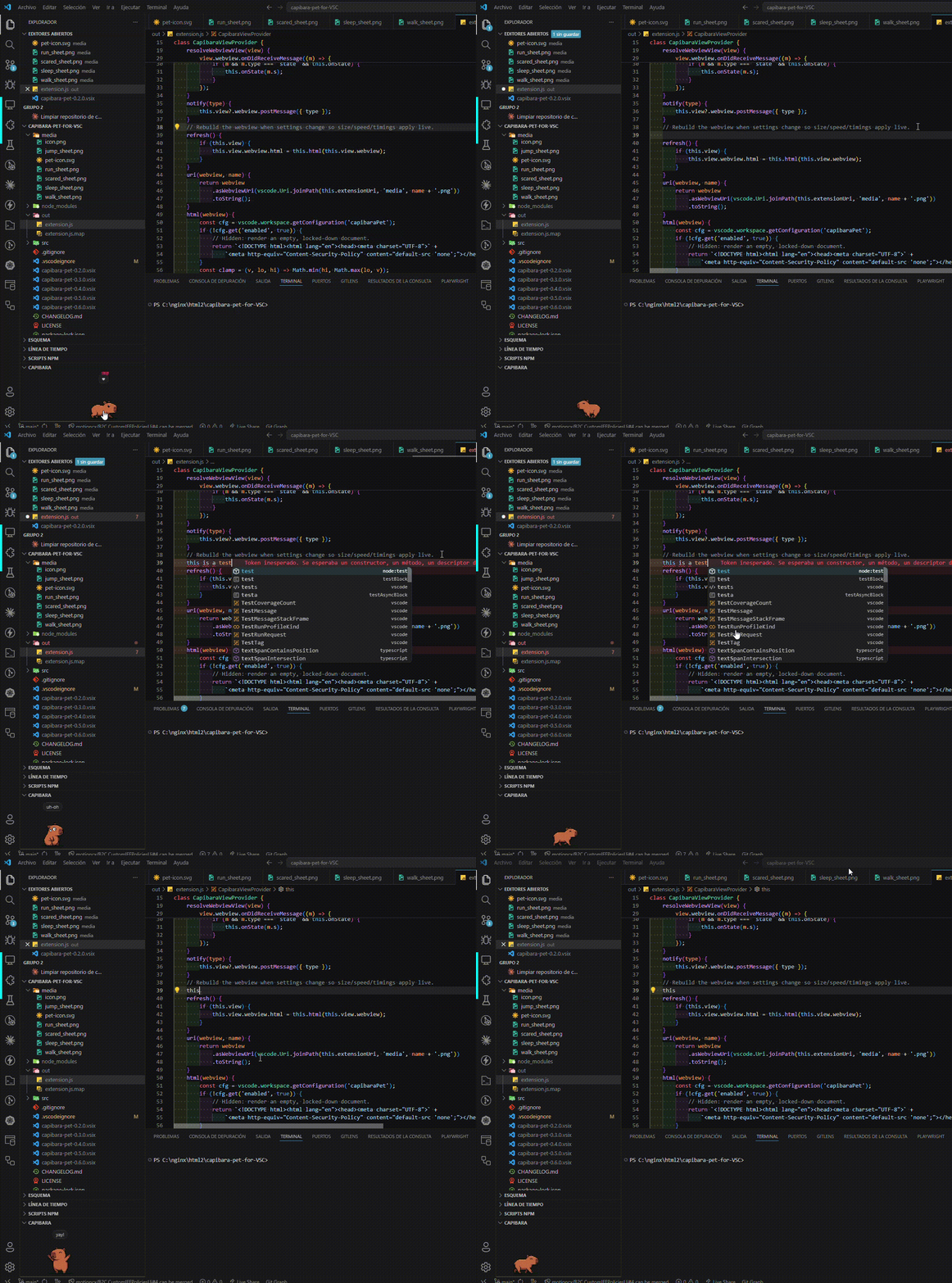
States
The capybara reacts to what you do:
| State |
When it happens |
| 🚶 Walk |
Default — strolling around the panel |
| 🏃 Run |
While you type |
| 🦘 Jump |
When you move to another line |
| 🎉 Celebrate |
When you save a file, or start a debug session |
| 😱 Scared |
When the file has errors |
| ☕ Coffee |
After a medium pause (~6 s) |
| 😴 Sleep |
After a long pause (~15 s) — with its 💤 |
Getting started
- Install the extension.
- Open the Explorer (
Ctrl+Shift+E / Cmd+Shift+E). At the bottom you'll find a "Capibara" section — expand it and the pet appears in its little box.
- Want it somewhere else? Just drag the "Capibara" section to another spot — for example into the Secondary Side Bar (
Ctrl+Alt+B) to keep it pinned in a corner. VS Code remembers the position.
Commands
Open the Command Palette (Ctrl+Shift+P / Cmd+Shift+P) and type "Capibara Pet":
| Command |
What it does |
| Capibara Pet: Show the Capybara |
Reveals and focuses the pet's view. |
| Capibara Pet: Pet the Capybara |
Give it some love — it hops with a ❤️. |
| Capibara Pet: Show/Hide the Capybara |
Quickly toggle the pet on or off. |
You can also drag the capybara left/right inside the panel with your mouse.
Settings
Tweak the pet from Settings (Ctrl+, / Cmd+,) → search for "Capibara Pet". Changes apply live.
| Setting |
Default |
What it does |
capibaraPet.enabled |
true |
Show the capybara. Turn off to hide it without uninstalling. |
capibaraPet.size |
84 |
Size of the capybara, in pixels (40–160). |
capibaraPet.speed |
1 |
Walk/run speed multiplier (0.25–3). |
capibaraPet.coffeeAfterSeconds |
6 |
Idle seconds before the coffee break. |
capibaraPet.sleepAfterSeconds |
15 |
Idle seconds before falling asleep. |
capibaraPet.reactToErrors |
true |
Whether it gets scared when the file has errors. |
capibaraPet.reactToDebug |
true |
Whether it celebrates when a debug session starts. |
capibaraPet.name |
"" |
Give your capybara a name (shown on hover and in the status bar). |
capibaraPet.bubbles |
true |
Show small speech bubbles (saving, sleeping, petting…). |
capibaraPet.statusBar |
true |
Show a status bar item that mirrors the current mood. |
capibaraPet.background |
time |
Panel backdrop: time (follows the local time: day, sunset, night), scene (day), sunset, night, auto (day/night by theme), solid, or transparent. |
Tip: click anywhere in the panel to pet the capybara — it hops with a ❤️.
The capybara also runs faster the faster you type.
Pixel art
The capybara is true pixel art: every state is drawn on a 42×42 grid with a shared 7-colour palette. The backdrop is drawn procedurally on the same pixel grid, so it fits any panel size without extra images: hills with trees, a flowery meadow, a dirt path and a lake — the capybara's natural habitat — with the hills reflected in it, reeds, cattails, water lilies, shimmering water and the odd fish ripple.
By default (time) the light follows your local clock and changes by itself:
- Day (7:00–17:30): dithered blue sky, sun, drifting clouds and the odd flock of birds.
- Sunset (17:30–19:30, and dawn 6:00–7:00): purple-orange sky, the sun setting behind the hills, glowing water and the first stars.
- Night: twinkling stars, the moon's glitter on the lake, shooting stars now and then, and blinking fireflies.
You can also pin one with scene, sunset or night.
- Effects: a hard pixel shadow, dust puffs when it walks, runs or lands, confetti and sparkles when it celebrates, a "!" when it gets scared, and a pixel heart when you pet it.
The pet moves on the same pixel grid as the scenery. With prefers-reduced-motion, the scene stays still and the effects are off.
Tip: sizes that are multiples of 42 (42, 84, 126) keep every pixel perfectly even.
Install from the Marketplace
Search for "Capibara Pet" in the Extensions tab of VS Code, or install it from the command line:
code --install-extension JuanCarlosCondori.capibara-pet
Notes
- No runtime dependencies and no configuration needed — it just works.
- The pet lives in a webview panel (VS Code does not allow floating overlays on top of the editor), with a transparent background so it blends with your theme.
Credits
Made with care by Juan Carlos Condori. Pixel-art capybara sprites.
License
MIT. See the LICENSE file included in the package.

