GitCanvas
GitCanvas is a visual Git dashboard for VS Code. It turns repository status, branch history, commit details, stashes, remotes, and common Git actions into one focused workspace.
Dashboard Preview
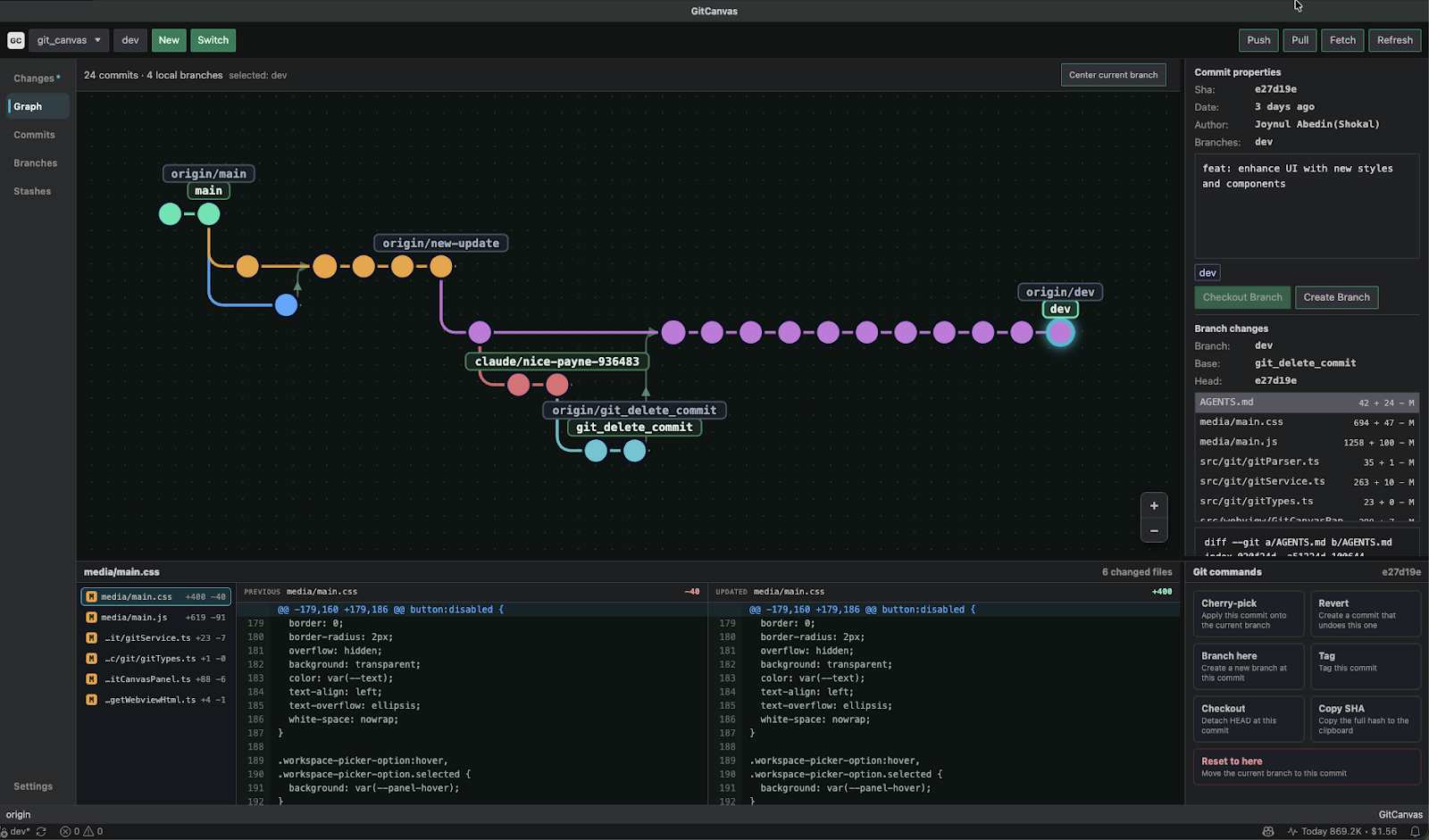
Use it when you want quick answers to questions like:
- What changed in my working tree?
- Which commits are on this branch?
- How are my local and remote branches related?
- What files changed in a selected commit?
- Can I create, checkout, stash, commit, pull, or push without leaving VS Code?
- Is a destructive Git action protected by a safety prompt?
Highlights
- Visual commit graph with branch lanes, merge connectors, branch labels, zoom controls, and current-branch centering.
- A dedicated History panel docked next to your Terminal and Output panels, with its own horizontal commit graph, searchable commit list, and a resizable details pane — so history and status stay visible without leaving your editor layout.
- Rich, keyboard-accessible commit tooltips: hover a commit for author, time, stats, and full message, with one click through to the commit, the author's other commits, or the commit on GitHub/GitLab/Bitbucket.
- Click any changed file to open it in VS Code's native diff editor, in place, no separate viewer.
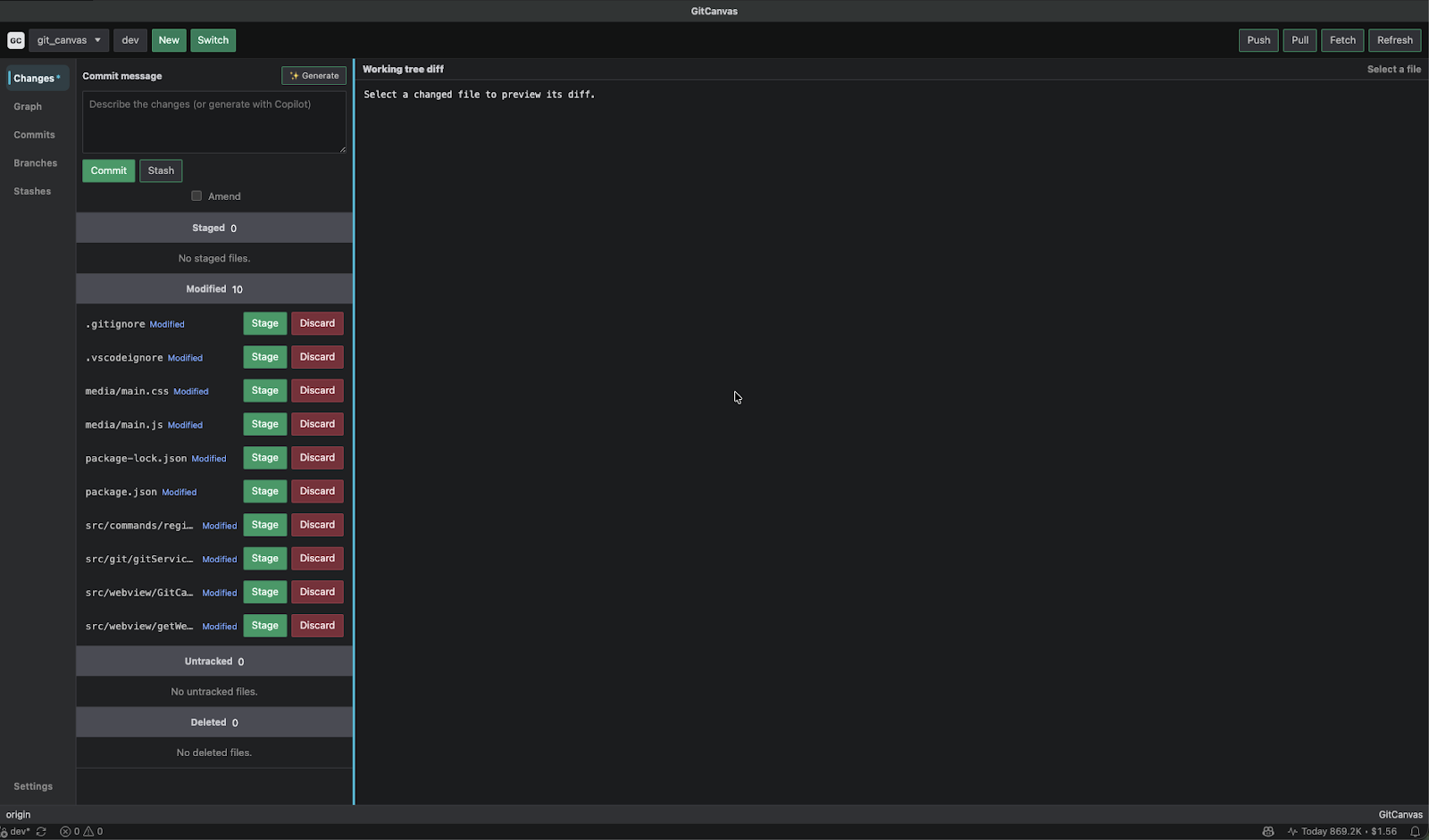
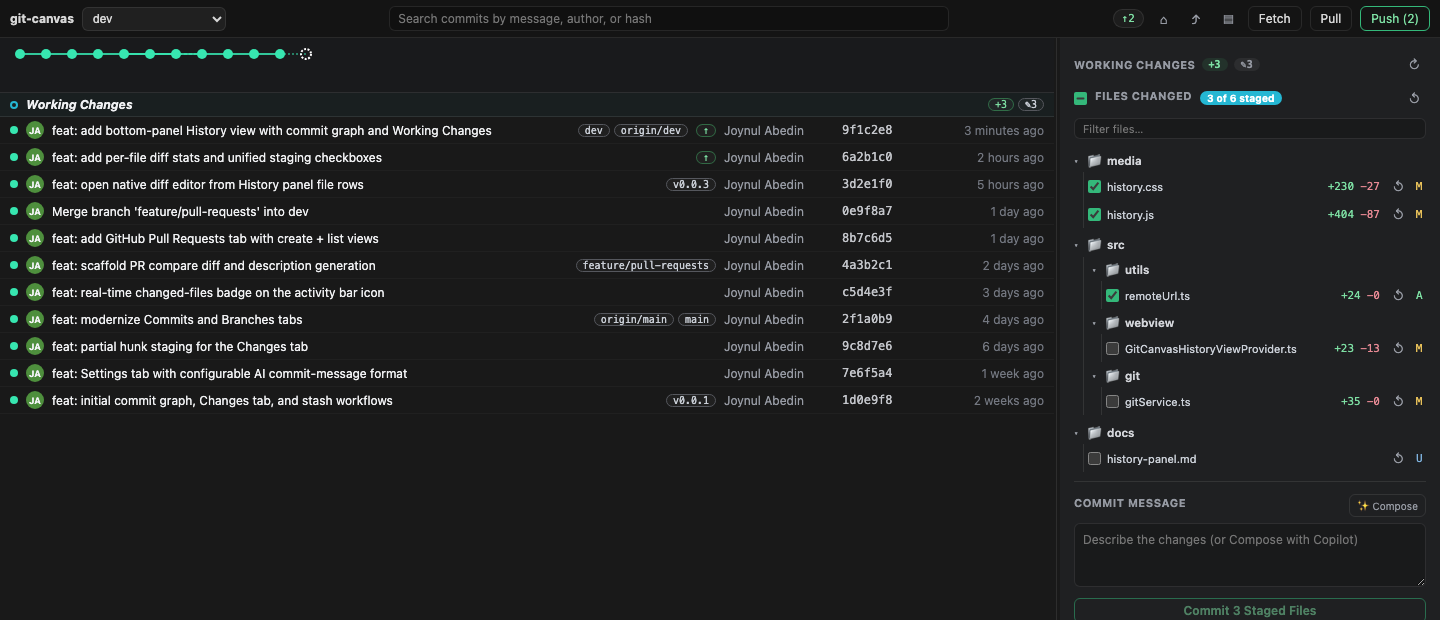
- Changes dashboard for staged, modified, deleted, and untracked files, with per-file and per-folder checkboxes and live +/- line counts.
- Partial (hunk-level) staging — stage or unstage individual hunks of a file, not just the whole file.
- Inline diff previews for working tree files, commits, and stashes.
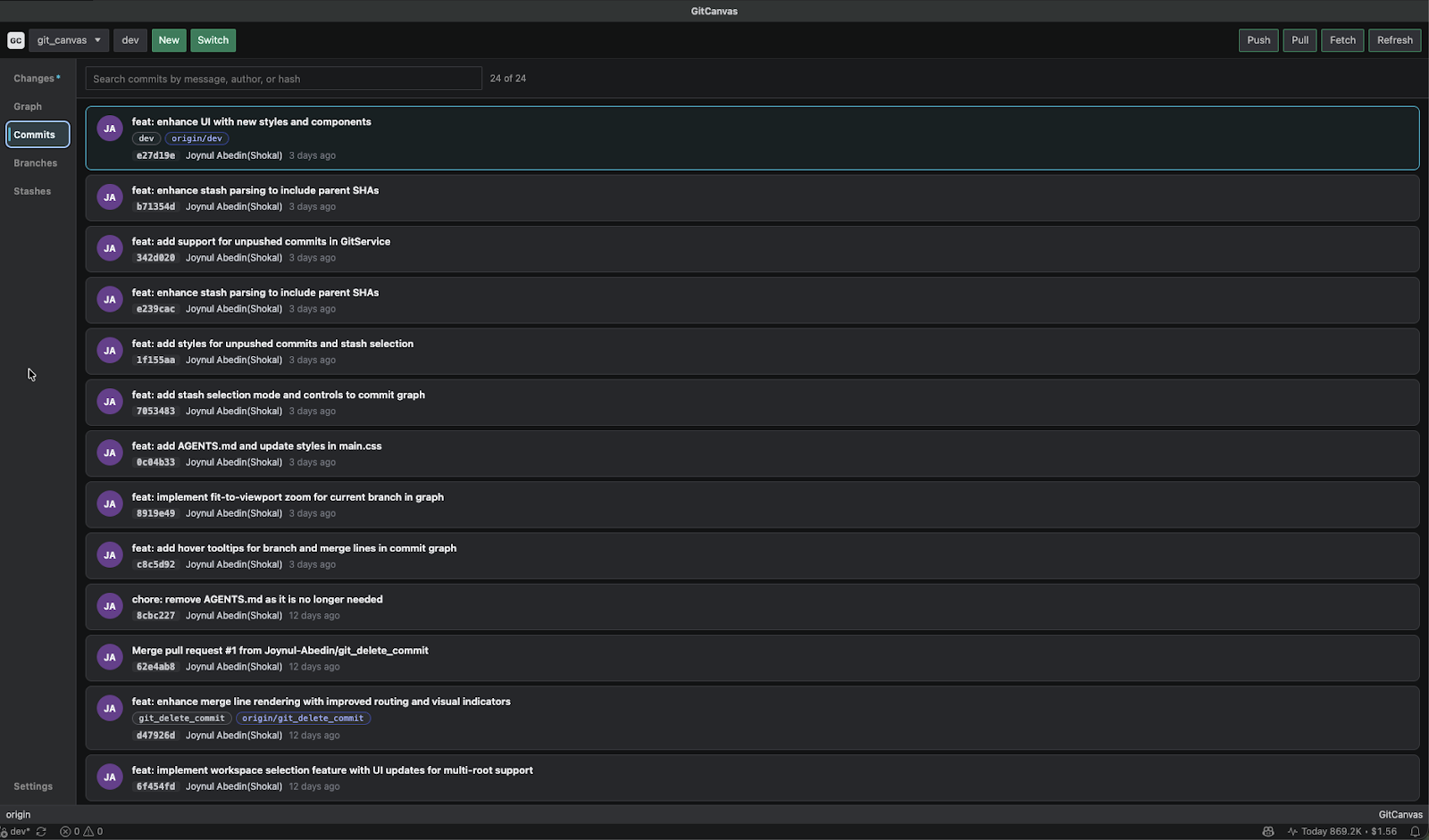
- Commit list with search by message, author, or hash.
- Commit inspector with changed files, metadata, branch labels, and actions such as cherry-pick, revert, branch, tag, checkout, copy SHA, and reset.
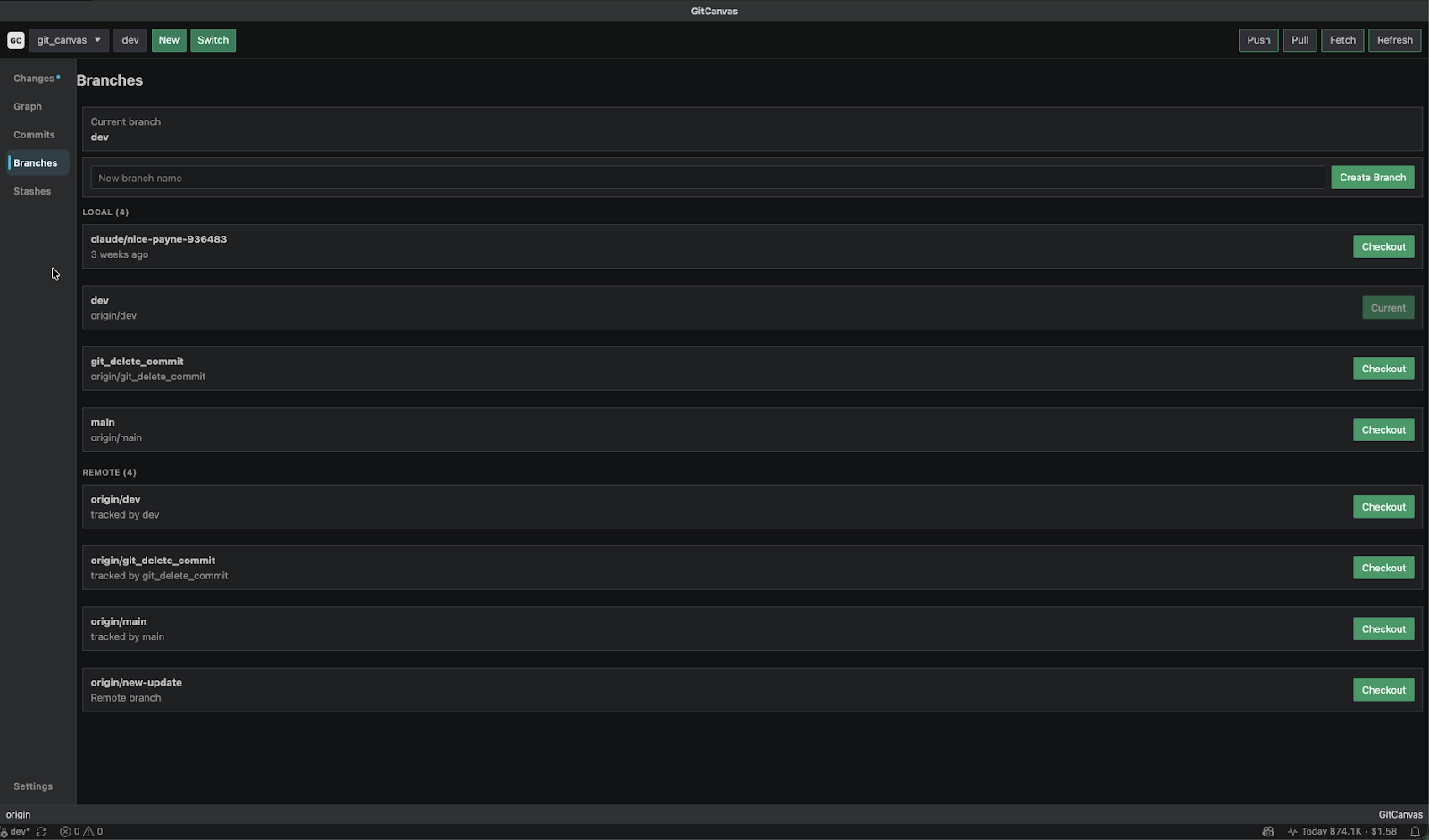
- Branches view for local branches and remote branches in one place, with create and checkout actions.
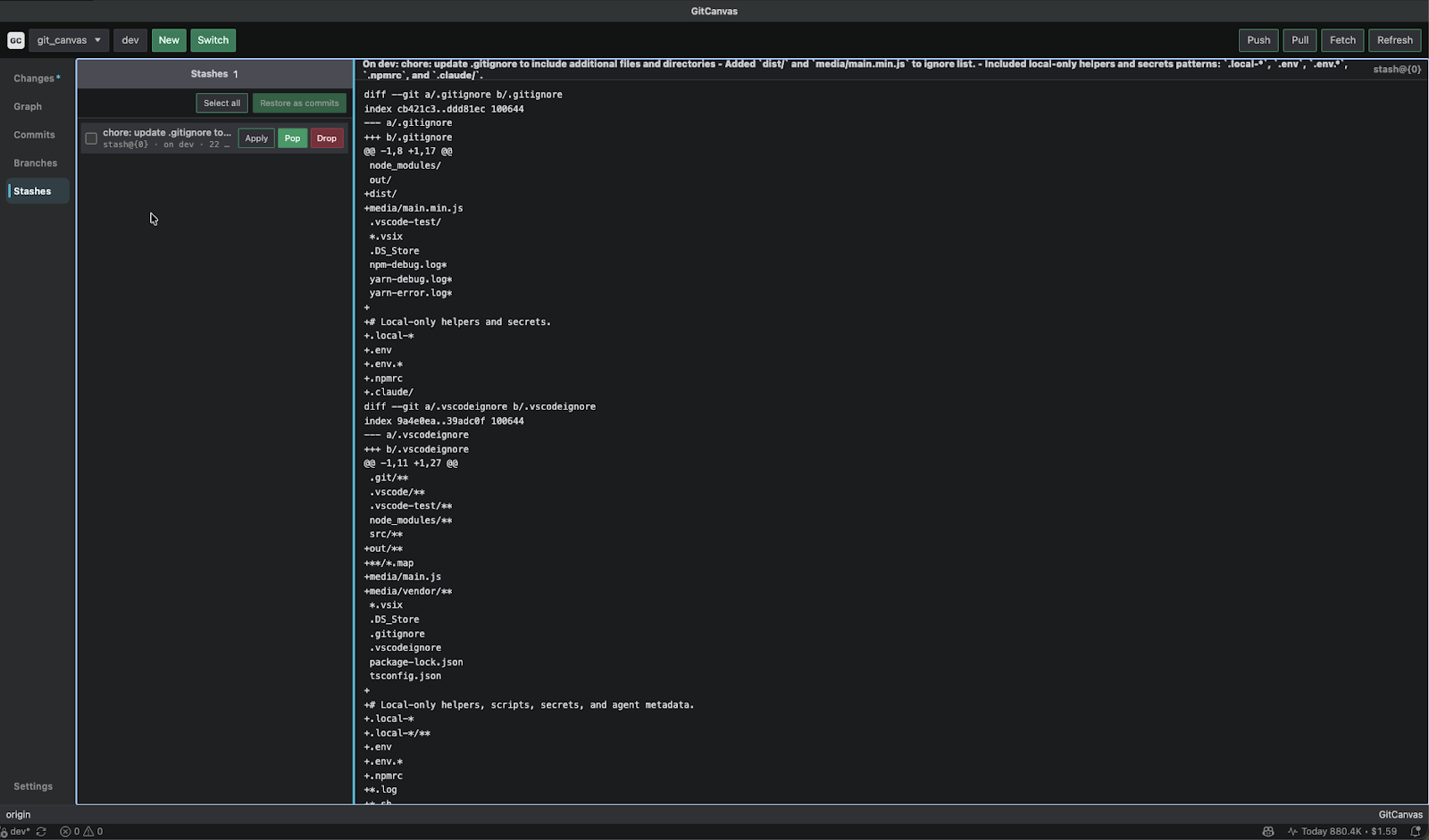
- Stash management with select, apply, pop, drop, preview diff, and restore-as-commit workflows.
- Visual GitHub Pull Request creation and browsing, signed in through VS Code's own GitHub account, no separate token setup.
- A Settings tab for tuning auto-refresh, backup ref retention, diff context size, and the AI commit-message style, alongside VS Code's native settings.
- Repository picker for multi-root VS Code workspaces.
- Fetch, pull, and push controls in the dashboard toolbar, with ahead/behind indicators.
- GitHub Copilot-powered commit message and PR description generation when VS Code language models are available, with an optional custom style/format.
- Safety prompts for risky operations, including clean-tree checks, automatic stashing, backup refs before supported history rewrites, and force-push with lease.
Core Views
Changes and Commit Writing
Review your working tree, stage or discard individual files, write a commit message, or generate one with Copilot.
Commit Search
Search the repository history and select a commit to inspect its metadata, branch labels, changed files, and available actions.
Branches and Remotes
See the current branch, create new branches, checkout local branches, and inspect remote tracking branches without a separate remotes tab.
Stashes
Preview stash diffs, apply or pop a stash, drop old stash entries, or restore selected stash entries as commits.
History Panel
A second, always-available view of your repository lives in VS Code's bottom panel group, next to Terminal and Output — pull it up without leaving whatever file you're editing. It has its own horizontal commit graph, a searchable commit list, and a resizable inspector pane on the right.
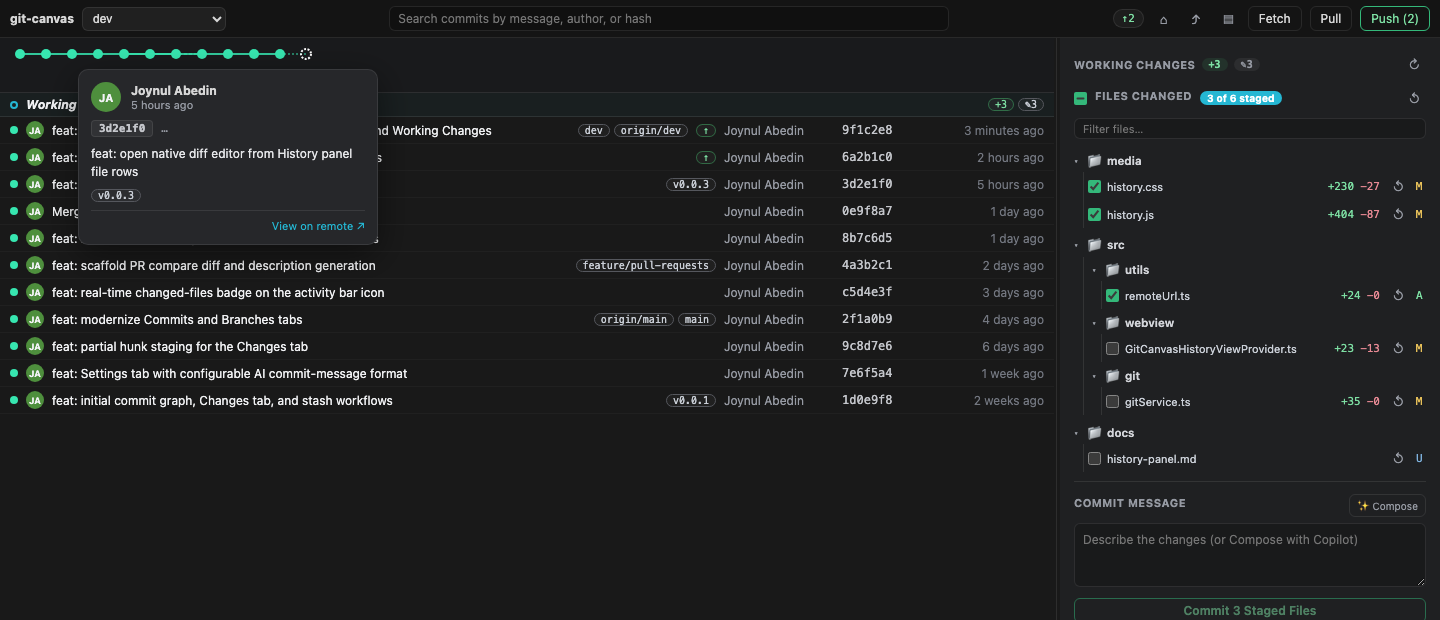
Select any commit to see its full message, stats, and changed files as a real folder tree — click a file to open it in VS Code's native diff editor.
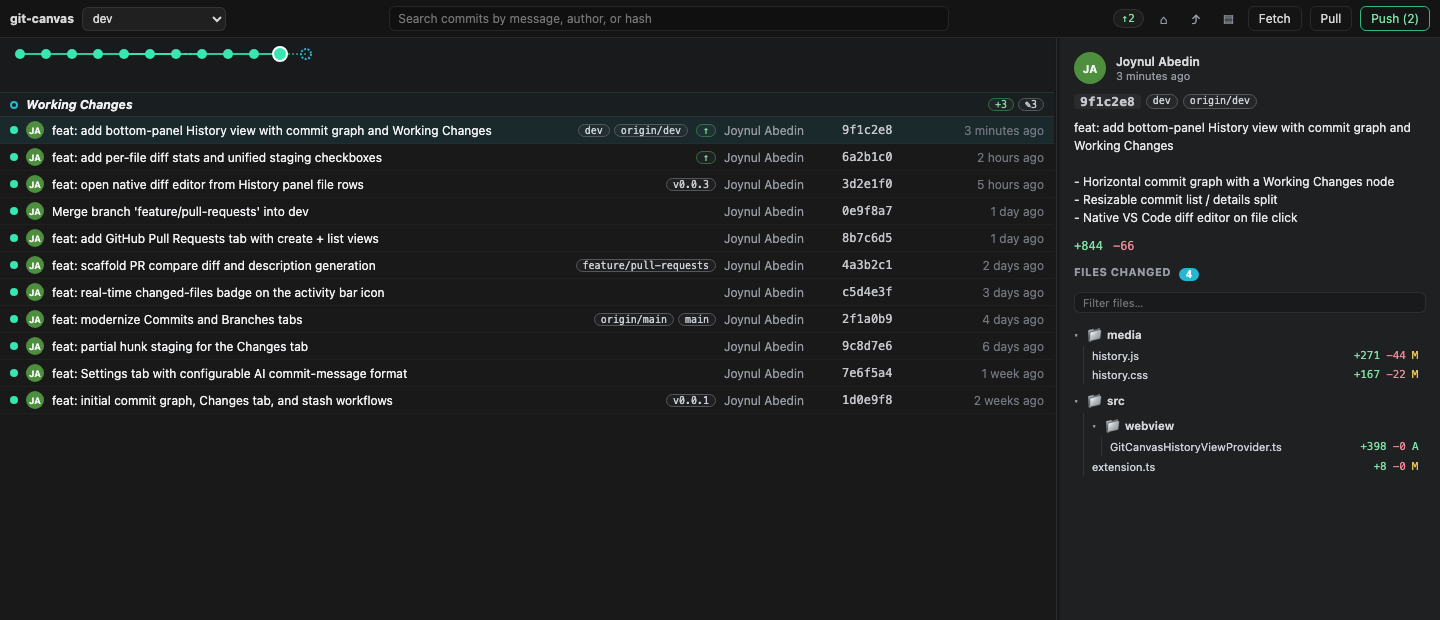
Hovering a commit shows a rich, clickable tooltip — the author's name filters the commit list, the hash jumps straight to that commit, and "View on remote" opens it on GitHub, GitLab, or Bitbucket.
Common Workflow
- Open a Git repository in VS Code.
- Click the GitCanvas icon in the VS Code Activity Bar, or run
GitCanvas: Open.
- Select a repository from the picker if the workspace has more than one Git repo.
- Review the
Changes tab, stage files, and write or generate a commit message.
- Use
Graph, Commits, Branches, Stashes, and Pull Requests to inspect history and manage branch work.
- Use
Fetch, Pull, and Push from the toolbar when you are ready to sync.
- Open the
GitCanvas panel next to Terminal and Output for an always-visible commit graph and file staging alongside whatever you're editing.
Git Operations
| Area |
What GitCanvas helps with |
| Working tree |
Stage, unstage, discard, inspect diffs, commit, amend, and stash changes. |
| History |
Search commits, inspect changed files, preview diffs, copy SHAs, tag commits, and create branches from commits. |
| Branches |
Create branches, checkout branches, see local branches, and see remote tracking branches. |
| Stashes |
Apply, pop, drop, preview, select, and restore stash entries as commits. |
| Remotes |
Fetch, pull, push, and view remote branches inside the Branches view. |
| Safety |
Guard checkout, reset, revert, cherry-pick, merge, drop, and force-push style workflows with prompts and backup behavior where supported. |
Copilot Commit Messages
GitCanvas can ask VS Code's available language model provider to draft a commit message from the selected Git context. This is optional and only runs when you press Generate.
If no compatible Copilot or language model provider is available, you can still write and commit manually.
Safety and Git Behavior
GitCanvas runs Git through argument-array execution rather than shell-interpolated command strings. Branch names, refs, file paths, tags, and commit hashes are validated before they are passed into Git command entry points.
Destructive or history-changing workflows are guarded with repository-state checks. Supported reset and history rewrite paths create backup refs under refs/gitcanvas-backup/ before moving HEAD. Force pushes use --force-with-lease, not bare --force.
Branch parentage in the visual graph is inferred because Git does not store "created from branch" metadata directly. GitCanvas uses reflog hints, branch-name matching, and merge-base distance to produce a practical visual layout.
Privacy and Storage
GitCanvas is local-first.
- It reads repository information through your local Git installation.
- It does not require a hosted account or external GitCanvas service.
- It does not write analytics files into your project.
- Copilot-powered commit message and PR description generation may send selected diff and commit context to the VS Code language model provider only when you explicitly use a generation action.
- Pull Request features authenticate through VS Code's built-in GitHub sign-in; GitCanvas never handles or stores your GitHub credentials directly.
Requirements
- VS Code
1.92.0 or newer.
- Git installed and available on your machine.
- A Git repository opened in VS Code.
- GitHub Copilot or another VS Code language model provider is optional and only needed for generated commit messages.
Commands
| Command |
Purpose |
GitCanvas: Open |
Opens the GitCanvas dashboard. |
GitCanvas: Refresh |
Reloads repository status and history. |
GitCanvas: Commit |
Commits staged changes from GitCanvas. |
GitCanvas: Stage File |
Stages a file. |
GitCanvas: Unstage File |
Unstages a file. |
GitCanvas: Discard File |
Discards a file change after confirmation. |
GitCanvas: Create Branch |
Creates a new branch. |
GitCanvas: Checkout Branch |
Checks out a branch with safety handling. |
GitCanvas: Fetch |
Fetches from the configured remote. |
GitCanvas: Pull |
Pulls the current branch. |
GitCanvas: Push |
Pushes the current branch. |
Getting Started
- Install GitCanvas.
- Open a folder that contains a Git repository.
- Click the GitCanvas icon in the VS Code Activity Bar, or run
GitCanvas: Open from the Command Palette.
- Use the dashboard tabs to move between Changes, Graph, Commits, Branches, Stashes, Pull Requests, and Settings.
- Or open the
GitCanvas view in the bottom panel (next to Terminal and Output) for the same history and staging tools alongside your editor.
GitCanvas is developed and maintained by Mohammad Joynul Abedin (Shokal).
| |

