Overview Version History Q & A Rating & Review
Visual Studio Code extension to send HTTP/S requests and establish WebSocket connections with
an intuitive UI within Visual Studio Code to enhance work productivity.
🚀 Installation
❗️ This extension is best paired with a dark-colored Visual Studio Code theme.
❗️ Pulse API Client cannot be installed or used when using a web version of Visual Studio Code
🔐 Security and Privacy
Pulse API Client does not collect or store any of your personal information or request data
Pulse API Client uses VSCode global state API in order to store your request history and favorites collections locally.
✨ Features
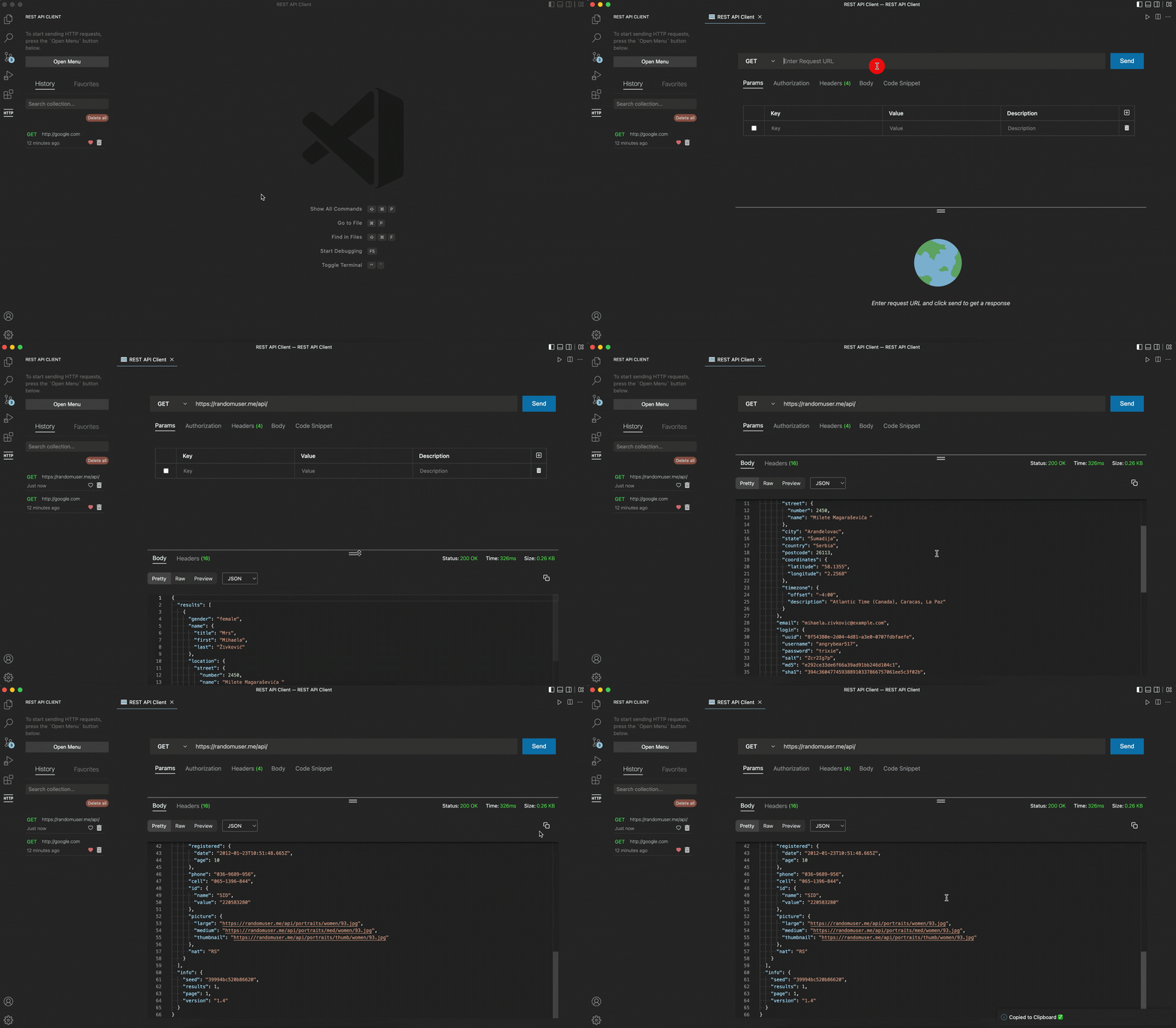
Send a request and receive a response from your desired API endpoint.
Eight request methods
GETPOSTPUTPATCHDELETEHEADOPTIONSWEBSOCKET - Real-time WebSocket connections with custom headers support
Various request options
Add parameter to your API endpoint
Add authorization option
Basic Authorization
Bearer Token
Add body data
Form data
x-www-form-urlencoded
Raw data
TextJavaScriptJSONHTML
Environment Management - Create and manage multiple environments with variables
Define environment variables (key-value pairs)
Switch between environments easily
Variables are automatically substituted in your requests
Code snippet of your current request, provided up to 18 different languages with their specific variants, to copy and paste to your codebase.
Resizable vertical menu
Various response body view format
Pretty
Raw
Visual HTML preview of the response data
Basic metadata information
Status code and text
Response size
Approximate time measurement to receive a response from your request
Copy and paste code button
Response headers view mode
History collection sidebar
Favorites collection sidebar
Favorites Folder Organization - Organize your favorite requests into foldersIntuitive icon UI to favorite a request history or delete
Search bar to find your specific request history
Click and search from the sidebar collection
💻 Commands
Simply click Open Menu button or open the Command Palette and type the command below:
Command+P or Command + Shift + P on macOS and Ctrl+Shift+P on Windows/Linux
Command
Description
> Start: New RequestCreate a API Client menu
❗️ You can only create one panel at a time.
📚 Tech Stacks
This project was created using the following tech stacks
👨🏻💻 Contributing
If you have a suggestion that would make this project better, please fork this repository from here and create a pull request.
I appreciate even the tiniest suggestion or contribution you make to this project.
🪜 Step-by-step guide on how to make a pull request
Fork this Project from here
Create your Branch → git checkout -b feature/newFeature
Code up your outstanding logic → console.log("Hello World")
Commit your Changes → git commit -m "feat: Add some newFeature"
Push to the Branch → git push origin feature/newFeature
Vist your GitHub repository and open a Pull Request
🏗 Running the extension locally for development
Run git clone from this repository
Run npm install
Run npm run dev (starts both extension and webview in watch mode)
Press F5 to launch extension development mode
command + p or ctrl + p and type > Developer: Toggle Developer Tools to open browser console for easy debugging
📦 Available Scripts
Command
Description
npm run devStart development mode with hot reload
npm run packageBuild extension and webview for production
npm run compilePackage extension as VSIX file
npm run lintRun ESLint with auto-fix
npm run testRun tests with Vitest
npm run coverageRun tests with coverage report
⚠️ Bugs or Suggestions
If you found any bugs while using this extension or you have a suggestion please post it in issues .
🫧 Contributors
📋 License
This extension is released under the MIT license .