IronShift — AI-Powered Cloud Infrastructure Copilot
Manage any cloud or DevOps tool through natural conversation—right inside VS Code






What is IronShift •
Features •
Quick Start •
Tools •
Plans •
Support
What is IronShift?
IronShift is the AI-powered cloud infrastructure copilot that helps SREs and cloud developers manage, troubleshoot, and automate cloud resources—all within Visual Studio Code. Stop context-switching between your IDE, cloud consoles, and documentation.
Just ask IronShift what you need, and it will execute cloud operations, analyze infrastructure, and provide intelligent recommendations—with your approval.
With IronShift, you get:
✅ Natural Language Interface — Ask questions in plain English, no CLI memorization needed
✅ Universal Tool Support — Azure, AWS, GCP, Docker, Terraform, Kubernetes, and more
✅ Human-in-the-Loop Safety — Every action reviewed before execution, you stay in control
✅ 12 AI Models — Choose from GPT-5.2 Pro, Claude Opus 4.5, Claude Opus 4.6, Gemini 3, Grok 4, and more
✅ Real-Time Streaming — Watch as IronShift analyzes and executes step-by-step
✅ Vision Support — Attach screenshots for context-aware troubleshooting
✅ OS-Aware Commands — Automatically detects your OS and generates the right CLI syntax
Designed for SREs, DevOps engineers, and cloud developers, IronShift helps you operate cloud infrastructure smarter, faster, and more securely. 🚀
Key Features
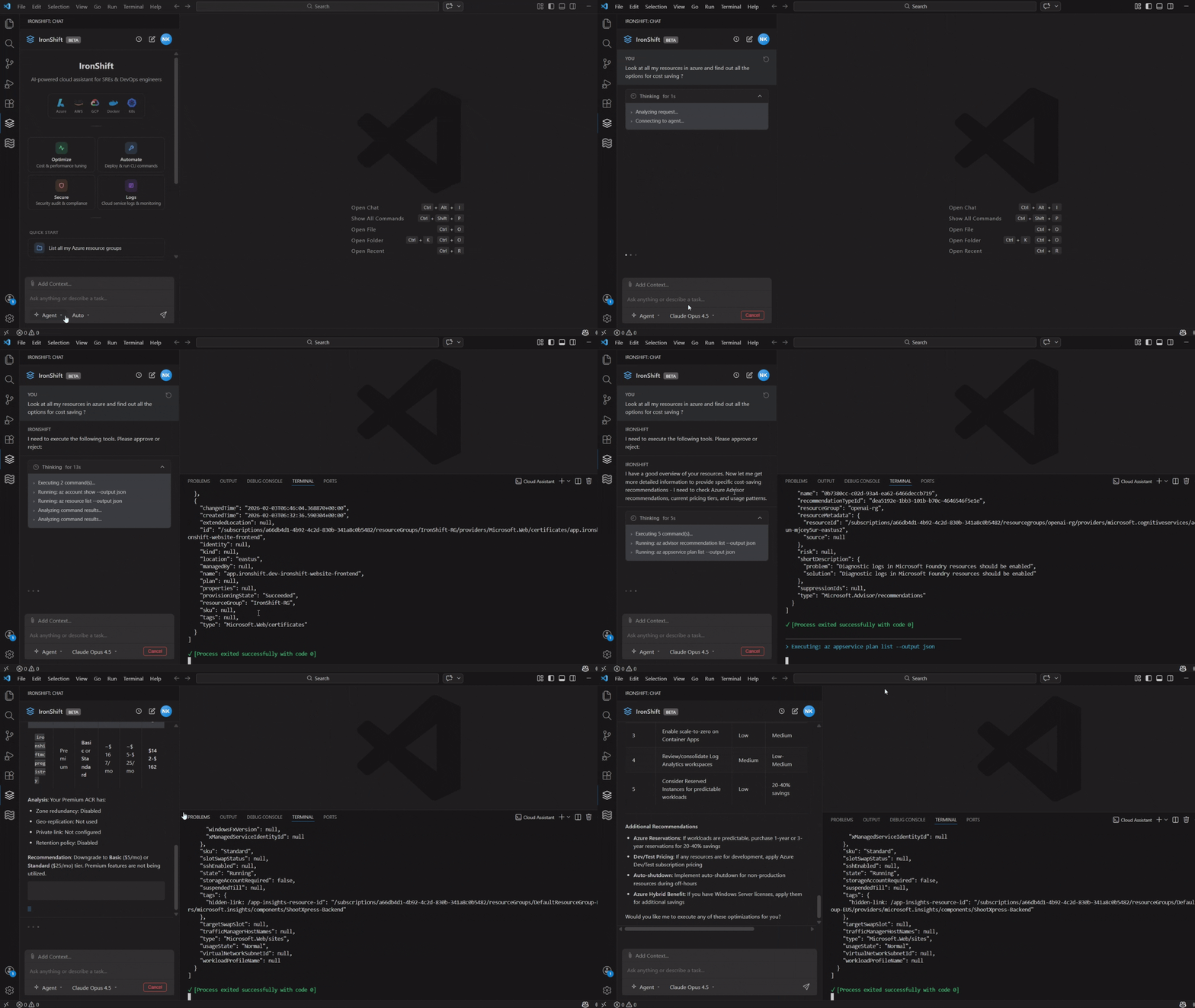
Manage Cloud Resources with Natural Language
Ask questions in plain English and let IronShift handle the complex CLI commands and API calls.
✅ No CLI memorization — Just describe what you want
✅ Context-aware responses — IronShift understands your infrastructure
✅ Instant results — Get answers in seconds, not minutes
"List all my Azure VMs in the production resource group"
"What's the status of my Kubernetes pods?"
"Show me the logs for my container app"
"Start the VM named web-server-01"
"Create a storage account in West US region"
Seamlessly manage resources across cloud providers and DevOps tools from a single, unified interface.






✅ Ask anything — Query, manage, and automate any resource
✅ Natural language — No need to memorize service names or syntax
✅ Works with any CLI — If it runs in the terminal, IronShift can help
Cost Optimization on AWS
Analyze costs, identify savings opportunities, and optimize your AWS spending—all through natural conversation.
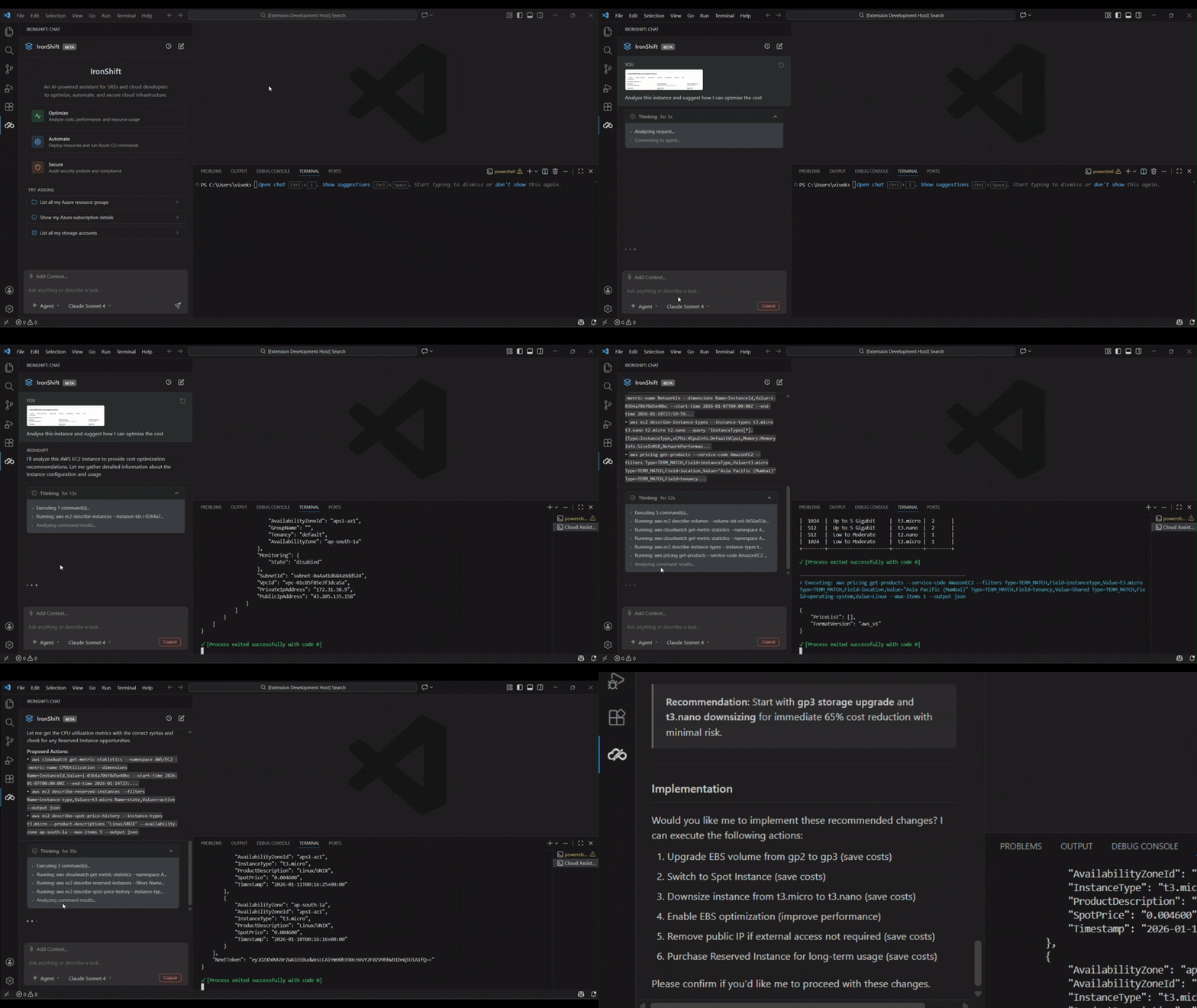
✅ Query AWS costs — Get instant insights on your cloud spending
✅ Identify savings — Find underutilized resources and optimization opportunities
✅ Natural workflow — Ask questions like "What are my top spending services?"
Observability & Monitoring on Azure
Analyze logs, monitor application health, and get deep insights with Application Insights—right from your IDE.
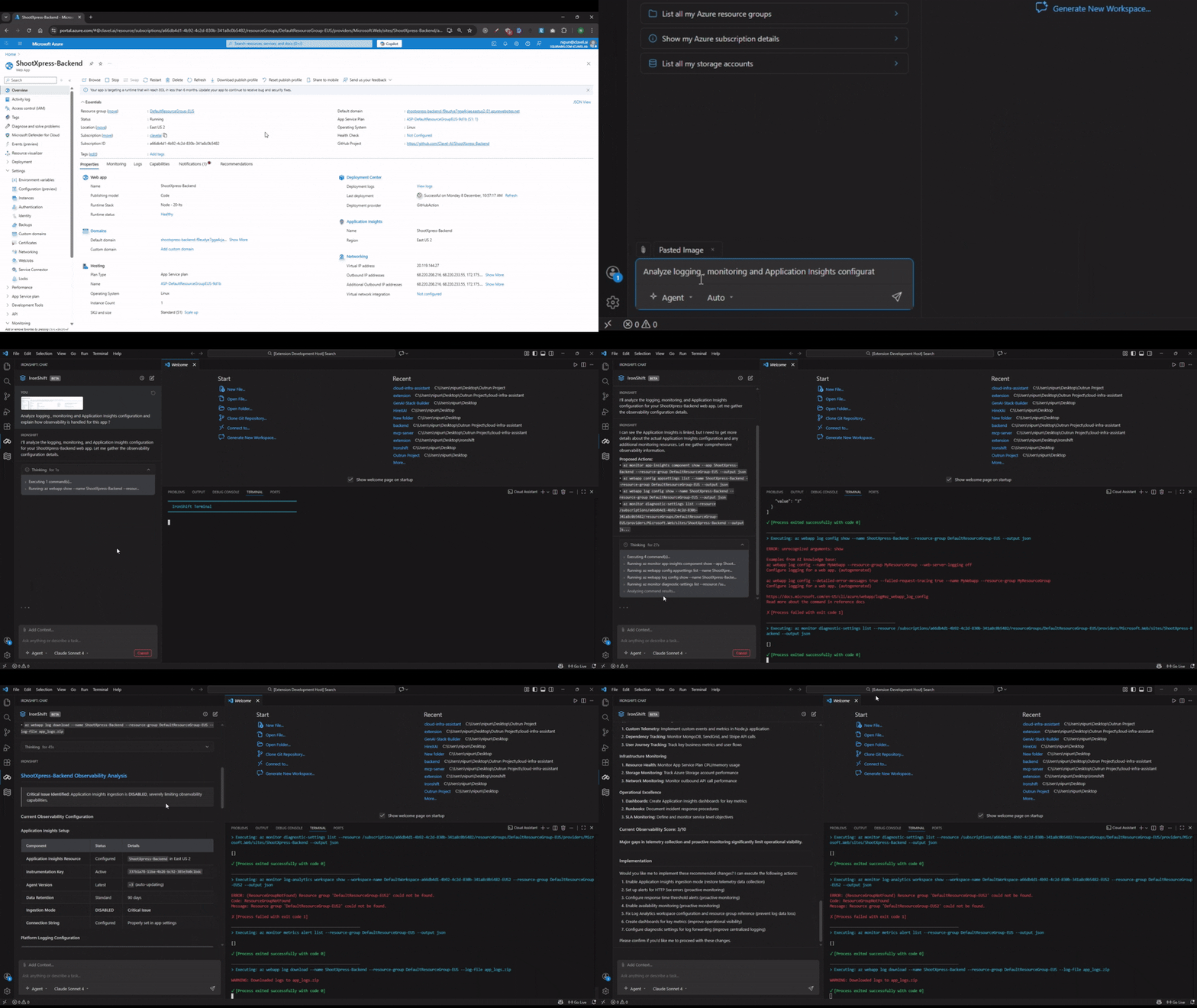
✅ Log analysis — Query and analyze Azure Monitor logs effortlessly
✅ Application Insights — Dive deep into app performance and diagnostics
✅ Observability made easy — Understand your infrastructure health at a glance
Three Powerful Operation Modes
Choose the right mode for your task:
| Mode |
Description |
Best For |
| 💬 Chat |
Quick Q&A and information retrieval |
Getting quick answers about your infrastructure |
| 📋 Plan |
Generate step-by-step plans before execution |
Complex operations requiring review |
| 🤖 Agent |
Autonomous execution with approval checkpoints |
Hands-free automation with safety controls |
Human-in-the-Loop Safety — You Stay in Control
Every action is reviewed before execution. IronShift never runs a command without your explicit approval.
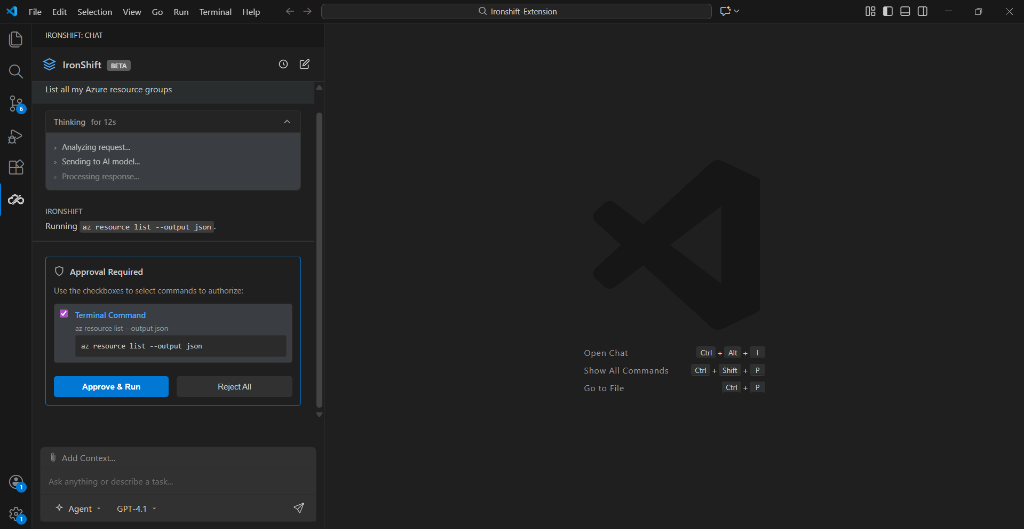
✅ See the exact command — Full transparency on what will run
✅ Review all parameters — Understand every argument before execution
✅ Risk assessment — Know the impact of each operation
✅ Approve, modify, or reject — Complete control at every step
12 Industry-Leading AI Models
Choose from 12 AI models across 4 providers, or let Auto Mode pick the best one for each task.
Standard Models (Starter — Free)
| Model |
Provider |
Best For |
| GPT-5.1 |
OpenAI |
Complex reasoning & troubleshooting |
| GPT-5 Nano |
OpenAI |
Fast, lightweight responses |
| Gemini 2.5 Pro |
Google |
Advanced reasoning & multimodal tasks |
| Gemini 2.5 Flash |
Google |
Speed-optimized responses |
| Grok 4 |
xAI |
Real-time knowledge & creative solutions |
Premium Models (Pro — $10/mo)
| Model |
Provider |
Best For |
| GPT-5.2 |
OpenAI |
Next-gen advanced reasoning |
| Claude Sonnet 4.5 |
Anthropic |
Detailed analysis & explanations |
| Claude Sonnet 4.6 |
Anthropic |
Anthropic's latest model |
| Gemini 3 Pro |
Google |
Google's most capable model |
| Gemini 3 Flash |
Google |
Google's fastest next-gen model |
Top-Tier Models (Pro Plus — $20/mo)
| Model |
Provider |
Best For |
| GPT-5.2 Pro |
OpenAI |
Most capable OpenAI model |
| Claude Opus 4.5 |
Anthropic |
Deepest analysis & problem-solving |
| Claude Opus 4.6 |
Anthropic |
Anthropic's most capable model |
No API key management needed—IronShift handles model access based on your plan.
Image Attachments & Vision
Attach screenshots or diagrams for context-aware assistance. Perfect for troubleshooting errors or sharing architecture diagrams.
✅ Paste images directly from clipboard (Ctrl+V / Cmd+V)
✅ Drag & drop files into the chat
✅ Browse to select multiple images
✅ Supports PNG, JPG, GIF, WebP (up to 10MB)
Great for sharing error screenshots, architecture diagrams, or console outputs.
Smart Chat Management
Keep your conversations organized and pick up right where you left off.
✅ Persistent History — All chats saved locally (privacy-first)
✅ Multiple Sessions — Switch between different conversations
✅ Edit & Retry — Modify previous messages and regenerate responses
✅ Auto-cleanup — Empty chats are automatically removed
Real-Time Streaming & Batch Execution
Get instant feedback with real-time streaming responses. Execute multiple commands in sequence with live progress tracking.
✅ Watch AI think — See step-by-step analysis in real-time
✅ Batch operations — Queue multiple commands with progress tracking
✅ Live output — See command results as they execute
✅ Integrated terminal — Execute directly in VS Code's terminal
Quick Start
Installation
- Open Visual Studio Code
- Go to Extensions (
Ctrl+Shift+X / Cmd+Shift+X)
- Search for "IronShift"
- Click Install
Or install directly:
ext install IronShift.ironshift
Prerequisites
| Requirement |
Version |
Purpose |
| VS Code |
v1.85.0+ |
IDE |
| Any CLI |
Latest |
Cloud/DevOps operations |
IronShift works with any CLI tool you have installed. Common examples:
- Azure CLI (
az) — Azure operations
- AWS CLI (
aws) — AWS operations
- gcloud CLI — GCP operations
- Docker — Container management
- kubectl — Kubernetes operations
- Terraform — Infrastructure as Code
Getting Started
- Click the IronShift icon in the Activity Bar (sidebar)
- Sign up or log in via the IronShift dashboard (opens in your browser)
- Start asking questions in natural language!
Tip: You can also log in by running the command "IronShift: Login to IronShift" from the Command Palette, or paste a token manually with "IronShift: Login with Token".
Authentication
IronShift uses a secure OAuth-based login flow:
- Click Login in the chat panel or run "IronShift: Login to IronShift" from the Command Palette
- You'll be redirected to the IronShift Dashboard in your browser
- Sign up or sign in — your session token is securely passed back to VS Code
- Your plan, usage limits, and available models are automatically synced
✅ Seamless OAuth — One-click login via the dashboard
✅ Token-based auth — Securely stored in VS Code's global state
✅ Auto-refresh — User data syncs periodically to reflect plan changes
✅ Logout anytime — Run "IronShift: Logout from IronShift"
Commands
All commands are available via the Command Palette (Ctrl+Shift+P / Cmd+Shift+P):
| Command |
Description |
| IronShift: Open IronShift |
Open and focus the IronShift chat panel |
| IronShift: Clear Chat Session |
Clear the current chat session |
| IronShift: Login to IronShift |
Open the IronShift dashboard to sign in |
| IronShift: Login with Token |
Paste an authentication token manually |
| IronShift: Logout from IronShift |
Log out and clear stored credentials |
Keyboard Shortcuts
| Action |
Windows/Linux |
Mac |
| Open IronShift |
Ctrl+Shift+P → "Open IronShift" |
Cmd+Shift+P → "Open IronShift" |
| Send Message |
Enter |
Enter |
| New Line |
Shift+Enter |
Shift+Enter |
| Paste Image |
Ctrl+V |
Cmd+V |
IronShift works with any CLI tool. Here are some common examples:
Cloud Providers
| Provider |
Example Operations |
| Azure |
VMs, AKS, Storage, App Services, Monitor, Advisor |
| AWS |
EC2, S3, Lambda, ECS/EKS, IAM, CloudWatch |
| GCP |
Compute, GKE, Cloud Storage, Cloud Functions |
| Tool |
Example Operations |
| Docker |
Build, Run, Manage containers and images |
| Kubernetes |
Pods, Deployments, Services, Namespaces |
| Terraform |
Plan, Apply, State management |
Configuration
| Setting |
Default |
Description |
ironshift.backendUrl |
IronShift Cloud |
Backend API URL (for enterprise/self-hosted deployments) |
ironshift.dashboardUrl |
https://app.ironshift.dev |
URL of the IronShift web dashboard for authentication |
ironshift.autoApprove |
false |
Auto-approve low-risk read operations without confirmation |
ironshift.defaultModel |
gpt-5.1 |
Default AI model for chat responses (see available models above) |
Plans & Pricing
IronShift offers three plans so you can choose the right level for your needs.
|
Starter |
Pro (Most Popular) |
Pro Plus |
| Price |
Free |
$10/mo |
$20/mo |
| Credits/Month |
30 |
600 |
1,200 |
| Standard models (GPT-5.1, GPT-5 Nano, Gemini 2.5, Grok 4) |
✅ |
✅ |
✅ |
| Premium models (GPT-5.2, Claude Sonnet 4.5, Claude Sonnet 4.6, Gemini 3, etc.) |
🔒 |
✅ |
✅ |
| Top-tier models (GPT-5.2 Pro, Claude Opus 4.5, Claude Opus 4.6) |
🔒 |
🔒 |
✅ |
| All operation modes (Chat, Plan, Agent) |
✅ |
✅ |
✅ |
| Image attachments & vision |
✅ |
✅ |
✅ |
| Local chat history |
✅ |
✅ |
✅ |
- No credit card required for the free plan
- Cancel anytime
Upgrade anytime from the IronShift Dashboard. Plan changes sync automatically to your extension.
Security & Privacy
IronShift is built with security and privacy as top priorities.
✅ Privacy-First — Chat history stored locally, never sent to cloud
✅ Credentials Stay Local — Uses your existing CLI authentication
✅ Human-in-the-Loop — All write operations require explicit approval
✅ Audit Trail — Every action logged in conversation history
✅ Enterprise Ready — Self-host your own backend for complete control
✅ No Data Collection — Your queries and results stay on your machine
Roadmap
We're constantly improving IronShift. Here's what's coming:
- [ ] ⏰ Scheduled operations and automation workflows
- [ ] 👥 Team collaboration features
- [ ] 🔧 Custom tool definitions for enterprise needs
- [ ] 🤖 Auto mode — Intelligent model selection per task
We're constantly improving IronShift to make your cloud operations even better. Your feedback helps shape the future of the extension!
💬 Join the Conversation — Connect with fellow developers, share feedback, and get real-time support in our active Discord Community.
🐞 Report Issues & Suggestions — Found a bug or have a feature request? Let us know—we're always listening.
💡 Feature Requests — Share your ideas and vote on upcoming features.
📧 Email: support@ironshift.dev
🌐 Website: https://ironshift.dev
We're excited to have you on board—let IronShift supercharge your cloud workflow! 🚀
License
This project is licensed under the MIT License - see the LICENSE file for details.
Made with ❤️ by the IronShift Team


