
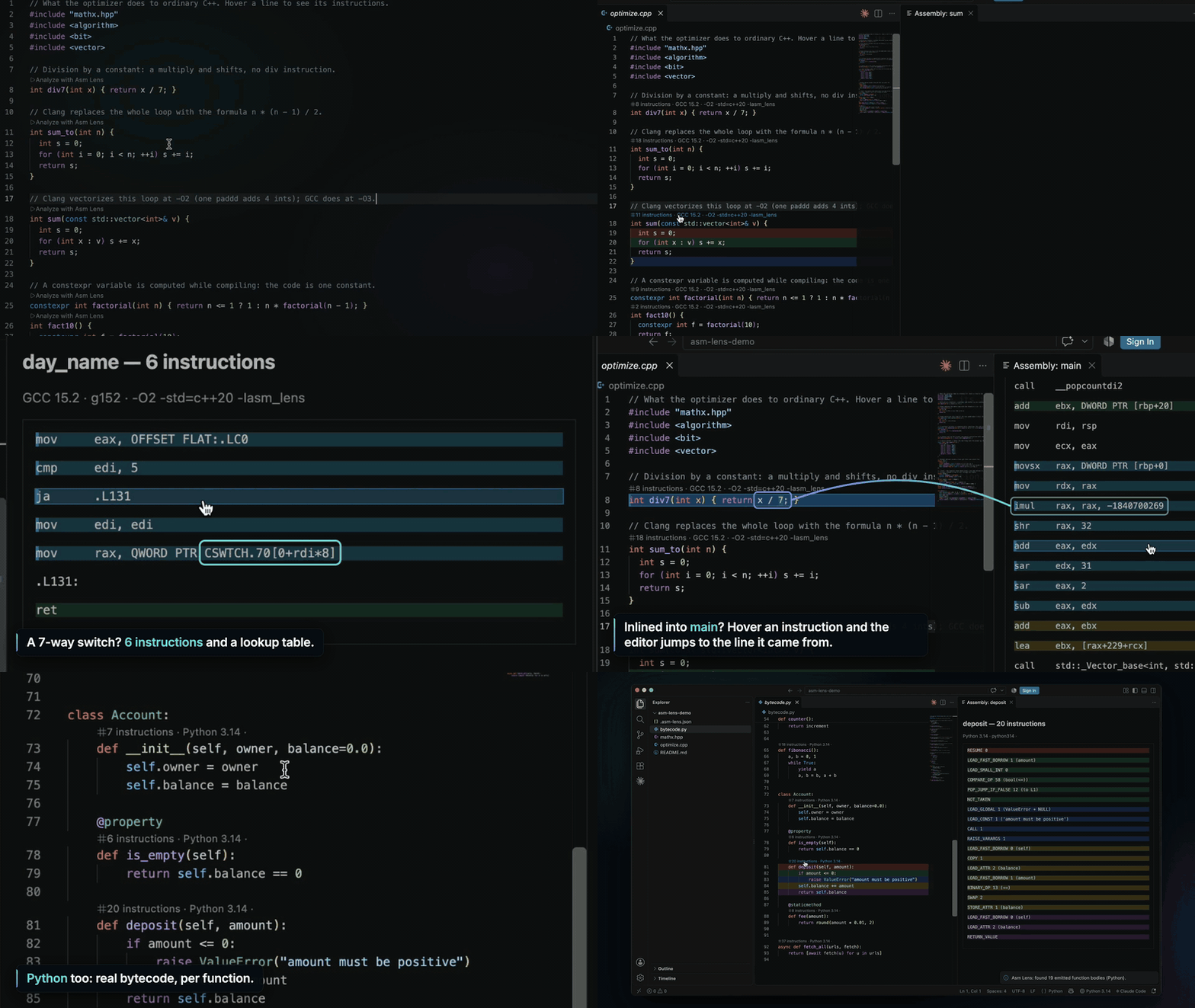
Asm LensSee the assembly of every function right in the editor: instruction counts as CodeLens, two-way source/assembly highlighting, headers and templates. Uses Compiler Explorer or your local compiler. C, C++, Rust, Go, Python, Zig, Swift, D and Fortran. Installation Launch VS Code Quick Open ( Ctrl+P), paste the following command, and press enter.Copied to clipboard |

Asm LensSee what your code compiles to without leaving the editor. Asm Lens puts the instruction count of every function above it, opens the function's assembly next to your code, and links the two: hover a source line to see its instructions, hover an instruction to see its source line. It compiles with Compiler Explorer (no setup) or with the compiler installed on your machine (nothing leaves it). C and C++ get the full treatment, including local headers, header-only code and templates. Rust, Go, Python, Zig, Swift, D and Fortran are supported too.
Features
Quick start
While it compiles, a notification shows what is happening and lets you cancel. After that the counts follow your edits by themselves (see Editing). EditingYou do not need to analyze again after a change:
Set By default the file is compiled on godbolt.org with GCC 15.2 and Remote and local mode
Choose the mode in Local mode for C/C++ runs Assembly syntax. Asm Lens shows Intel syntax and picks the flag for it itself, because the right
flag depends on the compiler: on Compiler Explorer the server adds it per compiler; locally Asm Lens
asks the compiler what it is ( Flags for MSVC. Write your flags once, the GCC/Clang way. For MSVC and clang-cl, Asm Lens translates
the common ones (the output lists each translation) and leaves the rest as written, so flags you write
for MSVC (
C++ also gets Functions nothing calls. A compiler leaves out a function defined inside a class, or a compile_commands.json (local mode)With
Headers and templatesAnalyzing a header on its own. A header usually compiles to nothing: an Templates. Above every template function, and every member function of a class template, there is an Instantiate… CodeLens. Click it and type the template arguments:
The requests are added after the file's last line, so line numbers do not change. They
are remembered per file (shown in a CodeLens at the top of the file; click it to remove
some) and compiled every time you analyze that file. A request that does not compile
(a misspelled type, for example) is removed and the compiler's message is shown.
Template constructors cannot be instantiated this way; use them from a Analyzing a For each function, the newest analysis that has code for it decides. So analyzing a Languages
For languages other than C and C++, the default remote compiler is Compiler Explorer's default for
that language. Choose another with Select Compiler, or list one in VS Code has built-in support for C, C++, Objective-C, Rust, Go, Python and Swift files. For Zig, D and Fortran, install an extension that adds the language (for example Zig Language, code-d or Modern Fortran). Project configuration:
|
| Key | Type | Default | Meaning |
|---|---|---|---|
mode |
"remote" | "local" |
asmLens.mode ("remote") |
Where to compile (see Remote and local mode). |
compiler |
string | asmLens.localCompiler, else g++ |
Local mode, C/C++: the compiler command or path. A path starting with ./ or ../ is relative to the config file. |
compileCommands |
string | string[] | asmLens.compileCommands |
Local mode: compile_commands.json file(s), relative to this file. See compile_commands.json. |
compilers |
array | asmLens.compilerId |
Compilers in order of preference. The first one for a language is the default; switch with the status bar. An entry is a Compiler Explorer id ("g152") or an object (below). |
flags |
string | asmLens.flags (-O2 -masm=intel) |
C/C++ flags for compilers without their own flags. A -masm=... flag only chooses the syntax (see above). |
language |
"c" | "c++" |
by file type | Force the language of C-family files (for example compile .c files as C++). |
includePaths |
array | [] |
Folders searched for #includes, in priority order. A string, or { "path": "...", "recursive": true } to also search every subfolder. Relative to the config file. |
buildFolders |
string[] | build, out, bin, cmake-build-*, generated, … |
Folder names searched last, for generated headers. Wildcards allowed. |
excludePaths |
string[] | [] |
Glob patterns of folders whose headers are never uploaded, added to the built-in list (**/libcxx/**, **/*llvm-project*/**, **/sysroot/**, **/node_modules/**, …). A bare name such as "vendor" means any folder with that name. |
defines |
string[] | [] |
Preprocessor defines, passed as -D<name> ("NDEBUG", "LEVEL=2"; a leading -D is accepted). |
extraFlags |
string | string[] | "" |
C/C++ flags added after all others. |
uploadSystemHeaders |
boolean | false |
Remote: also upload workspace copies of standard headers (vector, stdio.h, …). Normally the server's own are used. |
baseUrl |
string | asmLens.baseUrl (https://godbolt.org) |
Compiler Explorer server, for example a self-hosted one that keeps code in-house. |
maxIncludeFiles |
number | asmLens.maxIncludeFiles (80) |
Remote: most local headers uploaded per analysis. |
Each object in compilers may have:
| Key | Type | Meaning |
|---|---|---|
id |
string (required) | Compiler Explorer compiler id, such as g152, clang1910, r1990. Use Select Compiler → Browse to look them up (they differ per server). In local mode it is only a name. |
name |
string | Label for the status bar and CodeLens. |
flags |
string | Flags for this compiler; replaces the top-level flags. |
language |
c, c++, rust, go, python, zig, swift, d, fortran |
Use this compiler only for that language. Without it the compiler is for C and C++. |
mode |
"remote" | "local" |
Overrides the top-level mode for this compiler. |
compiler |
string | Local mode: the command or path (clang++-18, rustc, python3.12). |
defines |
string[] | Extra -D defines for this compiler (C/C++). |
extraFlags |
string | string[] | Flags added after the others. |
VS Code settings
| Setting | Default | Meaning |
|---|---|---|
asmLens.mode |
remote |
Where to compile when .asm-lens.json does not say. |
asmLens.localCompiler |
"" (= g++) |
Local C/C++ compiler when .asm-lens.json does not name one. |
asmLens.compileCommands |
"" |
Local mode: compile_commands.json file(s), relative to the workspace folder, when .asm-lens.json has no compileCommands. |
asmLens.reanalyzeOn |
edit |
When an analyzed file (or a header it uses) changes: edit analyzes again in the background once typing pauses (and on save), save only on save, never only when you ask. |
asmLens.reanalyzeDelayMs |
1000 |
With edit: how long typing must pause first. |
asmLens.baseUrl |
https://godbolt.org |
Compiler Explorer server. |
asmLens.compilerId |
g152 |
Compiler Explorer compiler for C/C++ without a project file. Select Compiler sets it. |
asmLens.compilerName |
"" |
Its label in the status bar and CodeLens (empty: the id). Select Compiler fills it in. |
asmLens.flags |
-O2 -masm=intel |
C/C++ flags. |
asmLens.language |
c++ |
Language sent for C-family files without a project file. |
asmLens.includePaths |
[] |
Extra include folders, searched after the project file's. |
asmLens.maxIncludeFiles |
80 |
Most local headers uploaded per analysis. |
asmLens.emitUnusedFunctions |
true |
C/C++: also show functions defined in a class, static, inline and constexpr ones that nothing in the file calls (see above). Headers analyzed on their own always do this. |
asmLens.skipFailingFunctions |
true |
Skip functions that do not compile instead of failing. |
asmLens.maxRecoveryAttempts |
12 |
Most compiles per analysis while recovering. |
asmLens.stubFailingHeaders |
false |
Remote: replace an uploaded header that fails in the preprocessor (#error) by an empty file. |
asmLens.requestTimeoutMs |
60000 |
How long to wait for one compile, in ms. A Compiler Explorer server that does not answer in time is asked once more. |
asmLens.showCounts |
true |
Show the CodeLens. |
asmLens.highlightOnHover |
true |
Two-way highlighting. |
asmLens.colorizeLines |
true |
Color source lines and their instructions alike. |
asmLens.dimOtherLines |
false |
While an instruction is hovered, also fade the other lines of its function (editor) and the other instructions (assembly view). Off: only the matching lines are highlighted. |
asmLens.followCursor |
true |
The assembly view follows the function under the cursor. |
Commands
| Command | What it does |
|---|---|
| Asm Lens: Analyze Current File | Compile the file and show counts (also in the editor's context menu). |
| Asm Lens: Select Compiler | Choose a compiler from .asm-lens.json, or browse Compiler Explorer's list for the file's language. |
| Asm Lens: Instantiate Template at Cursor… | Same as the Instantiate… CodeLens. |
| Asm Lens: Remove Template Instantiations… | Remove instantiation requests of the current file. |
| Asm Lens: Open or Create Project Config (.asm-lens.json) | Open the project file, creating it from a template. |
| Asm Lens: Reload Compile Commands | Read the compile_commands.json database(s) again and analyze the file again. |
| Asm Lens: Show Output | The log: what was compiled, uploaded, skipped and why. |
When code does not compile
Projects rarely compile from a single file without their build system. Asm Lens recovers instead of giving up:
- A flag the compiler does not accept: left out (the output says which).
- Missing header: retried with that header replaced by an empty file.
- A function that then fails (it used something from that header): the function is blanked out (line numbers stay the same) and the rest is compiled again. Its CodeLens says Not compiled.
- Each retry is one more compile, up to
asmLens.maxRecoveryAttempts.
Only the copy that is compiled changes, never your files. Everything that was skipped is listed in the
Asm Lens output. If a header is not on any include path, the workspace is searched for it
(case-insensitively): first your normal folders, then build output folders, where generated headers
live. If that is not enough, add the folders to includePaths, the needed defines, or switch to local
mode, where your own compiler and system headers are used.
Troubleshooting
- "Instantiations not compiled yet": instantiations are saved per file but compiled only when that file itself is analyzed. Click the CodeLens.
- "No code emitted": the function is a template that was never instantiated (click Instantiate…,
or analyze a file that calls it), or
asmLens.emitUnusedFunctionsis off and nothing uses it. - Local mode on macOS: errors in C++11 code (
'auto' type specifier is a C++11 extension): Apple clang 14 and older compile C++98 by default. Asm Lens then adds-std=gnu++17(the default of current compilers and of Compiler Explorer) and says so in the output; put a-std=...in your flags to choose. - Rust shows nothing: only
pubfunctions (and what they use) are compiled into a library. - Zig shows nothing: mark functions
export. - Local mode: "g++ was not found": install a compiler or set
"compiler"(orasmLens.localCompiler) to its full path. On Windows, MinGW-w64 (MSYS2) and LLVM both work; MSVC'scl.exedoes not. - Hover highlighting does nothing: the compiler gave no line information for that function. All
defaults include it; flags such as
-g0remove it. - A compiler id does not work: ids differ between Compiler Explorer servers and change over time; use Select Compiler → Browse.
- "godbolt.org did not answer within 60 s, twice": the public Compiler Explorer is shared, and at busy
times a compile can wait in its queue (the progress shows the seconds meanwhile). Asm Lens asks once
more by itself; if it still gets no answer, analyze again in a moment, raise
asmLens.requestTimeoutMs, or use local mode. - "godbolt.org is limiting how often it compiles (HTTP 429)": the public server allows a limited number
of compiles per minute. Automatic re-analysis pauses for 30 seconds; set
asmLens.reanalyzeOntosaveif you hit this often, or use local mode or your own Compiler Explorer (baseUrl). - Some compilers need their own flags: for example GCC for 6502 wants
--target=..., and z88dk a+targetfirst argument. Give such a compiler itsflagsin.asm-lens.json. - See Asm Lens: Show Output for the exact command, flags and compiler messages.
Privacy
In remote mode the analyzed file and the local headers it includes are sent to the Compiler Explorer
server in baseUrl (godbolt.org by default; see its privacy policy).
Use local mode, or a self-hosted Compiler Explorer, for code that must stay private. In local mode
nothing is sent anywhere.
Development
npm test                 # unit tests, recorded Compiler Explorer responses, and every local compiler found
npm run test:remote      # the same against the live godbolt.org
node test/run.js --record   # refresh the recorded responses (test/fixtures/ce)
node test/tools/survey-ce.js c++   # one compiler of every Compiler Explorer family (c or c++; network)
node test/tools/stress-headers.js  # the C/C++ scanner on large real-world headers (network, clang)
npm run package          # build asm-lens-<version>.vsix (needs network for npx)
There are no runtime dependencies and no build step: the extension is plain JavaScript in src/:
| File | Contents |
|---|---|
src/extension.js |
VS Code integration: commands, CodeLens, hover, the assembly view, remote and local compiles |
src/cppScan.js |
C/C++ source scanning: functions, classes, templates; keeping header functions; instantiation requests |
src/asm.js |
Assembly parsing (ELF, COFF, Mach-O), symbol names, source mapping, compiler diagnostics |
src/languages.js |
Rust, Go, Python, Zig, Swift, D, Fortran |
src/projectConfig.js |
.asm-lens.json parsing and validation |
Every push builds the .vsix on GitHub Actions (tests on Windows, Linux and macOS first); it is attached to
the workflow run.
To release, set the new version in package.json and push a matching tag such as v0.8.3. That creates a
GitHub release with the .vsix and publishes it to the Visual Studio Marketplace with
Trusted Publishing, so no
token is stored. It needs a policy for this repository and build-vsix.yml on the publisher's Trusted
Publishing page. Open VSX is published too when the OVSX_PAT secret is set.