Google Apps Script Sync




Edit Google Apps Script projects from Visual Studio Code without copying code between the browser and your editor. Use autocomplete, search, multi-cursor editing, source control, and your preferred themes, then review every change before deliberately synchronizing it with Google.
Push and Pull are always manual: opening a folder, connecting a project, or saving a file never uploads or downloads code.
The VSIX targets Visual Studio Code and can also be installed in compatible editors that support VS Code extensions, including Kiro and Antigravity. A separate npm package provides the gas and gas-sync terminal commands.
Features
Authentication
- Sign in with Google through OAuth 2.0 with PKCE, state validation, and a temporary loopback callback.
- Access tokens are refreshed when possible; reconnect only when the session can no longer be renewed.
- Extension credentials are stored in VS Code Secret Storage and survive editor restarts.
- CLI authentication is stored separately and never reuses the editor session.
Project connection
- Connect a local folder to an Apps Script project using its Script ID.
- Use the current workspace or select another local folder, including external and multi-root workspace folders.
- Connecting records the project but never performs an automatic Pull.
- Disconnect at any time without deleting synchronized source files.
Sync and change preview
- Push reviews and uploads local changes; Pull reviews and applies remote changes.
- A preview is mandatory before every operation, including Command Palette and force actions.
- Preview entries are selected by default and grouped as Added, Modified, or Deleted.
- Select individual files or complete groups and open the native side-by-side VS Code diff for each file.
- Warnings highlight large previews (20+ changes) and multiple deletions (5+).
- Main Push/Pull actions appear only when recommended; conflicts display both. Deliberate Force Push and Force Pull remain under More actions and never bypass preview, selection, confirmation, or stale checks.
Smart change detection
- A verified snapshot in
qc_sync_state.json records SHA-256 fingerprints after successful synchronization.
- Local and remote states are compared with their last common snapshot to distinguish Push, Pull, and conflicts.
- Deselected changes remain pending instead of being incorrectly marked as synchronized.
- Protected plans, project locks, fingerprints, expiration, and post-write verification reject stale operations.
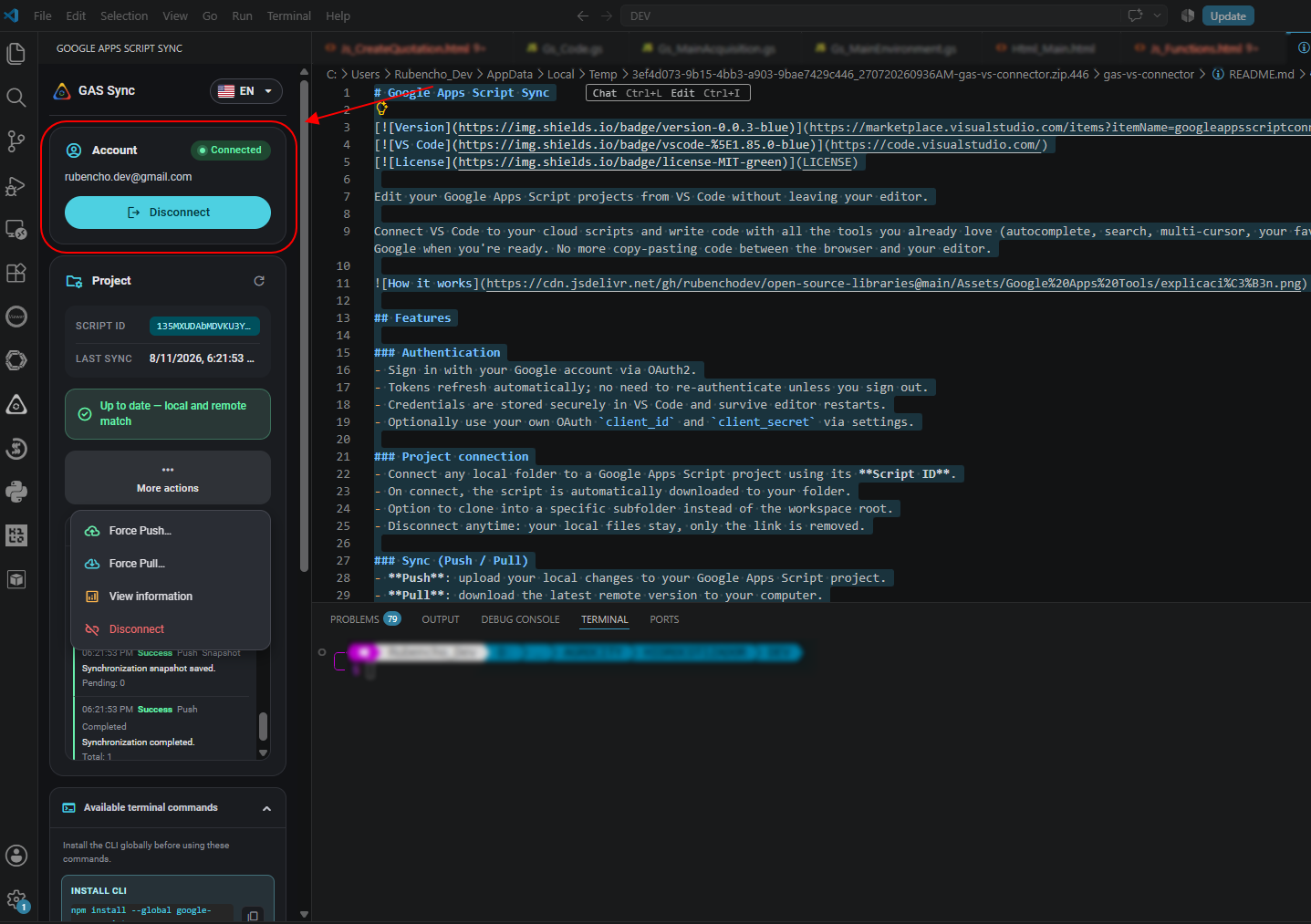
Side panel
| Section |
Content |
| Account |
Sign-in status, account email, and sign-in/sign-out action. |
| Connect |
Script ID and destination folder controls, shown only when authentication is ready and no project is connected. |
| Project |
Script ID, last synchronization, change refresh, recommended Push/Pull actions, and the More actions menu. |
| Sync activity |
Collapsible structured history with phases, severity, safe counts, HTTP status, retries, stale/partial state, and a clear action. |
| Available terminal commands |
CLI installation command and command reference, each with a validated copy button. |
Toast notifications report operation results. The language picker switches the panel between English and Spanish and persists the selection.
Safety first
Push and Pull are never automatic. A save only refreshes the change indicator. Connecting a project also does not download it automatically: use Pull, review the preview, and then apply the files you want. If local and remote content changed since the last successful synchronization, both actions are shown and the panel reports a conflict.
The extension accepts only Apps Script source files:
*.gs*.html- the root manifest
appsscript.json
Other JSON files, JavaScript build files, dependencies, editor settings, and technical folders are ignored. Remote names are validated before anything is written or deleted outside the project folder.
Getting started
- Open the local folder that will contain your Apps Script project.
- Open Google Apps Script Sync from the Activity Bar.
- Select Connect and sign in with Google.
- Paste the Script ID from Project Settings in the Apps Script editor.
- Select Pull, review all remote changes, and choose Apply.
Where is the Script ID? Open the project at script.google.com, select Project Settings, and copy the value under IDs → Script ID.
Your Google access and refresh tokens are kept in VS Code Secret Storage. Sign-in uses PKCE and a temporary loopback callback. Synchronization and local setup are disabled in untrusted and virtual workspaces.
Terminal CLI
The npm package provides the equivalent gas and gas-sync commands for Node.js 20 or newer. Both names run the same CLI.
Prefer a visual workflow with previews, per-file selection, diffs, sync activity, and bundled autocomplete? Install Google Apps Script Sync from the Visual Studio Marketplace. The Marketplace extension and terminal CLI are installed separately.
Install from npm
# Inspect the published version and executable aliases.
npm view google-apps-script-sync version
npm view google-apps-script-sync bin

# Install the CLI globally.
npm install --global google-apps-script-sync

# Verify both equivalent command names.
gas --help
gas-sync --help
If gas is not found after installation, open a new terminal and confirm that npm's global executable directory is included in PATH.
Quick start
# Authenticate the independent CLI session in the system browser.
gas login

# Run these commands from your local Apps Script project folder.
Set-Location C:\work\my-gas-project

# Connect this folder. Connecting never performs a Pull.
gas connect YOUR_SCRIPT_ID

# Inspect local changes, remote changes, and conflicts.
gas status

# Preview a Pull without changing local files.
gas pull --dry-run

# Review the preview, confirm, and apply the selected Pull changes.
gas pull
Enable the Apps Script API at script.google.com/home/usersettings and use a Google account that can edit the connected project.
Commands
| Command |
Description |
gas login |
Sign in with Google using PKCE, state validation, a temporary loopback callback, and the system browser. |
gas logout |
Attempt token revocation and remove the local CLI session. |
gas connect <scriptId> |
Write qc_config.json in the project folder without downloading files. |
gas status |
Report local changes, remote changes, and conflicts. |
gas push |
Preview, select, confirm, and upload local changes. |
gas pull |
Preview, select, confirm, and download remote changes. |
gas help [command] |
Show general help or help for a specific command. |
Push and Pull options
| Option |
Description |
--project <path> |
Use an explicit project root instead of the current directory. |
--files <name,...> |
Apply only exact names from the preview; repeatable and comma-separated. |
--dry-run |
Print the preview and stop without modifying either side. |
--force |
Permit a reviewed overwrite detected against a reliable snapshot. It never skips preview or confirmation. |
--yes |
Skip the interactive confirmation; required for non-interactive input. |
Every preview entry is selected by default. Examples:
# Upload only two reviewed preview entries.
gas push --files Code.gs,appsscript.json

# Preview a project without changing the current directory.
gas pull --project C:\work\my-gas-project --dry-run

# Deliberately overwrite reviewed remote changes; confirmation is still required.
gas push --force

# Apply a reviewed Pull in non-interactive automation.
gas pull --project C:\work\my-gas-project --yes
Safety and sessions
Push and Pull are never automatic. Both directions hold a project lock, recheck local and remote fingerprints before applying, preserve deselected pending changes in qc_sync_state.json, and synchronize only .gs, .html, and the root appsscript.json. Push preserves unselected remote files; Pull only writes or deletes selected validated paths.
Structured activity is written to stderr, while previews and final results remain on stdout. Logs include safe phases, counts, HTTP status, and retry context, but never Script IDs, absolute paths, file names, source code, payloads, tokens, URLs, fingerprints, or plan IDs. A rejected access token is refreshed once after HTTP 401; if authentication is still rejected, run gas login again.
The CLI session is separate from VS Code Secret Storage. It is stored at %APPDATA%\google-apps-script-sync\session.json on Windows or $XDG_CONFIG_HOME/google-apps-script-sync/session.json (falling back to ~/.config) elsewhere. The file is atomic and uses restrictive permissions where supported, but it is not encrypted. Protect your operating-system account and run gas logout when the session is no longer needed.
Install from source
Contributors can install the current checkout without publishing:
npm ci
npm test
npm install --global .
gas --help
To avoid a global development installation, run npm run compile and execute node .\out\cli.js ....
How to test the extension
Use a temporary Apps Script project and a disposable local folder. Push and Pull can replace or delete selected files on the destination side, so do not use an important project for the first test.
Install the packaged extension
- In VS Code, open the Command Palette (
Ctrl+Shift+P on Windows/Linux or Cmd+Shift+P on macOS).
- Run Extensions: Install from VSIX....
- Select
google-apps-script-sync-0.0.4.vsix and reload VS Code when prompted.
- Create or open an empty local folder and mark the workspace as trusted.
- Enable the Apps Script API at script.google.com/home/usersettings.
Manual test checklist
- Create a temporary project at script.google.com and copy its Script ID from Project Settings.
- Open Google Apps Script Sync from the Activity Bar, sign in, and connect the temporary project. Confirm that connecting does not download files automatically.
- Select Pull. Confirm that a preview appears, all files are initially selected, files can be selected individually or by group, and the diff button opens a comparison. Apply the Pull and verify the files appear locally.
- Edit and save a local
.gs or .html file. Confirm that saving does not upload it automatically and that Push appears after refreshing the change status.
- Select Push, review the preview, optionally deselect a file, and apply it. Verify the selected changes in the Apps Script editor.
- Modify a file in the Apps Script editor, then refresh the extension status. Confirm that Pull appears and its preview shows the remote change.
- To test conflict detection, first complete a synchronization, then modify the same file locally and remotely before synchronizing again. Refresh the status and confirm that the conflict banner and both actions are shown.
- Open a
.gs file and confirm IntelliSense for services such as SpreadsheetApp is already available without running a setup command.
To test from source instead, run npm ci, then npm test, and press F5 in VS Code to open an Extension Development Host. See INSTALL.md for maintainer and packaging instructions.
Push local changes
Use Push when the panel reports local changes. The preview lists files that will be added, modified, or removed remotely. Everything is selected initially; clear any item you do not want to apply. If the project changes after the preview, the operation is rejected and you must review a fresh preview.
Pull remote changes
Use Pull when the panel reports remote changes. A full Pull also removes valid local Apps Script files that were deleted remotely. Deselected files remain untouched and do not become part of the synchronization baseline.
Conflicts
A conflict means both local and remote versions changed after the last common snapshot, or there is no reliable baseline yet. Review both previews and use the per-file diff button before choosing which direction to apply. The extension does not silently choose a winner.
Automatic autocomplete
Autocomplete for SpreadsheetApp, DriveApp, Logger, and other Apps Script services is enabled by default in trusted GAS workspaces. When a connected project or a workspace containing .gs files is opened, the extension copies its bundled type definitions into a hidden .gas-sync folder and conservatively creates or updates jsconfig.json. It never runs npm and does not create node_modules or modify package.json.
The operation is idempotent and refreshes the local typings only when their packaged version changes or the managed configuration is missing. It can be disabled globally with Google Apps Script Sync › Autocomplete: Enabled in Settings. To exclude only the current project and revert its recorded setup, run Google Apps Script Sync: Undo Apps Script autocomplete setup. Run Set up Apps Script autocomplete to repair or re-enable that project later.
Command Palette
- Sign in with Google / Sign out
- Connect project (by ID)
- Push project (review changes)
- Pull project (review changes)
- Show sync status
- Set up Apps Script autocomplete (repair or re-enable)
- Undo Apps Script autocomplete setup (exclude this project)
Settings
Extension settings are available under google-apps-script-sync.*:
| Property |
Type |
Default |
Description |
language |
"en" or "es" |
"en" |
Language used by the side panel. |
retryAttempts |
number from 1 to 10 |
3 |
Attempts used by the extension for synchronization failures. |
autocomplete.enabled |
boolean |
true |
Automatically configure bundled Apps Script typings in trusted GAS workspaces. |
OAuth credentials are managed by the extension and are not entered through workspace settings.
Change detection on save
Saving .gs, .html, or the root appsscript.json triggers only a debounced status refresh. It can update which Push/Pull actions are shown, but it never performs synchronization. Opening a workspace or connecting a project also never performs an automatic Pull.
FAQ
Does it synchronize automatically when I save or connect?
No. Every Push and Pull is intentional and requires a preview. Save only refreshes pending-change status, and connection only records the project link.
Can it overwrite my work without warning?
No. The preview shows additions, modifications, and deletions before anything changes. You can deselect individual files or groups. If local or remote content changes after preview generation, the protected plan is rejected as stale.
Which files are synchronized?
Only .gs, .html, and the root appsscript.json. Other JSON files, dependencies, build output, editor settings, and technical metadata are ignored.
Which local support files can the extension create?
qc_config.json stores the local project connection.qc_sync_state.json stores the verified synchronization baseline and pending selections..gas-sync/typings/google-apps-script contains bundled autocomplete declarations.jsconfig.json can be created or conservatively updated for autocomplete.
The extension never runs npm or creates project node_modules, package.json, or package-lock.json for autocomplete.
Are the terminal commands installed with the Marketplace extension?
No. The VSIX and npm CLI are separate installations. Install the terminal commands with npm install --global google-apps-script-sync.
Does --force or a Force action skip safety checks?
No. Force permits a deliberate reviewed overwrite, but still requires preview, selection, confirmation, path validation, project locking, fingerprints, and stale-state checks.
What happens with large projects or many files?
Apps Script updates receive the resulting project content in one request. A high file count alone is not necessarily a problem, but total payload size, network timeouts, temporary service failures, and API quotas can still cause an error. Review the HTTP status and phase in Sync activity or CLI activity logs; retrying cannot overcome a persistent payload-size error.
I see 403 Forbidden. What should I do?
Enable the Google Apps Script API at script.google.com/home/usersettings and confirm that the signed-in account can edit the project.
I see 401 Unauthorized in the CLI. What should I do?
The CLI invalidates the rejected access token, refreshes it, and retries once. If Google still rejects the session, run gas login again. VS Code and CLI sessions are intentionally separate.
Can I disconnect without deleting local files?
Yes. Disconnect requires confirmation and removes only the project connection; synchronized source files remain in place.
Troubleshooting
- Confirm that the workspace is trusted and backed by a local file-system folder.
- Enable the Apps Script API and verify project permissions.
- Confirm that the Script ID comes from Project Settings.
- If a preview expires or either side changes, generate it again.
- Review Sync activity for the failing phase, HTTP status, retry, stale, or partial indicators.
- If autocomplete is missing, confirm Google Apps Script Sync › Autocomplete: Enabled is on, then reload the window or run the repair command.
- If
gas is not found after global installation, open a new terminal and verify npm's global executable directory is in PATH.
Support
Found a bug or have a suggestion?
Privacy
The extension communicates with Google OAuth, Google user info, and the Apps Script API only for sign-in and requested synchronization operations. It does not transmit project code to unrelated services. Structured logs never include tokens, source code, payloads, Script IDs, full URLs, absolute paths, fingerprints, plan IDs, project identity, or file names.
License
MIT — see LICENSE.
Made with ☁️ for the Apps Script community.

