FileForge
Export project structures. Move them through any workflow. Recreate them directly in VS Code.
FileForge is a VS Code extension for exporting and importing project file structures.
Screenshots
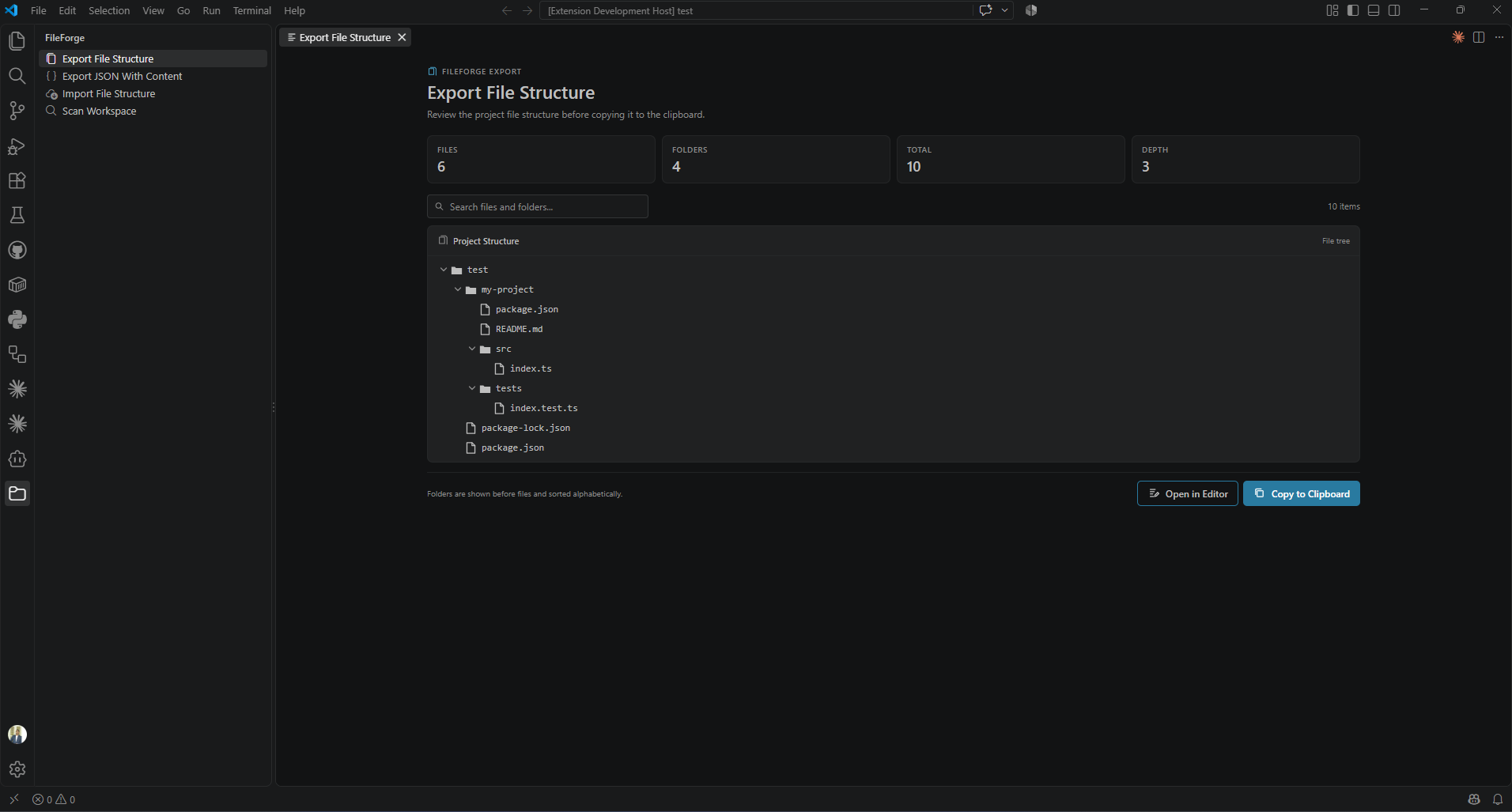
Export project structure
Review the complete project tree before copying it to the clipboard.
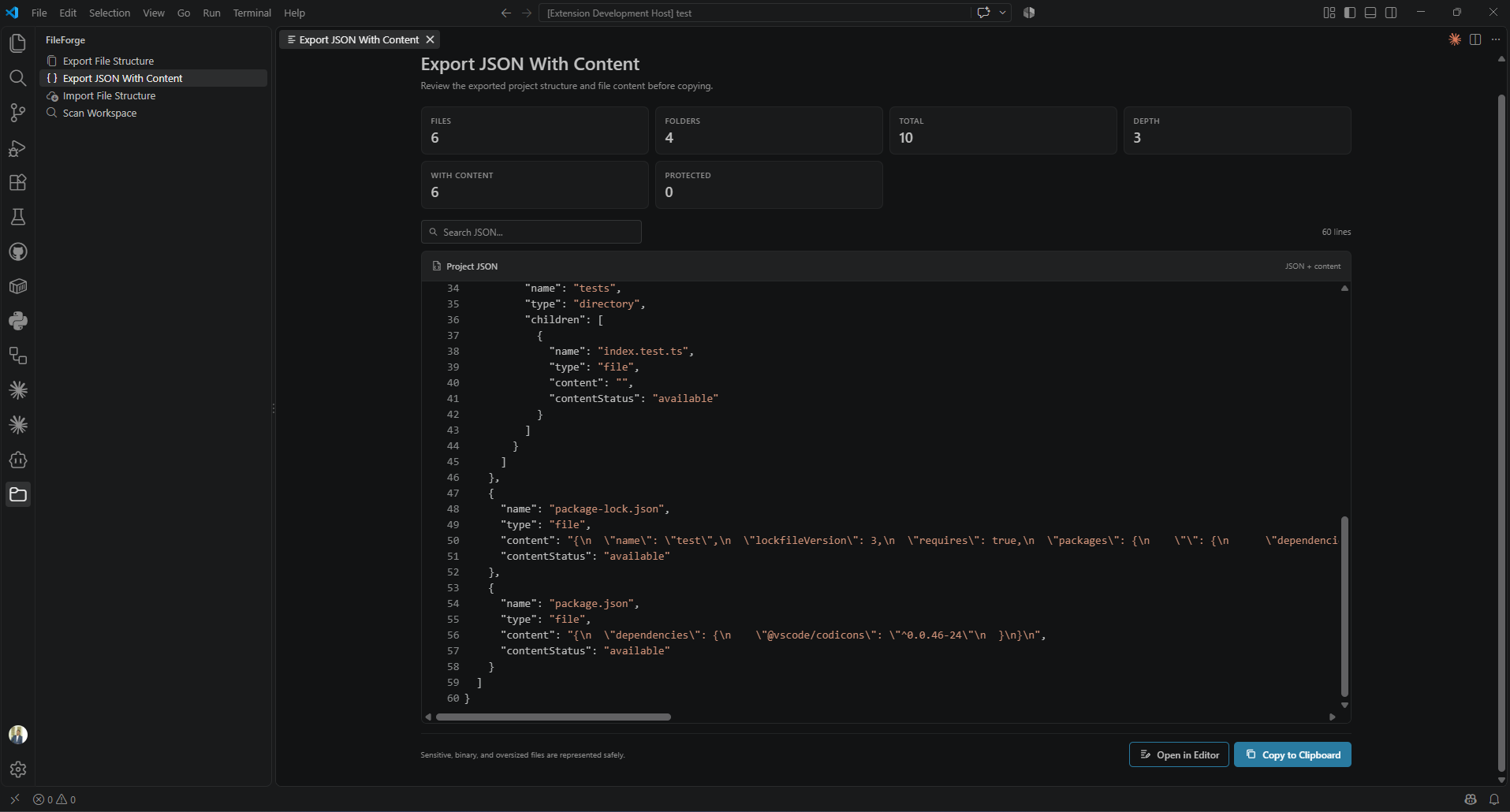
Export JSON with content
Inspect the structured JSON, file contents, content status, and project statistics in the VS Code-themed preview.
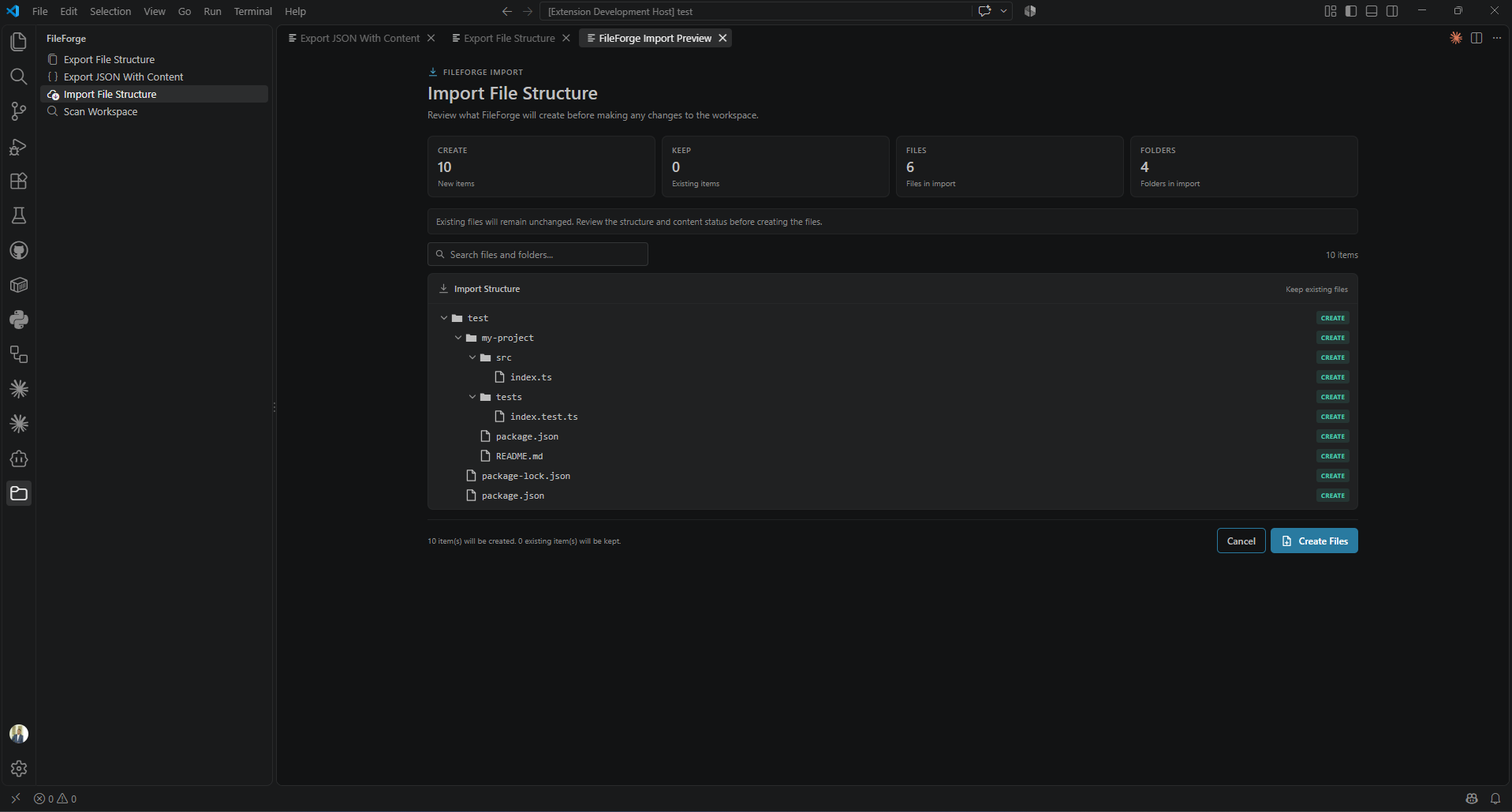
Import preview
Review files that will be created, existing files that will be kept, and content-safety statuses before confirming the import.
It can turn a workspace into a portable file structure, export a structured JSON representation with file contents, and recreate that structure inside another VS Code workspace.
Why FileForge?
When working with large projects, file structures are often difficult to communicate.
my-project/
├── src/
│   ├── api/
│   │   └── client.ts
│   ├── components/
│   │   └── App.tsx
│   └── index.ts
├── tests/
│   └── app.test.ts
├── package.json
└── README.md
FileForge makes that structure portable.
A typical workflow can look like:
VS Code Workspace
       ↓
    FileForge
       ↓
 File Structure / JSON
       ↓
 AI / Documentation / Chat / GitHub
       ↓
 Modified Structure
       ↓
    FileForge
       ↓
New Files & Folders
FileForge itself does not require AI.
It simply provides a reliable bridge between project structures and structured text.
Features
📁 Export file structure
Scan the current workspace and export its directory structure.
project/
├── src/
│   ├── app.ts
│   └── config.ts
├── tests/
│   └── app.test.ts
└── package.json
The exported structure is copied directly to your clipboard.
🧩 Export JSON with file contents
Export the workspace as structured JSON containing:
- file names
- directories
- file contents
- content status
Example:
{
  "name": "project",
  "type": "directory",
  "children": [
    {
      "name": "src",
      "type": "directory",
      "children": [
        {
          "name": "app.ts",
          "type": "file",
          "content": "console.log('Hello');",
          "contentStatus": "available"
        }
      ]
    }
  ]
}
📥 Import structures
Copy a supported file structure to your clipboard and FileForge can recreate it inside your current VS Code workspace.
Supported formats:
- ASCII tree structures
- Markdown-style trees
- FileForge JSON structures
👀 Import preview
Before anything is created, FileForge shows:
- items that will be created
- existing items
- files containing imported content
- sensitive files with redacted content
- binary files
- files exceeding the content limit
You must confirm the operation before files are created.
🔒 Safe handling of existing files
Existing files are kept unchanged.
FileForge does not overwrite existing files during import.
🔐 Sensitive file protection
Sensitive files are not exported with their contents.
Default protected files include:
.env
.env.local
.env.development
.env.production
.env.test
credentials.json
secrets.json
service-account.json
id_rsa
id_rsa.pub
id_dsa
id_ecdsa
id_ed25519
private.key
private.pem
Sensitive-file rules can be customized through VS Code settings.
🧱 Binary-file detection
FileForge detects binary content before exporting file contents.
Binary files are represented with:
{
  "contentStatus": "binary"
}
Their raw binary data is not placed into the exported JSON.
📦 Large-file protection
Files larger than the configured content limit are not exported as text content.
They are represented with:
{
  "contentStatus": "too-large"
}
The default maximum content size is 1 MB.
ASCII tree
project/
├── src/
│   ├── app.ts
│   └── config.ts
├── tests/
│   └── app.test.ts
└── package.json
Markdown tree
project
- src/
  - app.ts
  - config.ts
- tests/
  - app.test.ts
- package.json
JSON
FileForge supports its structured JSON representation:
{
  "name": "project",
  "type": "directory",
  "children": [
    {
      "name": "src",
      "type": "directory",
      "children": [
        {
          "name": "app.ts",
          "type": "file"
        }
      ]
    }
  ]
}
How It Works
Workspace
    ↓
Scanner
    ↓
Filter
    ↓
Serializer
    ↓
Clipboard
    ↓
Parser
    ↓
Validator
    ↓
Preview
    ↓
Creator
    ↓
Files / Folders
Export
Workspace → Scanner → Serializer → Clipboard
Import
Clipboard
    ↓
Format Detection
    ↓
Parser
    ↓
Validator
    ↓
Preview
    ↓
Confirmation
    ↓
Creator
    ↓
Workspace
AI Workflow
FileForge is not an AI extension.
However, it works particularly well with AI-assisted development workflows.
┌─────────────────┐
│   VS Code       │
│   Project       │
└────────┬────────┘
         │ Export
         ▼
┌─────────────────┐
│   FileForge     │
└────────┬────────┘
         │ File Structure
         ▼
┌─────────────────┐
│   AI Assistant  │
│                 │
│ Modify project  │
│ structure       │
└────────┬────────┘
         │ Generated Structure
         ▼
┌─────────────────┐
│   FileForge     │
└────────┬────────┘
         │ Import
         ▼
┌─────────────────┐
│   VS Code       │
│   New Files     │
└─────────────────┘
Installation
Install FileForge from the VS Code Marketplace.
After installation:
- Open a project in VS Code.
- Open the FileForge icon in the Activity Bar.
- Choose the operation you want to perform.
Usage
Export File Structure
Open the FileForge sidebar and select Export File Structure.
The workspace structure is copied to the clipboard.
Export JSON With Content
Select Export JSON With Content.
FileForge scans the workspace and creates a structured JSON representation. The JSON is copied directly to the clipboard.
Sensitive, binary, and oversized files are handled according to their content status.
Import File Structure
Copy a supported structure to your clipboard and select Import File Structure.
FileForge will:
- Read the clipboard.
- Detect the format.
- Parse the structure.
- Validate the structure.
- Check the workspace.
- Show an import preview.
- Ask for confirmation.
- Create missing files and folders.
Existing files remain unchanged.
Import Safety
FileForge validates imported structures before interacting with the filesystem.
The validator checks for:
- invalid path components
/ inside names\ inside names. path components.. path components- Windows drive paths
- home-directory paths
- null characters
- duplicate sibling entries
- invalid root nodes
For example, this structure is rejected:
project/
├── src/
└── src/
because two entries with the same name exist at the same level.
Configuration
FileForge provides configuration options under:
Settings → FileForge
Ignored Directories
By default, FileForge ignores:
node_modules
.git
dist
build
coverage
.next
.nuxt
.vscode
bin
obj
Configure the list in settings.json:
{
  "fileforge.ignoreDirectories": [
    "node_modules",
    ".git",
    "dist",
    "build"
  ]
}
Ignored directories affect workspace scanning and export.
Sensitive Files
{
  "fileforge.sensitiveFiles": [
    ".env",
    ".env.local",
    "credentials.json",
    "secrets.json"
  ]
}
Matching is case-insensitive.
Maximum Content Size
The default maximum file size for content export is 1 MB.
{
  "fileforge.maxContentFileSize": 1048576
}
The value is specified in bytes.
Content Status
available
The file is considered text content and its contents are included.
{
  "name": "app.ts",
  "type": "file",
  "content": "console.log('Hello');",
  "contentStatus": "available"
}
redacted
The file is considered sensitive.
{
  "name": ".env",
  "type": "file",
  "contentStatus": "redacted"
}
binary
The file contains binary data.
{
  "name": "image.png",
  "type": "file",
  "contentStatus": "binary"
}
too-large
The file exceeds the configured content-size limit.
{
  "name": "large.sql",
  "type": "file",
  "contentStatus": "too-large"
}
Use cases
FileForge is useful for:
- documenting project structures
- sharing project layouts with teammates
- moving structures between workspaces
- preparing project context for AI assistants
- recreating project scaffolding
- reviewing large project structures
- transferring structured project definitions through text-based workflows
Roadmap
Potential future improvements include:
- richer visual import previews
- drag-and-drop structure files
- additional tree formats
- selective import
- more advanced conflict handling
- export to downloadable files
- workspace-to-workspace transfer
- additional VS Code integrations
Links
Contributing
Contributions, bug reports, and feature ideas are welcome.
Please open an issue or pull request on GitHub.
License
MIT License.
See LICENSE for details.
Author
Gihan Chathuranga
GitHub: https://github.com/Gihchathur

