FluxBook
Block-based Terminal Workflow inside VS Code
A notebook-style terminal where commands are structured, reusable, and composable.




The Problem
Traditional terminals are linear, non-reusable, and lack structure.
Developers repeat the same commands manually, lose context after closing a session, and have no way to annotate, group, or reproduce a sequence of commands without copy-pasting from shell history.
The Solution
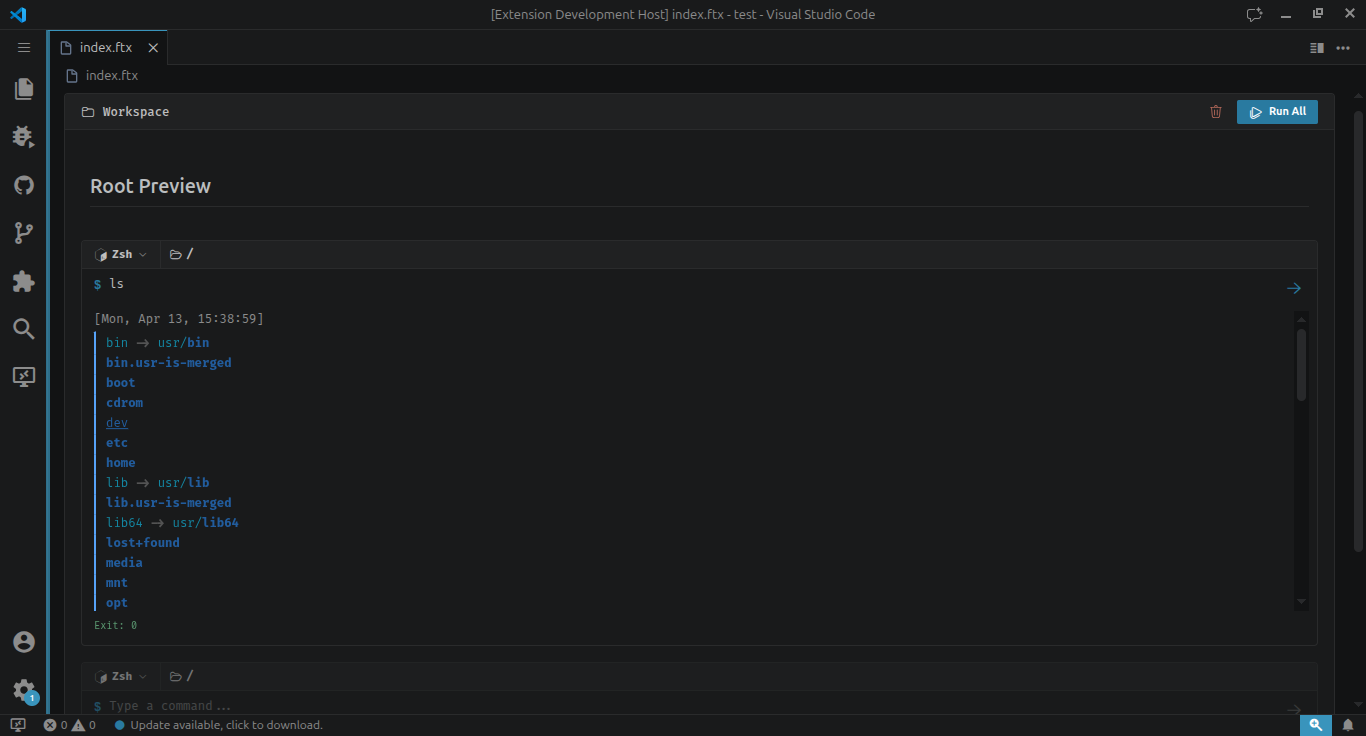
FluxBook introduces Command Blocks — the atomic unit of execution:
- Each command runs in its own isolated block with its own shell process, CWD, and lifecycle
- Output is preserved per block, independently scrollable and searchable
- Blocks can be re-run, edited, and structured into named document groups
- Combine commands with Markdown blocks for inline documentation
It's a hybrid of a terminal, a notebook (like Jupyter), and a command workflow system — living directly inside VS Code.
Core Features
- Block-Based Execution
- Inline Command Editing
- Output Virtualization
- CWD Editor with Autocomplete
- Markdown Blocks
Installation
From the Marketplace

Search FluxBook in the VS Code Extensions panel, or click the badge above.
From VSIX
- Download
fluxbook-1.0.0.vsix from Releases
- Open VS Code →
Extensions → ... menu → Install from VSIX...
- Select the downloaded file and reload
From Source
git clone https://github.com/0xdaksh-12/FluxBook.git
cd FluxBook
pnpm install
Press F5 in VS Code to launch the Extension Development Host.
How to Use
1. Open FluxBook
   → Run "FluxBook: New File" from the Command Palette (Ctrl+Shift+P)
   → Or create a file with the .ftx extension

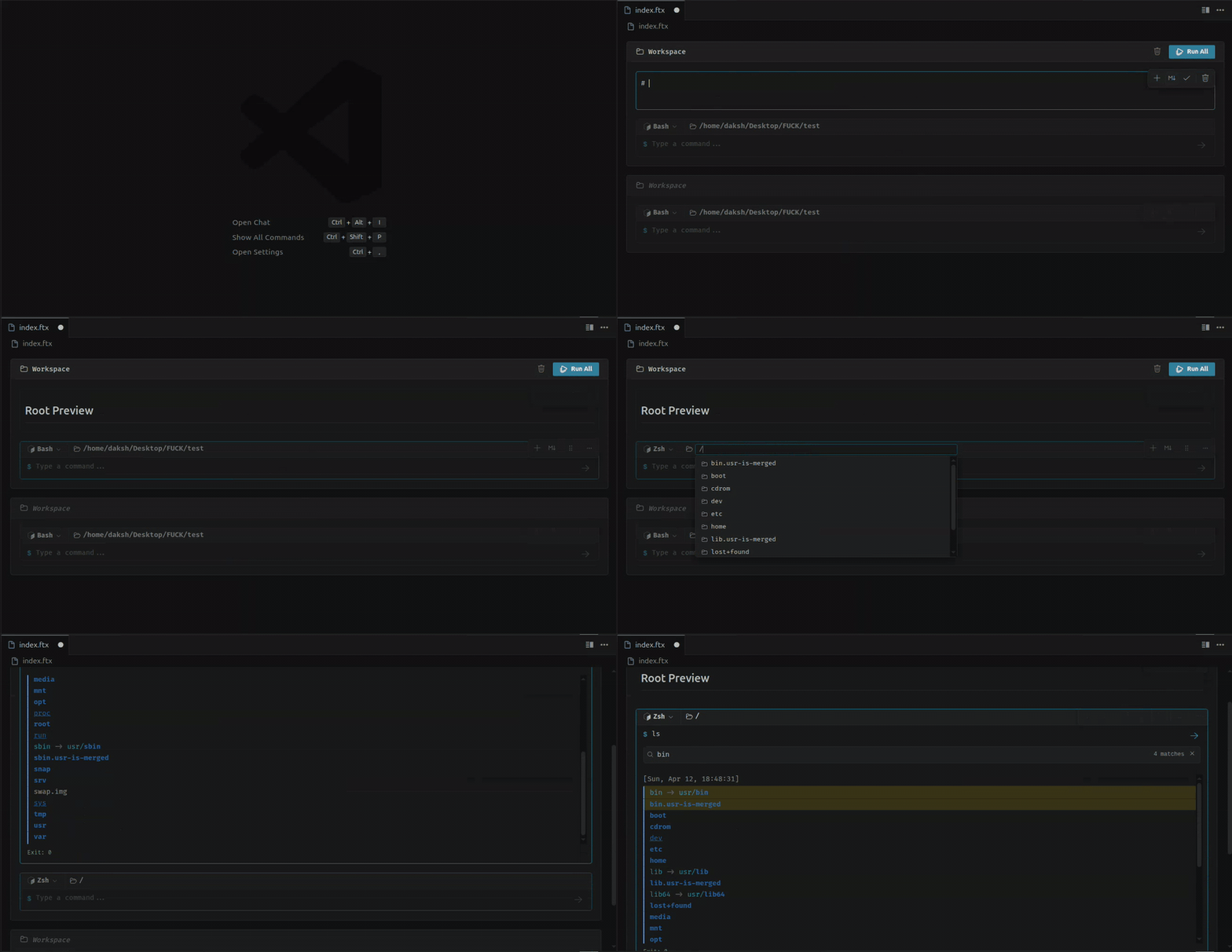
2. Type a command in the Command Block at the bottom
   → The Ghost Block is always ready for your next command

3. Press Enter to execute
   → Output renders inline below the block with full ANSI colors

4. View and search output
   → Click the search icon or hover to reveal the toolbar

5. Change the working directory
   → Double-click the path in the context bar
   → Use Tab/↑↓ for autocomplete, Enter to commit

6. Re-run or edit a block
   → Edit the command text directly, then press Enter
   → Or hover and click the Refresh button

7. Add Markdown documentation
   → Use the More menu on any block's toolbar
   → Select "Add Markdown Block"

8. Organize into groups
   → Commands are automatically grouped into named Document Groups
   → Double-click a group name to rename it
Future Roadmap
Near-term
─────────
□ Sidebar command library — saved, named, reusable command snippets
□ Block grouping and pipelines (pipe output of one block into next)

Medium-term
───────────
□ Environment variable support per document group
□ Remote execution support via SSH (leverage VS Code Remote)
□ Block export to shell script or Markdown

Long-term
─────────
□ AI-assisted command suggestions (GitHub Copilot integration)
□ Collaborative .ftx sessions via VS Code Live Share
License
Licensed under the Apache License 2.0.
Crafted by Daksh · Built with ❤️ for developers who care about workflow