
Markdown Code AssistantLanguage-aware formatting and inline diagnostics for fenced code blocks in Markdown files. Installation Launch VS Code Quick Open ( Ctrl+P), paste the following command, and press enter.Copied to clipboard |

Markdown Code Assistant
Language-aware formatting and inline diagnostics for fenced code blocks in Markdown files.
Markdown Code Assistant treats the code examples inside your Features
Requirements
Prettier, prettier-plugin-sh, prettier-plugin-sql, js-yaml, postcss, parse5, ESLint, the TypeScript compiler, and InstallationVS Code MarketplaceSearch for Markdown Code Assistant in the Extensions view ( From a
|



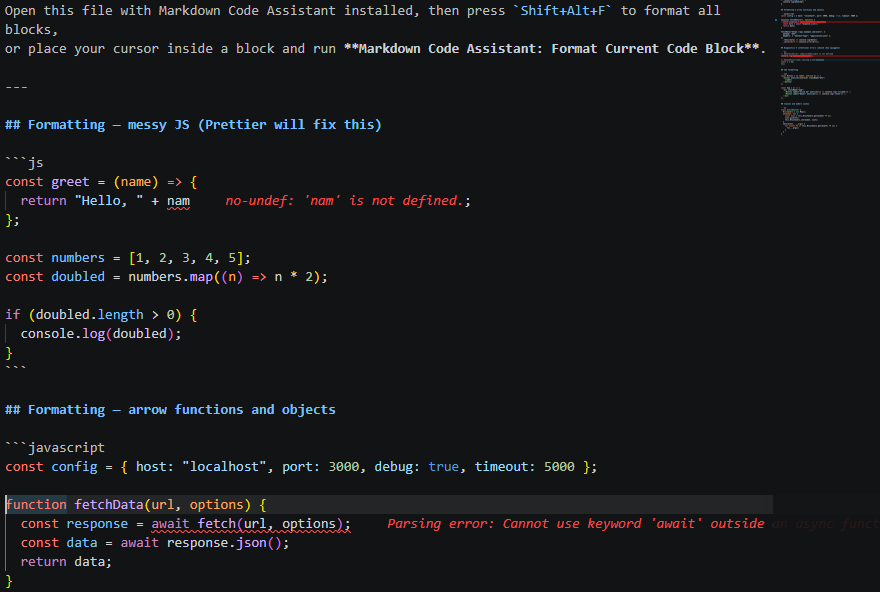
| Command | Description |
|---|---|
Markdown Code Assistant: Format All Code Blocks |
Format every fenced block in the file |
Markdown Code Assistant: Format Current Code Block |
Format only the block the cursor is inside |
Markdown Code Assistant: Show Code Block Diagnostics |
Run diagnostics on all blocks |
Markdown Code Assistant: Diagnose Current Code Block |
Run diagnostics on the block at cursor |
Supported Languages
Prettier (bundled)
| Language | Fence labels |
|---|---|
| JavaScript | js, javascript |
| TypeScript | ts, typescript |
| JSON / JSONC | json, jsonc |
| YAML | yaml, yml |
| HTML | html |
| CSS / SCSS / Less | css, scss, less |
| GraphQL | graphql, gql |
| Markdown (nested) | markdown, md |
| SQL | sql |
VS Code Extensions (auto-installed, no system tools needed)
| Language | Extension | Purpose |
|---|---|---|
| Python | ms-python.black-formatter | Formatting |
Shell (sh) |
mkhl.shfmt | Formatting |
Shell (sh) |
timonwong.shellcheck | Diagnostics |
CLI fallbacks (optional)
If the VS Code extensions above are unavailable, the extension falls back to the system CLI tools if installed:
| Language | Tool | Purpose | Install |
|---|---|---|---|
| Python | pyflakes | Diagnostics (undefined names) | pip install pyflakes |
| Python | Black | Formatting | pip install black |
Shell (sh) |
shfmt | Formatting | brew install shfmt |
Shell (sh) |
shellcheck | Diagnostics | brew install shellcheck |
Configuration
All settings are under mdCodeAssist.* and can be set at User, Workspace, or Folder scope.
| Setting | Default | Description |
|---|---|---|
format.enabledLanguages |
["javascript","typescript","python","json","yaml","html","css","shell","graphql","markdown","sql"] |
Languages to format |
format.triggerMode |
"onCommand" |
When to format: onCommand, onSave, onType |
diagnostics.enabledLanguages |
["javascript","typescript","python","json","yaml","css","html","shell","sql"] |
Languages to diagnose |
diagnostics.triggerMode |
"onCommand" |
When to diagnose: onCommand, onSave, onType |
formatters.blackPath |
"black" |
Path to Black CLI executable (fallback) |
formatters.shfmtPath |
"shfmt" |
Path to shfmt CLI executable (fallback) |
decorations.showGutterIcons |
true |
Colored gutter icons for diagnostics |
decorations.showInlineErrors |
true |
Inline error text after affected lines |
Trigger modes
| Mode | Behavior |
|---|---|
"onCommand" |
Default. Nothing runs automatically — you call the command when you want results. |
"onSave" |
Runs every time you save the Markdown file. |
"onType" |
Watch mode — runs continuously as you edit (debounced 500 ms). |
Tip: Prefix any fence with
@md-assistant-ignoreto permanently exclude a block from all processing:```python @md-assistant-ignore
Example — format and diagnose on save:
{
  // Format and diagnose every time the file is saved
  "mdCodeAssist.format.triggerMode": "onSave",
  "mdCodeAssist.diagnostics.triggerMode": "onSave"
}
Example — watch mode (format and diagnose as you type):
{
  "mdCodeAssist.format.triggerMode": "onType",
  "mdCodeAssist.diagnostics.triggerMode": "onType"
}
Example — full custom setup:
{
  "mdCodeAssist.format.enabledLanguages": [
    "javascript",
    "typescript",
    "python",
    "json",
    "yaml",
    "html",
    "css",
    "shell",
    "graphql",
    "sql"
  ],
  "mdCodeAssist.diagnostics.enabledLanguages": [
    "javascript",
    "typescript",
    "json",
    "yaml",
    "css",
    "html",
    "shell",
    "python",
    "sql"
  ],
  "mdCodeAssist.format.triggerMode": "onSave",
  "mdCodeAssist.diagnostics.triggerMode": "onSave"
}
Documentation
- Architecture — pipeline diagrams, module layout, design decisions
- Contributing — dev setup, code style, adding formatters, test guidelines