Skip to content
| Marketplace
Sign in
Visual Studio Code>Visualization>PerfScope — VS Code Performance LensNew to Visual Studio Code? Get it now.
PerfScope — VS Code Performance Lens

PerfScope — VS Code Performance Lens

Evhye

|
5 installs
| (0) | Free
VS Code performance health scanner and optimization guide - analyze extensions, find slowdown causes, and apply safe workspace fixes with one click.
Installation
Launch VS Code Quick Open (Ctrl+P), paste the following command, and press enter.
Copied to clipboard
More Info

⚡ PerfScope

One-click health check for your VS Code performance. Scan → Score → Fix, all in under 30 seconds.

Marketplace Installs

Install: VS Code Marketplace · Source: GitHub · Feedback: Report an issue

PerfScope Dashboard

Why Do You Need It?

After installing too many VS Code extensions, startup can slow down, saving can stutter, and search can feel sluggish. Most of the time, you do not even know which extension or setting is dragging things down.

PerfScope helps you:

  • 🧪 Scan in one click across extension inventory, activation events, workspace settings, and memory hints
  • 📊 PerfScope Score from 0 to 100 at a glance
  • 🔧 Fix safely in one click with preview-first workspace settings changes
  • ↩️ Undo every fix written by PerfScope
  • 📄 Export Markdown reports for team sharing
  • 🔒 Stay fully offline with no data uploads

PerfScope is for developers who have installed many VS Code extensions and want a local, preview-first way to understand what might be slowing their workspace down.

V1.0

V1.0 is the first Marketplace release line, published under Evhye.

Community

  • Contributing guide
  • Support and safety policy
  • Growth playbook
  • Content templates

Features

  • Manual PerfScope full scan
  • Quick extension audit
  • Activity Bar entry with a compact Side Bar dashboard
  • Launcher-style full Dashboard and Side Bar UI
  • Status Bar states for scan, audit, fix, undo, export, score, and error
  • Gentle completion and error notifications
  • Markdown report export through an explicit Save Dialog
  • Git repository warning before Workspace or Workspace Folder settings writes
  • Workspace safe fixes for watcher/search exclusions and search.followSymlinks
  • Multi-root safe fixes using Workspace Folder scope
  • Workspace Change Log rollback for PerfScope-written settings
  • Safe purge for PerfScope-owned saved state

Screenshots

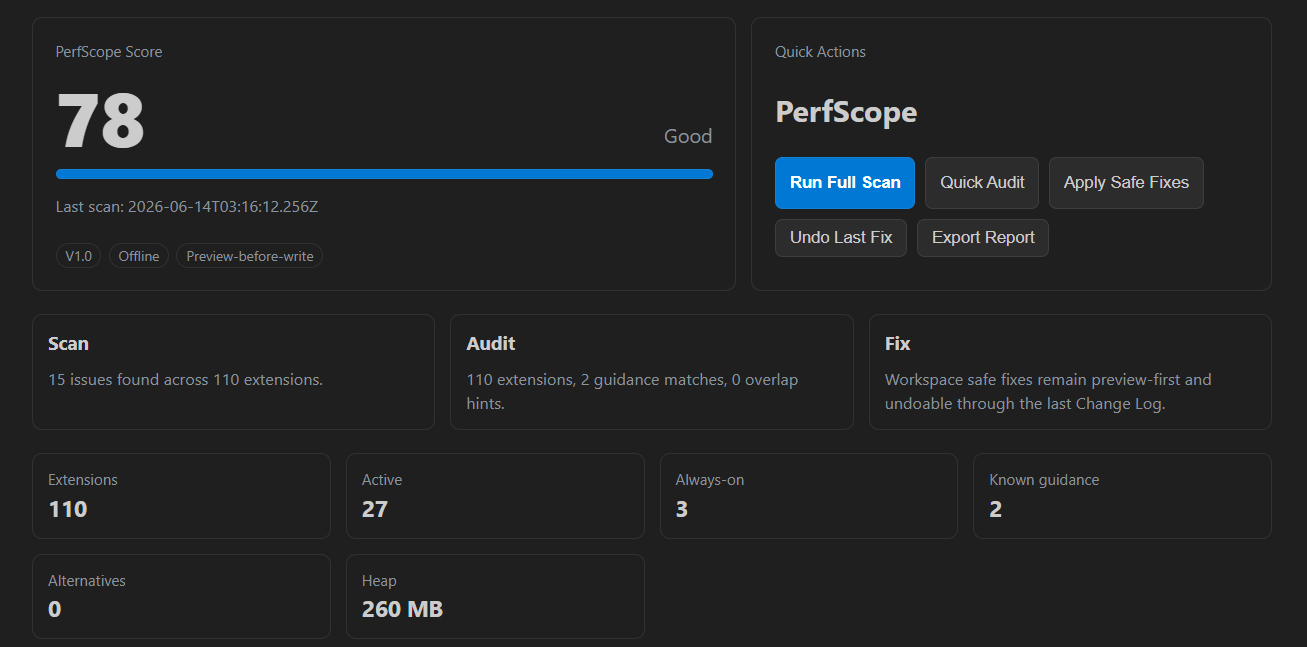
PerfScope Score Dashboard

Run a full scan to review your VS Code performance health score, extension inventory, activation signals, workspace configuration hints, and environment stats.

PerfScope Score Dashboard

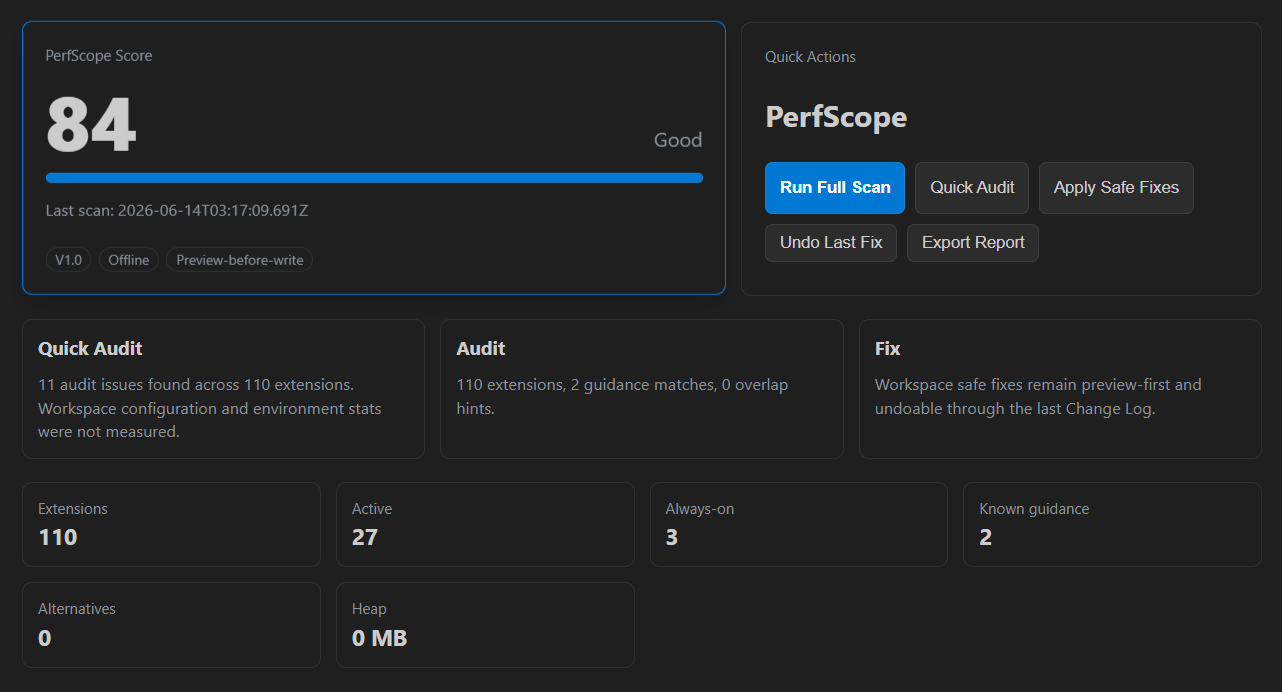
Quick Extension Audit

Use Quick Audit when you want an extension-focused review without workspace configuration and environment checks.

Quick Extension Audit

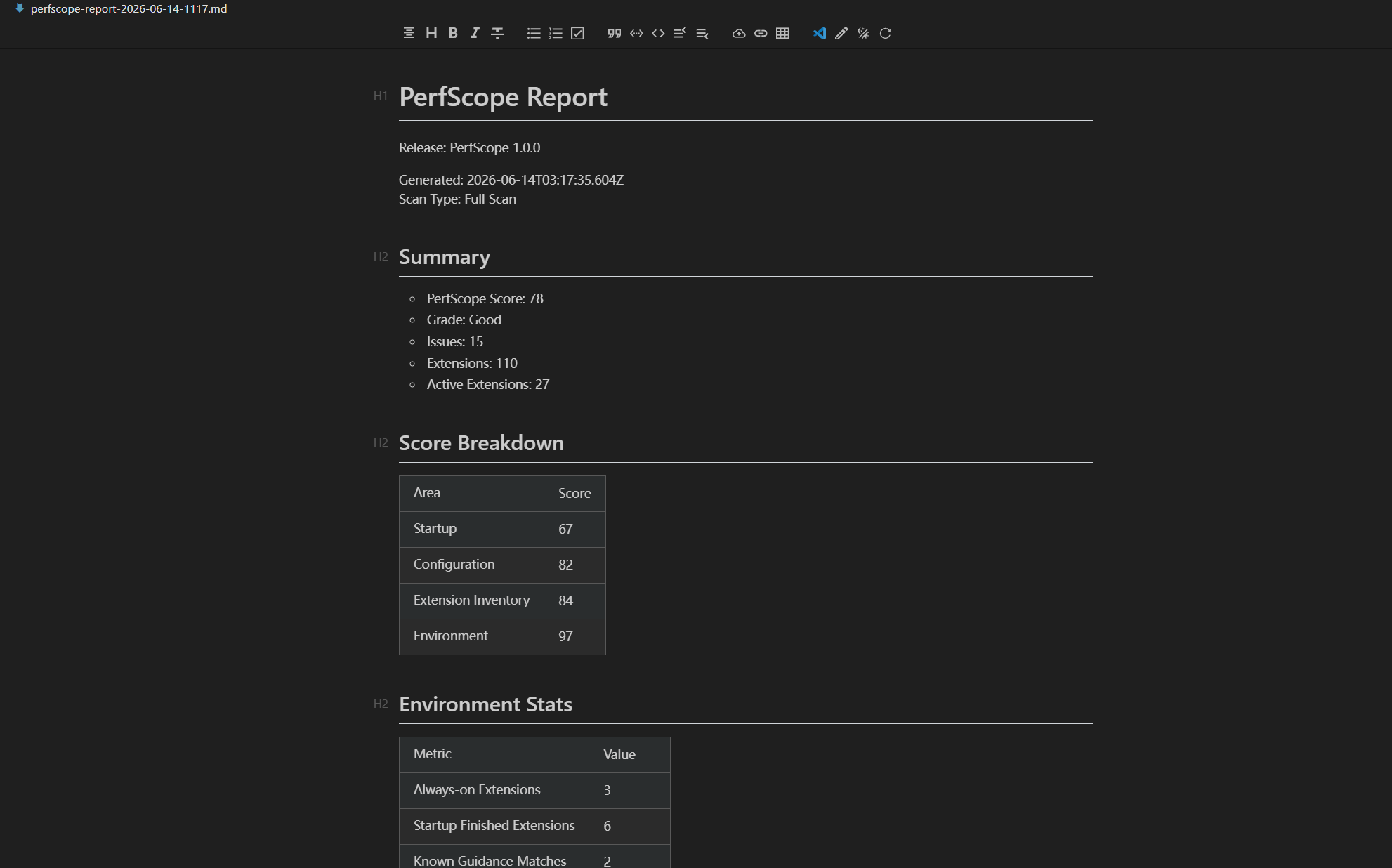
Markdown Report Export

Export the latest scan as a Markdown report for team review, issue reports, or performance cleanup notes.

Markdown Report Export

Safety Boundaries

PerfScope is offline. It does not fetch remote databases, upload telemetry, read source file contents, disable extensions, uninstall extensions, or modify .vscode/extensions.json.

The only settings V1.0 can write are project-scoped settings, and only after explicit user confirmation:

  • files.watcherExclude
  • search.exclude
  • search.followSymlinks

Single-root workspaces use Workspace scope. Multi-root workspaces use Workspace Folder scope for each selected folder. PerfScope does not write User settings.

If a target folder appears to be inside a Git repository, PerfScope warns before applying safe fixes because .vscode/settings.json may be committed.

Purge Behavior

PerfScope: Purge & Prepare for Uninstall clears only PerfScope-owned saved state and recent UI report data. It does not modify settings, uninstall extensions, delete files, or change .vscode/extensions.json.

Install the VSIX

After packaging, install the generated VSIX from VS Code:

  1. Open the Command Palette.
  2. Run Extensions: Install from VSIX....
  3. Select dist/perfscope-1.0.0.vsix.

You can also install from a terminal:

code --install-extension dist/perfscope-1.0.0.vsix

Development

Install dependencies once:

npm install

Run checks:

npm run compile
npm test
npm run test:vscode

Use the Run Extension launch configuration in VS Code to open an Extension Development Host. In that host window, the left Activity Bar shows the PerfScope entry with a compact launcher-style Dashboard view.

Package a VSIX

npm run package:vsix

This writes:

dist/perfscope-1.0.0.vsix

Release Checklist

  • Run npm run compile.
  • Run npm test.
  • Run npm run test:vscode.
  • Run npm run verify:release.
  • Run npm run package:vsix.
  • Install the VSIX into a clean VS Code profile.
  • Confirm the Activity Bar entry appears.
  • Run Full Scan and Quick Audit.
  • Open the full Dashboard.
  • Export a Markdown report.
  • Verify Apply Safe Fixes shows a preview and Git warning where applicable.
  • Verify Undo Last Fix is safe when no Change Log exists.
  • Verify Purge clears only PerfScope-owned state.

Known Limits

  • V1.0 does not include Extended DB or remote database updates.
  • V1.0 does not provide User-level settings writes.
  • V1.0 does not perform background automatic scans.
  • V1.0 does not programmatically disable, uninstall, or deactivate extensions.
  • Core DB guidance is an offline seed dataset and should be expanded after 1.0.
  • Contact us
  • Jobs
  • Privacy
  • Manage cookies
  • Terms of use
  • Trademarks
© 2026 Microsoft