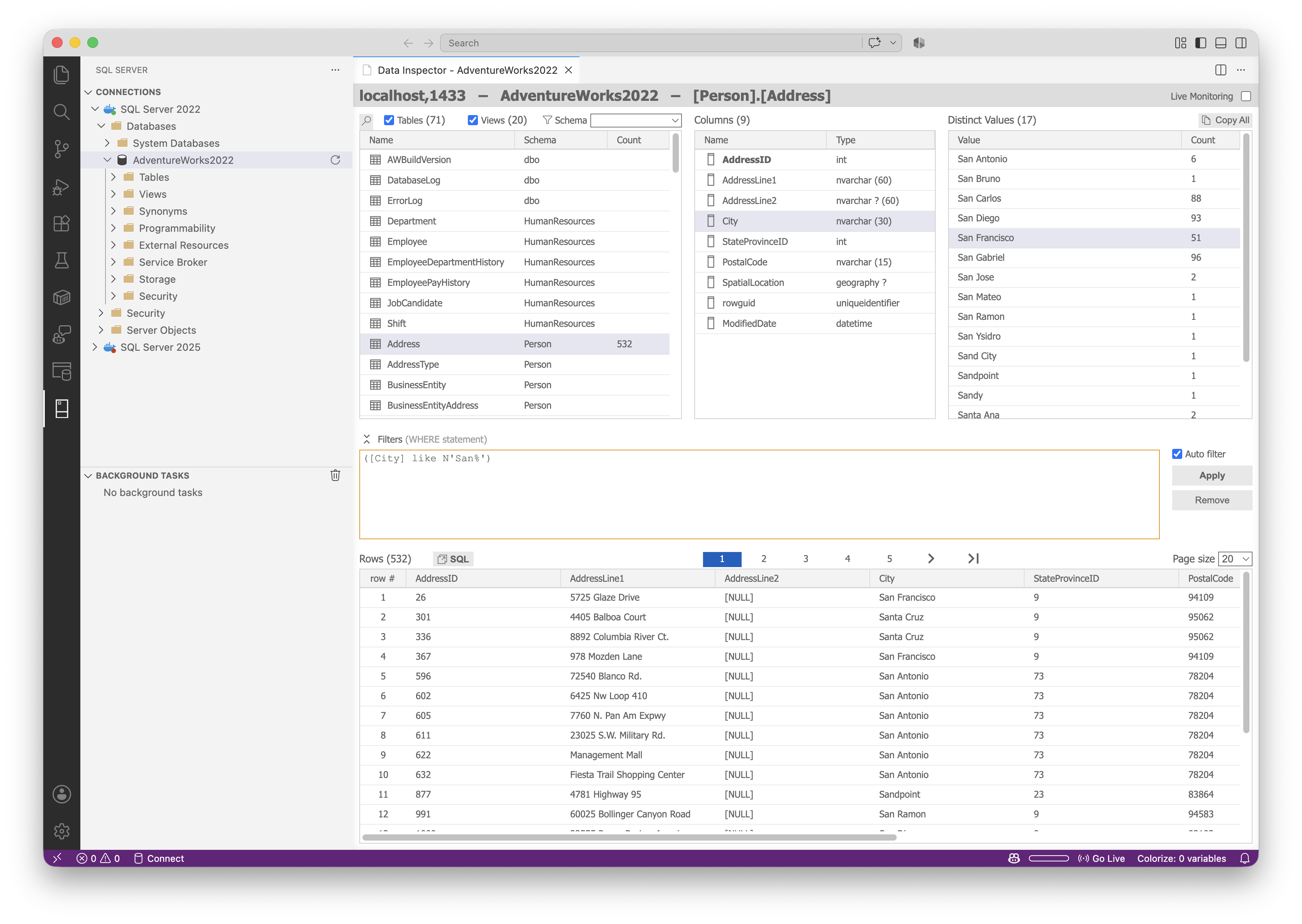
SQL Data Inspector (MSSQL)This extension makes it easy to inspect data with just a few clicks. Installation Launch VS Code Quick Open ( Ctrl+P), paste the following command, and press enter.Copied to clipboard |

SQL Data Inspector (MSSQL)This Visual Studio Code extension makes it easy to inspect Microsoft SQL Server data with just a few clicks. It supports MSSQL connections through the SQL Server (mssql) extension. Please leave a ⭐ as motivation if this tool is helpful for you!
Features
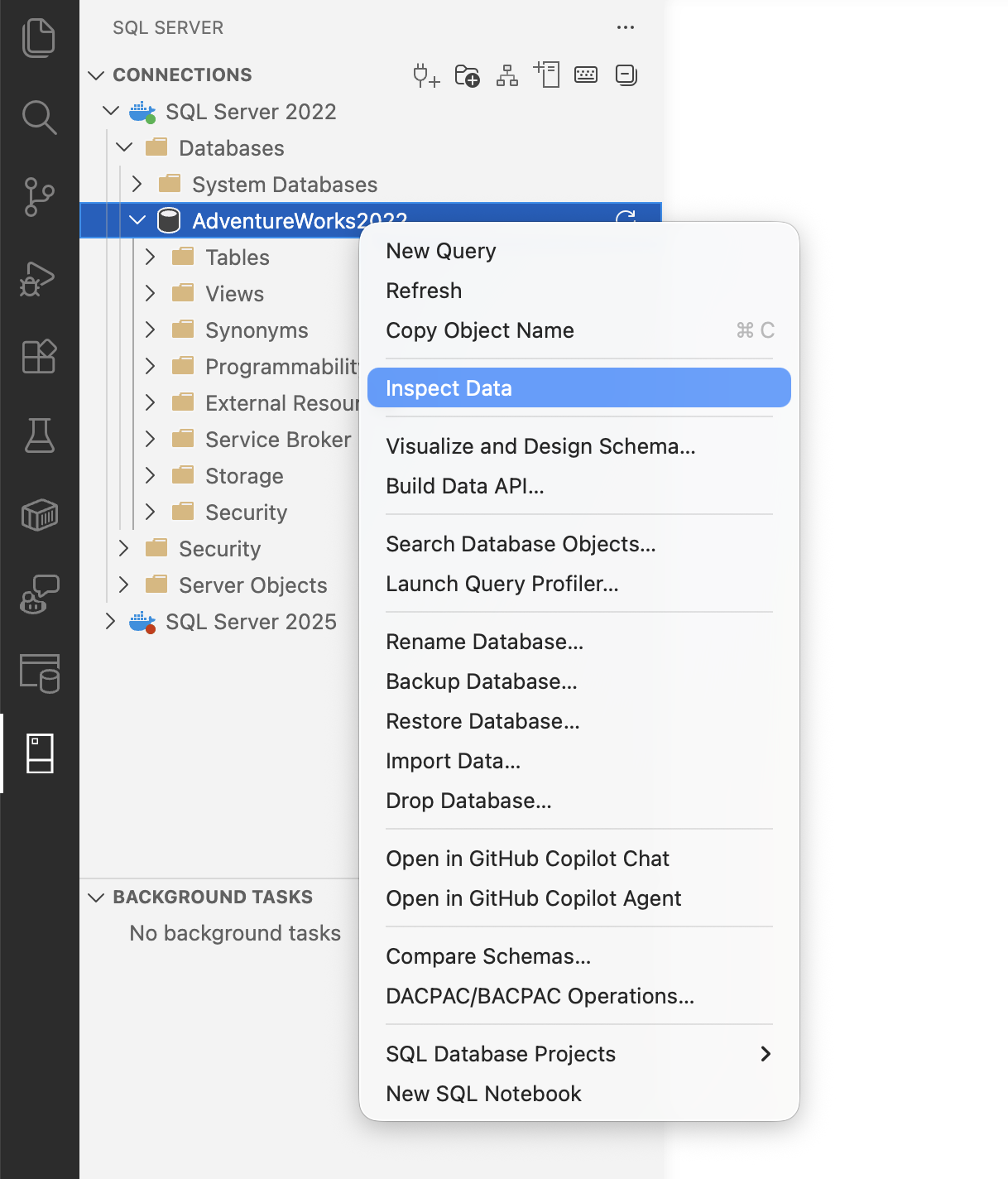
Connection managementSQL Data Inspector uses the SQL Server (mssql) extension for both connection management and query execution. Configure connections in its SQL Server Object Explorer. SQL Data Inspector stores no database credentials. The integration uses MSSQL's connection-sharing API (verified against MSSQL 1.46.0). On first use, approve the MSSQL connection-sharing request for SQL Data Inspector. If access was previously denied, run MSSQL: Edit Connection Sharing Permissions to change it. Connections must be saved in MSSQL so they have a profile ID. Closing the inspector releases its shared connection. Inspecting a database
Alternatively, run Inspect Data from the Command Palette and select a configured SQL Server connection that has a database already selected. The inspector opens with the selected database.
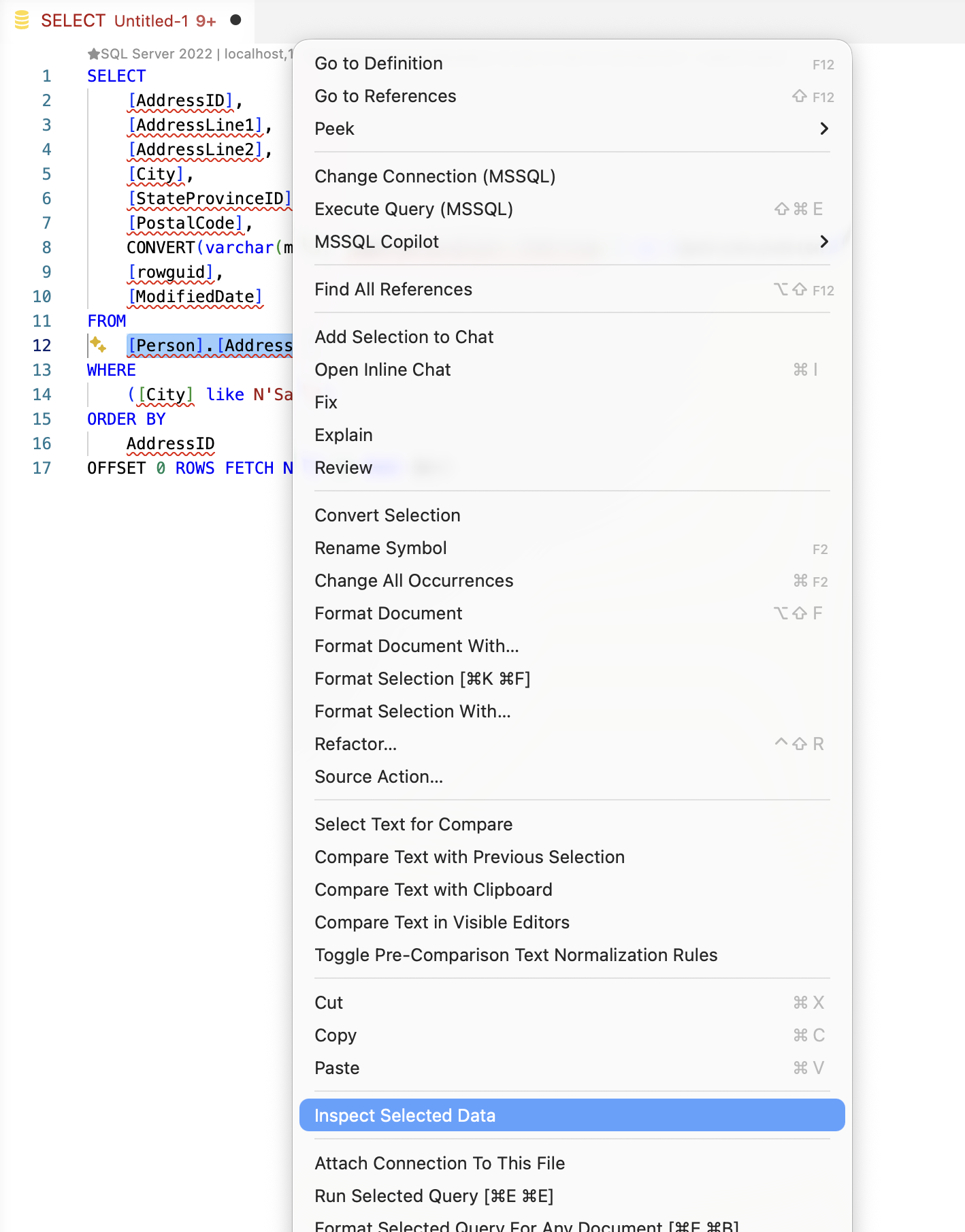
Inspecting data from the query editor
Extension settingsThis extension has settings that customize its behavior:
Installation
The current release will be available through the Visual Studio Marketplace for Visual Studio Code. The SQL Server (mssql) extension is required and is installed automatically as an extension dependency. Current and Pre-releases will be available from the Releases tab of the projects repository. Download the VSIX of the release you want and use the Extensions: Install from VSIX... command in Visual Studio Code. Change LogSee the Change Log for the full changes. Bugs / New FeaturesIf you find a bug or have an idea to improve this extension please create a new issue in this project. ContributingYou are more than welcome to help contribute to this project if you wish, please create a new fork of the main branch, then submit a pull request to the main branch after making your changes. LicenseThis project is released under the MIT License |