Skip to content
| Marketplace
Sign in
Visual Studio Code>Other>Task Runner ManagerπŸ†New to Visual Studio Code?Β Get it now.
Task Runner ManagerπŸ†

Task Runner ManagerπŸ†

⭐ Solutions Idéales

|
1 install
| (3) | Free
Task manager and runner with one list in your monorepo: package.json, Cargo.toml, pyproject.toml, Makefile, justfile, Taskfile and more. Batch & single run, stop and restart from anywhere, with a live count of what's running.
Installation
Launch VS Code Quick Open (Ctrl+P), paste the following command, and press enter.
Copied to clipboard
More Info

β–Ά Task Runner Manager

Every script in your workspace, and everything currently running, in one list. Start, stop and restart without ever going looking for a terminal tab.
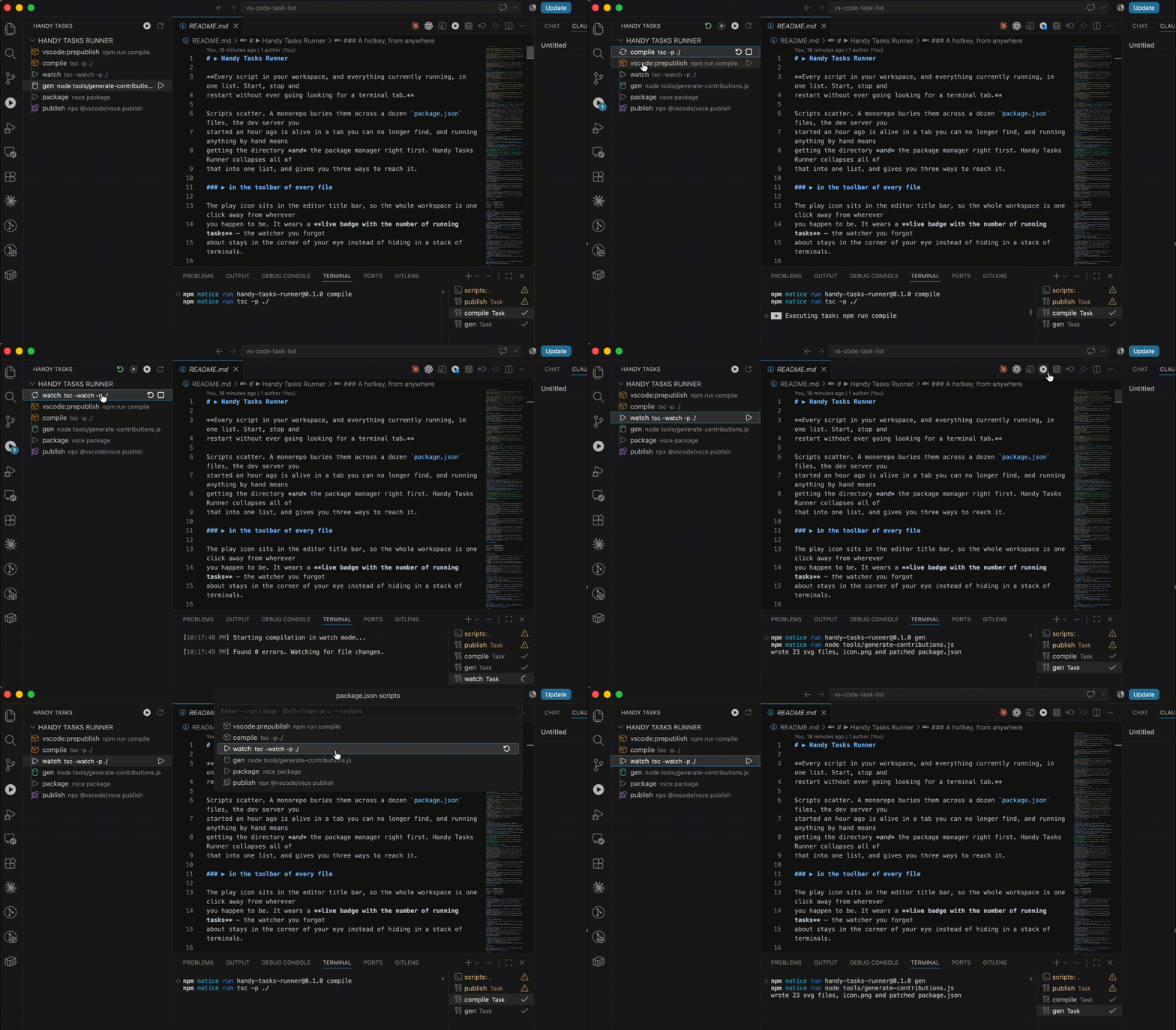
Task Runner Manager in action

  • 📋 A panel in the left bar β€” every task of the workspace as a tree, grouped by the manifest it came from. Groups with something running float to the top and the number of running tasks rides on the activity bar icon as a real VS Code badge.
  • ⚑ A button in every editor's toolbar β€” the β–Ά icon, carrying a live badge with how many tasks are running, so the watcher you forgot about stays in the corner of your eye instead of hiding in a stack of terminals.
  • ⌨️ A hotkey, from anywhere β€” Ctrl+Cmd+T (Ctrl+Alt+T on Windows and Linux) opens the whole list without touching the mouse, from the editor, the terminal, anywhere.
  • 🔍 Search that matches the command too β€” type vitest and find the script that runs it, not just the ones called "test". Enter toggles a task, Shift+Enter restarts it.
  • ✏️ Rename any row, and any heading β€” dev becomes API server, and the group titled packages/services/api-gateway becomes GATEWAY. Display only: the project's manifest is never edited, and the real name stays visible beside it and searchable.
  • ⭐ Favorites β€” star the two or three scripts you actually run and they pin to a group at the very top, above everything, without leaving the package they belong to.
  • ↕️ Drag rows into the order you want β€” inside a package or inside FAVORITES. The order is remembered per workspace and the manifests are never edited.
  • 🎨 Colour and an icon per task β€” β–Ά for dev servers, a beaker for tests, a rocket for releases, a database for migrations, decided by what the task really runs β€” and your own rules come first.
  • 🧩 Nine ecosystems, one list β€” package.json, deno.json, Cargo.toml, Makefile.toml, pyproject.toml, Pipfile, tox.ini, noxfile.py, Makefile, justfile, Taskfile.yml, go.mod, composer.json and mise.toml, so a mixed monorepo is still one list.
  • 🧠 Knows how to run things β€” npm, yarn, pnpm, bun or deno detected per package from packageManager, engines and the lock files; everything else named by the table it is declared in.
  • ⏹ Stop all / restart all β€” kill five watchers before a rebase, or bring the whole stack back up after switching branches, in one click.
  • 👀 Running tasks this extension did not start β€” from tasks.json, other extensions or the built-in npm list β€” are shown and can be stopped from the same place.

Tasks scatter. A monorepo buries them across a dozen package.json files, the Rust service next to them keeps its own in a Makefile.toml, the Python one in pyproject.toml, and there is a justfile at the root that half the team forgets exists. The dev server you started an hour ago is alive in a tab you can no longer find, and running anything by hand means getting the directory and the tool right first. Task Runner Manager collapses all of that into one list, and gives you three ways to reach it.

β–Ά in the toolbar of every file

The play icon sits in the editor title bar, so the whole workspace is one click away from wherever you happen to be. It wears a live badge with the number of running tasks β€” the watcher you forgot about stays in the corner of your eye instead of hiding in a stack of terminals.

A hotkey, from anywhere

Ctrl+Cmd+T on macOS, Ctrl+Alt+T on Windows and Linux. Every task of every manifest in the workspace, without touching the mouse β€” from the editor, the terminal, anywhere. Both defaults were picked because VS Code leaves them free, and changing them takes one line.

A panel in the left bar

Always there, whatever the active editor is: every task of every manifest, grouped by the file it came from, each row carrying its own icon and colour for what it actually does β€” β–Ά for dev servers, a beaker for tests, a rocket for releases, a database for migrations. A running task spins where it stands, groups with something running float to the top, and the count rides on the activity bar icon as a real VS Code badge.

Two buttons appear in the panel header the moment anything is running: stop everything and restart everything. Killing five watchers before a rebase, or bringing the whole stack back up after switching branches, is one click rather than five terminal tabs. Every row also has inline β–Ά / ⟳ / β–  buttons of its own.

And it knows how to run things

Whether a package wants npm run, yarn, pnpm run, bun run or deno task is read off the project itself β€” the packageManager field, engines, or the lock files beside the package and above it. Everything else names its own runner by the table it is declared in: a task under [tool.pdm.scripts] is a pdm task wherever it lives. So one list works unchanged across a mixed monorepo.

  • Every task, one list β€” nine ecosystems: Node, Rust, Python, Make, just, go-task, Go, Composer and mise, grouped per manifest, node_modules, target, .venv and build output skipped.
  • Searchable by command, not just by name β€” type vitest and find the script that runs it.
  • Running tasks included β€” even ones this extension did not start: tasks from tasks.json, other extensions, or the built-in npm list. Stop or restart them from the same place.
  • Toggle on Enter β€” start what is stopped, stop what is running; ⟳ or Shift+Enter restarts, with a cleared terminal.
  • Stop all / restart all β€” for when the whole stack needs to go down or come back.
  • Favorites β€” star the two or three tasks you actually run and they pin to a group at the top of the tree, above everything, without leaving the manifest they belong to.
  • Rename any row, and any heading β€” dev becomes API server, @acme/api-gateway becomes GATEWAY. Display only: nothing on disk is renamed, and the real name stays findable.
  • A live badge β€” the number of running tasks, on the toolbar icon, the panel and the status bar.
  • Knows your runner β€” npm, yarn, pnpm, bun and deno, detected per package, overridable.
  • Real tasks, not typed-out terminal commands β€” running state, stop and restart are reliable, and every task also shows up under Run Task….

What gets scanned

Ecosystem File Tasks read from Runs as
Node package.json scripts npm run / yarn / pnpm run / bun run β€” detected
deno.json, deno.jsonc tasks deno task <name>
Rust Cargo.toml the crate itself β€” see below cargo run --bin …, cargo test, …
Makefile.toml [tasks.*] (cargo-make) cargo make <name>
Python pyproject.toml [tool.poetry.scripts] poetry run <name>
[tool.pdm.scripts] pdm run <name>
[tool.rye.scripts] rye run <name>
[tool.poe.tasks] poe <name>, through poetry when the project uses it
[tool.hatch.envs.<env>.scripts] hatch run <env>:<name>
[project.scripts] <uv\|poetry\|pdm\|rye\|pipenv\|hatch> run <name> β€” see below
Pipfile [scripts] pipenv run <name>
tox.ini envlist and [testenv:*] tox -e <env>
noxfile.py @nox.session functions nox -s <session>
Make Makefile, makefile, GNUmakefile the targets make <target>
just justfile, Justfile, .justfile the recipes just <recipe>
go-task Taskfile.yml and friends tasks: task <name>
Go go.mod the standard subcommands go test ./..., …
PHP composer.json scripts composer run-script <name>
mise mise.toml, .mise.toml [tasks.*] mise run <name>

Turn any of them off with taskRunnerUltimate.sources β€” a removed ecosystem's files are never opened at all, which is also the fastest way to quieten a repository carrying a Makefile nobody runs.

Descriptions are used where a format has them (desc: in a Taskfile, description in cargo-make and tox, help in a pdm script, ## text on a Make target, the comment above a just recipe), and the command itself is shown when it does not.

Rust

A crate declares no scripts, so its rows are derived from what the crate actually is rather than from a fixed list β€” a library gets no run row, because cargo run in a library is an error:

The crate has You get
src/main.rs, or one [[bin]] run
several binaries one row per binary β€” cargo run --bin <name>
no binary at all no run row
examples/*.rs or [[example]] one row per example β€” cargo run --example <name>
[workspace] and no [package] the plain subcommands only, run at the workspace root

Alongside that, taskRunnerUltimate.cargoCommands lists the subcommands every crate gets β€” run, build, test, clippy and fmt by default. Add check, bench, doc, clean or update, or anything else, which runs as cargo <name>. Binaries are found the way cargo finds them: [[bin]] entries, src/main.rs named after the package, and every src/bin/*.rs.

go.mod works the same way through taskRunnerUltimate.goCommands, and drops run for a module whose root is not itself a program.

Python

Most Python tasks say which tool runs them by the table they sit in, so nothing has to be guessed. [project.scripts] is the exception β€” those are console entry points that only exist inside the project's environment β€” so the tool that can enter it is detected: the lock file beside pyproject.toml first (uv.lock, poetry.lock, pdm.lock, requirements.lock, Pipfile.lock), then whichever [tool.*] table the project configures. If neither answers, the entry points are left out rather than listed with a command that would not work. taskRunnerUltimate.pythonRunner pins it, and none hides them entirely.

Where the button appears

Place Notes
Editor title bar (top right) The badged icon. Toggle with taskRunnerUltimate.showInEditorTitle.
Activity bar (left strip) The Task Runner Manager view: the same list as a tree, with a native count badge. Always visible, whatever the active editor is.
Status bar (bottom left) $(play-circle) Task Runner, or $(sync~spin) Task Runner N while tasks run. Toggle with taskRunnerUltimate.showInStatusBar.
Command palette Task Runner Manager: Show Scripts
Keybinding Ctrl+Cmd+T on macOS, Ctrl+Alt+T on Windows and Linux β€” see Keyboard shortcuts

The Command Center itself (the search field in the title bar) is not extensible: as of VS Code 1.131 the only extension-facing toolbar menus are editor/title, view/title, scm/title, notebook/toolbar and friends β€” commandCenter/center is internal. So the top-of-window button lives in the editor title bar, which is the closest available spot.

If the title bar icon is missing

The editor title bar is not a guaranteed surface: some editors do not render extension actions there at all (terminal-in-an-editor, the Settings and Extensions tabs, the Welcome page), and when a group is narrow or another extension crowds the bar, VS Code folds actions into the … overflow menu. Notebooks are covered separately through notebook/toolbar, and the icon is registered at navigation@1 so it is among the first to survive the overflow β€” but the surface that is always there is the activity bar view, plus the status bar entry and the keyboard shortcut.

The Task Runner Manager view

The activity bar icon opens a tree with the same content as the dropdown, in this order: FAVORITES first, then Other tasks β€” anything running that this extension did not start β€” then one group per manifest. Groups with something running float above the idle ones, so whatever is alive is on screen without scrolling; inside a group nothing moves β€” a running task spins in the place it has always had, because a row that jumps when you start it is a row you have to find again to stop it. Clicking a row toggles it β€” run if stopped, stop if running β€” and hovering one reveals inline β˜† / β–Ά / ⟳ / β–  buttons. The count of running tasks rides on the activity bar icon as a real VS Code badge.

A group is one manifest, not one directory: a Rust service with a Cargo.toml, a Makefile and a justfile side by side gets three, each headed by its file name and the folder it sits in. A manifest that names its package β€” name in a package.json, [package] name in a Cargo.toml, module in a go.mod β€” is headed by that name instead, and that heading can be renamed too when the name the registry needs is longer than the sidebar has room for.

Every group heading carries an icon for what it is: β˜… for FAVORITES, ∿ for the tasks this extension did not start, and a stack (≣) for a package β€” the pile of tasks the heading opens into. The rows underneath are the ones that vary, each with its own colour and glyph, so the headings stay one quiet shape down the left edge instead of competing with them.

The view header holds four actions. Restart all (⟳) and stop all (β—Ό) appear only while something is running, so the header stays quiet on an idle workspace; open the dropdown (β–Ά) and the menu (☰) are always there. Stop-all and restart-all reach every running task, including ones this extension did not start.

The menu

The ☰ in the view header opens everything that is not aimed at one row:

Entry What it does
Refresh scripts Reads every manifest again. Rarely needed β€” the manifests are watched β€” but there when a scan has gone stale.
Reset all titles Every renamed row and group heading goes back to the name its manifest gives it.
Reset sort order Every list goes back to the order its manifest declares, undoing the drags.
Remove favorites Empties FAVORITES. The tasks stay where they are, in their own packages.

Each entry says how much it is about to throw away β€” 3 renamed, 2 lists reordered, 5 starred β€” and the three resets ask once before they do it. Refresh is also in the command palette under Task Runner Manager: Refresh Scripts.

Clicking an activity bar icon can only reveal its view, never run a command, so it cannot literally do "what the toolbar icon does". If you would rather have the dropdown anyway, set taskRunnerUltimate.openDropdownFromActivityBar to true and it opens as soon as the view is revealed.

Favorites

The β˜† on a row β€” hover it, right-click β†’ Add to Favorites, or drag the row onto FAVORITES β€” pins that script to a FAVORITES group at the very top of the tree, above even the packages that have something running. In a monorepo the two or three scripts you actually use stop being buried under twenty you never touch.

A favorite is a second way in, not a move: the script stays in its own package group as well. Since it is listed away from that group heading, the FAVORITES row says where it came from β€” the package's name, or the manifest path for a package that has none:

FAVORITES
  β–Ά dev      api Β· vite dev
  β–Ά dev      web Β· next dev
  🧪 test    api Β· vitest run

Click β˜… to unpin. Order is the order you starred things in β€” new stars go to the bottom, so the list stays where you put it β€” and it can be dragged into any other order.

In the tree a starred script appears twice, and the two rows are independent: running it from FAVORITES and running it from its package group are the same task, and both rows spin. The dropdown puts it at the top too, but lists it once β€” flattened into a single list, a second copy four rows down reads as a duplicate rather than as a shortcut, so the row is lifted out of its package and says where it came from instead.

Reordering rows

Drag a row in the tree to put it where you want it. A manifest lists its tasks in whatever order they were written in, which is rarely the order you use them in β€” so dev can sit at the top of its package even if it is the eleventh script in the package.json.

Dropping on a group heading sends the row to the end of that group. FAVORITES is a list of its own and reorders the same way.

Dropping a task on FAVORITES stars it, at the row it lands on β€” the same thing clicking β˜† does, so the task keeps the place it has in its own package. It is an addition, not a move.

Every other cross-group drop does nothing: the tree's groups are the manifests on disk, and no gesture in a sidebar moves a script from one package.json to another. VS Code owns the drop cursor and the row highlight and gives an extension no say in either β€” handleDrop is only called once the drop has already happened, so a forbidden row cannot be greyed out under the mouse. Instead the status bar says where the row can go while it is in the air, and why nothing moved when it lands somewhere it cannot go.

The order lives in the workspace's own storage, next to the stars and the renames β€” the manifests themselves are never rewritten, so nothing shows up in git status and nobody else on the team inherits your ordering. A task added to the manifest later keeps the neighbour it has there, sorting in right below the row it follows in the file rather than appearing at the bottom of a list you arranged months ago. Reset sort order in the menu puts everything back.

Renaming a row

Right-click a script β†’ Edit Title… to call it whatever you actually call it. dev becomes API server, and the row keeps the real script name in the dimmed text beside it, so you can still see what runs:

β–Ά API server    dev Β· vite dev

The name in the manifest is never touched β€” this is a label on your side of the screen, not an edit to the project's package.json. The renamed script stays findable by its real name in the dropdown, which matches on that dimmed text too. Clear the input box to get the original name back.

The rename follows the script everywhere it is listed: the dropdown, the FAVORITES group and its own package group all show the new title. The task terminal keeps the real name, since that is the one the package manager is given.

Renaming a group heading

The same Edit Title… on a group heading renames the package instead. A monorepo names its packages for the registry rather than for a sidebar β€” @acme/platform-api-gateway on a row that has room for half of it β€” and the folder underneath is often no shorter:

PLATFORM API GATEWAY β†’ packages/services/api-gateway
GATEWAY β†’ packages/services/api-gateway

It is the same kind of label as a renamed script: the package.json keeps its name, the folder keeps its name on disk, nothing lands in git status. What the heading loses, the row keeps elsewhere β€” the path after the arrow still says where the group is, and the tooltip still carries the name the manifest gives it. That is the one difference from a script row, which shows its real name in the dimmed text beside the label: a heading is tinted whole, description included, so the real name lives in the tooltip rather than on the row.

The new title is used wherever the group is named β€” the tree heading, the dropdown's separator, the package a FAVORITES row says it came from, and the status-bar message while a row is being dragged. A title typed by hand is upper-cased but not otherwise touched: - and _ are opened up into spaces in a name read off disk, where nobody chose them, and left alone in one you typed.

FAVORITES and Other tasks cannot be renamed β€” they are this extension's own labels, not names read off a manifest, so there is nothing to restore them to.

Both kinds of title live in the same store, so Reset all titles in the menu undoes scripts and headings together.

Reaching the row commands

Add to Favorites, Remove from Favorites and Edit Title… all act on the row they were invoked from, so they live where there is a row to invoke them on:

Command Where
Add to Favorites β˜† inline on hover, and right-click
Remove from Favorites β˜… inline on hover, and right-click
Edit Title… right-click only, on a script row and on a package heading alike β€” a rename is rare enough not to earn a permanent button

All three are deliberately hidden from the command palette, which has no row to hand them. The palette keeps the five that stand on their own: Show Scripts, Menu, Refresh Scripts, Stop All Running Tasks and Restart All Running Tasks.

Where favorites, titles and order are stored

In VS Code's own workspace storage (ExtensionContext.workspaceState), under the keys favorites, titles and order β€” not in your package.json, and not in .vscode/settings.json. That storage is already scoped to this extension and this workspace, so no key can collide with anything and none of them show up in a diff. The menu empties any one of the three.

Starring a script is a personal note about a file the project owns, so the alternatives both have a cost: the manifest is shared with everyone who clones the repo, and a setting would rewrite settings.json on every click. Workspace storage keeps it out of both, at the price of it being per-workspace and per-machine β€” a second computer starts with an empty FAVORITES.

Scripts are matched back by the workspace folder's name plus the manifest path inside it plus the script name β€” my-app/packages/api/package.json::dev β€” rather than by absolute path. Moving the whole project somewhere else on disk therefore keeps every star and every title; renaming the folder does not.

A renamed heading is keyed by the same string without the ::name half β€” my-app/packages/api/package.json β€” which is also the scope a drag reorders inside. Since no manifest path ends in :: plus a name, headings and scripts share the titles key without any chance of one shadowing the other.

A favorite whose manifest is temporarily out of the workspace is hidden, not forgotten: it stays in storage and comes back with its folder. Deleting the script for real leaves a dead entry that costs nothing and never shows.

In the dropdown

The dropdown is the tree flattened β€” the same blocks in the same order, so the two surfaces are one thing to learn rather than two:

Favorites (2) ────────────────────────
⟳ dev              web Β· vite dev        ⟳ β– 
🧪 test            engine Β· cargo test    ⟳
Other tasks (1) ──────────────────────
⟳ tsc: watch       Workspace task        ⟳ β– 
web β€” packages/web/package.json ──────
β–Ά build            next build             ⟳
🧪 test:e2e        playwright test        ⟳
engine β€” crates/engine/Cargo.toml ────
β–Ά run              cargo run              ⟳
βš– clippy           cargo clippy           ⟳
Makefile ─────────────────────────────
β–Ά up               Start the stack        ⟳
🗑 clean           make clean             ⟳

Favorites first, then anything running that did not come from a manifest, then one block per manifest β€” manifests with something running above the idle ones, and inside a block the order the tree shows, drags and all. On a workspace with a single manifest and nothing starred the headings are dropped entirely, since the only one there would be repeating the picker's own title.

Action Effect
Enter on a stopped script Starts it and closes the picker, so the task terminal is visible.
Enter on a running task Stops it; the picker stays open and refreshes in place.
Shift+Enter Restarts the focused entry (starts it if it was stopped).
⟳ button Same as Shift+Enter, without leaving the keyboard row.
β–  button Stops that task. Only shown for entries that are actually running.

Other tasks covers running tasks this extension did not start β€” tasks from tasks.json, other extensions, or the built-in npm task provider. Tasks that map onto a package.json script (our own and npm: ones) are shown as that script, in its own package block, rather than duplicated β€” so a script started from the built-in npm list can be stopped from here too.

Each row carries the same category icon as the tree, but not its colour. That one is out of an extension's hands: VS Code turns a ThemeIcon into a plain codicon class on the way into a quick pick and discards the ThemeColor β€” mainThreadQuickOpen.ts carries a TODO to that effect. Only URI icons are drawn in colour there, and a pre-rendered SVG cannot resolve a theme colour id, so the colours stay where they can follow your theme: the tree.

Keyboard shortcuts

Shortcut Platform Action
Ctrl+Cmd+T macOS Opens the list, exactly like the β–Ά icon in the editor title bar.
Ctrl+Alt+T Windows, Linux The same.
Shift+Enter all Restarts the focused entry β€” only while the list is open.

The opening shortcut has no when clause, so it works from the editor, the terminal, the settings tab, anywhere. The list opens as a normal VS Code quick pick, centred at the top of the window; that position is fixed by VS Code and no extension can move it.

Both defaults were picked because VS Code leaves them free, which is worth spelling out β€” the obvious candidates are not:

  • Cmd+Alt+R toggles regex in the find widget on macOS (Alt+R on Windows and Linux).
  • Cmd+Alt+T is Close Other Editors on macOS. That binding is mac-only, which is why plain Ctrl+Alt+T is still free on Windows and Linux.
  • Ctrl+Cmd+T is bound to nothing at all on macOS, by VS Code or by the system.

Changing it

Press Cmd+K Cmd+S (Ctrl+K Ctrl+S), search for Task Runner Manager: Show Scripts and click the pencil. Or write it out in keybindings.json:

{ "key": "cmd+alt+j", "command": "taskRunnerUltimate.show" }

That adds a shortcut. To retire the default as well, disable it with a leading -:

{ "key": "ctrl+cmd+t", "command": "-taskRunnerUltimate.show" }

On Ubuntu and most GNOME desktops Ctrl+Alt+T opens a system terminal, and the desktop takes the key before VS Code ever sees it. Rebind it there β€” the shortcut above is the way.

Settings

Everything lives under taskRunnerUltimate.* and works in user settings as well as in a workspace's .vscode/settings.json, so a repository can pin its own runner for everyone who opens it.

Setting Default What it does
sources all nine Which ecosystems are scanned: node, rust, python, make, just, task, go, php, mise. A removed one is never read.
packageManager auto Forces npm, yarn, pnpm, bun or deno instead of detecting it. Node only: deno.json(c) ignores it, and no other ecosystem is affected.
cargoCommands run, build, test, clippy, fmt The cargo subcommands every crate gets β€” see Rust.
goCommands run, build, test, vet The go subcommands every module gets.
pythonRunner auto How [project.scripts] entry points are entered β€” see Python. none hides them.
exclude **/{node_modules,.git,dist,out,build,.next,coverage,target,vendor,__pycache__,.venv,venv,.tox,.nox,.mypy_cache,.pytest_cache}/** Glob of manifests to skip while scanning. Widen it in a large monorepo.
showInEditorTitle true The badged β–Ά icon in the editor title bar.
showInStatusBar true The Task Runner entry in the status bar.
openDropdownFromActivityBar false Also opens the dropdown whenever the activity bar view is revealed. Off because the view already shows the same list as a tree.
colorIcons true Tints task icons by category. Turn off for plain foreground-coloured icons.
categories [] Extra category rules, checked before the built-in ones.

The ones worth knowing about in a real project are sources, exclude and packageManager. A monorepo that keeps packages outside the default skip list scans faster once exclude covers them, dropping an ecosystem from sources stops those files being opened at all, and pinning packageManager removes any doubt about which runner a Node script goes through.

categories decides the icon and colour of a row. Each rule matches the task name token by token first, then the command behind it, so a task called ci that in fact runs vitest still gets the test icon. A rule that repeats a built-in token overrides the built-in:

"taskRunnerUltimate.categories": [
  { "match": ["bench", "perf"], "icon": "dashboard", "color": "charts.purple" }
]

icon is a codicon id and color a theme colour id β€” either one of taskRunnerUltimate.category.* or any built-in such as charts.green. The built-in categories are run, test, quality, build, release, data and clean, and each has a taskRunnerUltimate.category.<name> colour you can override in workbench.colorCustomizations.

Behaviour

  • Scans every manifest in the table above, skipping node_modules, target, .venv, vendor, dist, out, build, .next, coverage and the rest (configurable via taskRunnerUltimate.exclude). deno.jsonc comments and trailing commas are tolerated, and both the string and the Deno 2 object task form ({ "command": …, "description": … }) are read.
  • TOML, INI, Makefile, justfile and Taskfile parsing is done in-extension: the extension ships with no runtime dependencies, and a manifest that cannot be parsed is skipped rather than reported β€” the file belongs to the project, and a scan that threw would take the whole list down with it.
  • Make skips pattern rules (%.o:), targets built out of a variable ($(BIN):) and the special ones (.PHONY); just skips _-prefixed and [private] recipes; go-task skips internal: true; cargo-make skips private and disabled; Composer skips its event hooks.
  • In a monorepo the idle list is grouped per manifest, showing the package name and relative path.
  • Tasks run through the VS Code task system (not a raw terminal), which is what makes running state, stop and restart reliable. Each task gets a dedicated task terminal that is cleared on restart. They also show up under Run Task… as scripts: <name>.
  • A scan is capped at 2000 manifests. Reaching the cap is reported once, rather than quietly handing you a short list.

Staying up to date

The list is cached, and the cache is dropped whenever anything a scan depends on changes: any manifest in the table above, and equally a lock or config file β€” pnpm-lock.yaml, yarn.lock, bun.lockb, package-lock.json, deno.lock, uv.lock, poetry.lock and the rest of the detection signals. Adding or removing a task shows up on its own, in both the tree and an open dropdown. A setting that decides what is scanned β€” sources, exclude, cargoCommands, goCommands, pythonRunner β€” does the same.

Detected runners are dropped along with it. That matters because packageManager and engines live in the very file being edited: switching a package from npm to pnpm has to change how its scripts are launched, not just what the list says. The cost is a rescan plus a few stat calls per package, on a change you made yourself.

Task Runner Manager: Refresh Scripts does exactly the same thing on demand, for the cases no watcher can see β€” a manifest edited outside the workspace, say.

Runner detection

This is a Node question only. Every other ecosystem names its runner in the table the task is declared in, or in the file name itself β€” the one exception, [project.scripts], is covered under Python. For a package.json, checked in this order, per package, first match wins:

  1. taskRunnerUltimate.packageManager, if set to something other than auto.
  2. The packageManager field β€” "packageManager": "pnpm@9.1.0".
  3. The engines field β€” deno, bun, pnpm, yarn, then npm (so the usual { "node": …, "npm": … } still resolves to npm).
  4. Lock and config files, in the package directory first, then each parent up to the workspace folder β€” which is where a monorepo keeps its lock file.
Signal Runner
pnpm-lock.yaml, pnpm-workspace.yaml pnpm run <script>
yarn.lock, .yarnrc.yml yarn <script>
bun.lockb, bun.lock, bunfig.toml bun run <script>
deno.lock, deno.json, deno.jsonc deno task <script>
package-lock.json, npm-shrinkwrap.json npm run <script>
nothing found npm run <script>

Two details worth knowing:

  • Deno signals are checked last within a directory, so a package.json project that also carries a deno.lock still runs its scripts with the npm-family runner its own lock file names.
  • A task that came from a deno.json(c) always runs as deno task <name>, including when taskRunnerUltimate.packageManager is pinned to something else β€” no other runner can execute it.

How the badge works

The activity bar badge is a real API (TreeView.badge). The toolbar one is not: editor title icons are static images with no way to draw on them. So media/ holds pre-rendered icons for counts 1–9 plus 9+, one command per variant, and the extension publishes the running count into the taskRunnerUltimate.runningCount context key β€” the editor/title menu then shows whichever variant matches. Those icons and the menu entries that reference them are generated:

npm run gen     # tools/generate-contributions.js

It rewrites media/*.svg, the 256Γ—256 media/icon.png used on the Marketplace (rasterised from the same glyph, since SVG icons are rejected there) and the commands, menus, views and keybindings sections of package.json. Edit the generator, not those files.

Development

npm install
npm run watch     # or: npm run compile

Then press F5 ("Run Extension") to open a second VS Code window with the extension loaded.

To build and install a package:

npx @vscode/vsce package --skip-license
code --install-extension task-runner-ultimate-0.1.8.vsix --force

Reload the VS Code window after installing (Developer: Reload Window).

  • Contact us
  • Jobs
  • Privacy
  • Manage cookies
  • Terms of use
  • Trademarks
Β© 2026 Microsoft
