RAGdown: AI-Powered Markdown Optimizer for RAG, LLM & MCP


RAGdown is a lightweight, seamless VS Code extension designed to automatically refactor your technical documentation, system prompts, and guidelines. It transforms standard Markdown files into highly structured, semantically enriched documents optimized for Retrieval-Augmented Generation (RAG) systems and Model Context Protocol (MCP) servers.
Instead of manually formatting documents for AI consumption, RAGdown uses the VS Code Language Model API (via GitHub Copilot) to rewrite and structure your files in the background, presenting a clean Diff View for your approval before making any changes.
🚀 Key Features & Benefits
- Automatic YAML Frontmatter: Instantly injects structured metadata at the top of your document, including
title, version, description, keywords, category, and a dynamically generated lastUpdated timestamp.
- Semantic XML Tagging: Automatically wraps critical notes, prerequisites, and key concepts in semantic XML tags (e.g.,
<security_warning>, <core_concept>) to dramatically improve LLM context comprehension.
- Structural Refactoring: Reorganizes header hierarchies logically, converts inline parameter lists into clean Markdown tables, and ensures all code blocks have language specifiers and explanatory comments.
- Context Disambiguation: Replaces ambiguous pronouns (like "it", "this", "they") with explicit component names, improving chunking and vector search accuracy in RAG pipelines.
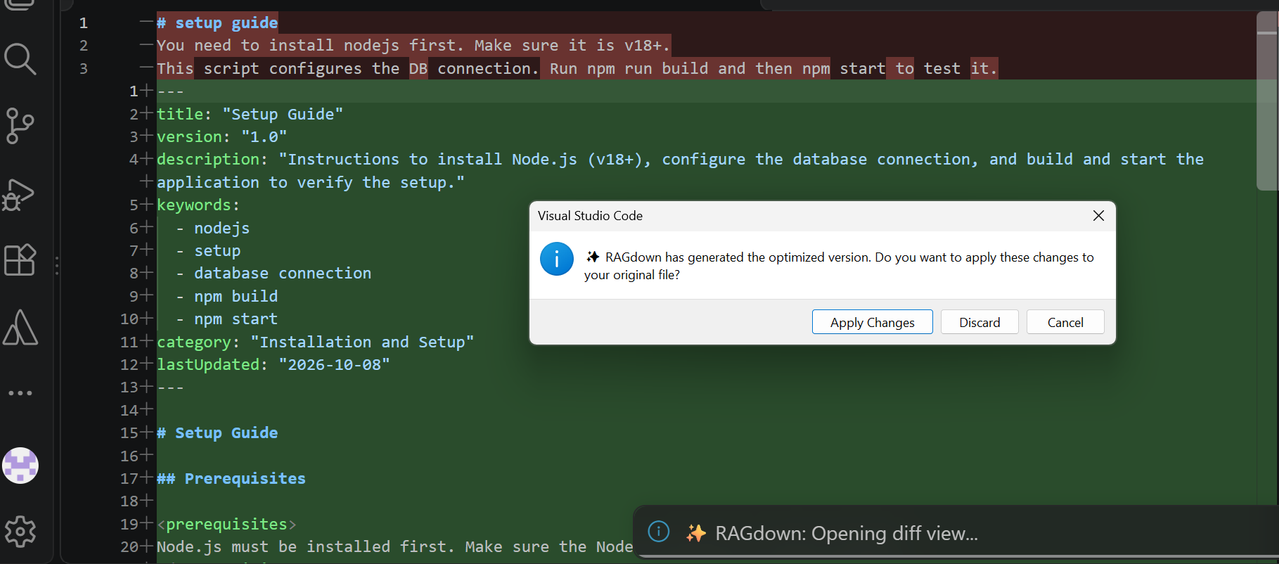
- Safe "Diff" Workflow: Generates the optimized version in a virtual memory space and opens a side-by-side Diff View. You have full control to review and hit "Apply Changes" or "Discard" without unwanted save prompts.
- Dynamic Model Selection: Automatically detects the most powerful AI model available in your environment (e.g., GPT-4o, Claude 3.5 Sonnet, o1) without hardcoded lock-ins. You can also specify your preferred model in the extension settings.
🛠️ How to Use
RAGdown is designed to be non-intrusive. It stays out of your way for general notes but is instantly accessible for formal documentation. You can trigger the optimization in three ways:
- Editor Title Bar: Click the "✨ RAGdown: Make AI ready" button located at the top-right corner of the editor title bar whenever a Markdown file is active.
- Smart CodeLens: A floating "✨ RAGdown: Make AI ready" action will automatically appear on line 1 of your file if:
- The file contains the HTML comment
<!-- type: guideline --> in the first few lines.
- The file is located inside a folder named
.guidelines/.
- Context Menu: Right-click anywhere inside any
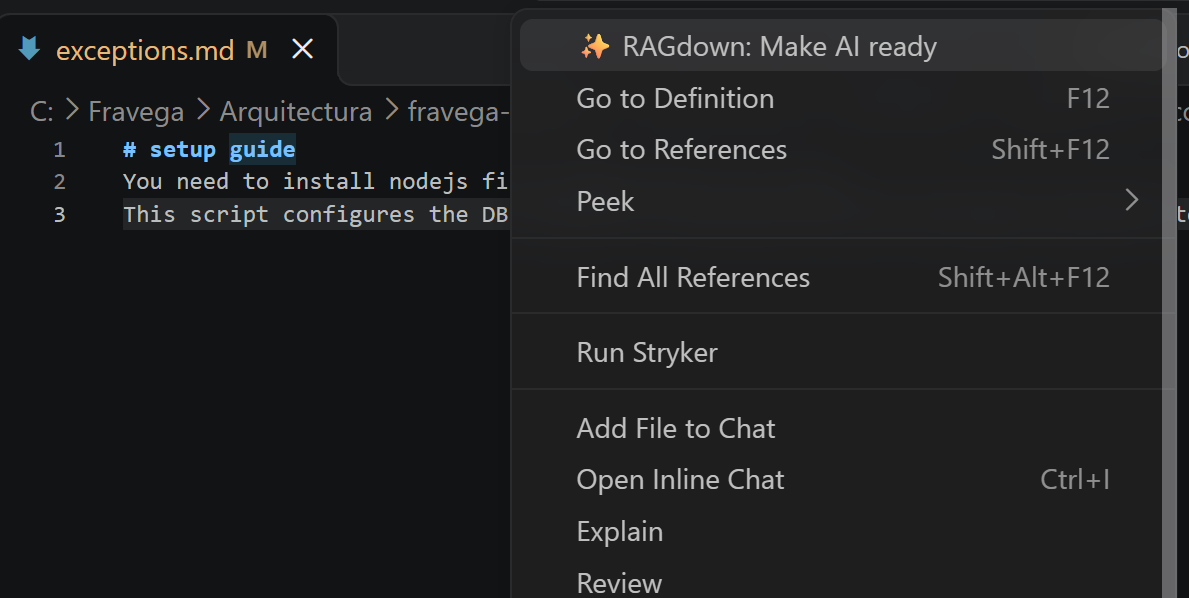
.md file and select "✨ RAGdown: Make AI ready" from the context menu.
📸 Visual Walkthrough
1. Trigger from Context Menu or Editor Bar
Right-click inside any Markdown document and select "✨ RAGdown: Make AI ready".
2. Review Proposed Changes in Diff View
RAGdown processes your document and opens a side-by-side Diff View. Review the added YAML frontmatter, improved heading hierarchy, and semantic XML tags before clicking Apply Changes.
⚙️ Requirements
- Visual Studio Code v1.140.0 or higher.
- An active GitHub Copilot subscription (or another compatible Language Model provider signed into VS Code).
⚙️ Extension Settings
You can customize RAGdown's behavior in your VS Code settings (Ctrl+, / Cmd+, -> search for RAGdown):
| Setting |
Type |
Default |
Description |
ragdown.showInContextMenu |
boolean |
true |
Show or hide the RAGdown action in the right-click context menu. |
ragdown.preferredModel |
string |
"auto" |
Preferred LLM model (e.g. auto, gpt-4o, claude-3.5-sonnet). |
ragdown.enableXmlTags |
boolean |
true |
Enable or disable semantic XML tags in the refactored output. |
ragdown.allowedXmlTags |
array |
[...] |
Custom array of allowed XML tags for semantic enrichment. |
If you prefer to keep your right-click context menu clean and only use the top editor title button:
- Open VS Code Settings (
Ctrl+, or Cmd+,).
- Search for RAGdown.
- Uncheck Show In Context Menu (
ragdown.showInContextMenu).
If your team uses custom semantic tags or prefers plain Markdown without XML:
- Open VS Code Settings (
Ctrl+, or Cmd+,) and search for RAGdown.
- Uncheck Enable Xml Tags to disable XML markup entirely.
- Or modify Allowed Xml Tags to add or remove tags according to your organization's documentation standards.
📄 License
This extension is licensed under the MIT License.

