CS Bridge


CS Bridge
CS Bridge launches remote VS Code sessions directly on the compute nodes of SLURM-based HPC clusters and connects them to your local VS Code, so you can develop on the cluster as if it were your own machine.
Features
- Automatic cluster discovery. CS Bridge detects the cluster's partitions and your allocations for you, with no manual configuration needed.
- Simple resource selection. Pick the partition, allocation, and resources for your session through a clean, minimal interface.
- Native VS Code experience. Sessions run on the compute node but open in your local VS Code, with your usual settings and workflow. Remote extensions install per session; see the FAQ.
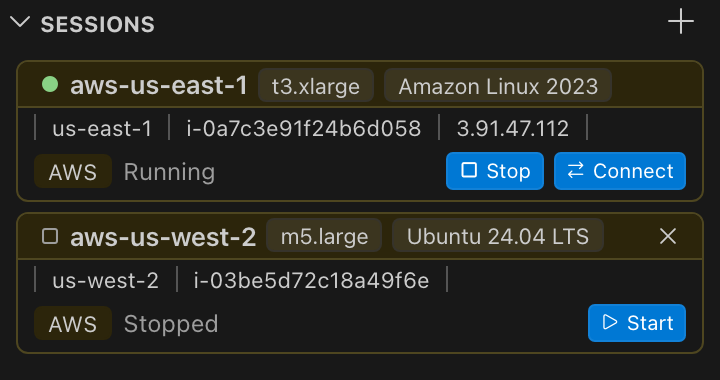
- Experimental AWS EC2 support. Beyond HPC clusters, CS Bridge can also launch remote VS Code sessions backed by AWS EC2 instances.
What You Can Do
The + in the Sessions view, or CS Bridge: Open Menu in the Command Palette, opens the CS Bridge menu. From it
you can:
- create a session on an SSH host;
- add a host;
- sign in or out of each account. Signing out of Microsoft signs that account out of VS Code as a whole.
With experimental features on, the menu also creates cloud VMs once you are signed in to AWS. It also chooses how
sessions connect.
Use the clusters you already have
The SSH Hosts view lists the hosts in your ~/.ssh/config. It also lists the system SSH config, read-only. It does not
show:
- hosts in included files;
- wildcard hosts;
Host lines naming several aliases.
Add a cluster by pasting the ssh command you already use. You can also edit or remove a host, or open a terminal on
it.
Adding a host under an alias that already exists in ~/.ssh/config replaces that entry when it is written
Host <alias>. An entry written in another case, such as host <alias>, is listed but cannot be edited or removed
here. Adding over it leaves both.
Renaming or removing a host that sessions use cuts those sessions off. Their status checks and Stop go to the old
alias. Stop a session's job before you rename or remove its host.
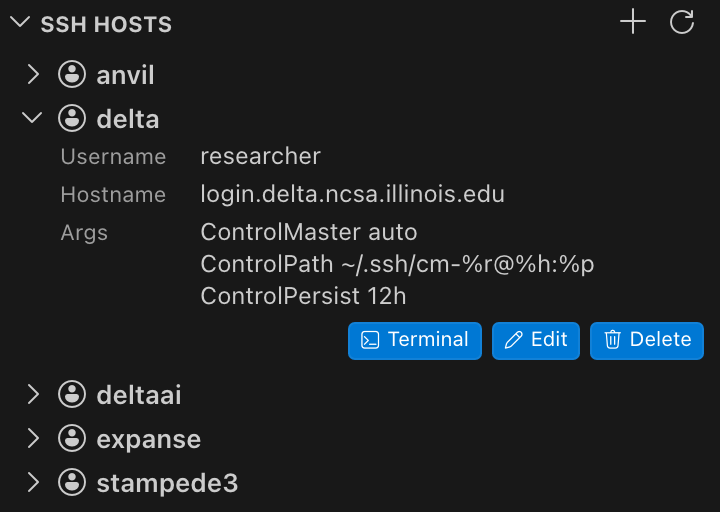
Choose the partition, Slurm account, CPUs, memory and GPUs the cluster offers. Add checks the request with Slurm
before saving it. Start asks for a walltime of up to 24 h, then shows the job script CS Bridge wrote. Submit Job
submits it. There is no batch script to maintain.
Code on the compute node
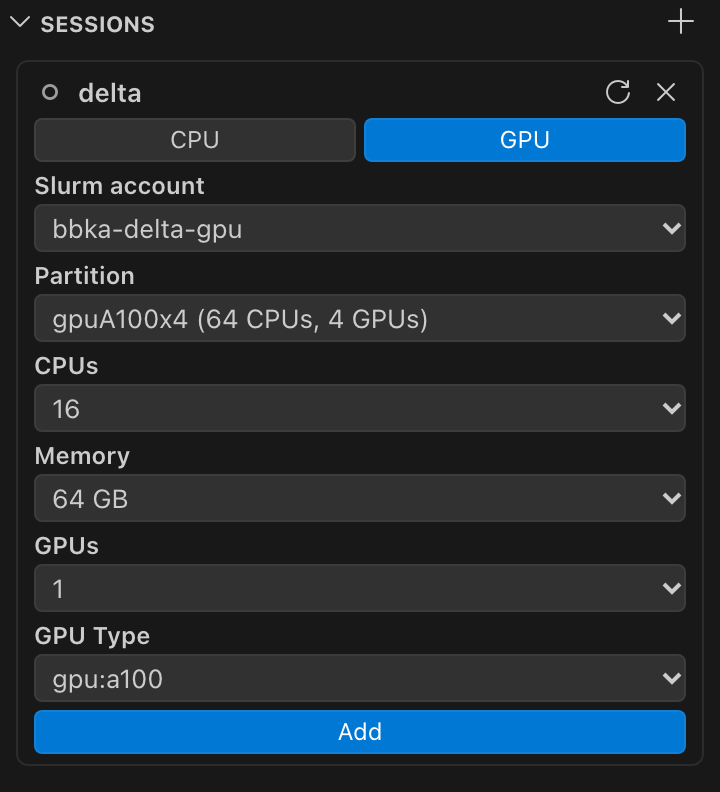
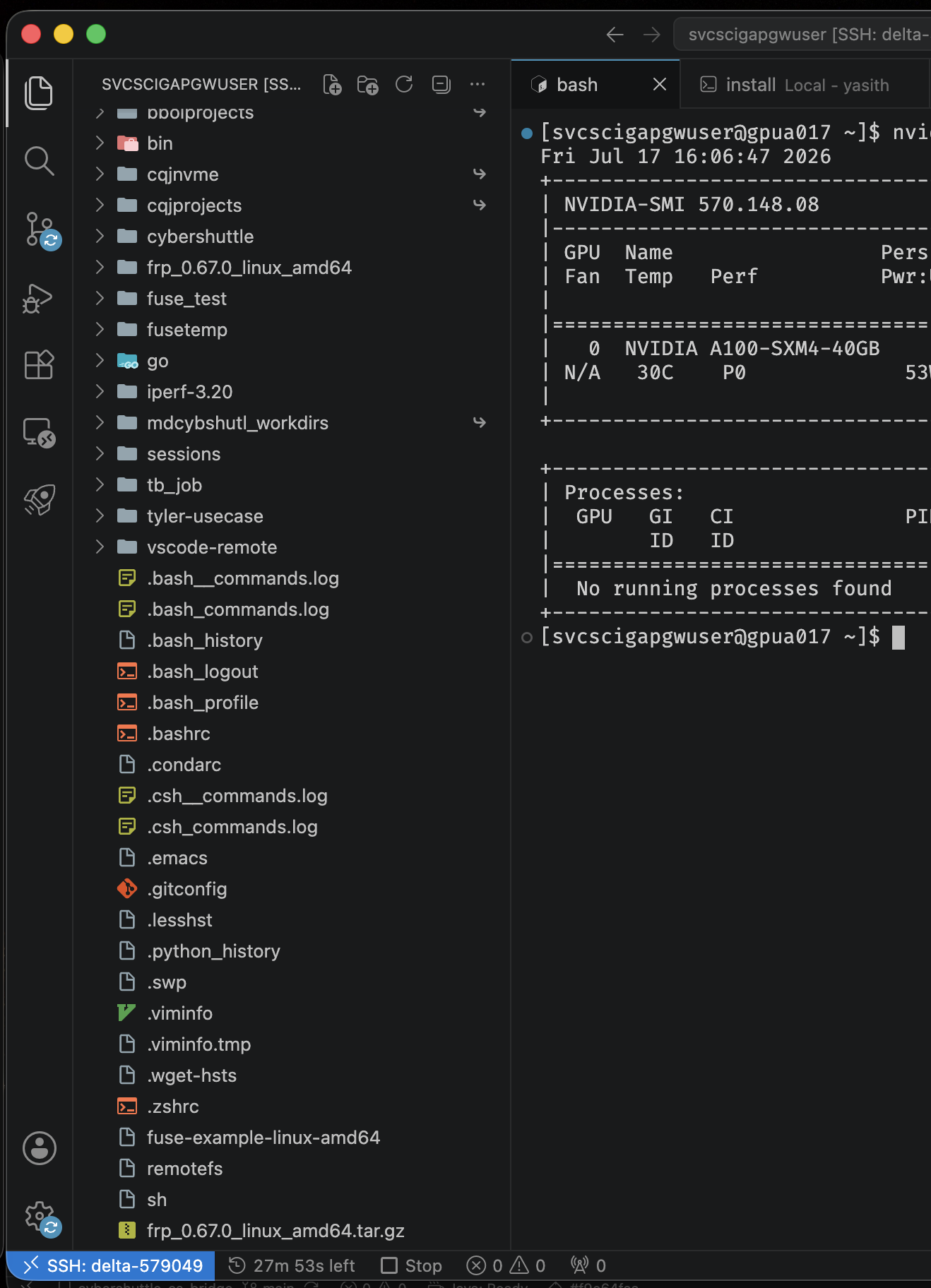
Click Connect and a new VS Code window opens on the node. Extensions, terminals, debugging and notebooks work as
they do locally, against the node's CPUs and GPUs. The window's status bar counts down the walltime. It turns to a
warning colour in the last 10 minutes. It also has a Stop button. When the job ends, the window returns to local.
Watch your job live
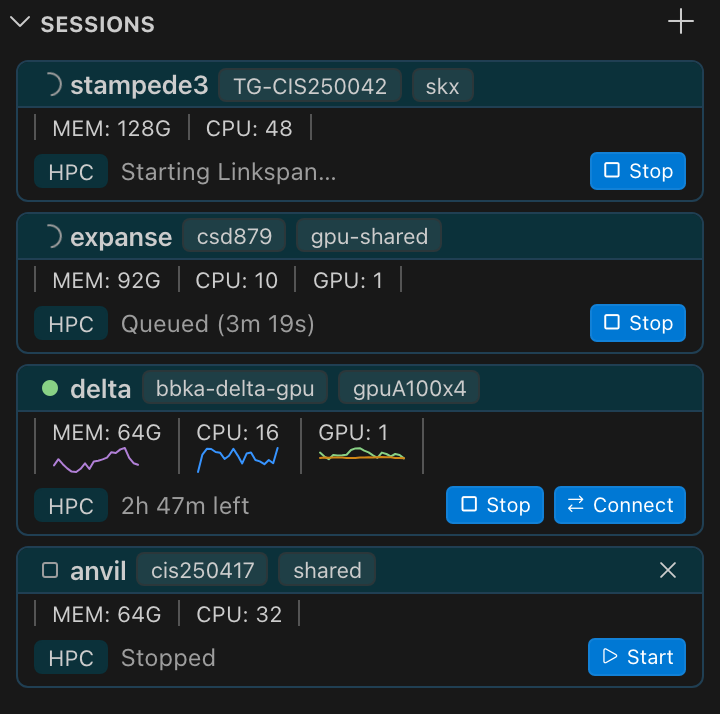
Each Slurm session shows its job state, remaining walltime, and its current CPU, memory and GPU use. You can see a
queued job start and spot an idle or overloaded one.
Keep working across windows and restarts
A session outlives its VS Code window. For a Slurm session, the local window you clicked Connect in carries the remote
window's connection. Keep a local window open while you work. An EC2 session's remote window connects straight to its
instance.
You can:
- close the window and Connect again later;
- Switch to a session open in another window;
- Stop a job to release its allocation;
- Start a finished session again with the same resources.
One window normally drives each session. Several windows restored together can briefly each take it. Connect, Start or
delete from another window shows "Another window is driving this session; act from there." Stop works from any window
once the job is submitted.
The × on a stopped, failed or not-started session deletes it. The delete also removes its run history and, for a Slurm
session, its SSH key.
See how well each run used its allocation
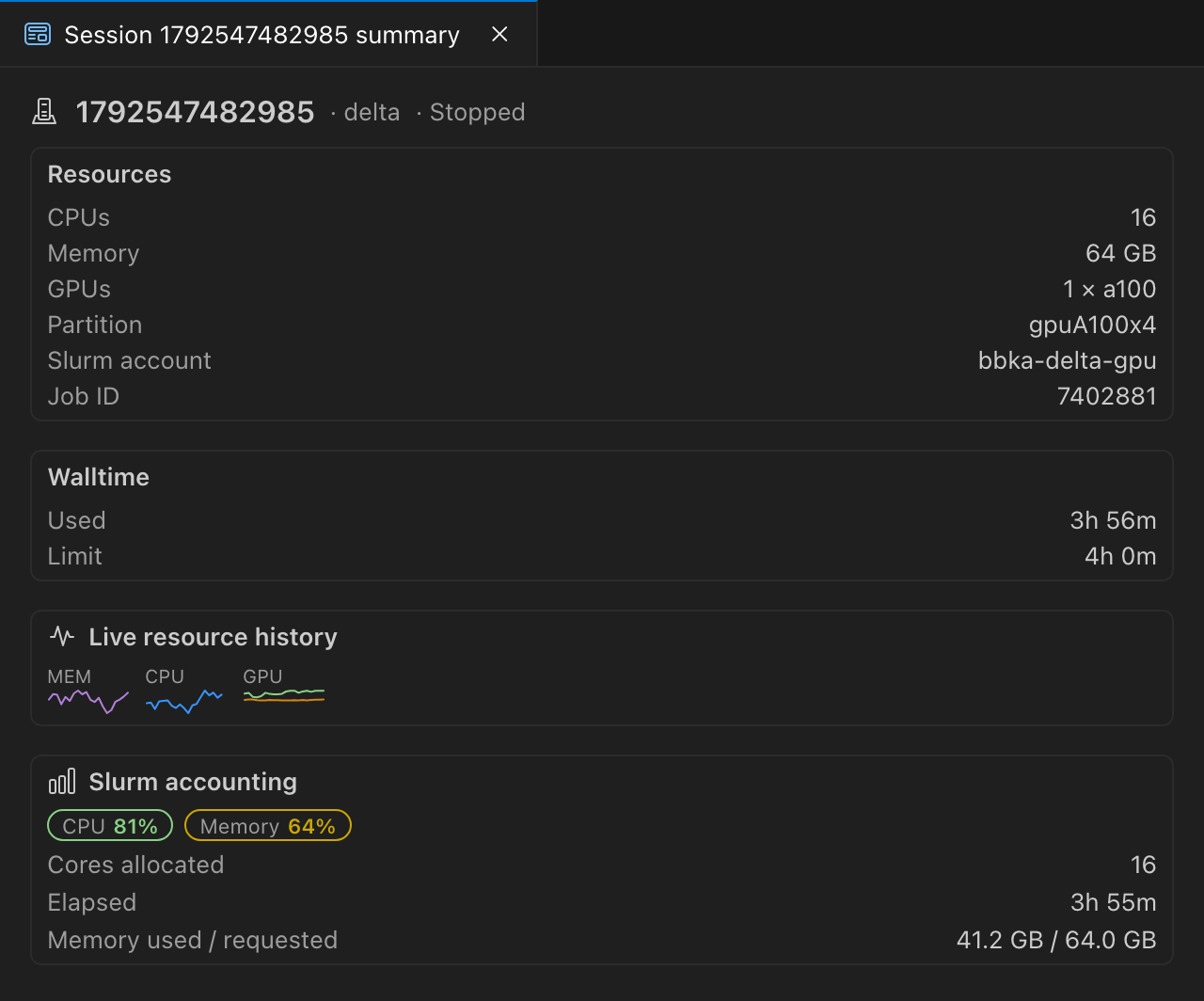
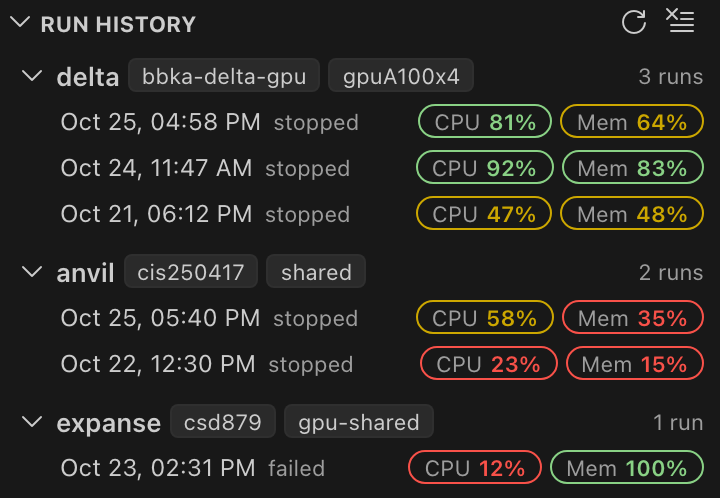
When a session ends in its window, that window returns to local. It opens a summary of what was requested, what was
used and Slurm's accounting. The Run History view keeps the last ten runs of each session, with CPU and memory
efficiency. It keeps them until the session is deleted or Clear Run History empties it. Click a run to open its
summary.
Get through firewalls without opening ports
Connections reach the compute node through a Microsoft Dev Tunnel. CS Bridge creates the tunnel in your Microsoft
account, and the node hosts it. The cluster needs no inbound port and no change from its administrators.
Each session keeps its Dev Tunnel until the session is deleted or started again on the Dev Tunnel transport. If that
delete fails, the tunnel is left in your account. A Start on the CyberShuttle transport leaves the earlier Dev Tunnel in
your account. It stays until the session is deleted or next started on the Dev Tunnel transport.
CS Bridge keeps one login per cluster open while a window that used it stays open. Except on Windows, you answer MFA
once for CS Bridge's commands and terminals. See the FAQ.
Experimental
Turn on csbridge.experimentalFeatures to try these. They may change or disappear between releases.
EC2 instances — when you need a VM rather than a cluster, spin one up and work on it from VS Code.
- Sign in to AWS from CS Bridge: Open Menu.
- Create a cloud VM by region, instance type (t3 or m5) and image (Amazon Linux 2023 or Ubuntu 24.04).
- Start, stop, connect and delete it like any other session.
An instance has no walltime. It keeps running, and billing, after its windows close or you sign out of AWS, until you
Stop it. A stopped instance keeps its disk until the session is deleted.
The first launch in a region creates the following. These stay in the account.
- A default VPC, if the region has none.
- A security group, CS-Bridge SSH Access, that opens port 22 to the internet.
- A key pair for this machine. It is not created if this machine already holds that region's key from an earlier
sign-in, even to another AWS account. Launches in that account then fail until the local key is removed.
Deleting a session terminates its instance and disk when the signed-in AWS account lists it. Signed in to a different
account, Delete removes only the record.
Signing out of AWS does not stop instances. Stop runs in the window driving the session. It fails while that window
is signed out, whichever window you click it in. Deleting an instance that was started, from a signed-out window,
works only after you sign in again there. A VM that never launched deletes at once. Other open windows keep their AWS
sign-in until reloaded.
Signing in also adds every CS Bridge instance in the AWS account, from any machine. This includes instances that
other users of a shared account launched. Stopping or deleting one of those affects that user's VM.
EC2 sessions have no Run History or summary. Their cards show region, instance and IP instead of usage and walltime.
CyberShuttle transport — an open-source alternative to Microsoft Dev Tunnels, served by Apache Airavata. Sign in
to CyberShuttle from the menu, then choose Cybershuttle Link under Default Transport. Sessions use it from
their next Start.
The first Start on it creates an Airavata session in your CyberShuttle account. That session holds the description
listed under Privacy. Each run asks Airavata to stop it. If that fails, for example while you are signed out, it
stays unstopped until one of these happens:
- the next Start on the CyberShuttle transport;
- the session is deleted while you are signed in.
Deleting it while signed out leaves it unstopped.
The Airavata session stays in your account until the CS Bridge session is deleted while you are signed in. This
also holds after a Start on the Dev Tunnel transport. If that delete fails, it is only logged, and the session is
left in your account.
Supported Clusters
CS Bridge is tested on the following ACCESS clusters (🟢 supported, 🟡 partially tested, 🔴 unsupported). Any Slurm cluster
with the following should work:
- job accounting (
sacct);
- an x86_64 or aarch64 Linux login node with outbound access to GitHub;
- compute nodes of the same architecture with outbound internet access.
Results from other clusters are welcome in the issue tracker.
| Name |
Hostname |
Slurm |
Architecture |
Compatibility |
| Anvil |
anvil.rcac.purdue.edu |
25.11 |
x86_64 |
🟢 |
| Bridges-2 |
bridges2.psc.edu |
22.05 |
x86_64 |
🟢 |
| Delta |
login.delta.ncsa.illinois.edu |
25.11 |
x86_64 |
🟢 |
| DeltaAI |
dtai-login.delta.ncsa.illinois.edu |
25.11 |
aarch64 |
🟢 |
| Expanse |
login.expanse.sdsc.edu |
23.02 |
x86_64 |
🟢 |
| Stampede3 |
stampede3.tacc.utexas.edu |
23.11 |
x86_64 |
🟢 |
Getting Started
You need:
- VS Code 1.101 or newer with Microsoft's Remote-SSH extension;
- an OpenSSH client (
ssh, ssh-keygen) with an existing ~/.ssh folder;
- a free Microsoft account;
- SSH access to a Slurm cluster as described above.
CS Bridge currently fails to activate when ~/.ssh does not exist. Create it first.
- Install CS Bridge from the VS Code
Marketplace, or search for
CS Bridge in
the Extensions view.
- Open CS Bridge from the activity bar. Choose Sign In to Microsoft DevTunnel from the + menu, or sign in when
the first Start asks. CS Bridge uses the account only to create, reach and delete each session's Dev Tunnel.
- From the + menu, choose Create New SSH Session and pick an SSH host. To add a host first, choose Add SSH
Host and paste its
ssh command.
- Fill in the resource form and click Add.
- On the new session, click Start, choose a walltime, review the job script, and click Submit Job.
- Once the job runs, click Connect. A new VS Code window opens on the compute node.
FAQ
How does CS Bridge differ from Remote-SSH?
Microsoft's Remote-SSH opens a
window on a machine you can already SSH to. CS Bridge first gets you a compute node. You usually cannot SSH to that
node directly. CS Bridge then hands the window to Remote-SSH.
Which operating systems are supported?
Windows, macOS and Linux, wherever VS Code and OpenSSH run. The cluster needs a Unix-like environment with SSH
and Slurm.
Do VS Code forks work?
VS Code Insiders, Cursor and other forks with Remote-SSH and Marketplace access usually work but are not tested.
Forks that ignore remote.SSH.serverInstallPath install the VS Code server in your cluster home directory.
Why am I asked for MFA again?
CS Bridge keeps one login per cluster open for as long as a VS Code window that used the cluster stays open. Except
on Windows:
- CS Bridge's own commands and the terminals it opens from the SSH Hosts view share that login.
- The login stays open for ten minutes after the window closes.
ssh, scp or rsync you run yourself authenticate separately.
Once the login closes, your next action on the cluster asks again. Background status checks never ask for cluster
MFA. While you are signed out of Microsoft, a session still preparing can raise the Microsoft sign-in prompt. So can
a connected session whose Dev Tunnel is being rebuilt.
Until you sign in again, a queued session shows as unreachable in the window that drives it. Other windows still
show it as queued. Its card offers only Stop, which ends the job. A running session keeps its last state.
To sign in again without stopping it:
- Choose + > Create New SSH Session and pick that host.
- If the form appears straight away, click its refresh icon (Refresh Slurm details), then dismiss the form.
On Windows, do this in the window that drives the session. On Windows, each window and each terminal asks
separately.
Why do my remote extensions reinstall every session?
CS Bridge installs each Slurm session's VS Code server on the node's local disk, separately per session. It does
this by setting remote.SSH.serverInstallPath in your user settings. EC2 sessions use Remote-SSH's default location.
List the extensions you always want in Remote-SSH's remote.SSH.defaultExtensions setting. They then install
automatically.
Why is the minimum 2 CPUs and 4 GB?
Less than that starves VS Code on the node. VS Code then gets killed for exceeding its memory.
Why is file transfer slower than plain SSH?
Dev Tunnels cap throughput at tens of Mbit/s. Move large data through the cluster's login node with scp or
rsync.
What does CS Bridge store, and how do I remove it?
See Files on disk.
Troubleshooting
Microsoft sign-in or a session's Dev Tunnel fails. Your network must allow:
login.microsoftonline.com for sign-in;*.rel.tunnels.api.visualstudio.com for creating the tunnel;*.devtunnels.ms for the tunnel.
A session started while you were signed in to a different Microsoft account cannot connect. Its Dev Tunnel belongs
to that account. Stop the session and Start it again. The earlier tunnel stays in the other account.
A session stays on Submitting…. Each launch checks GitHub from the cluster's login node for the current
agent. It downloads the agent when needed. This needs outbound internet access on the login node. See
View > Output > CS Bridge. Once the job runs, the agent's logs are in ~/.cybershuttle/logs/ on the cluster.
CS Bridge keeps the agent at ~/.cybershuttle/bin/linkspan. It writes two log files per job to
~/.cybershuttle/logs/ and never deletes them. Remove old logs yourself.
The remote window disconnects. On the Dev Tunnel transport, the local window that connected the session rebuilds
the tunnel on its own while you are signed in to Microsoft. Closing that window drops a Slurm session's remote window
connection until another local window is open. That window then reconnects it. Otherwise, or if that fails, close
the remote window, click Connect on the session in a local window, and check View > Output > CS Bridge.
The remote window crashes or reports No ptyHost heartbeat. The job ran out of memory. Create a new session
with more memory.
Dev Containers errors in the remote window. Clusters do not provide a container runtime. Disable the extension
for that window.
Privacy
CS Bridge collects no analytics. Your SSH credentials and session traffic pass only between you, the cluster and
Microsoft Dev Tunnels. With the experimental CyberShuttle transport, an open-source alternative to Microsoft Dev
Tunnels, the following go through Airavata instead:
- sign-in;
- each session's description (SSH host alias, Slurm account, partition, folder and resources);
- each session's traffic.
AWS credentials (experimental) go only to AWS. An EC2 session's traffic goes over SSH directly to its instance.
Learn More
- Documentation — how a session is launched, tunnelled, connected and stored.
- Contributing — building from source, development setup and the pull-request workflow.
- Paper — in preparation; the link will appear here once it is published.
- Changelog — what changed in each release.
Getting Help
Search the issue tracker before opening an issue. The bug form
asks for the View > Output > CS Bridge log and the cluster's ~/.cybershuttle/logs/ output.
Roadmap
CS Bridge is pre-1.0. Interfaces may change between releases. The following work is planned, in no particular order.
- [ ] Issue reporting from the extension — file an issue with a typed description and an automatically captured
stack trace.
- [ ] Queue visibility — queued jobs, queue positions and estimated start times shown in the Sessions view.
- [ ] Opt-in analytics — anonymous analytics to a central endpoint, sent only after explicit consent.
- [ ] Cloud VM support — EC2 is in (experimental). Other providers, and running a session's job on the
instance, are to follow.
- [ ] File mounts — mount local files and external datasets into the remote session.
- [ ] Checkpoint and restore — checkpoint a session and resume it in another job with its running processes intact.
Contributing
Issues and pull requests are welcome. CONTRIBUTING.md covers development setup and the
pull-request workflow. Participation is governed by the Code of Conduct. Security problems go
through SECURITY.md, not the issue tracker.
Citing
CS Bridge is part of CyberShuttle, the ARTISAN group's toolset for interactive HPC work. If it supports your
research, please cite:
@software{cybershuttle,
  title  = {CyberShuttle: Remote HPC Development from VS Code},
  author = {{ARTISAN Research Group, Georgia Institute of Technology}},
  year   = {2026},
  url    = {https://github.com/cyber-shuttle/CS-Bridge}
}
Acknowledgments
Developed by the ARTISAN research group at Georgia Tech. Built on
Linkspan, Dev
Tunnels and OpenSSH.
License
Apache-2.0

