Claude Sync — Memory, Skills, Sessions across Machines





Public beta — under active development. Frequent releases focused on
Claude Code workflow continuity across machines. Marketplace reviews and
repository feedback directly inform the roadmap.
Pick up exactly where you left off — on any machine. Claude Sync mirrors
your Claude Code working state through your own Google Drive, with a
drive.file scope so the extension can only see files it creates.
Install from the Marketplace — search Claude Sync in the Extensions view.
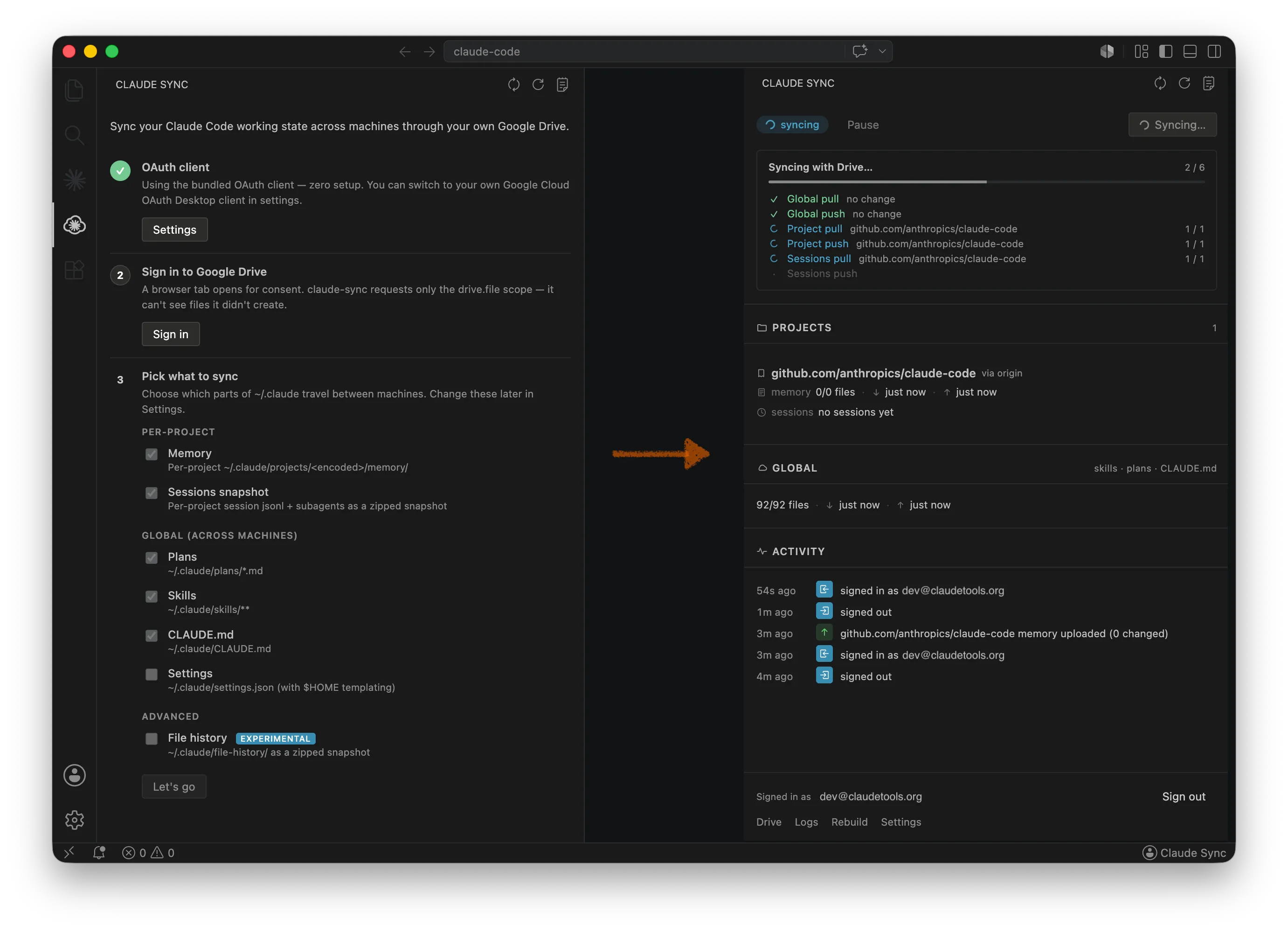
Overview
Sign in once per machine. From then on, every write to ~/.claude/ lands
on your Drive within seconds, and every poll cycle pulls remote changes
back. Per-project memory follows the git remote URL, not the local
folder path, so cloning the same repo elsewhere just works.
Highlights: 🔐 zero-setup OAuth · ⚡ per-file sync with 3-way merge · 🗂️ per-project + global scopes · 🧩 in-editor conflict resolution · 🔒 your Drive, your keys
Why install it
| Highlight |
What you get |
| Zero-setup sign-in |
Bundled OAuth client gets you syncing in one click. Replace it with your own Google Cloud client any time — useful for organisations that prefer to own the credentials. |
| Your Drive, your data |
drive.file scope — the extension only sees files it creates. No third-party server. No telemetry. Tokens stay in the OS keychain. |
| Smart merging |
Per-file 3-way merge against the last common Drive revision. Non-overlapping edits resolve cleanly; overlapping edits open a Conflicts editor tab with side-by-side panels and one-click "take this" per hunk. |
| Per-project + global |
Memory is keyed by the project's git remote, so the same repo lines up across machines. Plans, skills, CLAUDE.md, and (opt-in) settings sync globally. |
| Session continuity |
Claude session transcripts back up to Drive as a per-project zipped snapshot once the session has been idle for a few minutes — your conversations follow the repo. |
| Granular control |
Pick which scopes to sync during the 3-step onboarding, or toggle them later in Settings. settings.json is off by default because most entries are machine-specific. |
Capabilities
Sync
- Two lanes, picked per file type. Hot lane (per-file, 3-way merge)
for things you edit constantly — memory, plans, skills, CLAUDE.md,
optionally
settings.json. Cold lane (per-project zip snapshot, last-
writer-wins) for session transcripts and subagent runs.
- Push within ~1.5 s of a write, pull every 45 s by default
(configurable via
claudeSync.pullIntervalSec).
- Identity = git remote URL, normalised across
https:// and git@
forms. Open the same repo from any folder on any machine and Claude
Sync recognises it.
${HOME} templating for settings.json so hook and MCP paths
survive moving between macOS, Linux, and Windows.- Sync other projects… lives on the Projects section header and
opens a multi-select picker of every Claude-stored project under
~/.claude/projects/ that still has a git remote, so you can sync
repos that aren't currently open in this VS Code window.
- Identity bar at the top pairs the Claude Code account (from
~/.claude.json) with the Drive destination on two thin rows — so
you always see which Claude is syncing to which Drive. Switch
account and sign-out sit on the Drive row.
- Status pill doubles as the sync button. Click it (or tab-focus +
Enter) to trigger Sync this workspace; a ↻ glyph on the right
signals the affordance.
Conflicts
- Conflict banner in the sidebar surfaces the total conflict count
whenever conflicts exist, with a one-click jump to the Conflicts
editor tab — you don't have to scroll to notice them.
- Conflicts editor tab lists every conflicted file across project +
global scopes, expandable per file.
- Take local / Take remote per hunk with side-by-side panels;
bulk "All local" / "All remote" per file; Save & Push Resolved
writes the resolved bytes and triggers the next sync tick.
- Or hand-edit — Open the file in VS Code's normal merge UI;
saving clears the conflict flag automatically.
Onboarding
- 3-step flow in the sidebar — OAuth client → Sign in → pick what
to sync → Let's go. Choices persist; sign in on another machine
later and the panel jumps straight to the app view.
- Scope presets on Step 3 — Recommended, Per-project only,
Everything, None — one click sets the seven scope toggles to a
sensible combination. Individual checkboxes still cover the long tail.
- Switch accounts in one click from the sidebar if you sign in
with a different Google account; sync state for the old account is
cleared automatically.
Privacy & security
- Refresh tokens stored in the OS keychain via VS Code
SecretStorage — Keychain on macOS, Credential Manager on Windows,
libsecret on Linux.
- No outbound calls outside Google's OAuth + Drive endpoints. Zero
telemetry, zero analytics, no third-party SDKs.
drive.file scope — Claude Sync can only see files it creates.
The rest of your Drive stays invisible. Full details in
PRIVACY.md.
Reliability
- Local cache + state at
~/.claude-sync/ with atomic write,
pre-extract backups (7-day TTL), and a Rebuild sync state from Drive recovery command if state ever drifts.
- Pre-uninstall cleanup —
Claude Sync: Delete local cache + state
wipes the local footprint in one click before you remove the extension.
- Failure escalation — three consecutive failed sync ticks
surface a warning toast with one-click paths to logs and the
diagnostic export, so silent outages don't go unnoticed.
- Diagnostic export —
Claude Sync: Export diagnostics
bundles redacted state, recent activity, and the last 500 log
lines into a single Markdown file for bug reports.
Get started
- Install from the Marketplace — search Claude Sync in the
Extensions view, or
code --install-extension ClaudeTools.claude-code-sync.
- Open the Claude Sync sidebar (☁ icon in the activity bar) and
walk the 3-step onboarding.
- Edit
~/.claude/ as usual. Changes propagate to your other
machines automatically.
That's it. Sensible defaults work without any configuration.
What gets synced
| Local path |
Scope |
Default |
~/.claude/projects/<repo>/memory/** |
per-project |
on |
~/.claude/projects/<repo>/*.jsonl (sessions) |
per-project |
on |
~/.claude/plans/*.md |
global |
on |
~/.claude/skills/** |
global |
on |
~/.claude/CLAUDE.md |
global |
on |
~/.claude/settings.json (with ${HOME} templating) |
global |
off |
Toggle any scope during onboarding or later from VS Code Settings
(claudeSync.scope.*). settings.json is off by default because most
entries are machine-specific (hooks, MCP server paths).
Excluded by design: plugins/, cache/, backups/, ide/,
dotfiles under skills/, shell-snapshots/, session-env/,
telemetry/, downloads/, .env.
Settings
Search Claude Sync in Settings to configure:
- Background sync — master switch (
claudeSync.enabled) and poll
interval (claudeSync.pullIntervalSec, default 45 s).
- Scope toggles —
claudeSync.scope.memory, plans, skills,
claudeMd, settings, sessions, fileHistory.
- OAuth —
claudeSync.oauth.useBuiltin to switch between the
bundled client and your own; client ID/secret for the custom path.
- Cold-lane behaviour —
claudeSync.coldLane.idleMinutes controls
how long a session must sit idle before its transcript is backed up.
- Verbose logs —
claudeSync.debug writes diagnostic output to
the Claude Sync Output channel.
Defaults work out of the box.
Advanced — bring your own OAuth client
The bundled client gets you started instantly. To own the credentials
end-to-end (organisations, audit-heavy workflows):
- https://console.cloud.google.com → create or pick a project.
- APIs & Services → Library → enable Google Drive API.
- OAuth consent screen — User Type External, app name
claude-sync, scope .../auth/drive.file. Publish to In
Production (no verification needed — drive.file is non-sensitive).
- Credentials → OAuth client ID → type Desktop app. Copy ID
- secret into VS Code Settings (
claudeSync.oauth.useBuiltin = false,
then paste both fields).
Changelog
See CHANGELOG.md for release notes.
License
MIT — © 2026 Claude Sync contributors.
| |

