CPQ DevKit™ for Salesforce
CPQ DevKit™ for Salesforce helps you develop, sync, diff, backup, and deploy Quote Calculator Plugin (QCP) scripts and configuration for Salesforce CPQ.



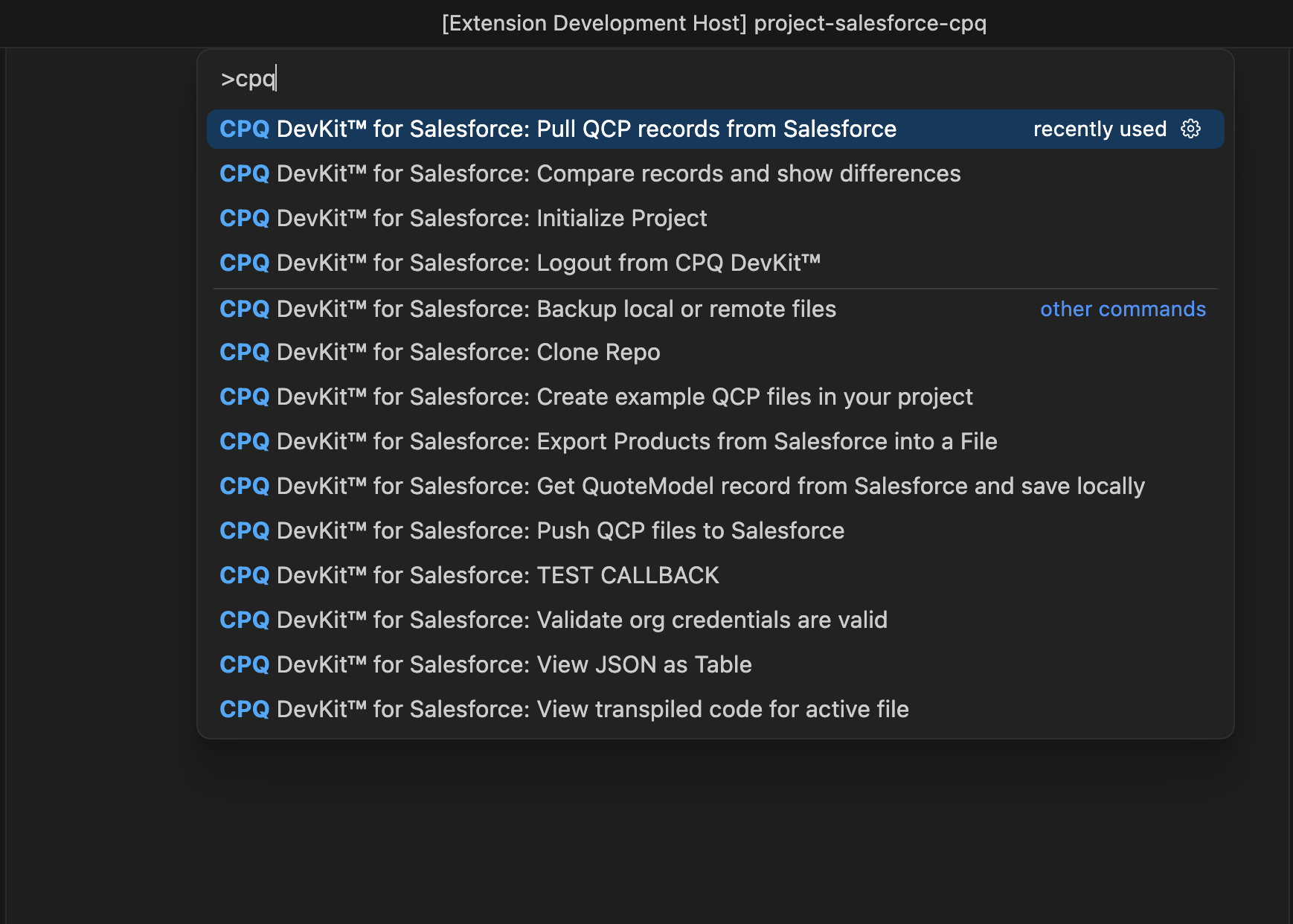
Quick Start
- Install the extension from the VS Code Marketplace
- Open a folder and run CPQ DevKit™ for Salesforce: Initialize Project
- Sign in to your Salesforce org when prompted (OAuth)
- Pull QCP records into
src/, edit them, then push your changes back
Initialize Project also creates the local project files you need: tsconfig.json, package.json, .env, example QCP files, and unit-test templates.
What's New in 2.7.1
- New Marketplace icon: the CPQ DevKit™ wordmark on the Salesforce color plate
- Ask
@cpq-sf in chat, or use #sfOrg, to see the connected org
- Install Chat Skills adds a QCP debugger skill you can use in chat
- Requires VS Code 1.109 or later
See full release notes in the changelog.
How to use it
- Run Initialize Project and complete Salesforce sign-in.
- Use the built-in walkthrough if you want a guided first pull.
- Pull QCP Records to download scripts into
src/.
- Edit locally with IntelliSense, formatting, and optional AI completions.
- Diff against Salesforce, then Push Active File or Push QCP Files.
- Use backup, export, import, and deploy when you need to move configuration between orgs.
Turn on sfdcQcp.pushOnSave if you want a push prompt every time you save.
Project structure
Initialize Project creates and maintains:
.cpqdevkit/sfcpq/qcp-config.json — project and org connection.cpqdevkit/sfcpq/qcp-log.json — pull/push historysrc/ — local QCP source filestests/ — templates plus QuoteModel downloads for local testingtsconfig.json, package.json, .env, and example files as needed
Keep .cpqdevkit/sfcpq and .env out of git. The extension adds them to .gitignore for you.
Features
Two-way QCP sync
Edit QCP locally, then sync with Salesforce in one command.
- Pull QCP Records — download all QCP scripts
- Pull Active File — refresh the open file
- Push QCP Files — upload all local changes
- Push Active File — push only the file you are editing
- Push on save — optional prompt when you save
Diff and compare
Compare a local file with Salesforce, or compare two local files, before you push.
Backup and export
- Create CPQ Configuration Backup — QCP, Price Rules, Product Rules, and Discount Schedules
- Export QCP Records, Export Price Rules, Export Product Rules, Export Discount Schedules
- Export Products — Product2 records with CPQ fields (CSV or JSON)
Import and deploy
Move configuration from sandbox to production.
- Import Price Rules, Product Rules, and Discount Schedules from exported JSON
- Deploy CPQ Configuration from a backup
- Dry-run mode to preview changes first
Org inspection
- Inspect Org — Markdown report with package versions, CPQ settings, counts, and pricing-rule complexity
- Compare Snapshots — compare two backup/export files for drift
- Assess Revenue Cloud Migration Readiness — inventory legacy CPQ assets
AI completions
Suggestions for onBeforeCalculate, onAfterCalculate, and other QCP callbacks, with QuoteModel / QuoteLineModel context. Choose GPT-4o or Claude 3.5 Sonnet. Only a small window around your cursor is sent.
Unit testing
Test QCP locally with QuoteModel data downloaded from Salesforce.
- Open any JSON file as a table from the editor title bar
- Validate Org Credentials, Open Project Configuration, Open Sync Log, and Copy Diagnostics when something looks off
Commands
All commands are in the Command Palette (Ctrl+Shift+P / Cmd+Shift+P) under CPQ DevKit™ for Salesforce.
| Command |
Description |
| Sign In |
Sign in to CPQ DevKit |
| Sign Out |
Sign out of CPQ DevKit |
| Initialize Project |
Create the project and sign in to Salesforce |
| Create Example QCP Files |
Add example QCP scripts |
| Pull QCP Records |
Download all QCP scripts |
| Pull Active File |
Refresh the current file |
| Push QCP Files |
Upload all local changes |
| Push Active File |
Push the current file |
| Compare Records |
Diff local vs. Salesforce QCP |
| Compare Active File |
Diff the current file with Salesforce |
| View Transpiled Code |
View transpiled JavaScript for the active file |
| Open QCP Record in Salesforce |
Open the record in the browser |
| Create Backup |
Local backup of QCP files |
| Download QuoteModel |
Fetch a QuoteModel for local tests |
| Export Products |
Export Product2 records to CSV or JSON |
| View as Table |
Open JSON as a table |
| Create CPQ Configuration Backup |
Full backup of QCP and rules |
| Export QCP Records |
Export all QCP scripts |
| Export Price Rules |
Export Price Rules |
| Export Product Rules |
Export Product Rules |
| Export Discount Schedules |
Export Discount Schedules |
| List Backups |
Browse previous backups |
| Import Price Rules |
Import Price Rules from a file |
| Import Product Rules |
Import Product Rules from a file |
| Import Discount Schedules |
Import Discount Schedules from a file |
| Deploy CPQ Configuration |
Deploy a full CPQ configuration |
| Inspect Org |
Generate an org inspection report |
| Compare Snapshots |
Compare two backups or exports |
| Assess Revenue Cloud Migration Readiness |
Write a migration workbook |
| Set AI API Key |
Store your API key for completions |
| Toggle AI Completions |
Turn AI suggestions on or off |
| Clear AI API Key |
Remove the stored key |
| Install Chat Skills |
Add the QCP debugger skill for chat |
| Open Project Configuration |
Open qcp-config.json |
| Open Sync Log |
Open qcp-log.json |
| Copy Diagnostics |
Copy environment info for support |
| Validate Org Credentials |
Test that Salesforce sign-in still works |
Settings
Configure the extension under sfdcQcp.* in VS Code Settings.
| Setting |
Default |
Description |
sfdcQcp.pushOnSave |
false |
Prompt to push the file to Salesforce on save |
sfdcQcp.saveLog |
true |
Save a log entry for each push/pull |
sfdcQcp.maxLogEntries |
150 |
Maximum sync-log entries |
sfdcQcp.prettier |
true |
Create a .prettierrc file during Initialize Project |
sfdcQcp.export.outputFormat |
"csv" |
Export format (csv or json) |
sfdcQcp.debugMode |
false |
Enable detailed logging |
sfdcQcp.enableTelemetry |
false |
Anonymous product telemetry (never includes file contents or CPQ data) |
sfdcQcp.aiCompletionsEnabled |
true |
Enable AI completions (requires Pro) |
sfdcQcp.aiModel |
"gpt-4o" |
Completions model (gpt-4o or claude-3-5-sonnet) |
sfdcQcp.apiBaseUrl |
"https://app.cpqdevkit.com/api" |
CPQ DevKit API base URL |
sfdcQcp.requestTimeout |
30000 |
Timeout in ms for Salesforce requests |
sfdcQcp.export.products.outputFormat |
"csv" |
Default Product2 export format |
sfdcQcp.export.products.fields |
(built-in field list) |
Product2 and CPQ fields included in product export |
Requirements
- VS Code 1.109 or later
- A Salesforce org with the CPQ managed package installed
- Access to Custom Script (QCP) records in that org
Security & Privacy
- Salesforce sign-in uses OAuth. Passwords are not stored.
- Org credentials stay on your machine.
.cpqdevkit/sfcpq and .env are added to .gitignore- Backup, import, deploy, and AI completions use CPQ DevKit services
- AI completions send only a small code window around your cursor
Privacy Policy
Documentation
Support
License
See LICENSE.md for details.
Frequently Asked Questions
What is CPQ DevKit™ for Salesforce?
A VS Code extension for Salesforce CPQ QCP work: pull/push, backups, import/export, deploy, AI completions, and local testing.
How do I connect to my org?
Run Initialize Project and complete OAuth. The extension saves the workspace configuration it needs.
Can I compare, back up, and deploy CPQ configuration?
Yes. You can diff records, create local and full CPQ backups, export products, and import or deploy QCP, Price Rules, Product Rules, and Discount Schedules.
Which operating systems are supported?
macOS, Windows, and Linux.
Salesforce, Salesforce CPQ, and related marks are trademarks of Salesforce, Inc. CPQ DevKit™ is not endorsed by or affiliated with Salesforce.

