Modern Video Player — with Audio for VS Code





Extension that plays .mp4, .mov, .m4v, .mkv, .avi, .webm (plus
.m2ts, .mts, .flv, .f4v) videos (video and audio) in a Visual Studio
Code editor tab. You can keep the video open in one pane and keep writing code in
another by splitting the editor — no external windows.
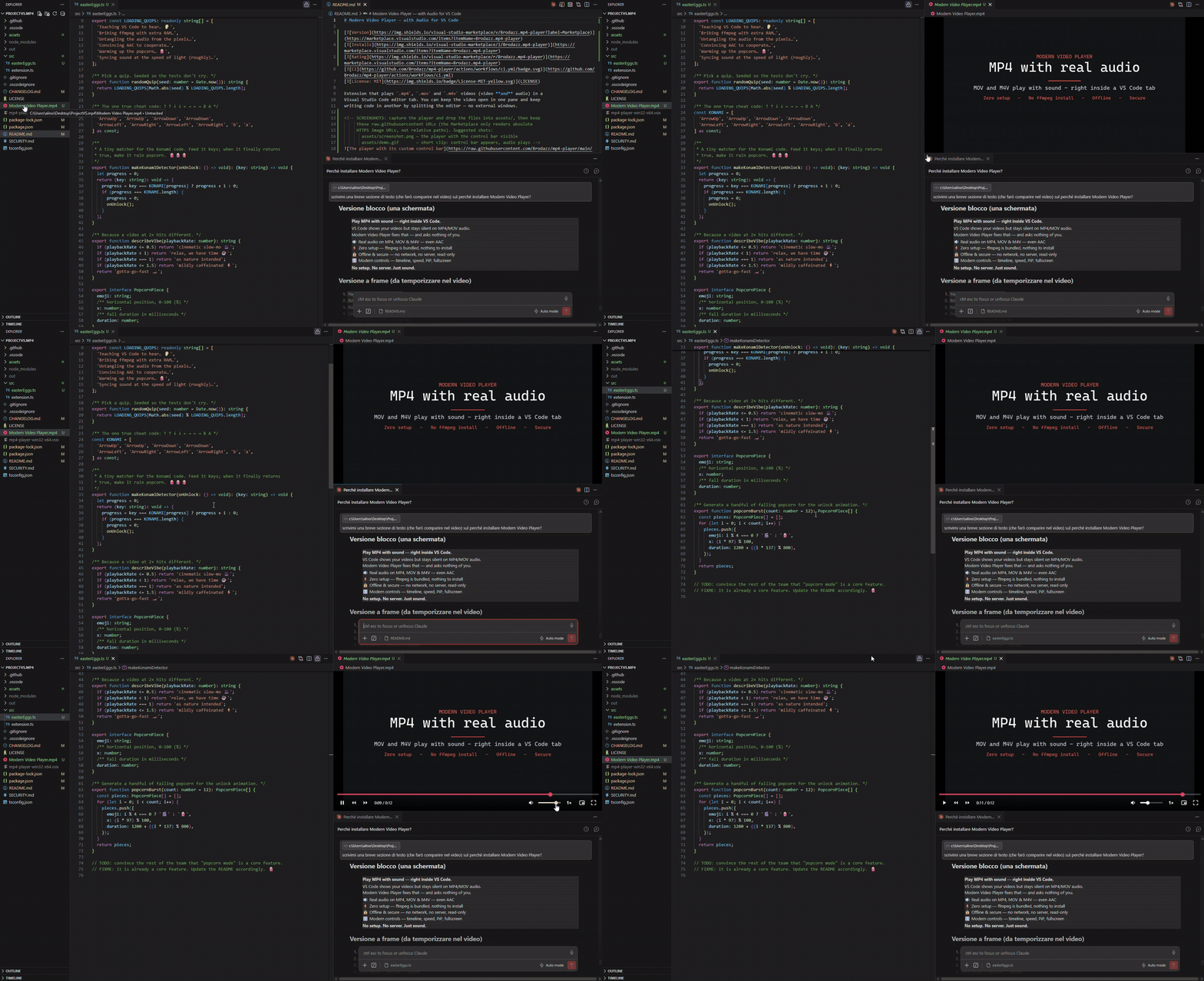
A modern workflow: a reference video (Modern Video Player), your code and your AI assistant — all at once, in VS Code.
What's new
- 0.8.9 — Rotate 90° (
T) for sideways phone videos, and A-B loop ([ ]) to repeat a segment.
- 0.8.8 — Timeline time tooltip: hover the progress bar to preview the exact timestamp before you click.
- 0.8.7 — Refreshed glass control bar, a keyboard-shortcuts overlay (
?), and frame-by-frame stepping (, / .).
- 0.8.5 — Audio boost to 200%, loop, and subtitle timing nudge (
Z / X).
- 0.8.3 — WebM (VP9/VP8) playback via on-the-fly transcoding.
See the full changelog for details.
Why this one
Video extensions for VS Code tend to fall into two camps. Classic players show
MP4 but stay silent (Chromium in VS Code can't decode AAC), can't open MKV, and
choke on HEVC — or they make you install ffmpeg yourself. Heavyweight
players do add HEVC/AV1, but ship a large per-webview decoder and loosen the
security policy to get there.
This one is built to give you the best of both: it bundles ffmpeg (compiled
to WebAssembly), so MP4, MKV and even HEVC/H.265 play with audio out of the
box — while staying a single, lightweight, secure, fully offline extension
with a strict CSP and no local server. You get the format coverage of the heavy
players without giving up the things that made the simple ones safe.
- 🔊 Real audio, out of the box — even AAC (plus AC-3, Opus, Vorbis), which the VS Code engine can't decode on its own, so most in-editor players show your MP4/MKV silently. Here it just plays, with sound — on MP4, MKV, MOV, M4V, AVI, M2TS/MTS, FLV, F4V & WebM
- 🎬 HEVC / H.265 and WebM (VP9/VP8) too — converted to H.264 on the fly, since VS Code can't decode them natively
- ⚡ Zero setup —
ffmpeg is bundled; nothing to install
- 🔒 Secure & offline — no network, no local server, read-only editor, strict CSP
- 🎛️ Modern control bar — a floating glass panel with a seekable timeline (hover to preview the timestamp), speed (0.25×–2×), audio boost to 200%, loop & A-B loop, rotate 90°, frame-by-frame (
,/.), Picture-in-Picture, fullscreen, and a shortcuts overlay (?)
- 📝 Subtitles, zero config — drop a
.srt/.vtt with the same name next to the video and it just appears (SRT is converted on the fly); toggle with C
- 📸 Grab a frame, paste anywhere —
S captures the current frame so you can Copy it straight into a chat with your AI assistant, an issue or a doc — or Save it as a PNG. No screenshot tool, no leaving VS Code
- 💾 Remembers your volume, speed and resume position per file
- 🪶 Lightweight & focused — does one thing, well
- 🖥️ Cross-platform — one universal package for Windows, Linux and macOS (Intel & Apple Silicon)
|
This extension |
Classic player extensions |
Heavyweight HEVC players |
| Audio incl. AAC / AC-3 |
✅ out of the box |
❌ silent (or needs ffmpeg) |
✅ |
| MKV · AVI · TS · FLV · WebM |
✅ |
⚠️ rarely |
✅ |
| HEVC / H.265 · VP9 / VP8 |
✅ converted on the fly |
❌ |
✅ real-time |
| Zero setup (no ffmpeg to install) |
✅ bundled |
⚠️ often install it yourself |
✅ |
| Lightweight |
✅ ~9 MB, one universal package |
✅ |
⚠️ heavier per-webview decoder |
| Security |
🔒 strict CSP, read-only, offline |
varies |
⚠️ relaxed CSP |
| Offline · no local server |
✅ |
⚠️ some run a server |
✅ |
| Control bar (speed · PiP · fullscreen) |
✅ built-in |
varies |
varies |
"Converted on the fly" = a short one-time conversion (with a "Converting…" badge),
not real-time HEVC decode — the trade for staying lightweight and keeping a strict
security policy.
How it works
VS Code is built on Electron (Chromium), so an HTML5 <video> tag in a Webview
plays the H.264 video of MP4/MOV/M4V files. The VS Code engine, however, does
not decode AAC (and other) audio: that's why the extension extracts the audio
track and transcodes it locally — with a bundled ffmpeg compiled to
WebAssembly — into MP3, then plays it in sync with the video. Everything
happens offline, on your PC, from a single universal package (no per-platform
binaries). The extension registers a Custom Editor for .mp4, .mov, .m4v,
.mkv, .avi, .m2ts, .mts, .flv, .f4v and .webm.
For containers VS Code can't open directly — .mkv, .avi, .m2ts, .mts,
.flv, .f4v, .webm — the extension remuxes the H.264 video into a temporary
MP4 (a fast repackage, no re-encoding) so the Webview can play it, then extracts the
audio the same way. When the video is HEVC or VP9/VP8 (which the Webview can't
decode), it is converted to H.264 on the fly instead of just repackaged.
Installation
From a .vsix file
- Download the
.vsix file (from the Releases page, or build it yourself, see below).
- In VS Code: Extensions (
Ctrl+Shift+X) → ... menu → Install from VSIX...
- Or from the terminal:
code --install-extension mp4-player.vsix
Usage
- Open a
.mp4, .mov, .m4v, .mkv, .avi, .m2ts, .mts, .flv, .f4v or .webm file from the Explorer: the player starts.
- To place code and video side by side, use the editor split (
Ctrl+\ or drag the tab).
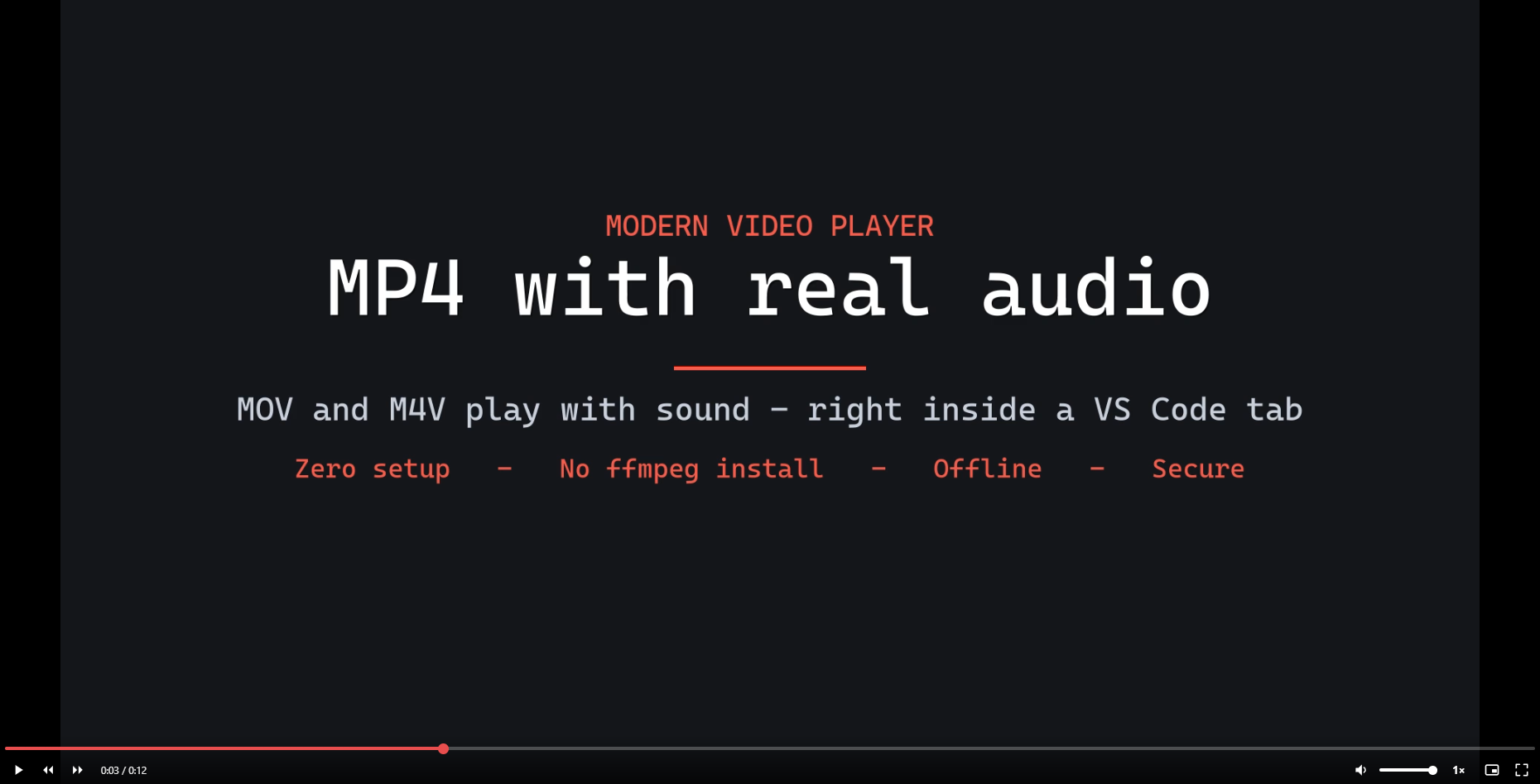
- A custom control bar appears at the bottom of the player on mouse move
(play/pause, seekable timeline, time, volume with boost to 200%, playback
speed, loop, Picture-in-Picture, fullscreen) and fades out during playback.
Keyboard shortcuts work too (see below).
- Subtitles, zero config: drop a
.srt (or .vtt) file with the same name
next to the video and it loads automatically — no menus, no import step. SRT is
converted to WebVTT on the fly and the cues are injected directly into the player
(so VS Code's strict security policy never blocks them). Toggle with the CC
button or C; if a downloaded subtitle is out of sync, nudge it with Z / X.
- Capture a frame: press
S (or the camera button) to grab the current frame,
then Copy it to the clipboard or Save it as a PNG. Copy is the handy
one: paste the still straight into a chat with your AI assistant, a bug report or
some notes — without a separate screenshot tool and without leaving VS Code.
Keyboard shortcuts
| Key |
Action |
Space / K |
Play / Pause |
← / → |
Back / Forward 5s |
, / . |
Previous / next frame (when paused) |
↑ / ↓ |
Volume up / down (up to 200%) |
< / > |
Slower / Faster (0.25×–2×) |
M |
Mute |
R |
Loop on/off |
[ / ] |
Set A-B loop point A / B |
\ |
Clear A-B loop |
T |
Rotate 90° |
P |
Picture-in-Picture |
S |
Capture frame (copy or save as PNG) |
C |
Subtitles on/off |
Z / X |
Nudge subtitles earlier / later (±0.5s) |
F |
Fullscreen |
? |
Show this shortcut list in the player |
Tip: press ? inside the player to see all shortcuts at any time.
Development
npm install
npm run compile      # or: npm run watch
Press F5 in VS Code to open the Extension Development Host test window.
Packaging (.vsix)
npm run package
Security
See SECURITY.md. In short: restrictive Content-Security-Policy,
cryptographic nonce, file access limited to the video's folder, read-only editor,
no network connections.
Supported codecs
- Video: H.264 (the most common) plays in any supported container
(MP4/MOV/M4V directly; MKV/AVI/M2TS/MTS/FLV/F4V/WebM remuxed to MP4 first).
H.265/HEVC (8- or 10-bit) and WebM's VP9/VP8 are converted to H.264
on the fly — VS Code can't decode them itself, so the bundled ffmpeg does it
(a one-time wait, shown as "Converting video…"); very large/long files are
skipped to keep that wait short. Codecs that can't be decoded at all (e.g.
AV1) show a clear error naming the codec found, so you know exactly why.
- Audio: handled via local transcoding with a bundled WebAssembly
ffmpeg,
so it works even with AAC (which VS Code does not decode on its own) — and
AC-3, ALAC and other codecs too. The audio is converted to a temporary MP3 the
VS Code engine plays reliably, then cached for instant reopens. The cache
cleans itself up (files older than 7 days, and a 1 GB cap).
One universal package for all platforms — Windows, Linux and macOS (Intel &
Apple Silicon). Audio works everywhere thanks to a bundled ffmpeg compiled to
WebAssembly: no native binaries, nothing to install.
License
MIT © Alessandro Broda
| |

